
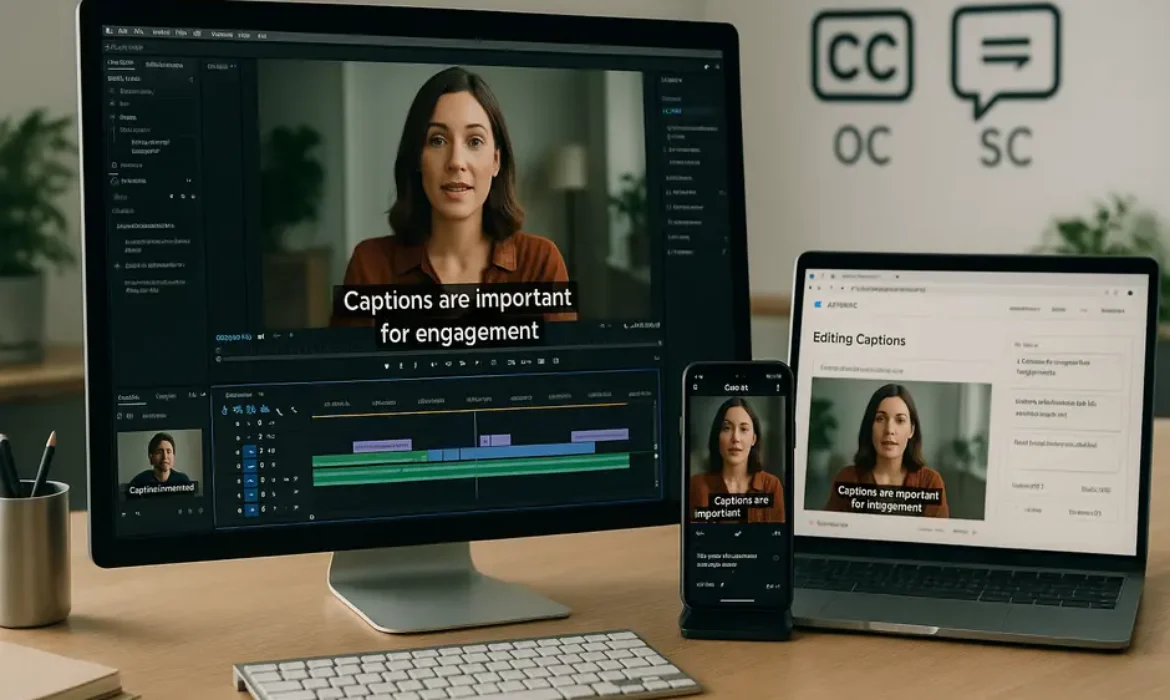
How to Add Captions to Videos: Why It Matters and the Best Methods in 2026
Estimated reading time: 15 minutes
Why Captions Are No Longer Optional
The case for captions goes well beyond accessibility, though that alone would be sufficient justification. According to research from Verizon Media and Publicis Media, 69% of viewers watch video with the sound off in public places, and 25% watch without sound even in private. Meanwhile, a study conducted by PLYmedia found that captioned videos see an average 40% increase in views compared to uncaptioned versions.
These numbers reflect a cultural shift in how people consume media. Audiences scroll through feeds rapidly, often in environments where audio is impractical. A video that communicates its value visually — within the first two or three seconds — earns attention. One that requires sound to be understood loses people immediately.
Then there is the legal dimension. Under the Americans with Disabilities Act and Section 508 of the Rehabilitation Act, certain organizations are required to ensure video content is accessible to people who are deaf or hard of hearing. The Web Content Accessibility Guidelines (WCAG) 2.1, maintained by the W3C, set international standards for digital accessibility, and captions are explicitly addressed within them. Ignoring captioning is, for many businesses, not just a missed opportunity — it is a liability.
Beyond compliance, there is a straightforward human reason: approximately 1.5 billion people globally live with some degree of hearing loss, according to the World Health Organization. Creating captioned content is simply the right way to communicate.
Open Captions vs. Closed Captions: What’s the Difference?
This distinction confuses a lot of people, and it matters practically.
Closed captions are stored as a separate data layer alongside the video file. Viewers can turn them on or off. They are delivered as subtitle files — typically in SRT (SubRip Text), VTT (WebVTT), or SCC formats — and are displayed by the media player when activated. YouTube’s subtitle system works this way. So does most broadcast television.
Open captions (also called burned-in captions or hardcoded captions) are permanently embedded into the video itself. There is no toggle. Every viewer sees them, regardless of platform or player settings. This approach is especially popular for social media, where platforms do not always render external subtitle files consistently, or where creators want complete control over typography and placement.
Here is a quick comparison:
| Feature | Open (Burned-In) Captions | Closed Captions |
|---|---|---|
| Viewer control | None — always visible | Can be toggled on/off |
| Platform compatibility | Universal | Depends on player support |
| Style customization | Full creative control | Limited by player settings |
| File requirement | Baked into video | Separate .SRT or .VTT file |
| Best for | Social media, reels, TikTok | YouTube, streaming, broadcast |
| Editing flexibility | Requires re-export to change | Edit the subtitle file anytime |
The choice between them depends on your distribution channel. For YouTube, uploading a clean SRT file alongside your video gives viewers and accessibility tools the best experience. For Instagram Reels or TikTok, burned-in captions are generally more reliable because they guarantee visibility regardless of how a viewer’s settings are configured.
The Best Methods to Add Captions to Videos in 2026
There is no single best tool — there is a best tool for your specific workflow, skill level, and content type. Here is an honest breakdown of the most widely used methods.
Descript
Descript has become one of the most impressive tools in a video editor’s arsenal, particularly for creators who work primarily with spoken content. It transcribes your audio automatically and then lets you edit the transcript like a document — cut a sentence in the transcript, and it cuts the corresponding video clip. Adding captions in Descript is a natural part of this workflow.
Its transcription accuracy is strong for clear speech in English, and it supports multiple export formats including burned-in captions and SRT files. For podcasters, interview-based content, and anyone producing talking-head videos, Descript significantly reduces the time investment for captioning.
Rev
Rev operates differently — it is primarily a human-powered transcription and captioning service, with an AI-assisted tier as well. Human-transcribed captions from Rev achieve accuracy rates above 99%, which matters enormously if your content features technical terminology, accents, multiple speakers, or fast-paced dialogue where automated tools frequently stumble.
You upload your video, specify your turnaround time (as fast as a few hours), and receive an SRT file. The cost is higher than automated alternatives, but for client deliverables, legal content, or anything requiring publishable accuracy, Rev earns its price.
Kapwing
Kapwing is a browser-based editor that has refined its auto-captioning significantly over the past couple of years. It is particularly popular among social media creators who want to add subtitles to video without learning a complex editing suite. You upload your file, generate captions automatically, edit any errors in-browser, and export.
What makes Kapwing practical is its caption styling interface. You can adjust font, color, size, background, and position before exporting — making it a solid option for Instagram captions and short-form social content where visual presentation matters.
Adobe Premiere Pro
For professional video editors, Adobe Premiere Pro’s caption workflow is now genuinely capable. The Speech to Text feature within Premiere uses Adobe Sensei to auto-transcribe your audio directly in the timeline. From there, you can edit the transcription, adjust timing, and choose between exporting burned-in captions or a separate subtitle file.
Premiere also gives you access to caption styles, allowing teams to establish a consistent visual identity across all their video content. If you are already working inside the Adobe ecosystem, there is little reason to use a third-party tool for captions.
CapCut
CapCut has earned its place as one of the most widely used mobile editing apps, particularly for TikTok content. Its auto-caption feature is fast, reasonably accurate, and extremely easy to apply. For creators working on mobile, it is the most frictionless path to burned-in captions.
The font and style options have expanded considerably, and CapCut has begun introducing animated caption styles that sync with speech rhythm — a feature that has become a signature visual element in short-form video content.
YouTube Auto Subtitles
YouTube’s automatic subtitles use Google’s speech recognition technology and have improved substantially. For well-recorded content with a single clear speaker, accuracy is generally high. However, they are generated after upload and are not always available immediately. More importantly, you cannot control the styling.
The strongest use case for YouTube auto captions is as a starting point: upload your video, let YouTube generate the transcript, then download it, clean it up, and re-upload the corrected version as a proper subtitle file. This approach gives you the speed of automation with the accuracy of a human review.
Platform-Specific Caption Strategies
Each platform has its own behavior, and a one-size-fits-all approach to captions will consistently underperform.
TikTok
TikTok introduced its own auto captions feature through the Accessibility settings, and many creators now leave this active. However, relying solely on TikTok’s native captions is a gamble because they may not display for all users. The more reliable approach — and the one top creators consistently use — is burning captions into the video before uploading.
TikTok’s audience also responds well to dynamic, stylized captions that feel energetic and match the pacing of the content. Static, plain-text captions often feel mismatched with TikTok’s aesthetic.
Instagram Reels
Instagram offers auto-generated captions as a sticker option, and they work reasonably well for short clips. For professional or brand content, burned-in captions with controlled styling are a better choice. Instagram’s caption sticker can be inconsistent across devices and does not always render correctly in all regions.
Font size matters significantly on Instagram Reels given the vertical format and the interface elements (like, comment, share buttons) that occupy screen real estate on the right side of the screen. Keeping captions in the lower-middle portion of the frame avoids overlap.
YouTube
YouTube’s closed caption system is one of the most mature on any platform. Upload an SRT file aligned to your video’s timeline, and YouTube will display it cleanly. You can also add multiple language tracks — critical for channels with international audiences.
One SEO benefit worth noting: YouTube’s algorithm indexes the content of your captions and transcript. A well-structured, keyword-naturally-present caption file can contribute to better discoverability in YouTube search.
LinkedIn auto-generates captions for native video uploads, and they are serviceable but not always accurate. For brand and executive communications, uploading an SRT file directly is recommended. LinkedIn users often watch video content in professional environments — at their desks or in open offices — where audio is frequently muted, making captions especially important for this platform.
Caption Style and Design: What Actually Works
The technical side of captioning is only half the picture. How your captions look has a direct effect on whether viewers read them — and whether they engage with your content.
Several design principles consistently outperform generic defaults:
- Contrast is non-negotiable. White text with a black semi-transparent background is the classic pairing for readability, and it works across every background because the contrast is self-contained. Pure white text without a background becomes unreadable against light footage.
- Font size should lean larger than you think. On mobile screens — which represent the majority of social media viewing — captions that feel appropriately sized on a desktop monitor become difficult to read. Test your captioned video on a phone before publishing.
- Limit characters per line. A common professional standard is 32–42 characters per line. More than that, and viewers are reading rather than watching. Captions should support the video, not compete with it.
- One to two lines at a time. Stacking three or four lines of text at once covers significant screen real estate and disrupts visual flow. Shorter caption blocks force more precise timing but produce a better viewing experience.
- Consider color for emphasis. Many social-first creators now use color to highlight key words within captions — typically matching a brand color or using a high-contrast accent. This technique, popularized in podcast clip content, has proven effective at increasing retention within short-form video.
Animated Captions: Are They Worth the Effort?
In 2024 and 2025, animated captions moved from novelty to mainstream. Tools like CapCut, Descript, Submagic, and even Adobe Premiere Pro offer word-by-word or phrase-by-phrase animated caption styles — where each word pops or highlights in sync with the speaker’s delivery.
The engagement data supports the investment. Animaker and several independent creator studies found that word-by-word animated captions can increase average watch time by 20–30% on short-form content compared to static captions.
The reason is psychological. Word-by-word captions guide the viewer’s attention precisely where the creator wants it, creating a rhythm that mirrors the speech. It reduces cognitive load — the viewer does not have to read ahead or catch up. The experience feels more dynamic and intentional.
The tradeoff is production time. Animated captions require more rendering and, in manual workflows, more precise timing. Automated tools handle much of this, but the output still benefits from a review pass. For high-priority content — hero videos, brand campaigns, pillar podcast clips — animated captions are worth the additional effort. For high-volume, lower-stakes content, static burned-in captions remain an efficient and effective choice.
Accessibility, SEO, and Why Search Engines Love Captions
Captions serve two constituencies simultaneously: human viewers and search engine crawlers.
From an accessibility standpoint, captions are not just about deafness. People with auditory processing disorders, non-native speakers, and viewers in loud environments all benefit from text representation of spoken content. The WCAG 2.1 guidelines from the W3C specify that prerecorded video with audio requires captions at Level A compliance — the baseline requirement for accessible content.
From an SEO standpoint, search engines cannot watch your video. They read metadata, transcripts, and in some contexts, caption files. A properly captioned YouTube video gives Google additional textual content to index, which means the video has a better chance of surfacing for relevant searches. This is not a dramatic overnight ranking factor, but it is a consistent marginal advantage — and those compound.
For website-embedded videos, pairing a video with a written transcript on the same page creates a content-rich asset that can rank for long-tail queries your primary page may not target. Google’s guidelines on video indexing explicitly recommend providing transcripts and structured data to help their systems understand video content.
There is also a user engagement signal worth considering. Captioned videos reduce bounce rates on pages where video is a primary content element, because more viewers stay and watch. Reduced bounce rate, longer session duration, and higher engagement are all signals that feed back into how a page performs in search.
Key Takeaways
-
- Captions increase video watch time by up to 80% and are critical for silent-scrolling audiences on social media
- Open captions are burned into the video permanently; closed captions can be toggled on or off by the viewer
- Tools like Descript, Kapwing, Rev, CapCut, and Adobe Premiere Pro each serve different use cases and budgets
- Auto captions from YouTube and TikTok are convenient but require manual review for accuracy
- Caption style and placement directly affect engagement, especially on Instagram and TikTok
- Proper captioning supports WCAG accessibility standards and can contribute to better video SEO performance
- Animated captions, popularized by podcasters and short-form creators, are rapidly becoming a standard — not a trend
FAQs
1. What is the fastest way to add captions to a video?
For pure speed, CapCut on mobile or Kapwing in a browser offer the fastest path from upload to captioned export. Both use automatic speech recognition to generate captions within minutes. If you are working inside a professional editing workflow, Adobe Premiere Pro’s Speech to Text feature produces captions without leaving the editing timeline. Keep in mind that speed and accuracy are always in tension — auto-generated captions should always receive at least a basic review pass before publishing, particularly for technical content or proper nouns.
2. Are auto captions accurate enough to use without editing?
For controlled recording environments — a single speaker, good microphone, minimal background noise, standard vocabulary — auto captions from tools like Descript or YouTube are often accurate enough to require only minor corrections. In more complex scenarios (multiple speakers, strong accents, industry jargon, or poor audio quality), accuracy degrades noticeably. A professional service like Rev, which offers human-verified captioning, is the better choice when accuracy is critical. Regardless of the tool, publishing auto-generated captions without any review is risky and can produce embarrassing or confusing errors.
3. What is the difference between captions and subtitles?
Though the terms are often used interchangeably, there is a meaningful distinction. Subtitles assume the viewer can hear the audio but does not understand the language — they translate or transcribe only the spoken dialogue. Captions, by contrast, are designed for viewers who cannot hear the audio at all, so they include not just dialogue but also relevant sound descriptions like “[applause],” “[door closes],” or “[background music].” In practice, most creators use “captions” to refer to any text overlay synchronizing with speech, and this usage has become standard in digital media contexts.
4. Should I use open or closed captions for social media?
For most social media platforms — TikTok, Instagram Reels, LinkedIn, Facebook — open (burned-in) captions are the more reliable choice. Platform-native captioning tools are inconsistent in how they display across different devices, app versions, and regional settings. Burned-in captions guarantee your text appears exactly as designed for every viewer, regardless of their settings. The only meaningful downside is that they cannot be turned off, but on short-form social content, that is rarely a problem because viewers who do not need captions are not typically bothered by them.
5. How do animated captions differ from regular captions?
Regular (static) captions display a line or two of text at a time, synced to the speaker’s timing. Animated captions — popularized by short-form video content and podcast clips — highlight or animate one word at a time as the speaker says it, creating a more dynamic reading experience. This style keeps viewers engaged with the spoken content more effectively than static text blocks. Tools like CapCut, Submagic, and Descript offer animated caption templates. They require more processing time and occasional timing adjustments, but the engagement benefits for short-form content typically justify the additional effort.
6. Do captions help with YouTube SEO?
Yes, in a meaningful way. YouTube’s algorithm reads caption files as part of how it understands and categorizes video content. An accurate caption file — particularly one you upload yourself rather than relying on auto-generated subtitles — gives the platform a clear textual representation of everything spoken in your video. This improves your video’s chances of appearing in search results for relevant queries. Google can also index YouTube transcript content, which means captions can contribute to discoverability on Google Search, not just YouTube’s internal search engine.
7. What file format should I use when uploading captions to YouTube?
YouTube accepts several caption file formats, including SRT (SubRip Text), VTT (WebVTT), SBV (SubViewer), and a few others. SRT is the most universally supported and easiest to edit in a standard text editor. Each line of dialogue in an SRT file includes a sequence number, a timestamp range, and the caption text. If you have exported captions from a tool like Descript, Kapwing, or Rev, they will typically offer SRT as a download option. Once uploaded to YouTube, the captions become searchable and can be toggled by viewers through the video player’s settings.
Conclusion
Captioning has moved from a compliance checkbox to a core content strategy decision. The creators and brands that treat captions as an afterthought are leaving engagement, accessibility, and search visibility on the table. Those who approach captioning with the same intentionality they bring to scripting, lighting, or editing consistently see the difference in their metrics.
The technology in 2026 has made this more accessible than ever. Whether you are working with a mobile-first workflow using CapCut, a professional editorial setup in Adobe Premiere Pro, or a high-accuracy transcription pipeline through Rev, there is a method that fits your process. The barrier is no longer technical skill or budget — it is simply prioritization.
Add captions. Make them readable. Match them to your platform. And review the output before it goes live. That combination alone puts your content ahead of the majority of what is published every day.