
How Much Does Instagram Pay Per 1,000 Views and Per View?
How Much Does Instagram Pay Per 1,000 Views and Per View?
Estimated reading time: 15 minutes
The Real Question Behind the Numbers
If you have spent any time building an audience on Instagram, you have probably wondered whether all those views are actually translating into dollars. The curiosity makes complete sense. You watch Reels rack up hundreds of thousands of plays, you see brands spending millions on Instagram advertising, and somewhere in your mind, a very reasonable question forms: where does that money go, and how much of it reaches creators?
The answer is more layered than a flat rate, and that is exactly what makes it confusing for most people searching for a straightforward number. The truth is that Instagram does not have a simple, universal pay-per-view rate the way a freelancer charges by the hour. The platform’s creator earnings depend on monetization programs, ad formats, audience geography, niche, engagement quality, and several other variables that interact in ways that most “how much does Instagram pay” articles never explain properly.
This guide cuts through the noise. Whether you are a new creator trying to understand your earning potential or an established influencer looking to optimize your Instagram view income, you will leave with a clear, accurate picture of how Instagram monetization rates work, what the real numbers look like, and what you can do to improve your payout per 1k views.
Does Instagram Actually Pay Per View?
Let’s be precise here because a lot of confusion starts with the wrong assumption.
Instagram does not pay creators simply for accumulating views the way a streaming platform pays royalties for song plays. There is no automatic mechanism that deposits money into your account every time someone watches your Reel or video. The monetization picture is more conditional than that.
Instagram pays creators through specific programs and features, and views are only one input into the equation. The money comes from:
- In-stream ads served during longer video content
- Reels Play Bonus (now largely discontinued or restructured)
- Instagram Subscriptions (monthly recurring payments from followers)
- Badges in Live (direct tips from viewers during live videos)
- Creator Marketplace partnerships (brand deals facilitated through Instagram)
- Shopping features (affiliate commissions and product revenue)
So when someone asks “how much does Instagram pay per view,” the honest answer is: it depends entirely on which monetization channel you are referring to. For ad-supported content, the framework revolves around CPM and RPM, which we will cover in the next section. For bonus programs, Instagram has historically used engagement thresholds, not raw view counts alone.
How Instagram Monetization Actually Works
To understand Instagram earnings per view, you need to understand the underlying ad revenue model that powers social media platforms.
CPM (Cost Per Mille) is what advertisers pay to serve 1,000 ad impressions. Instagram collects this from brands running ads.
RPM (Revenue Per Mille) is what creators actually receive per 1,000 views after Instagram takes its platform cut. This is the number that matters most to you as a creator.
Instagram, like most Meta-owned platforms, does not publicly publish a fixed RPM rate. The platform’s share of ad revenue and the specific rates paid to creators through its monetization programs are not standardized across the board. Based on industry reporting and creator disclosures, Instagram typically keeps around 45–55% of ad revenue, passing the remainder to qualifying creators.
For context, YouTube’s standard revenue share is 45% for the platform and 55% for creators through its Partner Program. Instagram’s model has historically been less transparent, though Meta has been gradually expanding creator monetization tools. According to Meta’s official Creator Monetization Policy, creators must meet specific eligibility requirements to access in-stream ads and other revenue tools.
Instagram Pay Per View: What Creators Are Actually Earning
Real talk: the Instagram pay-per-view numbers that circulate online vary wildly because they come from different programs, different niches, and different time periods. Here is a realistic breakdown based on aggregated creator reports and industry benchmarks.
Per View Earnings
| Monetization Type | Estimated Earnings Per View |
|---|---|
| In-stream ad revenue | $0.001 – $0.05 |
| Reels Play Bonus (when active) | $0.01 – $0.06 |
| Live Badges | Variable (direct tips) |
| Affiliate/Shopping | Commission-based |
These numbers should be read with appropriate context. A $0.001 per view rate means you are earning roughly $1 per 1,000 views, while a $0.05 rate produces $50 per 1,000 views. The gap between those figures is enormous, and the determining factors will be covered shortly.
Per 1,000 Views Earnings (CPM/RPM Range)
| Niche / Content Category | Estimated RPM per 1,000 Views |
|---|---|
| Finance, investing, business | $8 – $30+ |
| Health and wellness | $6 – $20 |
| Technology and software | $5 – $18 |
| Lifestyle and fashion | $2 – $10 |
| Entertainment and humor | $1 – $5 |
| General / mixed content | $1 – $4 |
Finance creators consistently see the highest Instagram earnings per 1,000 views because advertisers in that space pay significantly more per click and per impression. A credit card company or investment platform bidding for ad space is willing to pay a much higher CPM than a consumer goods brand promoting a low-margin product.
These estimates align with data published by platforms like Influencer Marketing Hub, which tracks creator earnings across social platforms using real campaign data.
Instagram Pay Per 1,000 Views: Breaking Down the CPM and RPM
Here is where most guides get sloppy, so let’s be precise.
CPM is what the advertiser pays. RPM is what you, the creator, receive. They are related but not the same number, and conflating them leads to inflated expectations.
If a brand pays Instagram a $10 CPM to run ads against your content, and Instagram’s revenue share means you receive 45% of that, your RPM would be approximately $4.50 per 1,000 views. Not $10.
The actual Instagram creator CPM that reaches your pocket depends on:
- Your content’s monetization eligibility — Not all views are monetized. Viewers using ad blockers, watching on certain devices, or scrolling past before an ad loads do not contribute to your RPM
- Your audience’s geography — Views from the United States, United Kingdom, Australia, Canada, and Western Europe carry far higher ad rates than views from South Asia, Southeast Asia, or Latin America. A creator with 80% of their audience in the US might earn 3–5x more per 1,000 views than a creator with the same total views but a predominantly Indian or Brazilian audience
- Advertiser demand during the time period — Ad spending surges in Q4, particularly around Black Friday, Cyber Monday, and the holiday shopping season. Instagram CPMs during October through December can be 40–70% higher than January or February. Your view payout during the holidays will look very different from your February numbers
- Ad format served — Video ads, particularly unskippable pre-roll formats, command higher CPMs than display or story overlay ads. The format Instagram serves against your content directly affects what you earn
- Engagement rate — Higher engagement signals content quality, which influences how the algorithm distributes your content and how attractive your inventory is to advertisers
Factors That Determine Your Instagram View Income
Beyond CPM and RPM mechanics, several creator-specific variables shape how much Instagram actually pays you per view.
Audience Demographics and Location
This is arguably the single most important variable. As mentioned, US-based views are significantly more valuable than views from lower-purchasing-power markets. If you are creating content that disproportionately attracts international audiences, your effective Instagram income per thousand views will be lower regardless of your niche or engagement rate.
Creators with highly specific, niche audiences also tend to earn more. A channel focused on personal finance for Americans ages 25–40 is vastly more attractive to advertisers than a general humor account with a broadly distributed demographic.
Follower Count vs. Engagement Rate
Here is a counterintuitive truth: follower count matters less than most people think when it comes to Instagram view income. An account with 50,000 followers and a 7% engagement rate will often monetize better than an account with 500,000 followers and 0.8% engagement. Advertisers, particularly through Instagram’s Creator Marketplace, increasingly prioritize engagement quality over raw reach.
Sprout Social’s research consistently shows that micro-influencers (10,000–100,000 followers) often achieve engagement rates 2–3x higher than mega-influencers, which translates into more attractive ad inventory even at smaller scale.
Content Consistency and Posting Cadence
The Instagram algorithm rewards consistent posting with broader distribution, which increases the volume of monetized views your content generates. Sporadic posting, even with high individual post quality, tends to suppress overall reach and therefore overall earnings.
Niche and Advertiser Competition
High-value niches attract more advertiser competition, which drives up CPMs. Finance, insurance, software, legal services, and health supplements are consistently among the highest-CPM categories on Meta platforms according to WordStream’s Facebook and Instagram ad data. If your content naturally aligns with these categories, your Instagram payout per 1k views will skew toward the higher end of the range.
Instagram Reels vs. Other Formats: Does Format Affect Pay?
Yes, format matters, though not always in the way you would expect.
Instagram Reels have been the platform’s dominant growth format since their introduction, and Meta has invested heavily in promoting Reels content algorithmically. However, monetization for Reels specifically has gone through significant changes.
The Reels Play Bonus program, which paid creators a flat bonus based on views over a rolling 30-day period, was Meta’s most direct attempt at a per-view pay structure. At its peak, some creators reported earning between $0.01 and $0.06 per view on qualifying Reels. However, Meta has scaled back this program and restructured it multiple times, and it is no longer available to all creators in all regions.
Currently, Reels monetization through in-stream ads is more limited compared to longer-form video. Reels under 60 seconds, for example, have historically shown fewer ad opportunities than videos of two minutes or longer. This is changing as Meta continues to experiment with Reels ad formats, but creators should understand that a 30-second Reel getting one million views may not generate the same ad revenue as a 10-minute IGTV-style video getting 200,000 views.
Format Monetization Summary
| Format | Primary Monetization | Ad Opportunity |
|---|---|---|
| Reels (under 60 sec) | Overlay ads, Bonuses | Moderate |
| Reels (60–90 sec) | In-stream, Overlay ads | Moderate-High |
| Long-form Video | In-stream ads | Highest |
| Stories | Story ads | Moderate |
| Live | Badges, Subscriptions | Variable |
| Static Posts | Indirect (brand deals) | None direct |
How Instagram Compares to YouTube and TikTok
Understanding Instagram’s pay-per-view rates in isolation is only half the picture. Comparing them to YouTube and TikTok gives you a more useful perspective.
| Platform | Estimated RPM per 1,000 Views | Notes |
|---|---|---|
| YouTube | $2 – $15+ | Well-established Partner Program, higher for long-form |
| $1 – $30+ | Highly variable by niche and program | |
| TikTok (Creator Fund) | $0.02 – $0.04 | Generally low, shifting to Creator Rewards Program |
| $1 – $10+ | Similar to Instagram via Meta |
YouTube remains the gold standard for consistent ad-based video monetization, primarily because its Partner Program is mature, transparent, and pays creators reliably based on a 55% revenue share. TikTok’s Creator Fund has been widely criticized for paying fractions of a cent per view, though the newer Creator Rewards Program offers improved rates for longer, high-quality content.
Instagram sits in an interesting middle ground. When the Reels Play Bonus was active and generous, some creators reported rates competitive with YouTube. Without those bonus programs, Instagram’s native ad monetization for most creators falls below YouTube’s RPM for comparable content.
This is precisely why most successful Instagram creators do not rely solely on platform-paid monetization. The real money is in the ecosystem around Instagram views: brand partnerships, affiliate marketing, product sales, and traffic to owned platforms.
How to Increase Your Instagram Earnings Per View
Knowing the numbers is useful. Knowing how to move them is what actually builds income. Here are the strategies that experienced creators use to maximize their Instagram view income.
1. Shift Your Audience Toward High-Value Geographies
This does not mean excluding global audiences. It means creating content with cultural and contextual relevance to high-CPM markets like the US, UK, Australia, and Canada. Content that resonates deeply with US audiences, for example through references, language nuances, and topical relevance, will naturally attract more of that viewership over time.
2. Dominate a High-CPM Niche
Broadly entertaining content competes in a very crowded space with low advertiser CPMs. Niche content in finance, investing, insurance, software reviews, or health and wellness attracts advertisers willing to pay 5–10x more per impression. Even if your total views are lower, your earnings per 1,000 views can be dramatically higher.
3. Diversify Your Monetization Stack
Instagram ad revenue alone rarely generates life-changing income at the creator level unless you are producing enormous view volumes. The creators who earn well from their Instagram views typically combine platform revenue with:
- Brand sponsorships and paid partnerships
- Affiliate marketing with high-commission programs
- Digital product sales (courses, presets, templates)
- Subscription revenue through Instagram Subscriptions
- Traffic conversion to higher-monetizing platforms like YouTube or a newsletter
4. Optimize for Watch Time and Saves
Instagram’s algorithm weighs engagement quality heavily. Content that gets watched all the way through, saved, and shared signals value to the platform and increases your content’s distribution. More distribution means more monetized views, which directly improves your total earnings even if the per-view rate stays constant.
5. Post During High-CPM Seasons
Strategically increase your posting volume in Q4, specifically October through December. Advertiser spending surges during this period, which inflates CPMs across the entire platform. The same content earning $3 per 1,000 views in February might earn $5–6 per 1,000 views in November.
6. Meet and Maintain Monetization Eligibility
Instagram requires creators to meet specific thresholds to access its monetization tools. These include minimum follower counts, adherence to Community Guidelines and Partner Monetization Policies, and account age. Staying compliant and maintaining your eligibility ensures you do not lose access to revenue programs at critical moments. Always review Meta’s current monetization eligibility requirements for the most up-to-date criteria.
Key Takeaways
-
- Instagram does not pay a fixed, universal per-view rate. Earnings depend on the monetization program, niche, audience location, and content format
- Instagram pay per 1,000 views ranges from approximately $1 to $30+, with finance and high-intent niches earning at the top of that range
- Instagram pay per view typically falls between $0.001 and $0.05 depending on the same variables
- CPM reflects what advertisers pay; RPM reflects what creators actually receive. These numbers are not the same
- US, UK, Australian, and Canadian audience views generate significantly higher ad revenue than views from lower-CPM markets
- Q4 advertising spend creates seasonal CPM spikes that can meaningfully increase creator earnings
- Combining platform monetization with brand deals, affiliate income, and product sales is how most successful Instagram creators build real income from their views
- YouTube remains the more reliable platform for ad-based video monetization, though Instagram can be competitive in specific niches and with bonus programs active
Frequently Asked Questions
How much does Instagram pay per view in 2024?
Instagram does not pay a flat rate per view universally. For ad-supported content, creators typically earn between $0.001 and $0.05 per view, translating to $1 to $50 per 1,000 views depending on niche, audience geography, and content format. The Reels Play Bonus program, when active, has paid some creators up to $0.06 per qualifying view, though this program has been restructured and is not universally available.
How much does Instagram pay for 1,000 views?
Instagram earnings per 1,000 views range from approximately $1 to $30 or more depending on several factors. Finance, technology, and business content creators typically see higher RPMs of $8–$30+, while entertainment and lifestyle creators often see $1–$5 per 1,000 views through ad revenue. These figures can vary significantly based on audience location, engagement quality, and advertiser demand at any given time.
Does Instagram pay more than TikTok per view?
Generally, yes. TikTok’s Creator Fund pays notoriously low rates, often $0.02–$0.04 per 1,000 views, which is lower than what most Instagram creators earn through ad-supported content. TikTok’s newer Creator Rewards Program has improved rates for longer content, but Instagram’s ad monetization infrastructure through Meta still tends to produce higher RPMs for creators in competitive niches.
Why is my Instagram income per 1,000 views so low?
Several factors can suppress your Instagram view income. Common reasons include a large portion of your audience being located in low-CPM markets, low engagement rates that signal poor content quality to advertisers, posting in a low-CPM niche like general entertainment, not meeting full monetization eligibility, or earning in a low-advertiser-spending season such as January or February. Auditing your Instagram Insights to understand your audience geography and engagement quality is usually the most useful first step.
Can you make a living solely from Instagram view revenue?
For the vast majority of creators, no. Native Instagram ad revenue alone is rarely sufficient to replace a full income unless you are generating tens of millions of monthly views in a high-CPM niche. Creators who earn living wages or more from Instagram typically do so through a combination of brand partnerships, affiliate commissions, product sales, Instagram Subscriptions, and in some cases directing Instagram audiences to higher-monetizing platforms like YouTube or a personal website. Instagram views are most valuable as a growth and audience-building engine rather than a direct income source.
What is a good CPM for Instagram?
A healthy Instagram CPM from the advertiser side typically ranges from $5 to $15 for most niches, though highly competitive categories like finance and insurance can see CPMs of $30–$50 or more. From a creator’s perspective, a strong RPM is generally considered anything above $5 per 1,000 views, with elite niches achieving $15–$30+. If your content is earning less than $2 RPM, it likely reflects a combination of broad niche, international audience concentration, or engagement quality issues.
Does Instagram pay for Reels views specifically?
Instagram has run Reels-specific payment programs, most notably the Reels Play Bonus, which provided direct payments based on qualifying Reel views. However, this program has been discontinued or significantly limited in availability as of late 2023 into 2024. Currently, Reels can be monetized through overlay ads and in-stream ads where eligible, but the direct bonus payment for raw Reels views is no longer a primary monetization path for most creators. Meta has indicated it is exploring new Reels monetization formats, so this space continues to evolve.
Final Thoughts
Instagram views carry real monetary value, but the relationship between views and dollars is not as linear or automatic as most people assume when they first start researching it. The platform’s monetization infrastructure is layered, conditional, and heavily influenced by variables that have nothing to do with how good your content is, such as where your audience lives or what month it happens to be.
The creators who succeed financially on Instagram are typically those who understand this complexity rather than chasing a single per-view number. They optimize for high-value audiences, diversify their income streams, stay eligible for every available monetization tool, and treat Instagram’s native ad revenue as one component of a broader strategy.
If you are serious about building real income from your Instagram views, start by understanding your current audience demographics through Instagram Insights, identify whether your niche aligns with high-CPM advertiser categories, and build the complementary revenue streams that will let you monetize your audience regardless of what Instagram’s bonus programs are doing in any given quarter.
The platform will keep evolving. The creators who thrive are the ones who evolve with it while keeping their income model diversified enough not to depend on any single platform’s generosity.
All earnings ranges cited in this article are based on aggregated creator reporting, industry benchmarks, and publicly available research. Individual results will vary based on account-specific factors and platform changes.

Does Instagram Actually Pay for Views or Reels?
Does Instagram Actually Pay for Views or Reels?
Estimated reading time: 13 minutes
The Short Answer Most Creators Get Wrong
Every week, thousands of people search “does Instagram pay for views” expecting a simple yes or no. The reality is more nuanced than a binary answer — and understanding the distinction between what Instagram pays for directly versus indirectly could be the difference between leaving money on the table and building a sustainable income from the platform.
Here is what most articles skip over: Instagram has never had a universal, permanent pay-per-view model the way YouTube does with its Partner Program. What it has had — and continues to evolve — is a patchwork of monetization tools, bonus programs, and revenue-sharing features that reward creators differently depending on their content type, audience size, country, and engagement levels.
If you have been posting Reels hoping a view counter translates directly into a paycheck, you need to understand how this platform actually compensates creators. And if you have not started thinking about monetization strategy yet, this guide will give you a clear, accurate picture of where the real money comes from on Instagram in 2025.
How Instagram Monetization Actually Works
Instagram, owned by Meta, operates within a broader monetization ecosystem that has been in constant flux since 2021 when the company began aggressively courting creators to compete with TikTok and YouTube. The platform has experimented with multiple direct payment models, rolled back some, expanded others, and quietly shifted its strategy more than once.
Understanding Instagram pay requires understanding the three layers of how creators earn:
Layer 1: Direct payments from Meta — These are programs where Meta itself transfers money to creators. This includes the Reels bonus program, Stars on Live, and various invite-only creator incentive programs.
Layer 2: Revenue sharing through ads — In 2023, Meta began rolling out in-stream ad revenue sharing on Reels and other placements, similar to how YouTube splits ad revenue with creators. This is perhaps the closest Instagram has come to a true “pay per view” model.
Layer 3: Creator-driven monetization — This covers brand partnerships, affiliate marketing, Instagram Subscriptions, badge purchases in Live, and selling products through Instagram Shops. Technically Instagram is not paying you here — your audience or third-party brands are.
Most creators earn through a combination of all three layers, though the ratios vary significantly based on niche, audience size, and content strategy.
Does Instagram Pay for Views Directly?
The direct answer: not in the traditional sense, and not consistently for every creator.
Unlike YouTube, where monetized creators earn a share of ad revenue tied to video views (measured through CPM and RPM metrics), Instagram does not have a single unified system where your view count converts automatically into earnings. There is no universal Instagram Partner Program that every creator can apply to and start earning from ad views.
That said, Instagram has moved closer to view-based compensation through its ad revenue sharing model. When ads appear between or alongside your Reels, Instagram can share a portion of that ad revenue with qualifying creators. The key word is “qualifying” — not everyone is eligible, and the earnings are not purely view-based. Factors like the advertiser demand in your niche, your audience demographics, content category, and engagement rates all influence what that revenue actually looks like.
So when someone asks “does Instagram pay you for views,” the most accurate answer is: sometimes, indirectly, and only under specific conditions. Your view count matters, but it is not a direct multiplier the way YouTube’s model works.
The Instagram Reels Bonus Program Explained
The Instagram Reels Bonus Program was one of Meta’s most talked-about creator initiatives when it launched in 2021. The concept was straightforward — Instagram would pay creators a bonus based on the performance of their Reels during a specific challenge or period. Hit a certain number of plays within a set timeframe, earn a cash bonus.
At its peak, some creators reported earning thousands of dollars per month through these bonuses alone. The program felt like Instagram finally answering the question everyone had been asking: yes, Instagram pays for Reels views.
However, the program has seen significant changes. Meta paused and restructured the Reels Bonus Program multiple times between 2022 and 2024. Access became invite-only, payouts were adjusted, and the program was eventually folded into a broader creator monetization framework that Meta calls its Creator Monetization tools under the Meta Monetization Manager.
As of 2025, the Reels bonus program in its original form is no longer available to all creators in all markets. Meta has shifted emphasis toward the ad revenue sharing model, which the company positions as a more sustainable long-term monetization structure than one-time bonus payments.
If you received an invitation to the Reels bonus program in the past and wonder why your payouts stopped or changed, this structural shift is why. The platform pivoted from paying bonuses on plays to building out an ecosystem where ad revenue is distributed more broadly.
Instagram Revenue Sharing: What Changed in 2024–2025
The most significant development in Instagram monetization in recent memory is the expansion of ad revenue sharing for Reels. This is where Instagram’s approach most closely resembles a “pay for views” model.
Here is how it works in practice: When Meta places advertisements within or adjacent to a creator’s Reels, a percentage of the revenue from those ads flows back to the creator through their Monetization Manager. The split is not publicly disclosed the way YouTube’s 55/45 Creator/Google split is, but Meta has confirmed that eligible creators receive a portion of the ad revenue their content generates.
This model depends heavily on:
- Ad inventory demand in your content category (finance, beauty, and fitness niches typically attract higher CPMs)
- Your audience location (audiences in the US, UK, Canada, and Australia generate significantly higher ad revenue than audiences in lower-CPM markets)
- Content type and compliance with Meta’s partner monetization policies
- Engagement quality — not just views but watch time, shares, and saves
According to Meta’s official monetization documentation, creators must meet eligibility thresholds and agree to specific content policies before any revenue sharing kicks in. This is not automatic for every account.
Instagram Monetization Eligibility: Do You Qualify?
This is the question that matters most if you are trying to understand when Instagram starts paying you. Eligibility is gated, and the requirements exist across multiple programs simultaneously.
Here is a breakdown of the primary eligibility criteria as Meta has outlined them:
| Requirement | Details |
|---|---|
| Follower Count | Generally 10,000+ followers for most monetization tools; some programs start at 1,000 |
| Account Type | Must be a Creator or Business account (not a personal account) |
| Content Compliance | Must follow Meta’s Partner Monetization Policies and Community Standards |
| Account Standing | No active strikes or violations; account must be in good standing |
| Country/Region | Revenue sharing and certain bonuses are only available in select countries |
| Content Age | Account must be at least 30 days old for most programs |
| Professional Mode | Some features require Professional Mode to be enabled |
Beyond the baseline requirements, individual programs have their own thresholds. Instagram Subscriptions, for example, has been available to creators with as few as 10,000 followers in eligible countries. The Reels ad revenue sharing program has had different entry points depending on rollout phases in each market.
One thing worth noting: having a large following does not guarantee monetization access. Instagram’s eligibility system weighs account health heavily. An account with 500,000 followers and a previous content policy violation may have fewer monetization options available than a compliant account with 50,000 followers.
How Much Can You Actually Earn?
This is where honest, realistic numbers matter more than hype. The variance in Instagram creator earnings is enormous, and anyone citing a specific per-view rate as universal is misleading you.
Here is what the data and creator reports consistently show:
Reels Ad Revenue (per 1,000 views):
Estimates from creator communities and reported earnings suggest CPM-equivalent rates ranging from $0.01 to $0.05 per view on the low end, up to $0.10 or slightly higher in premium niches. For context, 1 million views might generate anywhere from $100 to $1,000+ depending on all the variables mentioned earlier.
Instagram Reels Bonus Program (when active):
At its most generous, some creators reported earning between $800 and $35,000 per month through challenge-based bonuses. These figures were outliers, and average bonus payouts for mid-tier creators typically ranged from $100 to $1,500 monthly.
Instagram Live Badges:
Fans can purchase badges ($0.99, $1.99, or $4.99) during Live videos, with Instagram taking a small cut. Creators with highly engaged audiences can earn meaningfully from regular Lives, though this depends entirely on audience size and loyalty.
Instagram Subscriptions:
Monthly subscription fees (ranging from $0.99 to $99.99 per month, set by the creator) give subscribers access to exclusive content. Instagram takes a small revenue share. This is one of the more reliable recurring income streams available on the platform.
| Monetization Method | Who It Works Best For | Earning Potential |
|---|---|---|
| Reels Ad Revenue Sharing | Mid-to-large creators with US/UK audiences | Low-to-moderate per view |
| Reels Bonus Program (legacy) | Invite-only; high-volume Reels creators | Variable; up to $35K/month at peak |
| Instagram Subscriptions | Creators with highly loyal niche audiences | Predictable recurring income |
| Live Badges | Creators who do regular, engaged Lives | Depends entirely on audience size |
| Brand Partnerships | Any creator with engaged niche following | Highest earning potential overall |
| Affiliate Marketing | Content creators with buying-intent audiences | Commission-based; highly variable |
The consistent pattern across all creator income data is that direct Instagram payments rarely constitute the majority of a professional creator’s revenue. According to research from CreatorIQ’s annual influencer marketing report, brand partnerships and sponsored content continue to dominate creator income, often representing 60–80% of total earnings for full-time Instagram creators.
Other Ways Instagram Pays Creators
Beyond views and Reels-specific programs, Instagram has built out several additional monetization tools that are worth understanding if you are serious about treating the platform as a revenue channel.
Instagram Shops and Product Tags
Creators can tag products directly in posts and Reels, earning affiliate commissions when followers purchase. Instagram has its own native affiliate program that connects creators with brands through the app, with commission rates varying by brand and product category.
Branded Content and Paid Partnerships
Instagram’s Branded Content tool lets you officially label sponsored posts, which builds trust with audiences and satisfies FTC disclosure requirements. While this is technically a brand paying you (not Instagram), the platform facilitates these relationships through the Creator Marketplace where brands actively search for creators to partner with.
Meta Stars
Similar to YouTube’s Super Thanks, Stars allow fans to send monetary support during videos and Reels. Creators receive $0.01 per Star, and fans typically purchase Stars in bundles. High-engagement creators with loyal followings can supplement their income meaningfully through this feature.
How to Build a Monetized Instagram Account That Actually Earns
Knowing how Instagram pays creators is only useful if you translate it into a strategy. Here is what consistently separates creators who earn from those who accumulate views without meaningful income.
- Prioritize a monetizable niche
Not all content categories are created equal from an advertiser demand perspective. Finance, health, fitness, beauty, business, and technology tend to attract premium advertisers and higher CPMs. Lifestyle content with a broad, undefined audience often earns less per view than niche content with identifiable buyer intent. - Build toward the follower thresholds that unlock tools
The 10,000-follower mark opens up most monetization features. Reaching this threshold with an engaged, authentic audience is more valuable than reaching it through follows that do not translate into interaction. - Diversify beyond Instagram’s direct payments
Treat Instagram as a distribution channel, not your sole revenue source. Build an email list from your Instagram audience. Develop products, services, or courses your audience would pay for. Create content that generates brand partnership interest. The creators building real income on Instagram are using it as one piece of a larger business, not as their only income mechanism. - Optimize for watch time, not just views
Since ad revenue sharing on Reels is influenced by content quality signals, Reels that retain viewers to the end outperform those with high view counts but low completion rates. A Reel watched fully by 100,000 people is algorithmically and monetarily more valuable than one scrolled past by 500,000. - Maintain clean account standing
One content policy violation can restrict your monetization access for months or permanently in severe cases. The creators who build long-term income on Instagram are relentlessly consistent about creating content that stays within platform guidelines — not because they are timid, but because they understand that account health is a business asset. - Apply for every eligible program proactively
Check your Monetization Manager regularly. Meta rolls out new programs, expands eligibility in new markets, and sends invitations to qualifying accounts. Creators who actively engage with their Monetization Manager settings tend to unlock opportunities that passive users miss.
FAQs
Q1: Does Instagram pay for views on regular posts?
No. Standard photo or carousel posts do not generate direct payments from Instagram based on views or impressions. Instagram’s direct monetization tools are primarily tied to Reels (via ad revenue sharing and bonus programs), Live videos (via Badges and Stars), and Subscriptions. Regular posts generate value indirectly by building audience relationships that support other monetization efforts.
Q2: When does Instagram start paying you?
Instagram begins paying you once you meet the eligibility requirements for specific monetization tools and have set up your payout information in Monetization Manager. There is no single universal trigger — it depends on which programs you qualify for. Most programs require a Creator or Business account, a minimum follower count (often 10,000), a compliant account in good standing, and residency in an eligible country. Payouts are typically issued monthly once earnings reach the minimum payout threshold, which is generally $100.
Q3: Does Instagram pay for Reels views the same way YouTube pays for video views?
Not exactly. YouTube has a well-established, transparent Partner Program where monetized creators earn a percentage of ad revenue calculated on a per-thousand-views (CPM) basis. Instagram’s ad revenue sharing for Reels operates on a similar principle but is less transparent about exact split ratios, more variable in its availability across markets, and historically less generous per view than YouTube’s equivalent. YouTube remains the stronger platform for pure view-based income, while Instagram often outperforms it in brand partnership rates at lower follower counts.
Q4: Can small accounts with fewer than 10,000 followers earn money on Instagram?
Yes, though the options are more limited. Creators with smaller but highly engaged audiences can earn through affiliate marketing (which does not require any specific follower count), selling their own products or services through Instagram, and brand micro-influencer deals (which have become increasingly popular as brands seek authentic niche audiences). Instagram’s native monetization tools like Subscriptions and revenue sharing generally become accessible at higher follower thresholds, but the platform itself is not the only way to monetize your presence there.
Q5: Is the Instagram Reels Bonus Program still active in 2025?
The original invite-based Reels Bonus Program has been significantly scaled back and restructured. Meta has moved away from the challenge-based bonus model that was prominent in 2021–2022 and has shifted resources toward the ad revenue sharing model for Reels. Some creators in select markets may still receive bonus invitations through Meta’s creator incentive programs, but this is no longer a widely available or consistent income source. If you are building a monetization strategy, relying on Reels bonuses as a primary income stream is not advisable given how frequently Meta has restructured these programs.
Q6: Does Instagram pay creators in all countries?
No. Instagram’s monetization programs have varied availability depending on country and region. The United States, United Kingdom, Canada, Australia, and most of Western Europe have the broadest access to monetization features. Many markets in Southeast Asia, Africa, Latin America, and the Middle East have limited or no access to native monetization tools like ad revenue sharing and Subscriptions. Additionally, creators in markets with access to these tools earn significantly different amounts due to CPM differences across regions. A creator with 100,000 followers in the US will typically earn more from the same view count than a creator with the same following in a lower-CPM market.
Q7: What is the difference between Instagram Monetization and Meta Monetization?
Meta Monetization refers to the broader family of creator monetization tools available across Meta’s platforms — Facebook, Instagram, and in some cases cross-platform features. Instagram monetization is the subset of these tools specific to the Instagram platform. Both are managed through the Meta Creator Studio or Meta Business Suite, and eligibility requirements often reference Meta-wide policies rather than Instagram-specific rules. When Meta announces changes to its creator monetization policies, those changes typically affect Instagram creators as well as Facebook creators.
Key Takeaways
-
- Instagram does not have a universal pay-per-view system. Direct payments from Meta are tied to specific programs with eligibility requirements, not automatically applied to all accounts
- The Instagram Reels Bonus Program, once widely discussed, has been significantly restructured. Ad revenue sharing on Reels is now the primary direct payment model for eligible creators
- Monetization eligibility typically requires a Creator or Business account, 10,000+ followers, compliance with Meta’s policies, and residency in an eligible country
- Earnings per view on Instagram are generally lower than YouTube and vary significantly based on niche, audience location, engagement quality, and ad demand
- The most successful Instagram creators do not rely solely on Instagram’s direct payments — they use the platform to drive income through brand partnerships, affiliate deals, subscriptions, and owned products
- Account health and compliance are non-negotiable. A single policy violation can restrict access to monetization features for months
- Regularly checking your Monetization Manager keeps you informed about new programs and eligibility changes that Meta rolls out without widespread announcements

How Much Does Instagram Pay for 1 Million Views? A Real Creator Earnings Breakdown
How Much Does Instagram Pay for 1 Million Views? A Real Creator Earnings Breakdown
Estimated reading time: 12 minutes
Key Takeaways
-
- Instagram doesn’t operate a traditional pay-per-view model like YouTube
- Creator earnings from 1 million views range dramatically from $0 to $10,000+, depending entirely on monetization method
- The Meta Reels bonus program (now discontinued in most regions) was the closest thing to direct view payments
- Most successful Instagram creators earn money through brand partnerships, affiliate marketing, and product sales rather than platform payments
- Engagement quality, audience demographics, and niche significantly impact earning potential
- Instagram’s monetization landscape continues evolving with new features like subscriptions and badges
The question of how much Instagram pays for 1 million views represents one of the most searched—and most misunderstood—topics in the creator economy. If you’re expecting a straightforward answer like “$500 per million views,” you’re about to discover why Instagram monetization works completely differently than you might think.
Unlike YouTube’s transparent Partner Program with its well-documented CPM rates, Instagram operates in a fundamentally different way. The platform doesn’t maintain a universal payment structure tied directly to view counts. This reality surprises many aspiring creators who assume all social platforms compensate content similarly.
The truth is more nuanced and, depending on your strategy, potentially more lucrative than a simple pay-per-view model. Understanding this distinction separates creators who struggle to monetize from those building sustainable six-figure incomes on the platform.
Let’s break down exactly how Instagram creator earnings work, what you can realistically expect from 1 million views, and how top creators actually make their money.
The Reality Behind Instagram’s Payment Structure
Instagram’s approach to creator compensation fundamentally differs from traditional media platforms. Rather than functioning as a content publisher that shares advertising revenue proportionally with creators, Instagram operates primarily as a networking platform that facilitates connections between creators, audiences, and brands.
This distinction matters enormously when calculating potential earnings. On YouTube, views directly translate to ad impressions, which generate revenue split between the platform and creator. Instagram, by contrast, displays ads in feeds and stories that aren’t directly connected to individual creator content in the same monetizable way.
According to Meta’s official business resources, the platform generates revenue through its advertising ecosystem, but this revenue isn’t automatically shared with content creators based on viewership metrics alone. Instead, Meta has experimented with various creator programs, each with different qualification requirements and payment structures.
This model creates both challenges and opportunities. While you can’t simply upload content and expect platform payments based on views, you gain significantly more flexibility in how you monetize your audience.
Does Instagram Actually Pay for Views?
The short answer: not directly in most cases.
Instagram doesn’t operate a standard revenue-sharing program where creators automatically earn money when their content reaches certain view thresholds. There’s no Instagram equivalent to YouTube’s Partner Program that deposits payments based on CPM (cost per thousand impressions) rates.
However, this hasn’t always been—and isn’t entirely—the case. Instagram has tested several monetization initiatives:
The Meta Reels Bonus Program
Launched in 2021, the Reels Play bonus program represented Instagram’s most direct attempt at view-based payments. Selected creators received invitations to earn bonuses when their Reels hit specific view count milestones over 30-day periods.
Payment structures varied dramatically between creators. Some reported earning $35 for reaching 1 million views, while others in the same period earned up to $1,200 for identical view counts. The inconsistency stemmed from Meta’s algorithmic approach to determining payouts, which considered factors beyond pure view counts.
By mid-2023, Meta significantly scaled back this program, discontinuing invitations in most regions. Current availability remains limited and invitation-only, making it an unreliable monetization foundation for most creators.
Instagram Badges and Subscriptions
Instagram introduced badges for live streams and subscriptions for exclusive content—both direct monetization features. However, these generate revenue from fan support rather than view counts. A creator with 1 million views but low engagement might earn nothing, while another with 100,000 highly engaged followers could generate substantial income.
The Current Landscape
As of 2024, Instagram’s monetization ecosystem centers on enabling creator-audience connections rather than direct platform payments for content views. This philosophical approach reflects Meta’s broader strategy of facilitating commerce and connections rather than competing as a media publisher.
Instagram Monetization Programs Explained
Understanding available monetization options helps clarify realistic earning expectations. Here’s a comprehensive breakdown of Instagram’s creator revenue features:
Instagram Subscriptions
Creators with at least 10,000 followers can offer paid monthly subscriptions providing subscribers with exclusive benefits:
-
-
- Subscriber-only Stories
- Exclusive live broadcasts
- Special badges identifying subscribers
- Access to subscriber-only broadcast channels
-
Pricing ranges from $0.99 to $99.99 monthly. A creator with 1,000 subscribers at $4.99 monthly generates approximately $5,000 per month before platform fees. This revenue is entirely disconnected from view counts—it’s based on value provision to dedicated fans.
Live Badges
During live streams, viewers can purchase badges priced from $0.99 to $4.99 to show support. Hearts appear next to their names, and creators receive a portion of badge revenue.
This feature works best for creators with highly engaged communities rather than those focused purely on viral view counts. A live stream reaching 10,000 viewers might generate anywhere from $0 to $500+ depending entirely on audience engagement and willingness to support.
Branded Content Tools
Instagram’s branded content features facilitate sponsored partnerships between creators and businesses. The platform takes no commission but provides disclosure tools and performance metrics.
According to Influencer Marketing Hub’s research, Instagram creators typically charge:
-
-
- Nano-influencers (1K-10K followers): $10-$100 per post
- Micro-influencers (10K-50K followers): $100-$500 per post
- Mid-tier influencers (50K-500K followers): $500-$5,000 per post
- Macro-influencers (500K-1M followers): $5,000-$10,000 per post
- Mega-influencers (1M+ followers): $10,000-$1,000,000+ per post
-
These rates depend more on follower count, engagement rates, and niche than individual post views.
Affiliate Marketing and Shopping Features
Instagram Shopping and affiliate links allow creators to earn commissions on product sales. Revenue potential depends entirely on conversion rates rather than view counts.
A creator might generate 1 million views on entertaining content that yields zero sales, while another with 50,000 views on targeted product content could generate thousands in commission revenue.
Real Creator Earnings: What 1 Million Views Actually Generates
Let’s examine realistic scenarios based on documented creator experiences and industry data:
Scenario 1: Viral Content Without Monetization Strategy
| Views: | 1 million Reels views |
| Direct Instagram Payment: | $0 |
| Total Earnings: | $0 |
Many creators experience viral moments that generate impressive view counts but zero revenue because they haven’t implemented monetization strategies. Without brand partnerships, affiliate links, product offerings, or active monetization programs, views alone generate no income.
Scenario 2: Meta Reels Bonus Program (Historical)
| Views: | 1 million Reels views |
| Reels Bonus Payment: | $35-$1,200 |
| Total Earnings: | $35-$1,200 |
When the program was active and creators qualified, payments varied dramatically. The inconsistency and program discontinuation make this an unreliable benchmark for current creators.
Scenario 3: Monetized Content with Brand Integration
| Views: | 1 million Reels views |
| Direct Instagram Payment: | $0 |
| Sponsored Content Fee: | $5,000-$15,000 |
| Total Earnings: | $5,000-$15,000 |
A mid-tier creator (100K-500K followers) landing a brand partnership creates content that reaches 1 million views. The view count validates the partnership’s reach, but payment comes from the brand, not Instagram.
Scenario 4: Product-Focused Content Creator
| Views: | 1 million Reels views |
| Direct Instagram Payment: | $0 |
| Product Sales Generated: | $10,000-$50,000 |
| Total Earnings: | $10,000-$50,000 |
A creator selling digital products, courses, or physical goods uses viral content to drive traffic to their offerings. The 1 million views serve as top-of-funnel awareness, with revenue generated through the sales funnel.
Scenario 5: Affiliate Marketing Content
| Views: | 1 million Reels views |
| Direct Instagram Payment: | $0 |
| Affiliate Commission (assuming 0.5% conversion at $50 average commission): | $2,500 |
| Total Earnings: | $2,500 |
A creator in the fashion or beauty niche shares product recommendations with affiliate links. Even with modest conversion rates, targeted content reaching 1 million views can generate substantial commission income.
Comparative Earnings Table
| Monetization Method | Payment Source | Earning Range for 1M Views | Reliability |
|---|---|---|---|
| Direct Instagram Payment | Instagram/Meta | $0 (currently unavailable) | Not reliable |
| Reels Bonus (historical) | Instagram/Meta | $35-$1,200 | Discontinued |
| Brand Partnerships | External sponsors | $5,000-$50,000+ | High (for established creators) |
| Affiliate Marketing | Commissions | $500-$10,000+ | Moderate to High |
| Product Sales | Direct sales | $2,000-$100,000+ | High (with established business) |
| Subscriptions | Follower payments | $0-$10,000+ | Moderate (engagement-dependent) |
Factors That Influence Instagram Creator Earnings
Understanding variables that affect monetization helps set realistic expectations and optimize strategy:
Audience Demographics
A creator reaching 1 million views from audiences in high-income countries (United States, Canada, United Kingdom, Australia) commands significantly higher sponsorship rates than similar view counts from lower-income regions. Brands pay premium rates for access to audiences with greater purchasing power.
Engagement Rate
Engagement rate (likes, comments, shares, saves divided by reach) often matters more than raw view counts. A creator with 100,000 views and 10% engagement rate is more valuable to brands than one with 1 million views and 1% engagement.
According to industry benchmarks, Instagram engagement rates average:
-
-
- Accounts under 10K followers: 3-6%
- Accounts 10K-100K followers: 2-4%
- Accounts 100K-1M followers: 1-3%
- Accounts over 1M followers: 0.5-2%
-
Higher engagement translates to better conversion potential, making creators more attractive partners regardless of absolute view counts.
Content Niche
Certain niches command premium rates due to audience value:
High-Value Niches:
-
-
- Finance and investing
- Business and entrepreneurship
- Technology and software
- Health and fitness
- Beauty and skincare
-
Lower-Value Niches:
-
-
- General entertainment
- Memes and humor
- Inspirational quotes
-
The difference stems from audience purchasing intent and advertiser competition. Financial services companies readily pay thousands for access to investment-interested audiences, while entertainment content attracts fewer premium advertisers.
Follower-to-View Ratio
Views from existing followers generally indicate stronger audience connection than views from non-followers reached through viral distribution. A creator whose 1 million views come primarily from their 500,000 followers demonstrates engaged community, while views predominantly from non-followers suggest algorithmic favor without community building.
Content Format
Different formats drive different monetization opportunities:
-
-
- Reels: Maximize reach and viral potential; best for brand awareness and top-of-funnel marketing
- Stories: Drive higher engagement and direct response; excellent for affiliate marketing and direct sales
- Feed Posts: Build credibility and showcase high-quality work; ideal for portfolio building and long-term brand partnerships
- Long-Form Video: Deepest engagement; perfect for product education and high-value conversions
-
Conversion Optimization
Strategic creators optimize content for conversion, not just views. Elements like clear calls-to-action, link placement in bio with compelling reason to click, story highlights organized by topic, and consistent posting schedules dramatically impact revenue generation independent of view counts.
Alternative Revenue Streams Beyond View Payments
Successful Instagram creators diversify income beyond any single platform payment:
Sponsored Content and Brand Partnerships
The primary income source for most professional Instagram creators. Brands pay for access to your audience through:
-
-
- Dedicated posts: Single posts featuring brand products or services
- Story sequences: Multi-frame stories showcasing brand narratives
- Reel integrations: Product features within entertaining content
- Long-term ambassadorships: Ongoing relationships with recurring content
-
Negotiations depend on deliverables, usage rights, exclusivity, and creator leverage. A single sponsored campaign for a mid-tier creator might include 1 feed post, 5 stories, and 1 Reel for $3,000-$8,000.
Affiliate Marketing
Commission-based sales through affiliate programs provide passive income potential. Platforms like:
-
-
- Amazon Associates
- LTK (formerly rewardStyle)
- ShareASale
- Commission Junction
- Brand-specific affiliate programs
-
Commission rates range from 3-5% for general products to 30-50% for digital products and services. A creator in the home decor niche might earn $2,000-$5,000 monthly from affiliate commissions alongside their content creation.
Digital Products
Many creators develop and sell digital products:
-
-
- Online courses
- E-books and guides
- Preset packs (for photography creators)
- Templates and planners
- Exclusive memberships
-
A creator with 100,000 engaged followers might generate $5,000-$20,000 monthly selling a $97 digital course, completely independent of content views.
Physical Products
Brand building on Instagram enables physical product launches:
-
-
- Merchandise (apparel, accessories)
- Private label products
- Branded goods
-
Successful product launches can generate six to seven figures annually for creators with strong brand loyalty.
Consulting and Services
Established creators often monetize expertise through:
-
-
- Social media management
- Content creation services
- Strategy consulting
- Speaking engagements
- Workshop facilitation
-
These services command premium rates, with experienced creators charging $150-$500+ per hour for consulting or $2,000-$10,000+ for workshops.
How to Maximize Your Instagram Income
Strategic approaches amplify earning potential regardless of current follower count:
Build a Defined Niche
Generic content attracts generic audiences with low monetization potential. Specific niches enable:
-
-
- Higher engagement rates from targeted audiences
- Premium sponsorship opportunities from relevant brands
- Better conversion rates on affiliate and product sales
- Stronger community connection and loyalty
-
Rather than “lifestyle creator,” position as “sustainable fashion advocate for working professionals” or “budget travel specialist for solo female travelers.”
Prioritize Engagement Over Vanity Metrics
Focus on metrics that indicate genuine audience connection:
-
-
- Comment quality and quantity
- Share and save rates
- Direct message engagement
- Profile visits and website clicks
- Story reply rates
-
These signals matter more to potential partners than raw follower or view counts.
Develop Multiple Revenue Streams
Reliance on single income sources creates vulnerability. Successful creators typically maintain 3-5 active revenue streams:
-
-
- Sponsored content (3-5 partnerships monthly)
- Affiliate marketing (ongoing passive income)
- Digital products or services (scalable offerings)
- Subscriptions or memberships (recurring revenue)
- Consulting or speaking (high-ticket opportunities)
-
Diversification provides stability even when individual revenue sources fluctuate.
Create Strategic Content Calendars
Balance content types to serve different monetization goals:
-
-
- Value content (60%): Educational, entertaining, or inspirational content that builds audience and demonstrates expertise
- Engagement content (20%): Questions, polls, and interactive elements that deepen relationships
- Monetization content (20%): Direct promotional content for partners, affiliates, or products
-
This balance maintains audience trust while enabling regular monetization opportunities.
Build Email Lists
Instagram’s algorithm changes and platform uncertainty make email list building essential for sustainable creator businesses. Regular calls-to-action directing followers to email signup (offering lead magnets like guides or resources) create direct audience relationships independent of platform control.
Negotiate Smart Partnership Terms
Understanding your value enables better negotiations:
-
-
- Calculate your true engagement rate and audience demographics
- Research comparable creator rates in your niche
- Request clear deliverable expectations and usage rights
- Negotiate payment terms (50% upfront, 50% upon completion)
- Build relationships with brands for long-term partnerships
-
Many creators leave significant money on the table through poor negotiation or undervaluing their influence.
Comparing Instagram to Other Platforms
Understanding how Instagram monetization compares to alternatives provides strategic perspective:
YouTube
YouTube’s Partner Program offers the most transparent view-based monetization. Creators typically earn $2-$12 per 1,000 monetized views (CPM), meaning 1 million views generates approximately $2,000-$12,000 in ad revenue.
Advantages over Instagram:
-
-
- Direct platform payment based on views
- Transparent payment structure
- Passive income from older content
-
Instagram Advantages:
-
-
- Faster audience growth potential
- Better for driving traffic to external monetization
- More diverse content format options
-
TikTok
TikTok’s Creator Fund historically paid $0.02-$0.04 per 1,000 views, meaning 1 million views earned approximately $20-$40. The Creator Fund has since been replaced by the Creativity Program, which offers higher rates for longer content (over 1 minute).
Advantages over Instagram:
-
-
- Direct platform payment program
- Extremely high viral potential
-
Instagram Advantages:
-
-
- More developed shopping and business features
- Better for establishing authority and credibility
- Higher typical sponsorship rates
-
Facebook’s Ad Breaks program shares ad revenue with video creators. Eligibility requires 10,000 followers and meeting watch time thresholds.
Instagram Advantages:
-
-
- Younger, more engaged audience demographics
- Better visual content showcase
- Stronger influencer marketing ecosystem
-
Platform Earnings Comparison Table
| Platform | Direct Payment for 1M Views | Typical Range | Sponsorship Potential |
|---|---|---|---|
| $0-$1,200 (historical programs) | Currently $0 | $5,000-$50,000+ | |
| YouTube | $2,000-$12,000 (ad revenue) | Consistent | $2,000-$20,000+ |
| TikTok | $20-$40 (Creator Fund) | Low | $3,000-$30,000+ |
| $1,000-$5,000 (Ad Breaks) | Variable | $1,000-$10,000+ |
Frequently Asked Questions
How much does Instagram pay for 1 million views on Reels?
Instagram doesn’t currently offer an active payment program for Reels views in most regions. The Meta Reels bonus program, which previously paid between $35 and $1,200 for 1 million views, has been discontinued for most creators. Current Instagram earnings come from brand partnerships, affiliate marketing, product sales, and other monetization methods rather than direct platform payments based on view counts.
Can you make money from Instagram views alone?
No, Instagram views alone don’t generate income without an accompanying monetization strategy. Unlike YouTube, Instagram doesn’t operate a standard partner program that pays creators based on view counts. To earn money, you need to implement monetization methods like sponsored content, affiliate marketing, selling products or services, offering subscriptions, or utilizing Instagram’s shopping features. Views serve as social proof and amplification but require strategic monetization to convert into revenue.
How much do Instagram influencers actually make per post?
Instagram influencer earnings per post vary dramatically based on follower count, engagement rate, niche, and audience demographics. General ranges include:
-
-
- Nano-influencers (1K-10K followers): $10-$100
- Micro-influencers (10K-50K followers): $100-$500
- Mid-tier influencers (50K-500K followers): $500-$5,000
- Macro-influencers (500K-1M followers): $5,000-$10,000
- Mega-influencers (1M+ followers): $10,000-$1,000,000+
-
High-engagement creators in premium niches like finance, technology, or luxury goods command rates at the higher end or above these ranges. A creator with 200,000 engaged followers in the personal finance niche might earn $3,000-$8,000 per sponsored post, while an entertainment creator with similar followers might earn $1,000-$3,000.
What’s more important: followers or views?
Both metrics matter, but for different purposes. Follower count indicates your established community size and typically determines baseline sponsorship rates. Views measure content reach and demonstrate ability to attract attention beyond your existing audience.
For monetization purposes, engagement quality often matters most. A creator with 50,000 highly engaged followers and average view counts of 25,000-50,000 can monetize more effectively than someone with 500,000 followers but only 10,000 average views and low engagement. Brands increasingly evaluate engagement rates, audience demographics, and conversion potential over vanity metrics.
The ideal scenario combines substantial follower base with strong view counts and high engagement rates, demonstrating both established community and growth potential.
How do I start making money on Instagram?
Begin monetizing Instagram through these strategic steps:
-
-
- Define your niche: Establish clear positioning around specific topic or audience
- Grow engaged audience: Focus on attracting ideal followers who care about your content
- Create consistent value: Post high-quality content regularly that serves your audience
- Build email list: Direct followers to email signup for platform-independent connection
- Join affiliate programs: Sign up for relevant affiliate programs in your niche
- Create media kit: Develop professional presentation of your statistics and offerings
- Pitch brands: Reach out to relevant brands with partnership proposals
- Develop products: Create digital products or services that serve your audience
- Utilize Instagram shopping: Set up shop features if selling physical products
- Optimize bio and content: Include clear calls-to-action directing followers to monetization opportunities
-
Many creators successfully monetize with follower counts as low as 5,000-10,000 by focusing on niche positioning, high engagement rates, and direct response strategies rather than waiting for massive audiences.
Is Instagram better than YouTube for making money?
Neither platform is universally “better”—the ideal choice depends on your content style, strengths, and goals.
Choose Instagram if:
-
-
- You excel at visual content and photography
- You want faster initial audience growth
- You prefer multiple content formats (posts, stories, reels)
- Your monetization strategy focuses on brand partnerships and product sales
- You create lifestyle, fashion, beauty, food, or visual-heavy content
-
Choose YouTube if:
-
-
- You create long-form video content
- You want passive income from ad revenue on older content
- You prefer transparent platform monetization
- Your content requires detailed explanation or education
- You focus on tutorials, vlogs, or in-depth commentary
-
Many successful creators maintain presence on both platforms, using Instagram for community building and brand awareness while leveraging YouTube for ad revenue and long-form content. Cross-platform strategy often generates more total income than single-platform focus.
How long does it take to make money on Instagram?
Timeline varies significantly based on niche, content quality, consistency, and existing skills. Realistic expectations include:
| 3-6 months: | Minimum time to build enough audience (5,000-10,000 engaged followers) to begin meaningful monetization through affiliate marketing or small brand partnerships |
| 6-12 months: | Timeframe for establishing credibility and growing to 20,000-50,000 followers, enabling more substantial brand partnerships ($1,000-$3,000 per post) and successful product launches |
| 12-24 months: | Period typically required to reach 100,000+ followers and develop multiple revenue streams generating $5,000-$10,000+ monthly income |
| 2+ years: | Timeline for building six-figure creator businesses with diversified revenue streams and established authority |
These timelines assume consistent, strategic effort with quality content. Some creators experience faster growth through viral content or bringing existing audiences from other platforms, while others take longer despite consistent effort. The key is focusing on providing genuine value and building real community rather than chasing quick monetization.
Final Thoughts
The question “How much does Instagram pay for 1 million views?” reveals a fundamental misunderstanding about how modern creator economies function. Instagram doesn’t pay for views the way traditional media companies compensate content—and that’s actually good news for strategic creators.
While YouTube’s direct revenue sharing provides more predictable income, Instagram’s model offers significantly higher earning potential for creators who think beyond platform payments. A viral reel reaching 1 million views might generate zero direct Instagram payment but $10,000 in brand partnership revenue, $5,000 in product sales, and $2,000 in affiliate commissions—totaling $17,000 from content that would earn perhaps $3,000-$5,000 in YouTube ad revenue.
The creators building sustainable businesses on Instagram aren’t waiting for platform payment programs. They’re developing authentic audience relationships, establishing topical authority, creating valuable products and services, and building businesses that happen to leverage Instagram rather than depend on Instagram.
Your path to Instagram income doesn’t start with chasing views or waiting for Meta to launch new payment programs. It begins with identifying who you serve, what value you provide, and how you can build genuine connection with people who benefit from your perspective.
The platform provides the audience-building tools. The monetization strategy is up to you—and that’s where the real opportunity exists.
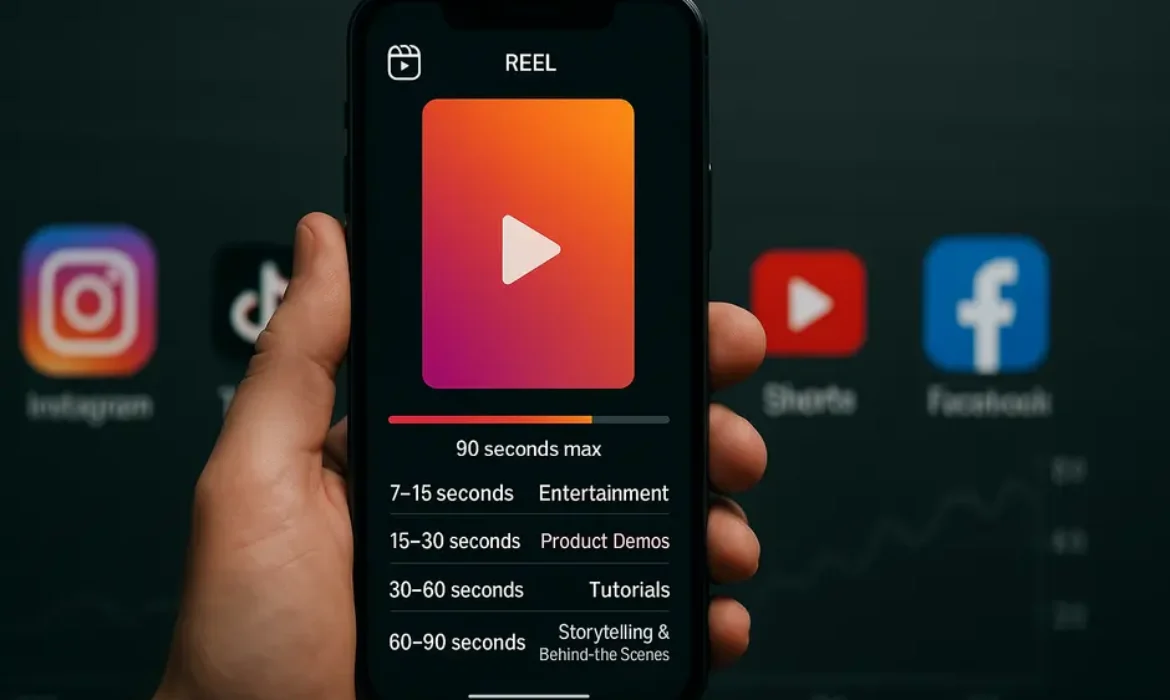
How Long Are Instagram Reels? A Simple Breakdown
How Long Are Instagram Reels? A Simple Breakdown
Estimated reading time: 8 minutes
The Current Instagram Reels Length Limit
Instagram Reels can now be up to 90 seconds long. This represents the maximum duration you can create when producing new content through the platform’s native camera or when uploading pre-recorded vertical video content.
This 90-second limit applies uniformly across all account types—personal profiles, creator accounts, and business pages alike. Whether you’re filming directly within the Instagram app or uploading edited content from external video editing software, the same time constraint applies.
The extension to 90 seconds marked a significant shift in Instagram’s approach to short-form video. The platform recognized that creators needed more flexibility to tell complete stories, demonstrate products, or deliver educational content without fragmenting their message across multiple clips.
For brands and content creators, this additional time creates opportunities that weren’t possible with the original 15-second format. You can now include proper introductions, develop narrative arcs, and add comprehensive calls-to-action—all within a single reel.
A Brief History of Reels Length Evolution
Understanding how we arrived at the current 90-second limit provides valuable context for anyone developing a mobile-first content strategy on Instagram.
The Launch: 15 Seconds (August 2020)
When Instagram first introduced Reels in August 2020, the feature was clearly positioned as a direct response to TikTok’s explosive growth. The initial Instagram reels length was capped at just 15 seconds, mirroring TikTok’s original format and emphasizing snappy, highly engaging content.
This constraint forced creators to develop tight, punchy videos that captured attention immediately. The 15-second format favored quick transitions, trending audio clips, and visual hooks that could stop mid-scroll browsing.
First Expansion: 30 Seconds (September 2020)
Just one month after launch, Instagram doubled the reel length to 30 seconds. This adjustment came after creator feedback indicated that 15 seconds was too restrictive for many content types, particularly tutorials, before-and-after transformations, and product demonstrations.
The 30-second format remained the standard for nearly a year, allowing Instagram to refine the feature’s algorithm and user interface while observing how creators adapted to the format.
Second Expansion: 60 Seconds (July 2021)
In July 2021, Instagram extended the maximum reel length to 60 seconds. This change aligned Instagram more closely with TikTok, which had already expanded to allow one-minute videos.
According to data from social media analytics platforms, the 60-second limit opened doors for more substantial storytelling. Educational content, comedy sketches with complete narrative structures, and comprehensive product reviews became viable within a single reel.
Current Standard: 90 Seconds (Early 2022-Present)
The expansion to 90 seconds arrived in early 2022, giving creators an additional 50% more time compared to the 60-second limit. Instagram announced this change through its creator channels, emphasizing the platform’s commitment to supporting diverse content formats.
This evolution reflects broader shifts in how platforms approach short-form video. The definition of “short-form” has expanded as audiences demonstrate willingness to watch longer mobile content when it delivers value.
| Time Period | Maximum Reel Length | Key Changes |
|---|---|---|
| August 2020 | 15 seconds | Initial launch |
| September 2020 | 30 seconds | First expansion, doubled original limit |
| July 2021 | 60 seconds | Major expansion, aligned with TikTok |
| Early 2022–Present | 90 seconds | Current standard, maximum flexibility |
How Instagram Reels Length Compares to Other Platforms
The competitive landscape of vertical video format platforms continues to evolve, with each platform making strategic decisions about content length that reflect their unique positioning and audience expectations.
TikTok
TikTok currently allows videos up to 10 minutes long for most users, though the platform built its reputation on 15 to 60-second clips. This dramatic expansion to 10 minutes represents TikTok’s ambition to compete with YouTube for longer-form content while maintaining its short-form DNA.
Despite this technical capability, TikTok’s algorithm still tends to favor shorter content in many categories. The platform’s “For You” feed prioritizes completion rate, which naturally advantages videos that viewers watch in their entirety.
YouTube Shorts
YouTube Shorts maintains a stricter limit of 60 seconds maximum. This constraint positions Shorts as YouTube’s pure short-form offering, distinct from the platform’s traditional longer videos.
Interestingly, YouTube has resisted expanding this limit, likely to maintain clear differentiation between Shorts and regular YouTube uploads. The 60-second cap forces creators to develop genuinely short-form content rather than simply uploading excerpts of longer videos.
Snapchat Spotlight
Snapchat’s Spotlight feature allows videos up to 60 seconds as well, though the platform recommends content between 5 and 30 seconds for optimal performance. Snapchat’s younger demographic tends to prefer even briefer content than other platforms.
Facebook Reels
Facebook Reels, leveraging Meta’s integration across platforms, also supports up to 90 seconds, matching Instagram’s current limit. This consistency across Meta properties makes it easier for creators to cross-post content without modification.
| Platform | Maximum Length | Sweet Spot for Engagement |
|---|---|---|
| Instagram Reels | 90 seconds | 7-30 seconds |
| TikTok | 10 minutes | 15-60 seconds |
| YouTube Shorts | 60 seconds | 15-45 seconds |
| Snapchat Spotlight | 60 seconds | 5-30 seconds |
| Facebook Reels | 90 seconds | 15-30 seconds |
What Length Works Best for Different Content Types
While Instagram provides up to 90 seconds, the optimal ig reel length varies dramatically based on your content category, target audience, and strategic objectives.
Entertainment and Comedy (7-15 seconds)
Quick jokes, reaction videos, and entertaining clips perform exceptionally well in the 7 to 15-second range. This brevity matches the snackable content consumption patterns that define social media browsing.
The punch line arrives before attention wavers, and viewers can easily watch multiple times—a behavior that signals high engagement to Instagram’s algorithm. Creators like comedians and entertainers often find their highest reach with these ultra-short formats.
Product Demonstrations (15-30 seconds)
Showcasing a product’s key feature or demonstrating a quick use case fits naturally into 15 to 30 seconds. This timeframe allows you to establish the problem, present your product as the solution, and include a call-to-action without losing viewer interest.
E-commerce brands frequently report that this length provides the optimal balance between information density and completion rates. You can show the product in action while maintaining the snappy pacing that short-form video demands.
Tutorials and How-Tos (30-60 seconds)
Educational content that walks viewers through a process typically requires 30 to 60 seconds. Recipe videos, makeup tutorials, DIY projects, and technical tips often need this expanded timeframe to be genuinely useful.
While you might compress a tutorial into 15 seconds through aggressive editing and fast motion, the 30 to 60-second range allows for clearer instruction. Viewers who intentionally seek educational content demonstrate higher tolerance for longer reels when the content delivers clear value.
Storytelling and Behind-the-Scenes (60-90 seconds)
Narrative content, day-in-the-life videos, and behind-the-scenes glimpses benefit from the full 60 to 90-second range. This format allows character development, emotional arcs, and contextual details that make storytelling compelling.
Personal brands and lifestyle influencers often leverage longer reels to build deeper connections with their audience. The extended time creates space for personality to emerge, which drives the parasocial relationships that fuel influencer success.
Trending Audio and Challenges (7-15 seconds)
When participating in viral trends or audio challenges, matching the typical length of other creators using that sound often yields better results. Most trending audio clips run 7 to 15 seconds, and the algorithm may favor reels that align with established patterns for that particular trend.
| Content Type | Recommended Length | Why This Works |
|---|---|---|
| Comedy/Entertainment | 7-15 seconds | Quick payoff, high rewatch value |
| Product Demos | 15-30 seconds | Shows value without overstaying |
| Tutorials | 30-60 seconds | Enough time for clear instruction |
| Storytelling | 60-90 seconds | Allows narrative development |
| Trend Participation | 7-15 seconds | Matches established patterns |
Technical Specifications Beyond Length
While reels length dominates most discussions, several other technical specifications significantly impact content quality and performance.
Aspect Ratio Requirements
Instagram Reels are designed for the vertical video format with a 9:16 aspect ratio. This mobile-first orientation fills the entire screen on smartphones, creating an immersive viewing experience that square or landscape videos cannot match.
While Instagram technically accepts other aspect ratios, content that doesn’t conform to 9:16 displays with black bars on the sides or top and bottom, significantly reducing visual impact and likely decreasing engagement.
Resolution and Quality Standards
Instagram recommends uploading Reels at 1080 x 1920 pixels for optimal quality. The platform compresses videos during upload, so starting with high-resolution source material helps maintain clarity after processing.
Recording in 4K and exporting at 1080p often produces better final results than recording directly at 1080p, as the downscaling process can enhance sharpness and detail.
File Size and Format
Instagram accepts MP4 and MOV file formats for Reels uploads. While the platform doesn’t publish explicit file size limits, keeping uploads under 4GB ensures smoother processing and reduces the chance of upload failures.
The H.264 codec with AAC audio provides the best balance between quality and compatibility across devices and connection speeds.
Frame Rate Considerations
A frame rate of 30 frames per second (fps) is standard and recommended for most Reels content. Some creators use 60fps for ultra-smooth motion in action sequences or sports content, though this higher frame rate increases file size and may not display consistently across all devices.
Lower frame rates like 24fps can create a more cinematic feel but may appear slightly choppy on mobile devices where viewers expect the smoothness of 30fps or higher.
How Reel Length Affects Algorithm Performance
Instagram’s algorithm doesn’t inherently favor shorter or longer reels, but length indirectly influences the metrics that the algorithm prioritizes.
Completion Rate Dynamics
The algorithm heavily weights completion rate—the percentage of viewers who watch your reel all the way through. Mathematically, shorter reels have an advantage here. A 10-second reel requires less commitment than a 90-second reel, making complete views more likely.
However, this doesn’t mean you should artificially truncate content. A 90-second reel that captivates viewers from start to finish will outperform a 15-second reel that loses attention halfway through. The key is matching length to content quality and audience expectations.
Watch Time and Engagement Depth
While completion rate matters, Instagram also considers total watch time. A 60-second reel that people watch completely generates more watch time than a 15-second reel with the same completion rate.
Platforms increasingly recognize that deeper engagement—even on fewer pieces of content—indicates quality. A viewer who spends 90 seconds watching your reel and then visits your profile signals stronger interest than someone who watches three 10-second reels passively.
The Rewatch Effect
Instagram counts replays as positive engagement signals. Highly rewatchable content often performs exceptionally well regardless of length. Comedy bits, satisfying visual sequences, and content with hidden details that reveal themselves on second viewing all benefit from the rewatch phenomenon.
Shorter reels (under 20 seconds) are inherently more rewatchable simply because the time investment is minimal. You might watch a 12-second reel three times, but you’re unlikely to immediately rewatch a 90-second reel even if you enjoyed it.
Algorithmic Testing Recommendations
Many successful creators test different lengths for similar content types and analyze performance data to identify their optimal reel length instagram audience preferences. Instagram Insights provides completion rate data that reveals where viewers drop off.
If you notice consistent drop-off at the 30-second mark across multiple reels, that signals a potential optimal length for your specific audience. Algorithm performance isn’t universal—it’s personalized to how your followers and potential new viewers engage with your content.
Best Practices for Maximizing Engagement at Any Length
Regardless of whether you create 15-second clips or 90-second mini-documentaries, certain principles consistently drive better performance.
Front-Load Your Value
The first three seconds determine whether viewers keep watching or scroll past. Open with your most compelling visual, your most intriguing statement, or an immediate demonstration of value.
Traditional narrative structures that build slowly to a climax don’t work in short-form video. The climax needs to happen immediately, or at minimum, be clearly promised in those crucial opening moments.
Optimize for Sound-Off Viewing
According to various studies on social media consumption patterns, significant percentages of users browse Instagram with sound off, particularly in public spaces or work environments. Text overlays, captions, and visually clear narratives ensure your content communicates effectively even without audio.
This doesn’t mean audio is unimportant—trending sounds significantly boost discoverability—but your visual storytelling should stand alone.
Strategic Use of Captions and Text
On-screen text serves multiple functions: it accommodates sound-off viewing, emphasizes key points, and creates visual interest. However, overwhelming viewers with too much text creates cognitive overload.
Strategic text placement that guides attention without cluttering the frame strikes the ideal balance. Ensure text remains on screen long enough to read comfortably, typically requiring 1-2 seconds per short sentence.
Hook, Value, and CTA Structure
Effective reels typically follow a three-part structure regardless of total length:
- Hook (first 1-3 seconds): Capture attention with a question, visual surprise, or compelling statement
- Value (middle section): Deliver the promised entertainment, information, or insight
- Call-to-Action (final 2-5 seconds): Direct viewers to follow, comment, visit your profile, or take another specific action
This structure scales from 15 seconds to 90 seconds by adjusting how much depth you include in the value section.
Leverage Pattern Interrupts
Attention naturally wavers over time. Strategic edits, scene changes, text appearances, or visual effects every 3-5 seconds create pattern interrupts that re-engage wandering attention.
These don’t need to be jarring transitions—even subtle changes in camera angle or background maintain cognitive engagement more effectively than static shots.
Test and Analyze Performance Data
Instagram Insights provides detailed metrics on how your reels perform. Pay particular attention to:
- Average watch time: Shows how long viewers typically engage
- Reach: Indicates how widely Instagram distributed your content
- Engagement rate: Reveals how often viewers like, comment, share, or save
- Sources: Shows whether traffic came from followers, Explore, hashtags, or other sources
Patterns in this data reveal what your specific audience responds to regarding length, style, and content type.
Frequently Asked Questions
How long is a reel on Instagram compared to TikTok?
Instagram Reels can be up to 90 seconds long, while TikTok currently allows videos up to 10 minutes. However, despite TikTok’s longer maximum length, both platforms built their reputations on short-form content between 15 and 60 seconds. The practical sweet spot for engagement on both platforms remains in the 15 to 30-second range for most content categories, even though the technical capabilities extend much further.
Can I make Instagram Reels longer than 90 seconds?
No, 90 seconds represents the hard limit for Instagram Reels at this time. If you have longer content you want to share on Instagram, you have several alternatives: post it as a standard video to your feed (which allows up to 60 minutes), upload it to IGTV, or break the content into multiple sequential reels. Some creators effectively use series formats where they number reels (Part 1, Part 2, etc.) to deliver longer narratives across multiple posts.
What is the minimum length for Instagram Reels?
Instagram doesn’t enforce a strict minimum length for Reels, but the practical minimum is around 1-2 seconds. Extremely short reels (under 5 seconds) may struggle with algorithmic distribution because they provide limited engagement time. The platform’s editing interface and most strategic content approaches make 7-10 seconds a more realistic minimum for content that performs well.
Do longer reels get more or less reach than shorter ones?
Length itself doesn’t directly determine reach—content quality, engagement rate, and completion rate matter more. However, length indirectly affects these metrics. Shorter reels often achieve higher completion rates simply because they require less time commitment, which can boost algorithmic distribution. Conversely, longer reels that maintain engagement throughout signal exceptionally high quality to the algorithm. The optimal strategy involves matching length to content type rather than defaulting to always short or always long.
Should I always use the full 90 seconds available?
Absolutely not. Use only as much time as your content genuinely needs. A compelling 15-second reel vastly outperforms a 90-second reel with 75 seconds of filler. The additional length Instagram provides creates flexibility for content that benefits from extended time, but forcing content to fill the available space typically decreases quality and engagement. Let your message determine length rather than letting arbitrary length constraints determine your message.
How long should my Instagram Reels be for business accounts?
Business accounts should apply the same length principles as creators: match duration to content type and value delivery. Product demonstrations often work best at 15-30 seconds, tutorial content may need 30-60 seconds, and brand storytelling might use the full 60-90 seconds. The key difference for business accounts is maintaining focus on conversion objectives. Every second should either build brand awareness, demonstrate product value, or move viewers toward a conversion action. Test different lengths with similar content and analyze which drives better business results—follower growth, website clicks, or sales.
Does Instagram favor certain reel lengths in the algorithm?
Instagram’s algorithm doesn’t explicitly favor specific lengths, but it does prioritize metrics that correlate with length. The algorithm values completion rate, total watch time, replays, and engagement. Shorter reels naturally achieve higher completion rates, while longer reels that hold attention generate more watch time. Rather than favoring a particular length, the algorithm rewards content that maximizes these engagement metrics at whatever length the creator chooses. This is why the same creator might see a 12-second reel and a 75-second reel both perform exceptionally well if each optimally delivers its specific content type.
Final Thoughts
Instagram Reels can be up to 90 seconds long, but this technical maximum shouldn’t dictate your content strategy. The most successful creators on the platform understand that optimal reel length varies based on content type, audience preferences, and strategic objectives.
The evolution from 15 seconds to 90 seconds reflects Instagram’s recognition that different messages require different timeframes. Quick entertainment thrives at 7-15 seconds. Product demonstrations find their sweet spot around 20-30 seconds. Tutorials and educational content often need 45-60 seconds. Storytelling and narrative content can justify the full 90-second canvas.
Rather than asking “how long should my reels be,” ask “how long does this specific content need to deliver maximum value?” Let substance determine length, not arbitrary rules or assumptions about algorithm preferences.
The data consistently shows that engagement quality matters more than content length. A 20-second reel that viewers watch completely, rewatch, share, and comment on will always outperform a 90-second reel that loses attention at the 15-second mark.
As you develop your Instagram content strategy, focus on these principles: front-load value, maintain tight pacing, optimize for both sound-on and sound-off viewing, and ruthlessly edit anything that doesn’t serve your core message. Whether that results in a 12-second clip or an 85-second mini-story, you’ll create content that resonates with your audience and performs well within Instagram’s algorithm.
The vertical video format continues to dominate mobile-first content consumption, and Instagram Reels remains one of the most powerful tools for reaching new audiences. Understanding length options and best practices positions you to maximize this opportunity regardless of your niche, audience size, or content style.
Test different approaches, analyze your performance data, and let your results guide your strategy. The perfect reel length isn’t a universal number—it’s whatever works best for your unique content and audience.
Instagram Reel Duration Explained: Minutes, Time Limits & Posting Rules
Instagram Reel Duration Explained: Minutes, Time Limits & Posting Rules
Estimated reading time: 8 minutes
Key Takeaways
-
- Instagram Reels can now be up to 90 seconds long as of the latest update, a significant increase from the original 15-second limit
- Different recording methods (in-app vs. upload) offer the same maximum duration but with varying workflow options
- The ideal reel duration depends more on content quality and audience retention than hitting the maximum time limit
- Strategic video trimming and editing can dramatically improve engagement rates regardless of total length
- Understanding Instagram’s publishing workflow helps creators optimize both technical quality and viewer experience
When Instagram launched Reels in August 2020, the feature arrived with strict time constraints that many creators found limiting. Fast forward to today, and the platform has significantly expanded what’s possible—but confusion still surrounds exactly how long a reel can be, what the actual limits are, and how different creation methods affect your options.
If you’ve ever wondered whether you can post a 3-minute reel, why your video gets trimmed during upload, or how the Instagram app handles different video lengths, you’re asking the right questions. The truth is that Instagram’s reel duration limits have changed multiple times, and understanding the current landscape can mean the difference between content that performs and content that gets cut off at the worst possible moment.
Let’s break down everything you need to know about Instagram reels duration, from the technical specifications to the strategic thinking that should guide your creative decisions.
Understanding Instagram Reels Duration Limits
The maximum duration of Instagram reels isn’t just a random number—it reflects Instagram’s ongoing competition with TikTok, YouTube Shorts, and other short-form video platforms. Currently, creators can post reels up to 90 seconds in length, regardless of whether you’re recording directly in the Instagram app or uploading pre-edited content.
This 90-second ceiling represents a significant evolution from the feature’s launch. The limit applies universally across all account types: personal profiles, business accounts, and creator accounts all operate under the same time constraints.
What Happens When You Exceed the Limit?
When you attempt to upload a video longer than 90 seconds through the reels interface, Instagram’s publishing workflow automatically prompts you to trim the content. The platform won’t simply reject your upload—instead, you’ll enter a video trimming mode where you can select which 90-second segment you want to publish.
This behavior differs from regular Instagram video posts (which can run much longer) and IGTV content, which has different specifications entirely. Understanding these distinctions helps you choose the right format for your content before you start filming.
The Evolution of Instagram Reel Time Limits
Instagram’s approach to reel duration has been anything but static. Tracking these changes reveals important insights about the platform’s strategy and where short-form video is heading.
Timeline of Duration Changes
| Date | Maximum Duration | Context |
|---|---|---|
| August 2020 | 15 seconds | Initial Reels launch in the U.S. |
| July 2021 | 30 seconds | First major extension, matching early TikTok limits |
| September 2021 | 60 seconds | Aligned with TikTok’s extended format |
| 2022 | 90 seconds | Current standard across the platform |
Each expansion reflected Instagram’s recognition that creators needed more flexibility to tell complete stories. The jump from 15 to 90 seconds represents a 500% increase in available time—fundamentally changing what’s possible within the Reels format.
According to Meta’s official newsroom, these extensions came directly from creator feedback requesting more room for tutorials, educational content, and narrative-driven videos that simply couldn’t fit into ultra-short formats.
Why Instagram Keeps Changing Duration Limits
Platform evolution rarely happens in a vacuum. Instagram’s reel time limit adjustments directly respond to:
-
-
- Competitive Pressure: TikTok extended its maximum video length to 10 minutes for some creators, while YouTube Shorts maintains a 60-second limit. Instagram positioned itself in the middle—long enough for substantial content but short enough to maintain the “snackable” nature that defines short-form video
- Creator Demands: Tutorial creators, educators, and storytellers consistently pushed for longer formats. The 90-second limit represents a compromise between brevity and depth
- Engagement Data: Internal metrics likely showed that well-crafted longer reels maintained viewer attention, dispelling fears that extended duration would hurt completion rates
- Monetization Opportunities: Longer content creates more opportunities for mid-roll placements and sponsored integrations, making the platform more attractive to professional creators
-
How Long Can Your Instagram Reel Actually Be?
Let’s get specific about what “90 seconds” actually means in practical terms and how the Instagram app enforces this limit.
The Hard Technical Limit
The reels duration limit stands firm at 90 seconds (1.5 minutes) regardless of:
-
-
- Account type or follower count
- Geographic location
- Device type (iOS or Android)
- Recording method (in-app or upload)
- Video quality or file size
-
There are no exceptions, verified badges, or business account privileges that extend this limit. Everyone operates within the same constraints.
Frame Rate and Technical Considerations
While the duration limit is straightforward, other technical specifications can affect your video:
Recommended Specifications:
-
-
- Aspect Ratio: 9:16 (vertical, full-screen)
- Resolution: 1080 x 1920 pixels minimum
- Frame Rate: 30 fps standard (though the app accepts various rates)
- File Format: MP4 or MOV
- File Size: No official limit, but uploads over 1GB may experience issues
-
These specifications matter because poorly formatted videos might get compressed or cropped in ways that effectively reduce your usable duration or visual quality.
How Many Minutes Can Reels Be? Breaking Down the Math
Since many creators think in minutes rather than seconds, here’s the straightforward conversion:
-
-
- Maximum: 90 seconds = 1 minute and 30 seconds
- Previous limit: 60 seconds = 1 minute exactly
- Original limit: 15 seconds = 0.25 minutes
-
You cannot post a 2-minute reel, a 3-minute reel, or anything exceeding the 90-second threshold through the Reels interface. If your content naturally runs longer, you’ll need to either trim it or consider posting it as a standard Instagram video or IGTV content instead.
In-App Recording vs. Upload Settings: What’s Different?
The Instagram app offers two distinct pathways for creating reels, and while both respect the same duration limits, they provide different creative workflows.
In-App Recording Method
When you record directly within Instagram’s camera interface, you’re working with the platform’s native tools:
Duration Selection:
-
-
- You can choose preset lengths: 15, 30, 60, or 90 seconds
- The timer helps you know exactly when you’ll hit the limit
- Recording automatically stops when you reach your selected duration
- You can record multiple clips that combine to your chosen total length
-
Advantages:
-
-
- Immediate access to Instagram’s music library (which respects licensing for the platform)
- Built-in AR effects and filters designed specifically for Reels
- Seamless integration with Instagram’s editing tools
- No file transfer or upload wait times
-
Limitations:
-
-
- Less sophisticated editing than dedicated video software
- Can’t import complex multi-track projects
- Limited control over advanced video parameters
- Audio mixing options are basic compared to professional tools
-
Upload Settings and Pre-Edited Content
Uploading videos created outside Instagram provides more creative control:
Process:
-
-
- Create your video in your preferred editing software
- Export at 90 seconds or less
- Select the video from your camera roll when creating a Reel
- Instagram applies any final adjustments or additions
-
Advantages:
-
-
- Professional editing software capabilities
- Multi-track audio mixing
- Advanced color grading and effects
- Precise timing control down to individual frames
- Ability to incorporate licensed music outside Instagram’s library (though this may limit distribution)
-
Considerations:
-
-
- File size can affect upload speed
- Video quality may be compressed during upload
- Some advanced effects might not render properly on mobile devices
- Uploaded videos can’t use Instagram’s licensed music library (you must add this before uploading or use original audio)
-
Which Method Should You Choose?
Your choice depends on your content goals and production capabilities:
Use in-app recording when:
-
-
- Creating spontaneous, trend-driven content
- You need Instagram’s music library for licensing compliance
- Working with Instagram-specific AR effects
- Speed matters more than production polish
- You’re filming content that benefits from real-time preview
-
Use upload settings when:
-
-
- Creating tutorial or educational content requiring precise editing
- Your content involves complex visual effects or transitions
- You’re repurposing content created for other platforms
- Brand consistency requires specific color grading or filters
- You need precise audio mixing with multiple sources
-
Publishing Workflow and Video Trimming Tips
Understanding Instagram’s publishing workflow helps you avoid frustrating surprises when your carefully edited video needs last-minute adjustments.
The Upload and Publishing Process
-
-
- Video Selection: You choose your video file (either just-recorded or from camera roll)
- Duration Check: Instagram immediately checks if the video exceeds 90 seconds
- Trimming Interface: If over the limit, you enter a trimming screen showing your full video with a 90-second selection window
- Audio Adjustment: You can add Instagram music, adjust volume levels, or keep original audio
- Cover Frame: Select which frame serves as your Reel’s thumbnail
- Caption and Tags: Add your description, hashtags, and location
- Publishing Options: Choose where the Reel appears (Feed, Reels tab only, etc.)
- Final Upload: Instagram processes and publishes your content
-
Video Trimming Best Practices
When you need to cut down a longer video, these strategies preserve quality and impact:
Identify Your Hook (0-3 Seconds):
The opening moments determine whether viewers keep watching. If trimming is necessary, ensure your strongest visual hook sits within the first three seconds of your selected segment.
Preserve Complete Thoughts:
Avoid trimming mid-sentence or mid-action. Find natural break points that create a coherent viewing experience even if the original content was longer.
Consider the Loop:
Reels automatically loop when they finish. Trimming with this in mind—choosing segments where the end flows naturally back to the beginning—can increase total watch time.
Use Jump Cuts Strategically:
If your content works as highlights, identify the strongest moments and trim less compelling segments rather than trying to preserve chronological flow.
Test Different Segments:
The Instagram app’s trimming interface lets you slide the selection window along your full video. Testing different 90-second segments can reveal which portion performs best as a standalone piece.
Maintaining Quality During the Workflow
Instagram’s compression can affect video quality, particularly if you’re starting with very high-resolution files. To maintain the best possible quality:
-
-
- Export at 1080 x 1920 resolution (the platform’s native display size)
- Use H.264 codec for best compatibility
- Keep bitrate around 5-8 Mbps for optimal quality-to-file-size ratio
- Avoid re-uploading content that’s already been compressed by other platforms
- Upload over WiFi rather than cellular when possible to prevent timeout issues
-
Strategic Considerations for Reel Length
Just because you can use all 90 seconds doesn’t mean you should. The optimal reel duration depends on content type, audience behavior, and your specific goals.
Engagement Patterns by Duration
Research from social media analytics platforms reveals interesting patterns about how reel length affects performance:
15-30 Second Reels:
-
-
- Highest completion rates (viewers watch to the end)
- Best for viral, trend-based content
- Optimal for simple demonstrations or quick tips
- Easier to loop naturally for repeat views
- Lower barrier to viewer commitment
-
30-60 Second Reels:
-
-
- Balanced approach for most content types
- Allows for setup, delivery, and conclusion structure
- Sufficient for basic tutorials or storytelling
- Maintains relatively high completion rates
- Provides room for both entertainment and information
-
60-90 Second Reels:
-
-
- Best suited for detailed tutorials or educational content
- Allows deeper storytelling and narrative development
- May see lower completion rates but higher engagement from committed viewers
- Works well for niche audiences seeking specific information
- Provides space for proper context and calls-to-action
-
Content Type and Optimal Duration
| Content Type | Recommended Duration | Reason |
|---|---|---|
| Dance/Trend Videos | 15-20 seconds | Matches typical song chorus length |
| Quick Tips | 20-30 seconds | Enough for single actionable insight |
| Before/After | 15-30 seconds | Shows transformation without dragging |
| Educational Tutorials | 45-90 seconds | Requires setup, instruction, and demonstration |
| Storytelling | 60-90 seconds | Needs narrative arc development |
| Product Demos | 30-60 seconds | Shows features without losing attention |
| Behind-the-Scenes | 30-60 seconds | Maintains authenticity without excess |
Audience Retention Metrics
Instagram provides insights showing exactly where viewers drop off during your Reels. This data reveals crucial information about your optimal duration:
Analyzing Your Retention Curve:
-
-
- Sharp drops at specific timestamps indicate pacing issues or content problems
- Gradual decline is normal; steep decline suggests duration mismatch
- Completion rates above 70% suggest your duration matches content strength
- Rates below 40% often mean the reel is longer than the value delivered
-
Access these metrics through Instagram Insights on individual Reels to inform your future duration decisions based on actual performance rather than assumptions.
Common Mistakes with Reel Duration
Even experienced creators sometimes mishandle duration decisions. Avoiding these pitfalls improves both the creation process and final results.
Mistake 1: Maxing Out Duration Without Purpose
Using all 90 seconds simply because they’re available dilutes content strength. Every second should serve a purpose—advancing the narrative, delivering value, or maintaining engagement. Viewers notice filler content, and the algorithm detects when people start scrolling away.
Better Approach: Script or outline your content first, then let the material dictate duration rather than forcing content to fill a predetermined length.
Mistake 2: Cutting Too Aggressively
While brevity generally helps, cutting so much that your content becomes confusing or incomplete damages effectiveness more than a few extra seconds would.
Better Approach: Find the minimum viable duration that delivers complete value. If your tutorial actually requires 75 seconds to be useful, don’t force it into 30 seconds just to match trending content styles.
Mistake 3: Ignoring Platform Differences
Content that works perfectly as a 3-minute YouTube Short or TikTok video won’t simply scale down to Instagram’s 90-second limit without thoughtful adaptation.
Better Approach: Repurpose content strategically. Use the full version on platforms that support longer duration, and create a highlight version or Part 1/Part 2 series for Instagram Reels rather than awkwardly trimming mid-thought.
Mistake 4: Neglecting the Loop Opportunity
Reels loop automatically, creating opportunities for increased total watch time if you plan for it. Many creators ignore this, resulting in jarring transitions when the video restarts.
Better Approach: When possible, structure content so the end flows naturally back to the beginning, or at minimum doesn’t create an awkward jump when looping occurs.
Mistake 5: Inconsistent Pacing
Sixty seconds of slow content feels longer than 90 seconds of well-paced content. Duration complaints often stem from pacing issues rather than actual length.
Better Approach: Vary shot lengths, maintain visual interest through movement or editing rhythm, and eliminate “dead air” where nothing is happening or being communicated.
Frequently Asked Questions
How long can Instagram Reels be in 2024?
Instagram Reels can be up to 90 seconds (1 minute and 30 seconds) long as of the current specifications. This limit applies to all users regardless of account type, follower count, or geographic location. The 90-second maximum represents the upper boundary—you can create reels of any length shorter than this, with common options including 15, 30, and 60 seconds. If you attempt to upload a video longer than 90 seconds, Instagram will prompt you to trim it to fit within the allowed duration before publishing.
What is the reel time limit when recording in the Instagram app?
When recording directly in the Instagram app, you can select from preset duration options: 15, 30, 60, or 90 seconds. Once you select your preferred duration, the in-app camera will track your recording time and automatically stop when you reach the limit. You can record your reel as a single continuous clip or as multiple segments that combine to your total selected length. The in-app recording method respects the same 90-second maximum as uploaded videos, but the preset options help you plan your content for specific time frames before you start filming.
Can you post a 2-minute or 3-minute reel on Instagram?
No, you cannot post a 2-minute or 3-minute reel on Instagram. The platform’s maximum duration for Reels is strictly limited to 90 seconds (1.5 minutes). If you have content that runs longer than this, you have several alternatives: trim the video to fit within the 90-second limit, split it into multiple separate Reels posted as a series, or publish it as a regular Instagram video post instead of a Reel. Regular Instagram video posts support significantly longer content, making them better suited for content that naturally requires more than 90 seconds to deliver its full value.
Does the Instagram reel duration limit differ between business and personal accounts?
No, the reel duration limit is identical across all Instagram account types. Personal accounts, creator accounts, and business accounts all face the same 90-second maximum. Instagram applies technical limits uniformly regardless of account status, verification badges, or follower count. While business and creator accounts gain access to additional analytics features and advertising options, these privileges don’t extend to longer reel duration. The level playing field for duration ensures all creators compete under the same technical constraints, with success determined by content quality rather than account classification.
What happens if my video is longer than the Instagram reel time limit?
When you attempt to upload a video longer than 90 seconds as a Reel, Instagram automatically detects the excess duration and opens a video trimming interface. This trimming tool displays your entire video with a selection window that spans exactly 90 seconds. You can slide this window along your video’s timeline to choose which segment you want to publish. The interface shows you precisely which portions will be included or excluded, allowing you to identify the strongest 90-second segment before finalizing your upload. The trimming happens before publication, so your original video file remains intact on your device—only the selected portion gets uploaded as your Reel.
How do I make my Instagram Reels longer?
You cannot extend Instagram Reels beyond the 90-second maximum duration, as this is a hard technical limit set by the platform. However, you can maximize the available time by selecting the 90-second option when creating your Reel (rather than shorter preset options like 15 or 30 seconds). If your content naturally requires more time than 90 seconds allows, consider creating a series of connected Reels that tell a complete story across multiple posts, or use a regular Instagram video post for longer content. When working within the 90-second constraint, efficient scripting, tight editing, and strategic pacing help you deliver maximum value within the available time.
Does video quality affect how long of a reel you can post on Instagram?
Video quality (resolution, file size, etc.) does not affect the maximum duration permitted for Instagram Reels. The 90-second limit applies regardless of whether you upload a low-resolution video with a small file size or a high-quality 1080p video with a large file size. However, extremely large video files may experience longer upload times or potential timeout issues, particularly on slower internet connections. For best results, Instagram recommends uploading videos at 1080 x 1920 resolution (9:16 aspect ratio) with H.264 encoding, which provides optimal quality while maintaining reasonable file sizes that upload reliably within the 90-second duration constraint.
Final Thoughts
Instagram’s reel duration limits have expanded significantly since the feature launched, giving creators substantially more flexibility to develop content that genuinely serves their audience. The current 90-second maximum strikes a balance between short-form engagement patterns and the need for sufficient time to deliver complete value.
Understanding these technical constraints matters, but it’s equally important to recognize that duration itself is just one variable in content performance. The most successful Reels aren’t necessarily the longest or shortest—they’re the ones where duration perfectly matches the content’s natural requirements.
As you develop your Instagram strategy, let your message dictate your duration rather than forcing content to fit arbitrary length targets. Use the full 90 seconds when your content deserves it, but don’t hesitate to trim to 30 seconds when that’s all your idea needs. The Instagram app provides flexible tools for both in-app recording and upload settings, giving you multiple pathways to work within these constraints creatively.
The publishing workflow, video trimming capabilities, and technical specifications all exist to help you deliver the best possible viewing experience within the platform’s framework. Master these tools, understand the strategic implications of different durations, and you’ll create Reels that capture attention regardless of whether they run 15 seconds or the full minute and a half.
Duration limits will likely continue evolving as Instagram responds to competitive pressure and creator needs. Stay informed about updates, but focus primarily on creating valuable content that respects your audience’s time—whether that’s 20 seconds or 90.
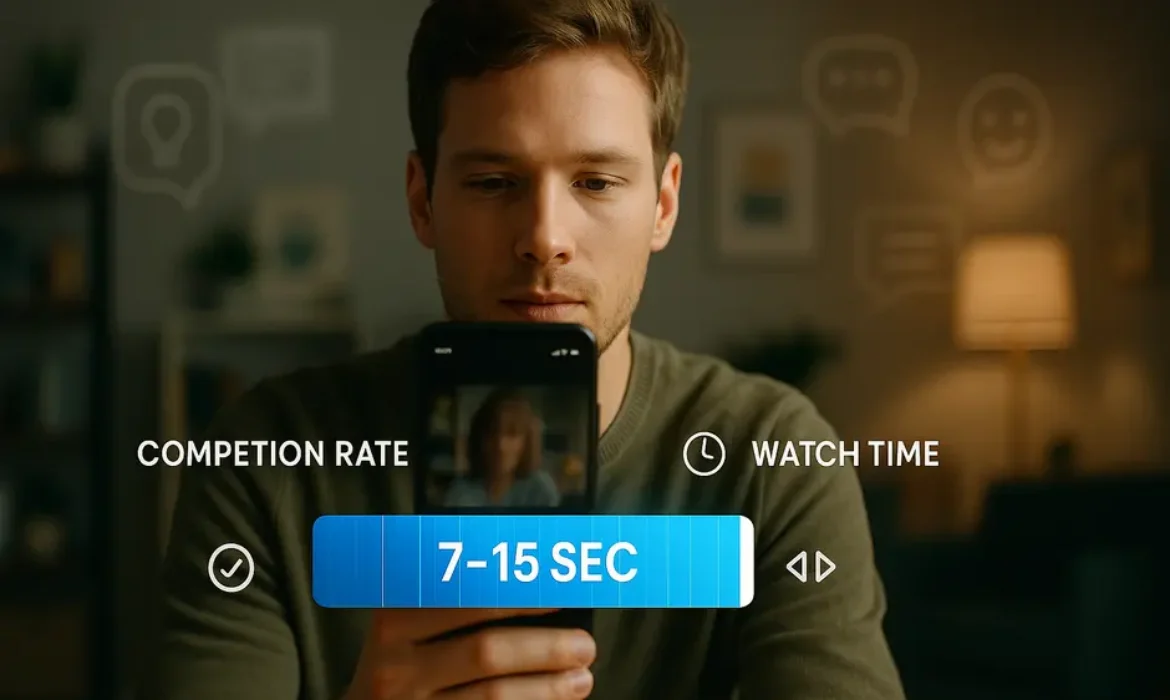
How Long Should an Instagram Reel Be for Maximum Reach?
How Long Should an Instagram Reel Be for Maximum Reach?
Estimated reading time: 9 minutes
Key Takeaways
-
- 7-15 seconds produces the highest completion rates and repeat views across most content types
- 30-60 seconds works best for tutorials, storytelling, and educational content when retention is maintained
- Instagram’s algorithm prioritizes watch time and completion rate over raw video length
- Shorter reels (under 15 seconds) generate 2-3x more replays, boosting overall engagement
- Content quality and pacing matter more than hitting a specific duration target
- Different content types require different length strategies for maximum performance
Understanding Instagram’s Algorithm and Reel Length
Instagram’s algorithm doesn’t technically penalize or reward based on video length alone. However, the platform’s ranking system heavily weighs metrics that are directly influenced by how long your Reel runs.
The Instagram algorithm evaluates content based on several signals:
Primary ranking factors affected by length:
-
-
- Completion rate: The percentage of viewers who watch your entire Reel
- Watch time: Total seconds spent viewing your content
- Retention rate: How much of your video people watch before scrolling
- Replays: How often viewers watch your Reel multiple times
- Engagement velocity: How quickly interactions accumulate after posting
-
Here’s the critical insight: Instagram wants to keep users on the platform as long as possible. However, the algorithm has learned that completion signals quality better than raw watch time. A 10-second Reel watched completely by 10,000 people performs better than a 60-second Reel where 10,000 people watch only 15 seconds before scrolling.
This creates an interesting dynamic where shorter content often outperforms longer videos, but only when the shorter content is genuinely engaging and prompts replays.
The Ideal Reel Length: What the Data Shows
Based on comprehensive performance analysis across multiple industries, here’s what the data reveals about ideal Reel duration:
| Reel Length | Average Completion Rate | Replay Rate | Best For | Reach Potential |
|---|---|---|---|---|
| 3-7 seconds | 78-85% | High (2.5x average) | Quick tips, hooks, transitions | Very High |
| 8-15 seconds | 65-75% | High (2.1x average) | Before/after, demonstrations, humor | High |
| 16-30 seconds | 45-60% | Moderate (1.3x average) | Short tutorials, storytelling | Moderate-High |
| 31-60 seconds | 30-45% | Low (0.9x average) | Educational content, in-depth how-tos | Moderate |
| 60-90 seconds | 18-30% | Very Low (0.6x average) | Long-form stories, comprehensive guides | Lower |
The sweet spot: Data consistently shows that Reels between 7-15 seconds generate the highest reach across most content categories. This duration allows enough time to deliver value while maintaining high completion rates.
However, this doesn’t mean longer Reels fail. When content justifies the length and maintains strong pacing, 30-60 second Reels can achieve exceptional engagement rates, particularly for audiences already invested in your content.
According to Hootsuite’s social media research, short-form video content under 15 seconds receives 67% more engagement per minute of content compared to longer formats on Instagram.
How Reel Duration Affects Engagement Metrics
Understanding how length influences specific metrics helps you make strategic decisions about content creation.
Completion Rate: The Most Critical Metric
Completion rate measures the percentage of viewers who watch your Reel from start to finish. Instagram’s algorithm treats this as a primary quality signal.
Why shorter wins here:
-
-
- Viewer commitment decreases exponentially with length
- A 7-second Reel requires minimal investment to complete
- Completion signals that content delivered on its promise
- High completion rates tell Instagram to show your Reel to more people
-
The completion rate curve:
-
-
- 0-10 seconds: 70-80% average completion
- 11-20 seconds: 55-65% average completion
- 21-40 seconds: 40-50% average completion
- 41-60 seconds: 25-35% average completion
- 61-90 seconds: 15-25% average completion
-
Watch Time and Retention Rate
While completion matters most, Instagram also evaluates total watch time and how long viewers stay engaged before scrolling.
Longer Reels can accumulate more total watch time even with lower completion rates. A 60-second Reel with 30% completion (18 seconds average watch time) delivers more platform time than a 10-second Reel with 80% completion (8 seconds watch time).
However, Instagram’s algorithm balances this with retention quality. A sharp drop-off signals poor content quality, hurting distribution regardless of initial watch time.
Retention benchmarks:
-
-
- First 3 seconds: Should retain 90%+ of viewers
- By 10 seconds: Should maintain 60%+ retention
- By 30 seconds: Should maintain 40%+ retention
-
Replays and Loop Potential
Shorter Reels have a massive advantage in replay rate. When a viewer reaches the end of a 7-second Reel and Instagram auto-loops it, the viewer often watches again (sometimes without consciously choosing to).
These replays compound your engagement metrics, signaling to Instagram that your content is highly engaging. A single viewer watching your 8-second Reel three times generates 24 seconds of watch time—equivalent to a 24-second Reel watched once, but with much stronger engagement signals.
Engagement Rate Considerations
Comments, likes, shares, and saves don’t directly correlate with length, but they’re influenced by it.
Shorter Reels tend to generate faster engagement velocity because viewers complete the content and can interact immediately. Longer Reels may accumulate engagement more slowly, which can impact initial algorithmic distribution.
However, deeply valuable longer content often generates higher save rates, which Instagram increasingly values as a quality signal.
Content Type and Optimal Length Strategy
The ideal length for your Reels depends heavily on content type and the value you’re delivering. Here’s a strategic breakdown:
Quick Tips and Hacks (5-15 seconds)
Optimal length: 7-12 seconds
These high-performing formats thrive on brevity. Viewers want the insight fast, and completion rates stay extremely high.
Examples:
-
-
- “One-ingredient swap that changed my cooking”
- “The keyboard shortcut I wish I knew earlier”
- “Fix this common makeup mistake in 5 seconds”
-
Strategy: Front-load the value, deliver the payoff immediately, create loop-worthy endings that make sense when the Reel restarts.
Before/After Transformations (8-20 seconds)
Optimal length: 10-18 seconds
Transformation content benefits from showing the journey without dragging. Quick transitions maintain interest while providing satisfying reveals.
Examples:
-
-
- Room makeovers
- Fitness transformations
- Photo editing reveals
- Organization projects
-
Strategy: 2-3 seconds establishing the “before,” 3-5 seconds showing the transformation, 3-5 seconds showcasing the “after,” 2-4 seconds for final impact.
Educational and Tutorial Content (20-60 seconds)
Optimal length: 30-45 seconds
When teaching requires multiple steps, longer formats work better—but only when every second adds value.
Examples:
-
-
- Cooking recipes with 3-5 steps
- Software tutorials
- Exercise form demonstrations
- Creative techniques
-
Strategy: Use fast pacing, cut out dead space, show rather than tell, include text overlays to support audio, and maintain visual interest throughout.
Storytelling and Narrative Content (30-90 seconds)
Optimal length: 45-75 seconds
Stories need time to develop, making this the exception where longer formats can excel—if the narrative holds attention.
Examples:
-
-
- Customer testimonials
- Behind-the-scenes journeys
- Personal experiences with a lesson
- Product origin stories
-
Strategy: Hook within 1 second, escalate tension or interest every 10 seconds, pay off the narrative, create emotional resonance that encourages saves and shares.
Entertainment and Humor (5-20 seconds)
Optimal length: 8-15 seconds
Comedy works best when punchy. Setup, escalation, punchline. The faster you deliver, the higher your replay rate.
Examples:
-
-
- Relatable situations
- Trending audio usage
- Reactions and expressions
- Skits and parodies
-
Strategy: Tight editing, strong opening frame, rhythm that builds to payoff, endings that work when looped.
Platform Changes: From 15 Seconds to 90 Seconds
Instagram’s evolution of Reel length limits tells an interesting story about the platform’s strategy.
The timeline:
-
-
- August 2020: Reels launch with 15-second maximum
- September 2021: Extended to 30 seconds
- July 2022: Increased to 60 seconds
- February 2023: Expanded to 90 seconds
- Current: 90-second maximum remains
-
Despite Instagram offering longer formats, the performance data hasn’t shifted dramatically. Shorter content still dominates reach and engagement metrics across most categories.
Why did Instagram expand limits if shorter performs better? Platform competition. TikTok extended video lengths, and YouTube Shorts increased duration caps. Instagram needed feature parity to retain creators who want flexibility.
However, just because you can create 90-second Reels doesn’t mean you should. The algorithm still prioritizes completion and retention rate, giving shorter, tighter content an inherent advantage.
The strategic approach: Use the length your content genuinely needs, not the maximum available.
Best Practices for Different Reel Lengths
Regardless of your chosen length, these practices maximize performance:
For Ultra-Short Reels (3-10 seconds)
Structure requirements:
-
-
- Hook in the first frame (no buildup)
- Single, clear message or payoff
- Loop-friendly endings
- Visual interest every second
- Text overlays for sound-off viewing
-
Common pitfall: Being so brief that viewers feel confused or unsatisfied. Ultra-short Reels must deliver complete value despite brevity.
For Short Reels (11-25 seconds)
Structure requirements:
-
-
- Compelling opening (1-2 seconds)
- Clear progression or steps
- Payoff by 20 seconds
- Strong final frame
- Tight editing with no wasted moments
-
Common pitfall: Stretching content that could work in 10 seconds just to hit a longer duration target. If it’s impactful in 10 seconds, keep it at 10.
For Medium Reels (26-45 seconds)
Structure requirements:
-
-
- Strong hook (1-3 seconds)
- Clear sections or chapters
- Visual changes every 5-7 seconds
- Mid-point escalation or reveal
- Satisfying conclusion
-
Common pitfall: Losing momentum in the middle third. The 15-30 second range is where retention typically drops hardest. Add visual interest, transitions, or information density here.
For Longer Reels (46-90 seconds)
Structure requirements:
-
-
- Extremely strong hook promising specific value
- Chapter-like structure with clear progression
- Pattern interrupts every 10-15 seconds
- Continuous value delivery
- Payoff that justifies the time investment
-
Common pitfall: Treating longer Reels like traditional YouTube content. Instagram audiences scroll quickly. Longer Reels need YouTube-level value with TikTok-level pacing.
Common Mistakes That Kill Reel Performance
Even when you nail the length, these errors undermine performance:
Slow Starts
Every additional second before your hook costs you 10-15% of viewers. Starting with logos, lengthy intros, or slow setup guarantees low retention.
Fix: Lead with the payoff, then explain. Show the result in the first 2 seconds, then reveal how you got there.
Inconsistent Pacing
If your Reel starts fast and slows down, viewers leave. If it starts slow, they never arrive.
Fix: Maintain or accelerate pace throughout. Edit out pauses, speed up slow sections, add visual interest during necessary slower moments.
Length Without Value Density
Creating a 60-second Reel with 15 seconds of value spread across unnecessary footage guarantees poor completion rates.
Fix: Audit every second. If a segment doesn’t add information, entertainment, or emotional value, cut it.
Ignoring the Looping Effect
Reels auto-loop on profile grids and when viewers replay. Endings that don’t connect to beginnings feel jarring.
Fix: Create endings that transition smoothly into your opening, especially for short Reels where looping happens frequently.
Length Mismatched to Content
Using 60 seconds for a simple tip or cramming a complex tutorial into 10 seconds both fail.
Fix: Let content dictate length, not arbitrary targets. Simple concepts deserve brevity; complex value justifies more time.
Testing and Optimizing Your Reel Length
Finding your ideal length requires systematic testing. Here’s a framework:
1. Establish Baseline Metrics
Track these metrics across 10-15 Reels to establish your baseline:
-
-
- Completion rate
- Average watch time
- Reach (accounts reached)
- Engagement rate (likes + comments + shares / reach)
- Save rate
- Follower conversion rate
-
2. Create Length Variations
For the same content type, create versions at different lengths:
-
-
- Ultra-short version (7-10 seconds): Essential information only
- Short version (15-20 seconds): Essential + one supporting point
- Medium version (30-40 seconds): Complete information with context
- Longer version (50-60 seconds): Comprehensive with multiple angles
-
3. Analyze Performance Patterns
After 48-72 hours (when Instagram’s algorithm finishes primary distribution), compare:
Which length achieved:
-
-
- Highest completion rate?
- Greatest total reach?
- Best engagement rate?
- Most profile visits?
- Strongest follower growth?
-
4. Segment by Content Type
Different content types will show different optimal lengths. A tutorial might perform best at 35 seconds while your quick tips crush at 9 seconds.
Create length guidelines by category:
-
-
- Content Type A: 8-12 seconds
- Content Type B: 25-35 seconds
- Content Type C: 45-60 seconds
-
5. Monitor Algorithm Shifts
Instagram’s algorithm evolves. What works today might shift in six months. Review your length performance quarterly and adjust.
Key indicators of needed adjustments:
-
-
- Declining reach despite consistent quality
- Completion rate drops across similar content
- Engagement rate decreases
- Algorithm announcements from Instagram
-
Frequently Asked Questions
Does Instagram favor certain Reel lengths over others?
Instagram doesn’t explicitly favor specific lengths in their algorithm, but they prioritize completion rate, watch time, and retention—metrics directly influenced by length. Shorter Reels naturally achieve higher completion rates, giving them an algorithmic advantage, but longer Reels can perform excellently when they maintain retention through strong content. The algorithm rewards Reels that keep viewers engaged relative to their length, not length itself.
Should I always make the shortest Reel possible for maximum reach?
Not necessarily. While shorter Reels often achieve higher completion rates, artificially shortening content that needs more time can reduce value delivery, hurting engagement and saves. The goal isn’t minimum length—it’s optimal length for your specific content. A well-paced 40-second tutorial that delivers genuine value will outperform a rushed 10-second version that leaves viewers confused. Prioritize value density over arbitrary brevity.
How long should my first Reel be when starting an account?
For new accounts establishing presence, start with 10-15 second Reels focused on high completion rates. Instagram’s algorithm tests new accounts with smaller audiences before expanding reach. High completion rates on early Reels signal quality, increasing the likelihood of broader distribution. Once you’ve established consistent performance (typically 10-15 well-performing Reels), experiment with varied lengths based on content type.
Do longer Reels help watch time for the algorithm?
Total watch time matters, but completion rate and retention quality matter more. Instagram’s algorithm has grown sophisticated enough to recognize the difference between engaged viewing and viewers scrolling mid-Reel. A 60-second Reel with 25% average completion (15 seconds watch time) typically underperforms a 15-second Reel with 80% completion (12 seconds watch time), despite lower total watch time. The algorithm interprets high completion as quality content worth promoting.
Can I post different length Reels for different audiences?
Absolutely, and you should. Analyze your Instagram Insights to understand when different audience segments are active and what content they engage with. Business audiences might prefer concise 10-15 second tips during weekday mornings, while entertainment content might work better at 20-30 seconds during evening hours. You can also use Instagram’s Close Friends or subscriber features to test longer, deeper content with engaged audiences while maintaining broader appeal with shorter Reels for general followers.
How does Reel length affect the Instagram algorithm compared to TikTok?
Instagram and TikTok have similar but distinct algorithmic priorities. TikTok has historically been more forgiving of longer content (3-5 minutes) when retention stays strong, while Instagram still shows stronger performance bias toward sub-30-second content. Instagram’s algorithm more heavily weights completion rate, while TikTok balances completion with total watch time and re-watches. This means a 60-second Reel faces steeper algorithmic challenges on Instagram than the equivalent TikTok video, making tight editing and pacing even more critical on Instagram.
What length should I use for trending audio Reels?
Trending audio Reels typically perform best when matched to the audio’s natural length or peak moment, usually 8-15 seconds. Using the most recognizable portion of trending audio while maintaining high completion rates maximizes both the trending boost and algorithmic favor from strong retention. Avoid extending Reels beyond the natural audio hook just to hit a longer duration—this typically kills retention and negates the trending advantage.
Conclusion
The question “how long should an Instagram Reel be?” has no universal answer, but it has a strategic framework: match length to content value, prioritize completion over duration, and let performance data guide your decisions.
The 7-15 second range remains the algorithmic sweet spot for maximum reach across most content types, delivering exceptional completion rates and replay potential that Instagram’s algorithm rewards with distribution. But this doesn’t mean every Reel should hit this target.
Educational content, in-depth tutorials, and compelling stories can justify 30-60 seconds when every moment delivers value and maintains retention. The critical factor isn’t hitting a specific duration—it’s ensuring that whatever length you choose, your content holds attention from start to finish.
As Instagram continues evolving its platform and algorithm, one principle remains constant: respect your viewer’s time. Whether you’re creating 8-second quick tips or 60-second comprehensive guides, every second must earn its place. Tight editing, strong pacing, and genuine value will always outperform arbitrary length targets.
Start with shorter Reels to establish strong completion rates and algorithmic trust, then strategically expand to longer formats when content genuinely warrants additional time. Test systematically, track metrics honestly, and adjust based on performance rather than assumptions.
The creators who master Instagram Reels don’t obsess over hitting perfect length—they obsess over delivering maximum value in minimum time, regardless of whether that takes 9 seconds or 45. That’s the real secret to maximum reach.
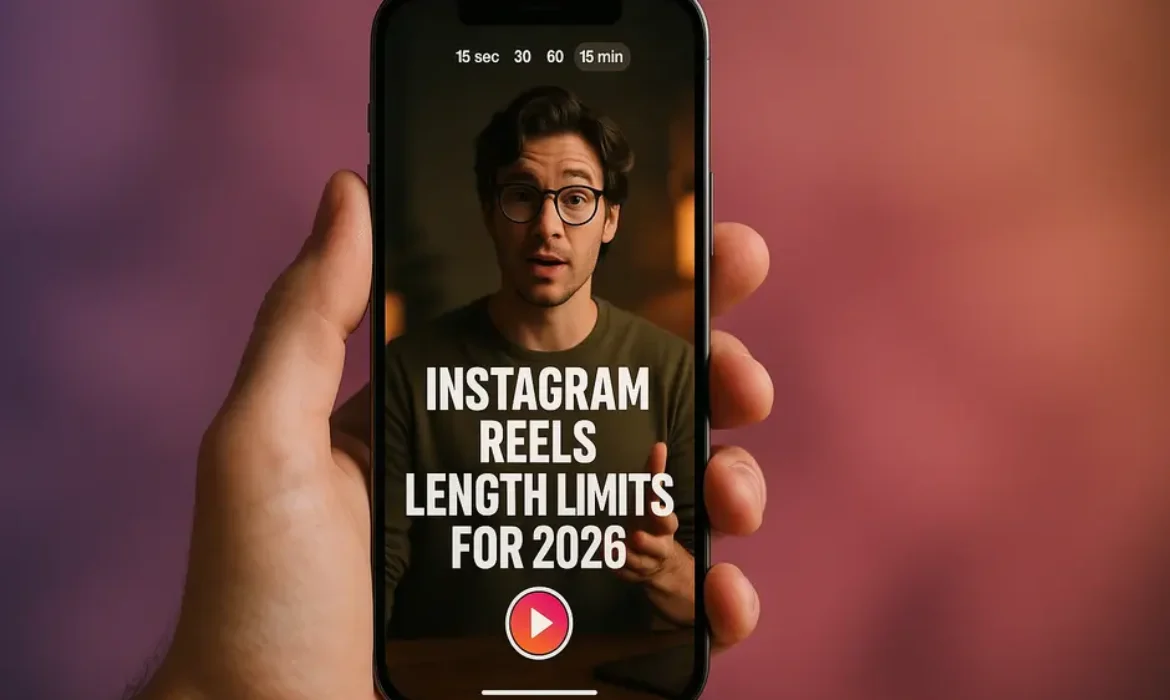
Instagram Reels Length in 2026: Maximum Duration, Limits & What You Can Post
Instagram Reels Length in 2026: Maximum Duration, Limits & What You Can Post
Estimated reading time: 9 minutes
Key Takeaways
-
- Instagram Reels can now be up to 15 minutes long for most accounts, a significant increase from the original 15-second limit
- Accounts with smaller followings may still have a 90-second maximum depending on account status and verification
- The optimal Reel length depends entirely on your content type, audience behavior, and engagement goals—not just platform limits
- Instagram’s in-app editor provides different features depending on the duration you select
- Vertical video format (9:16 aspect ratio) remains essential for maximum reach and engagement
- Longer doesn’t always mean better—retention rate matters more than raw duration for algorithmic performance
When Instagram launched Reels in August 2020, the feature was clearly positioned as Meta Platforms’ answer to TikTok’s explosive growth. The initial 15-second limit felt restrictive even then, especially for creators accustomed to TikTok’s more generous time allowances. Fast forward to 2026, and the landscape has shifted dramatically.
Understanding how long an Instagram Reel can be isn’t just about knowing a number—it’s about grasping the strategic implications of duration on reach, engagement, and content strategy. Whether you’re a brand manager planning a product tutorial, a content creator building your personal brand, or a social media strategist optimizing campaign performance, the Instagram reels length limit directly impacts what you can create and how your audience will respond.
The question “how long can an Instagram Reel be?” sounds simple, but the answer involves understanding account tiers, technical specifications, algorithmic preferences, and audience behavior patterns that have evolved considerably since the feature’s launch.
Current Instagram Reels Length Limits Explained
As of 2026, Instagram Reels support multiple duration options, though not all accounts have access to the same maximum lengths. Here’s what the current landscape looks like:
Standard Account Limits
For the majority of Instagram users, the instagram reels maximum length is 15 minutes (900 seconds). This extended limit rolled out progressively starting in 2024 and represents Meta’s strategic shift toward competing with YouTube Shorts and TikTok on longer-form vertical content.
However, newer accounts or those with limited engagement history may find their maximum reel length Instagram restricted to 90 seconds. This tiered approach helps Meta manage server loads and discourage spam while incentivizing authentic engagement.
Duration Selection Options
| Duration Option | Availability | Best Use Case |
|---|---|---|
| 15 seconds | All accounts | Quick tips, transitions, trending audio |
| 30 seconds | All accounts | Product showcases, before/after reveals |
| 60 seconds | All accounts | Mini-tutorials, storytelling snippets |
| 90 seconds | Most accounts | Detailed how-tos, educational content |
| 3 minutes | Verified/established accounts | In-depth tutorials, vlogs |
| 10 minutes | Verified/established accounts | Long-form content, interviews |
| 15 minutes | Verified/established accounts | Complete guides, documentaries |
These options appear when you’re selecting video length before recording or uploading. The interface dynamically adjusts based on your account status.
Account Status Factors
Several factors determine your instagram reel time limit ceiling:
-
-
- Verification Status: Verified accounts (those with the blue checkmark) typically receive immediate access to extended durations
- Account Age: Accounts older than six months with consistent posting history usually qualify for longer limits
- Follower Count: While Meta hasn’t published exact thresholds, accounts with over 10,000 followers generally have fewer restrictions
- Engagement History: Accounts with strong engagement rates and low violation history receive preferential treatment
- Content Authenticity: Accounts flagged for reposted content or spam may face permanent restrictions on maximum durations
-
The Evolution of Instagram Reels Duration
Understanding the current instagram reels max length requires context about how we got here. The platform’s approach to short-form video has been remarkably fluid.
2020: The 15-Second Beginning
When Reels launched, the 15-second maximum felt like a direct TikTok clone. At that time, TikTok itself had only recently extended from 15 seconds to 60 seconds, so Instagram wasn’t far behind the curve. The constraint forced creativity—transitions, quick cuts, and snappy messaging dominated.
2021: The Jump to 60 Seconds
By September 2021, Instagram increased the limit to 60 seconds for all users. This change acknowledged that storytelling, tutorials, and educational content needed breathing room. Content creators celebrated, though many noted that TikTok had already moved to three-minute videos months earlier.
2022: The 90-Second Standard
The next evolution came in 2022 when Meta expanded the maximum length of instagram reels to 90 seconds. This update felt less revolutionary but provided crucial additional time for creators working on product demonstrations, cooking content, and mini-documentaries.
2023-2024: The Long-Form Shift
The most significant change came when Instagram began testing—and eventually rolling out—support for videos up to 15 minutes. This fundamentally altered the platform’s positioning. No longer just a TikTok competitor, Instagram was now challenging YouTube’s dominance in vertical video content.
According to Statista’s social media statistics, average viewing sessions on Instagram increased by 23% following the introduction of longer Reels, suggesting audiences were receptive to the change.
Why These Changes Matter
Each extension wasn’t arbitrary. Meta’s decisions reflected:
-
-
- Competitive pressure from TikTok and YouTube Shorts
- User behavior data showing appetite for longer content
- Creator feedback requesting more flexibility
- Monetization strategy (longer videos = more ad placement opportunities)
- Watch time metrics becoming increasingly important for algorithmic ranking
-
The trajectory suggests Instagram is moving away from the “short-form only” positioning toward a more flexible vertical video platform that can accommodate everything from 7-second comedy clips to 15-minute educational content.
How Long Can an Instagram Reel Be in 2026?
Let’s directly answer the primary question with complete clarity:
For most established accounts in 2026, an Instagram Reel can be up to 15 minutes long.
But here’s what that actually means in practice:
The 15-Minute Reality
The maximum reel length instagram of 15 minutes (900 seconds) is available to:
-
-
- Verified accounts
- Accounts with over 10,000 followers
- Accounts in good standing with consistent posting history
- Business and creator accounts that have completed verification steps
-
This represents a 6,000% increase from the original 15-second limit—a staggering evolution in just under six years.
The 90-Second Reality for Newer Accounts
If you’re working with a newer account or one with limited engagement, your practical limit is likely 90 seconds. This isn’t necessarily permanent—building engagement and account history typically unlocks longer durations within 3-6 months.
How to Check Your Personal Limit
You can easily determine how long can a reel be on instagram for your specific account:
-
-
- Open Instagram and navigate to create a new Reel
- Start recording or select a video from your gallery
- Look at the duration selector at the bottom of the screen
- The maximum available option represents your current limit
-
If you only see options up to 90 seconds, you’re on the standard tier. If you see 3, 10, or 15-minute options, you have extended access.
Upload vs. In-App Recording Differences
An interesting technical detail: videos uploaded from your camera roll can be longer than videos recorded directly in the Instagram app. The in-app editor currently maxes out recording at 90 seconds in a single take, though you can combine clips to reach longer durations.
Uploading pre-edited content allows you to utilize the full 15-minute allowance if your account qualifies.
Instagram Reels Length vs. Competitors
Context matters when evaluating instagram reels maximum duration. How does it stack up against competing platforms?
| Platform | Maximum Length | Default/Recommended | Primary Format |
|---|---|---|---|
| Instagram Reels | 15 minutes (verified accounts) | 30-90 seconds | Vertical (9:16) |
| TikTok | 10 minutes | 30-60 seconds | Vertical (9:16) |
| YouTube Shorts | 60 seconds | 15-60 seconds | Vertical (9:16) |
| Snapchat Spotlight | 60 seconds | 10-30 seconds | Vertical (9:16) |
| Facebook Reels | 90 seconds | 30-60 seconds | Vertical (9:16) |
Strategic Implications
Instagram now offers the longest maximum duration among major short-form video platforms. This positioning is deliberate:
-
-
- Content Flexibility: Creators can produce comprehensive tutorials without splitting content across multiple posts
- Cross-Platform Differentiation: Longer allowances let Instagram host content that won’t fit on YouTube Shorts or Snapchat
- Watch Time Competition: Extended viewing sessions help Instagram compete for overall time spent, not just scroll counts
- Creator Retention: Content creators can consolidate their efforts on fewer platforms if Instagram accommodates various content lengths
-
The competitive landscape suggests Meta understands that “short-form” no longer means “under 60 seconds.” The vertical video format itself has become the defining characteristic, not arbitrary time constraints.
Does Reel Length Actually Impact Performance?
Here’s where strategic thinking becomes essential. Just because you can create a 15-minute Reel doesn’t mean you should.
What the Data Shows
Internal data from social media analytics platforms and creator case studies reveal nuanced patterns:
-
-
- Engagement Drop-off: Average viewer retention drops significantly after 30 seconds. According to analysis from major social media marketing firms, retention rates typically follow this pattern:
-
- 0-15 seconds: 85-95% retention
- 15-30 seconds: 65-75% retention
- 30-60 seconds: 45-55% retention
- 60-90 seconds: 30-40% retention
- 90+ seconds: 20-30% retention
-
- Algorithmic Preferences: Instagram’s recommendation algorithm doesn’t explicitly favor shorter or longer content. Instead, it prioritizes completion rate and rewatch rate. A 60-second video that 70% of viewers watch completely will outperform a 30-second video that only 40% finish
- Content Type Matters: Educational content, tutorials, and storytelling formats perform better at 60-90 seconds. Entertainment, comedy, and trend-based content typically peaks at 15-30 seconds
-
The Retention Rate Reality
The most successful Reels creators in 2026 obsess over retention graphs, not just duration. A compelling 90-second video with 50% average watch time delivers far more algorithmic favor than a mediocre 15-second clip with 30% retention.
Instagram’s algorithm, similar to platforms discussed in Google’s recommendations for video content, values engagement quality over simple metrics.
Hook Importance Increases with Length
The longer your Reel, the more critical your first 1-2 seconds become. Viewers decide almost instantly whether to keep watching. For Reels over 60 seconds, consider these hook strategies:
-
-
- Pattern interrupts: Unexpected visuals or statements that break scrolling patterns
- Value promises: Clear statements about what viewers will learn or gain
- Visual intrigue: Compelling imagery that raises questions
- Emotional triggers: Relatable scenarios that create immediate connection
-
Choosing the Right Reel Length for Your Content
Strategic content creators match duration to content type, not the other way around. Here’s a practical framework:
15-30 Seconds: Maximum Impact Content
Best for:
-
-
- Trending audio participation
- Quick tips and hacks
- Product reveals
- Transition effects
- Comedy sketches
- Motivational quotes
- Before/after transformations
-
Why this length works:
This range maximizes completion rates and rewatch potential. It’s short enough that viewers will watch multiple times and share easily, but long enough to deliver a complete micro-narrative.
Example approach: A skincare brand demonstrating a three-step morning routine can show each step with 7-10 seconds per product, creating a satisfying loop.
30-60 Seconds: The Sweet Spot
Best for:
-
-
- Mini tutorials
- Recipe overviews
- Product comparisons
- Storytelling with setup and payoff
- Educational content with 3-5 key points
- Behind-the-scenes content
-
Why this length works:
This duration provides enough time for substantive value while maintaining strong retention rates. It’s the most versatile range for most content types.
Example approach: A fitness coach demonstrating proper form for an exercise can show common mistakes (15 seconds), correct form (20 seconds), and key coaching cues (15 seconds).
60-90 Seconds: In-Depth Value
Best for:
-
-
- Detailed tutorials
- Multi-step processes
- Storytelling with emotional arcs
- Product demonstrations with context
- Educational content requiring setup
- Opinion pieces with supporting points
-
Why this length works:
Viewers who make it past 30 seconds are typically committed to the content topic. This gives you runway to deliver comprehensive value that establishes expertise.
Example approach: A marketing strategist breaking down a successful campaign can show the original ad (20 seconds), analyze what made it work (40 seconds), and provide actionable takeaways (20 seconds).
90+ Seconds: Long-Form Vertical Content
Best for:
-
-
- Complete how-to guides
- Interview clips
- Storytelling requiring substantial setup
- Documentary-style content
- Vlogs and day-in-the-life content
- Comprehensive product reviews
-
Why this length works:
When viewers want depth on specific topics, longer content satisfies search-like intent. These Reels often come from saves and shares rather than discovery feeds.
Example approach: A real estate agent touring a property can provide room-by-room walkthroughs with detailed commentary, creating searchable content for potential buyers.
Content Audit Exercise
Review your last 20 Reels and plot them on this matrix:
-
-
- X-axis: Duration (15s, 30s, 60s, 90s+)
- Y-axis: Average watch time percentage
-
Your highest-performing content will cluster around specific duration ranges. Double down on what works rather than forcing content into arbitrary lengths.
Technical Specifications and Upload Requirements
Understanding how long can instagram reels be is incomplete without knowing the technical requirements that affect upload success.
File Specifications
| Specification | Requirement | Notes |
|---|---|---|
| Aspect Ratio | 9:16 (vertical) | Other ratios display with borders |
| Resolution | Minimum 1080×1920 | Higher resolutions downscaled |
| File Size | Maximum 4GB | Compression applied automatically |
| Frame Rate | 23-60 fps | 30 fps recommended for smooth playback |
| Audio | AAC codec, 128kbps+ | Separate audio tracks not supported |
| Duration | 15 min (900 sec) max | Account-dependent as discussed |
Vertical Video Format Optimization
The vertical video format remains non-negotiable for optimal performance. Horizontal or square videos will play with significant black bars, reducing screen real estate and engagement.
If you’re repurposing content:
-
-
- From horizontal sources: Use editing tools to reframe key subjects within the 9:16 space, add relevant background blur, or incorporate text/graphics in empty space
- From square sources: Extend to full vertical by adding branded backgrounds, blurred content layers, or strategic cropping
-
In-App Editor Limitations
Instagram’s in-app editor provides robust features but has constraints:
-
-
- Single-take recording maxes at 90 seconds
- Clip combining allows longer durations but with limited transition options
- Effect availability varies by clip length (some effects only work on shorter durations)
- Text and sticker timing can become cumbersome on videos over 2 minutes
-
For videos approaching the instagram reel maximum length of several minutes, external editing tools offer superior control before uploading.
Audio Considerations
Reels using trending audio typically perform better, but audio availability differs by length:
-
-
- 15-30 seconds: Full access to trending audio library
- 30-60 seconds: Most trending audio available, some tracks limited
- 60+ seconds: Trending audio selection more limited
- 3+ minutes: Mostly original audio or licensed tracks
-
This occurs because many trending audio clips derive from songs with limited-length licensing on social platforms.
Upload Time and Processing
Longer Reels require additional processing time:
-
-
- Under 60 seconds: Typically processes in 30-90 seconds
- 60-180 seconds: Usually takes 2-5 minutes
- 180+ seconds: Can require 5-15 minutes for full processing and availability
-
Upload during off-peak hours when servers process faster, typically late evening or early morning in your timezone.
Common Mistakes When Creating Longer Reels
As the instagram reels length limit has extended, creators have developed new failure patterns worth avoiding.
Mistake 1: Treating 90-Second Reels Like 90-Second Videos
A Reel isn’t just a video uploaded to Instagram. It’s content specifically formatted for the Reels algorithm and feed experience. Longer doesn’t mean you can ignore pacing, hooks, and retention optimization.
The fix: Even in longer Reels, maintain 3-5 second “chapters” with visual variety. Every few seconds should offer something new to maintain attention.
Mistake 2: No Strategic Pacing
Many creators front-load all value in the first 30 seconds, leaving the remaining minute as filler. This tanks retention rates.
The fix: Distribute value throughout. If sharing five tips, space them evenly rather than clustering them at the beginning.
Mistake 3: Ignoring the First Frame
Instagram displays a preview frame before someone taps to watch. For longer Reels, creators sometimes forget this crucial first impression.
The fix: Design your opening frame as a thumbnail. Include text overlay clearly stating the value proposition. This “thumbnail mindset” dramatically improves click-through rates.
Mistake 4: Over-Relying on Platform Limits
Just because your max reel length instagram is 15 minutes doesn’t mean every topic deserves that duration.
The fix: Start with the minimum viable duration to deliver complete value. Expand only if the content genuinely requires it.
Mistake 5: Weak Mid-Roll Retention Tactics
Creators accustomed to 15-30 second Reels often don’t develop skills for maintaining attention across longer durations.
The fix: Study YouTube retention tactics—pattern interrupts, chapter markers, visual changes every 5-7 seconds, and strategic text overlays that preview upcoming content.
Mistake 6: Forgetting Mobile Context
Viewers watch Reels on mobile devices, often in distracting environments. A 5-minute Reel requires sustained mobile attention that’s increasingly rare.
The fix: For longer Reels, make content “glanceable”—understandable even if someone looks away occasionally. Use text overlays to reinforce audio content.
Mistake 7: Inadequate Payoff
Longer content creates higher expectations. A 2-minute Reel that could’ve been 30 seconds frustrates viewers.
The fix: Always ask, “Does this duration deliver proportional value?” A 90-second Reel should provide 3x the value of a 30-second one.
Platform-Specific Strategies for Different Reel Lengths
The instagram reels time limit expansion enables sophisticated content strategies.
The Content Pyramid Approach
Structure your content creation like a pyramid:
Base (15-30 seconds): High-volume, trend-responsive content posted 5-7 times weekly. These drive discovery and new follower acquisition.
Middle (30-90 seconds): Value-driven content posted 3-5 times weekly. These build authority and encourage saves/shares.
Peak (90+ seconds): Comprehensive, searchable content posted 1-2 times weekly. These serve existing audience and generate long-tail search traffic.
This balanced approach optimizes for both algorithmic distribution and audience satisfaction.
Batch Content by Duration
When creating content, batch similar durations together:
15-second batch day: Record 10-15 trend-response Reels using popular audio. Quick setup, rapid execution.
60-second batch day: Create 4-5 educational or tutorial Reels requiring more preparation and multiple takes.
90+ second projects: Treat as individual content pieces requiring scripting, multiple locations/setups, and professional editing.
This approach improves efficiency and maintains creative consistency within duration categories.
Cross-Posting Strategy
Different platforms have different instagram reels maximum duration equivalents:
TikTok-first content (under 60 seconds): Create for TikTok, then post to Instagram Reels, YouTube Shorts, and Facebook Reels.
Instagram-first content (60-180 seconds): Create for Instagram’s mid-range sweet spot, then edit shorter versions for other platforms.
YouTube-first content (3+ minutes): Create for YouTube, then extract highlight clips for Instagram and other platforms.
This strategic sequencing maximizes content ROI across platforms while respecting each platform’s strengths.
Seasonal and Campaign Adjustments
Adjust your duration strategy based on marketing calendar:
-
-
- Product launches: Start with 15-30 second teasers, then release 60-90 second reveals, followed by 3+ minute deep-dives
- Educational campaigns: Lead with 60-90 second comprehensive pieces, then extract 15-30 second highlights for broader distribution
- Event coverage: Use 3+ minutes for full experiences, then chop into 30-60 second highlights over following days
-
Frequently Asked Questions
What is the maximum length for Instagram Reels in 2026?
The maximum length for Instagram Reels in 2026 is 15 minutes (900 seconds) for verified accounts and established creators. However, newer accounts or those with smaller followings may be limited to 90 seconds until they build engagement history and account credibility. Your specific limit depends on factors including account age, follower count, verification status, and posting consistency. To check your personal limit, start creating a Reel and look at the duration options available in the selector—the highest option shown represents your current maximum.
How long can an Instagram Reel be for a new account?
New Instagram accounts typically face a 90-second maximum for Reels. This limitation serves multiple purposes: it helps Meta Platforms manage server resources, discourages spam accounts, and encourages authentic engagement growth. Most accounts gain access to longer durations after approximately 3-6 months of consistent posting with genuine engagement. To accelerate access to extended limits, focus on creating high-retention content, building real follower relationships, avoiding violations of community guidelines, and maintaining consistent posting frequency. Some new business accounts with verification may receive immediate access to longer limits.
Does Instagram favor shorter or longer Reels in the algorithm?
Instagram’s algorithm doesn’t explicitly favor duration—it prioritizes engagement quality, particularly completion rate and rewatch rate. A well-crafted 90-second Reel with 60% completion rate will significantly outperform a 20-second Reel with 30% completion. The algorithm analyzes how long viewers watch relative to total duration, how many watch multiple times, and whether they engage through likes, comments, shares, or saves. The optimal length depends entirely on your content’s ability to maintain attention. Educational content often performs best at 60-90 seconds, while entertainment and trending content typically peaks at 15-30 seconds. Focus on creating the shortest possible video that delivers complete value.
Can I upload a 10-minute video as an Instagram Reel?
Yes, if your account has access to extended durations, you can upload videos up to 15 minutes as Reels. However, several important considerations apply. First, verify your account has access to these longer limits by checking the duration selector when creating a Reel. Second, ensure your content justifies the length—viewer retention becomes increasingly difficult beyond 90 seconds. Third, understand that longer Reels may receive different algorithmic treatment, potentially appearing more in search results and follower feeds than discovery/explore feeds. Finally, optimize the first frame as a thumbnail and include text overlays that work as chapter markers to help viewers navigate longer content.
What’s the difference between Instagram Reels length and Instagram video length?
Instagram supports multiple video formats with different maximum lengths. Reels can be up to 15 minutes for established accounts and appear in the dedicated Reels feed, Explore page, and profile Reels tab. They use the vertical video format and are optimized for discovery. Feed videos (regular posts) can be up to 60 minutes for verified accounts and appear in your main feed. Stories are limited to 15-second clips per story but can be chained together. IGTV/Long-form videos (being phased into general video posts) historically supported videos up to 60 minutes. For maximum reach and engagement, Reels are currently the preferred format since Instagram’s algorithm prioritizes Reels distribution significantly over other video formats.
How do I know if my Instagram account can post 15-minute Reels?
Determining your account’s maximum Reel duration takes just a few seconds. Open Instagram and navigate to create a new Reel by tapping the “+” icon and selecting “Reel.” Either begin recording or select a video from your camera roll. Look at the duration selector (usually at the bottom or side of the screen depending on your device). The options displayed represent your available durations. If you see options for 3 minutes, 10 minutes, or 15 minutes, you have extended access. If the maximum shown is 90 seconds or 60 seconds, you’re currently on the standard tier. Account factors that influence access include verification status, follower count above 10,000, account age beyond six months, consistent engagement rates, and clean community guideline compliance history.
What’s the ideal Instagram Reel length for maximum engagement?
The ideal Reel length varies significantly by content type and audience, but data consistently shows 30-60 seconds delivers the best balance of engagement and completion rates across most content categories. This range provides sufficient time to deliver substantive value while maintaining strong viewer retention. Educational content and tutorials often perform best at 60-90 seconds, allowing adequate explanation without losing attention. Entertainment, comedy, and trend-based content typically peaks at 15-30 seconds, maximizing completion and rewatch rates. Rather than defaulting to any specific duration, analyze your content’s retention graphs in Instagram Insights. Your ideal length is the shortest duration that allows complete value delivery while maintaining 50%+ average watch time.
Final Thoughts
Understanding how long an instagram reel can be represents just the starting point for strategic content creation. The instagram reels maximum duration of 15 minutes offers unprecedented flexibility, but success depends far more on matching duration to content value than simply maximizing length.
The evolution from 15-second constraints to 15-minute capabilities reflects broader shifts in how audiences consume vertical video content. Meta Platforms has positioned Instagram as a comprehensive video platform capable of serving both quick entertainment and substantial educational content within the same vertical format.
As you develop your content strategy for 2026 and beyond, remember these core principles:
-
-
- Value determines duration, not the other way around. Start with the minimum viable length and extend only when content genuinely requires it
- Retention matters more than reach. A smaller audience watching completely delivers better algorithmic performance than massive views with poor retention
- The first 2 seconds determine everything. No matter your total length, hook viewers immediately or they’ll scroll past
- Batch creation by duration to improve efficiency and maintain creative consistency across similar content types
- Test systematically. Your audience behavior may differ from general patterns. Analyze your insights regularly and adjust based on actual performance data
-
The instagram reels length limit will likely continue evolving as competitive pressures and user behaviors shift. Stay informed about platform updates, but focus primarily on creating compelling content that serves your audience—regardless of arbitrary time constraints.
The best Reel length is the one that delivers complete value while respecting your viewer’s time. Master that balance, and the algorithmic distribution will follow.
How to Become a YouTube Content Creator: A Structured Skill-Building Roadmap
How to Become a YouTube Content Creator: A Structured Skill-Building Roadmap
Estimated reading time: 12 minutes
Key Takeaways
-
- Becoming a successful YouTube content creator requires a systematic approach spanning strategic planning, technical skills, and consistent execution
- The first 90 days should focus on niche selection, channel setup, and developing a sustainable content workflow
- Essential beginner YouTube skills include basic video editing, thumbnail design, SEO fundamentals, and storytelling
- A structured content calendar prevents burnout and maintains consistency, the single most important factor in channel growth
- Starting as a YouTuber doesn’t require expensive equipment—focus on developing skills before investing heavily in gear
Understanding the YouTube Content Creator Landscape
The pathway to becoming a YouTube content creator has fundamentally changed since the platform’s early days. What once rewarded random viral moments now favors creators who approach their channels with strategic intentionality. According to YouTube’s official creator statistics, over 500 hours of video are uploaded every minute, making visibility increasingly challenging without a deliberate skill-building approach.
The modern content creator operates at the intersection of multiple disciplines: storytelling, videography, marketing, and community management. This intersection explains why many beginners feel overwhelmed when starting their YouTube journey. The solution isn’t working harder—it’s working systematically through a structured roadmap that builds capabilities in logical progression.
The creators who break through aren’t necessarily the most talented filmmakers or the most charismatic personalities. They’re individuals who treat content creation as a learnable skill set, approached with the same rigor as learning a new language or musical instrument. This mindset shift from “creative hobby” to “systematic skill development” separates channels that plateau at a few hundred subscribers from those that build sustainable audiences.
Phase 1: Foundation Building (Weeks 1-4)
Strategic Niche Selection
Your niche determines everything that follows. Selecting the right focus area requires balancing three critical factors: your genuine interest, audience demand, and monetization potential.
Start by documenting topics you could comfortably discuss for hours without preparation. This authenticity test matters more than most beginners realize. The YouTube algorithm favors consistency, and you cannot maintain consistent output in areas that don’t genuinely engage you. Burnout typically strikes creators who chase trending topics without personal investment.
Next, validate audience demand. Use tools like Google Trends, YouTube’s search suggestions, and platforms like TubeBuddy or VidIQ to assess search volume for potential content ideas. Look for niches with steady interest rather than temporary spikes—sustainable channels are built on evergreen demand.
| Niche Evaluation Criteria | What to Look For | Red Flags |
|---|---|---|
| Personal Interest | Can discuss naturally for 10+ minutes | Forced enthusiasm, topic feels like work |
| Search Demand | Consistent monthly searches | Declining trend lines, seasonal only |
| Competition Level | Mix of large and small channels | Either completely saturated or zero content |
| Monetization Pathways | Multiple revenue options (ads, sponsorships, products) | Single monetization method only |
| Content Longevity | Evergreen topics with lasting relevance | Entirely trend-dependent content |
The sweet spot sits at the intersection of what marketing strategist Seth Godin calls “the smallest viable audience”—a niche specific enough to dominate but broad enough to sustain long-term growth.
YouTube Channel Setup
Your channel setup creates critical first impressions and establishes technical infrastructure for future growth. This process extends beyond simply creating an account.
Channel Branding Essentials:
Create a channel name that balances memorability with searchability. Including your primary topic can help new viewers immediately understand your content focus, though this isn’t mandatory if you’re building a personal brand. The name should be easy to spell, pronounce, and remember.
Your channel banner and profile picture require more consideration than most beginners invest. These visual elements appear across YouTube, Google search results, and suggested video sidebars. Maintain consistent color schemes and typography that reflect your content style. A tech reviewer might choose clean, modern aesthetics while a cooking channel might opt for warm, inviting imagery.
Critical Settings Configuration:
Navigate to YouTube Studio and complete these foundational settings:
-
-
- Channel description: Write 150-200 words explaining what viewers gain from subscribing. Include your upload schedule and primary topics
- Channel keywords: Add 10-15 relevant terms that describe your overall content focus
- Default upload settings: Configure standard tags, descriptions, and monetization preferences to streamline future uploads
- Channel sections: Organize your homepage with sections for new visitors, popular uploads, and playlists
-
Link your channel to an associated website or social media presence. These external links build credibility and create additional discovery pathways.
Defining Your Content Pillars
Content pillars are the 3-5 recurring themes that structure your channel’s output. This framework prevents the “random content syndrome” that plagues many beginners who upload without strategic direction.
A fitness channel might establish these pillars: workout tutorials, nutrition education, transformation stories, equipment reviews, and mindset coaching. Each video falls within one pillar, creating topical clusters that signal expertise to both viewers and YouTube’s recommendation algorithm.
Document your content pillars in a simple spreadsheet. For each pillar, brainstorm 20-30 potential video ideas. This exercise accomplishes two goals: validating that each pillar offers sufficient content depth and creating your initial content backlog.
Phase 2: Technical Skills Development (Weeks 5-8)
Video Production Fundamentals
Starting as a YouTuber doesn’t require film school training, but understanding basic production principles dramatically improves content quality.
Lighting principles: Natural window light provides the most flattering, accessible option for beginners. Position yourself facing the window with light hitting your face at a slight angle—this creates dimension without harsh shadows. If filming at night, a single LED panel ($30-50) positioned similarly works effectively.
Audio quality: Poor audio drives viewers away faster than poor video quality. Your camera’s built-in microphone rarely suffices. A basic lavalier microphone ($20-30) clipped near your collar delivers dramatically better results than any built-in option. Record in rooms with soft materials (carpets, curtains, furniture) that absorb sound reflections.
Framing and composition: Follow the rule of thirds—position yourself slightly off-center rather than dead-center in the frame. Leave appropriate headroom (the space above your head) without excessive empty space. If showing your workspace or demonstrating processes, ensure everything meaningful appears within the safe viewing area, accounting for mobile viewers.
Essential Editing Skills
Video editing transforms raw footage into engaging content. Start with accessible software before investing in professional tools.
Software recommendations for beginners:
-
-
- DaVinci Resolve (free): Professional-grade capabilities without cost, ideal for learning advanced techniques
- iMovie (free for Mac users): Intuitive interface perfect for basic cuts and simple effects
- Shotcut (free): Cross-platform option with moderate learning curve
-
Your first ten videos should focus on mastering these core editing skills:
-
-
- Basic cuts: Removing awkward pauses, mistakes, and unnecessary content
- Jump cuts: Creating dynamic pacing in talking-head videos
- B-roll integration: Covering cuts with relevant supplementary footage
- Audio leveling: Maintaining consistent volume throughout
- Simple transitions: Using cuts primarily, with occasional fades or wipes
- Text overlays: Adding key points or emphasis without overwhelming viewers
-
Avoid the common beginner mistake of over-editing. Excessive transitions, effects, and graphics distract rather than enhance. Study successful creators in your niche—most use remarkably simple editing techniques executed consistently well.
Thumbnail Design and SEO Basics
Thumbnails and titles work as a unified system determining whether viewers click your content. According to YouTube Creator Academy, thumbnails influence over 90% of click-through decisions.
Thumbnail best practices:
Create thumbnails at 1280×720 pixels with readable text even at small sizes. Test your designs by viewing them at actual mobile phone dimensions—where most viewing occurs. Use high-contrast colors that stand out against YouTube’s white background and the thumbnails surrounding yours in suggested videos.
Include faces showing clear emotion when possible. Human psychology gravitates toward facial expressions, particularly surprise, curiosity, or excitement. Close-up facial shots outperform wide shots for capturing attention.
Limit text to 3-5 words maximum. Your thumbnail text should complement—not repeat—your title. If your title reads “5 Mistakes New YouTubers Make,” your thumbnail might simply say “AVOID THESE” with relevant imagery.
SEO fundamentals for YouTube:
YouTube functions as the world’s second-largest search engine. Optimizing for discovery requires understanding how the platform evaluates and surfaces content.
Your title should include your primary keyword near the beginning while maintaining natural readability. A title like “How to Become a Content Creator on YouTube: Complete Beginner’s Guide” balances optimization with human appeal better than “Content Creator YouTube Become How To Guide.”
Descriptions offer 5,000 characters—use them strategically. Front-load the first 150 characters with your most important information and keywords, as this appears above the “Show More” fold. Include timestamps for longer videos, relevant links, and a natural restatement of your topic using semantic variations.
Tags play a supporting role in YouTube SEO. Include your exact target keyword, common variations, broader category terms, and related topics. Avoid irrelevant tags hoping to game the system—this backfires by confusing YouTube’s recommendation algorithm.
Phase 3: Content Production Mastery (Weeks 9-16)
Developing Your Beginner Workflow
A consistent workflow transforms content creation from overwhelming to manageable. Most successful creators separate production into distinct phases rather than attempting everything simultaneously.
The batch production system:
Dedicate specific days to specific tasks rather than completing one video from start to finish. This batching approach reduces cognitive switching costs and improves efficiency.
-
-
- Planning day: Script or outline 4-6 videos
- Filming day: Record all planned content in one session
- Editing days: Process recorded footage
- Publishing day: Upload, optimize, and schedule
-
This system allows you to maintain consistent uploads even during personally busy weeks, since you’re building a content buffer rather than living upload-to-upload.
Building a Sustainable Content Calendar
Your content calendar serves as both planning tool and accountability mechanism. Structure beats motivation for long-term consistency.
Start with a realistic upload frequency. One high-quality video weekly outperforms three rushed videos. Quality and consistency matter more than volume, particularly when building initial audience trust.
| Week | Content Pillar | Video Topic | Status | Upload Date | Performance Notes |
|---|---|---|---|---|---|
| 1 | Tutorial | Beginner Setup Guide | Published | Jan 7 | Track CTR and retention |
| 2 | Review | Equipment Comparison | Editing | Jan 14 | Include affiliate disclosure |
| 3 | Case Study | Channel Growth Story | Planning | Jan 21 | Reach out for interview |
| 4 | Tutorial | Advanced Technique | Scripting | Jan 28 | Create supporting graphics |
Plan quarterly rather than yearly. The YouTube landscape changes rapidly—flexibility matters more than rigid long-term planning. Review performance monthly and adjust your content mix based on what resonates with your specific audience.
Storytelling and Audience Retention
Technical quality gets viewers to click. Storytelling keeps them watching. YouTube’s algorithm heavily weights watch time and average view duration when determining which videos to recommend.
Study your YouTube Analytics retention graphs religiously. Most videos lose 20-30% of viewers in the first 30 seconds. Your opening must immediately deliver on the promise made in your title and thumbnail while creating curiosity gaps that encourage continued viewing.
The hook-promise-preview structure:
-
-
- Hook (first 5 seconds): Open with your most compelling visual or statement
- Promise (seconds 5-15): Explicitly state what viewers will gain
- Preview (seconds 15-30): Briefly outline your video’s structure
-
After your opening 30 seconds, maintain engagement through pacing variation. Alternate between teaching, demonstrating, and conversing. Insert B-roll over longer explanations. Use pattern interrupts—subtle changes in camera angle, scene, or format—every 15-20 seconds to maintain visual interest.
The strongest creators develop a conversational style that feels like talking with a knowledgeable friend rather than being lectured. This requires practice but starts with simple adjustments: addressing the camera as “you” rather than “viewers,” asking rhetorical questions, and sharing brief personal examples that illustrate larger points.
Phase 4: Growth and Optimization (Ongoing)
Analytics Interpretation
YouTube Studio provides overwhelming data volumes. Focus on metrics that actually inform decision-making rather than vanity numbers.
Priority metrics for new creators:
-
-
- Click-through rate (CTR): Percentage of impressions that become views. Benchmark: 4-10% for most niches. Below 4% suggests thumbnail/title problems
- Average view duration (AVD): How long viewers watch on average. Higher indicates better content-audience fit. Compare videos against each other rather than absolute benchmarks
- Traffic sources: Where viewers discover your content. Early-stage channels typically see search and browse features dominating. As channels grow, suggested videos become the primary source
- Audience retention graph: Shows exactly where viewers drop off. Look for consistent patterns across videos indicating structural issues
-
Review analytics weekly but make strategic changes monthly. YouTube’s algorithm requires time to evaluate content performance—changing approaches too frequently prevents gathering meaningful data.
Community Building Strategies
Subscribers represent potential recurring viewers, but engaged community members become advocates who actively promote your content.
Respond to comments within the first hour of publishing. This early engagement signals activity to YouTube’s algorithm while establishing rapport with your most dedicated viewers. Prioritize thoughtful questions over simple praise—detailed responses create value for future viewers reading comment sections.
Create community posts (available after 1,000 subscribers) to maintain presence between uploads. Polls, behind-the-scenes updates, and questions keep your channel top-of-mind without requiring full video production.
Consider featuring viewer questions or content in videos. User-generated content campaigns (“Send me your [X] and I’ll review them”) simultaneously generate video ideas and strengthen community investment in your success.
Monetization Preparation
The YouTube Partner Program requires 1,000 subscribers and 4,000 watch hours within the past 12 months. Most creators reach these thresholds between months 6-18 with consistent effort.
However, monetization strategy should extend beyond ad revenue alone. Diversified income streams create sustainability and reduce dependence on algorithm changes.
Monetization pathways for content creators:
-
-
- Ad revenue: Passive income once qualified for YPP
- Channel memberships: Monthly supporter subscriptions offering exclusive perks
- Affiliate marketing: Commissions on products you recommend
- Sponsored content: Brand partnerships for dedicated video segments
- Digital products: Courses, templates, presets, or guides serving your audience
- Consulting/services: One-on-one work with viewers needing specialized help
-
Start building monetization infrastructure before reaching YPP requirements. Create an email list, establish affiliate partnerships with tools you genuinely use, and develop a flagship digital product. This preparation allows you to monetize immediately upon reaching monetization thresholds rather than scrambling afterward.
Essential Tools and Resources
Recommended Beginner Equipment
| Category | Budget Option ($0-100) | Mid-Range Option ($100-500) | Purpose |
|---|---|---|---|
| Camera | Smartphone | Sony ZV-1, Canon M50 | Video recording |
| Microphone | Smartphone + quiet room | Rode VideoMic GO, Blue Yeti | Clear audio capture |
| Lighting | Window light | Neewer LED Panel Kit | Consistent, flattering illumination |
| Editing Software | DaVinci Resolve, iMovie | Adobe Premiere Pro | Post-production |
| Thumbnail Creation | Canva (free tier) | Canva Pro, Photoshop | Click-worthy graphics |
Invest in audio before video quality. Invest in consistency before expensive equipment. The creators who succeed with basic gear and regular uploads outperform those with professional setups and sporadic publishing.
Learning Resources
Continuous skill development separates stagnant channels from growing ones. Dedicate 2-3 hours weekly to studying both YouTube-specific strategy and adjacent skills like storytelling, marketing, and psychology.
Recommended learning paths:
-
-
- YouTube Creator Academy: Free official training covering policies, best practices, and monetization
- Video editing fundamentals: Platform-specific tutorials on YouTube for your chosen software
- Thumbnail design: Study successful creators in your niche; reverse-engineer their visual strategies
- SEO and discoverability: Resources from established YouTube educators like VidIQ, Think Media, and Paddy Galloway
-
Join creator communities matching your experience level. Reddit’s r/NewTubers provides peer support for beginners, while niche-specific Discord servers offer specialized advice. Be more helpful than promotional in these spaces—genuine networking creates opportunities that self-promotion never does.
Common Mistakes to Avoid
Perfectionism Paralysis
The desire to create perfect content prevents more beginners from starting than any other obstacle. Your first videos will be imperfect. This isn’t just acceptable—it’s necessary.
Set a “good enough” standard that allows consistent publishing. Your 50th video will surpass your 5th video regardless of how much time you invest in that initial content. The learning occurs through production volume, not extended planning.
Neglecting Fundamentals for Trends
Chasing trending topics without foundational skills creates short-term views without sustainable growth. Viral success is wonderful but unreliable. Building systems, developing skills, and serving a specific audience creates compounding returns that trend-chasing never achieves.
Inconsistent Publishing
Algorithm preferences aside, human psychology favors reliability. Audiences develop viewing habits around creators who maintain predictable schedules. Choose a publishing frequency you can sustain during your busiest months, not your most available periods.
A creator uploading weekly for twelve months will virtually always outperform someone uploading daily for two months before disappearing for six.
Ignoring Analytics
Creating content without studying performance data means repeating mistakes and abandoning successful approaches. Reserve one hour monthly for deep analytics review. Identify your best-performing videos and create content with similar elements. Note your worst performers and avoid those patterns.
The YouTube algorithm tells you exactly what’s working through watch time, CTR, and traffic sources. Listen to this feedback rather than assumptions about what “should” perform well.
Comparison to Established Creators
Comparing your beginning to someone else’s middle generates only discouragement. Every successful creator started with zero subscribers, awkward delivery, and basic production quality. The creators you admire have years of accumulated experience, audience understanding, and technical refinement.
Compare your current work to your work from three months ago. Improvement against your own baseline provides actionable feedback and sustainable motivation.
Frequently Asked Questions
How long does it take to become a successful YouTube content creator?
Success timelines vary dramatically based on niche competitiveness, content quality, consistency, and how you define “success.” Most creators need 6-12 months of consistent weekly uploads before seeing meaningful growth. Reaching YouTube Partner Program requirements (1,000 subscribers, 4,000 watch hours) typically takes 12-24 months with strategic effort. However, success isn’t purely numerical—some creators build profitable niches with smaller, highly engaged audiences while others need massive scale for sustainability. Focus on consistent improvement rather than arbitrary timelines. The creators who succeed treat YouTube as a marathon requiring sustained effort rather than a sprint seeking quick results.
What equipment do I need to start as a YouTuber?
Your smartphone, adequate lighting (even natural window light), and a quiet filming location provide everything necessary to begin. Most successful creators started with basic equipment, developing skills before investing in gear. Audio quality matters more than video resolution—viewers tolerate average video with clear audio but abandon good video with poor sound. If upgrading anything first, invest in an affordable external microphone ($20-50) before considering cameras or lighting. As your channel grows and monetizes, reinvest revenue into equipment upgrades. Starting with minimal gear also proves whether you enjoy content creation before making significant financial commitments.
How do I choose the right niche for my YouTube channel?
Effective niche selection balances three factors: genuine personal interest, demonstrated audience demand, and monetization potential. Start by listing topics you discuss naturally without effort—sustainability requires authentic interest. Research these topics using YouTube search suggestions, Google Trends, and keyword tools to validate audience demand. Examine existing channels in potential niches: both large and small channels indicate healthy demand, while only massive channels suggests oversaturation and only tiny channels indicates insufficient interest. Consider monetization pathways beyond ad revenue—some niches support affiliate marketing, courses, or sponsorships better than others. The ideal niche sits at the intersection of what you enjoy, what people search for, and what you can eventually monetize through multiple revenue streams.
How often should I upload videos as a beginner?
Consistency matters more than frequency. Choose a publishing schedule you can maintain during your busiest periods, not just when you have ample free time. For most beginners, one high-quality video weekly provides sustainable consistency while allowing time for skill development. Some creators succeed with biweekly uploads if video complexity requires additional production time. Daily uploads work only if you’ve established efficient systems and substantial content buffers. The YouTube algorithm rewards consistent publishing patterns—uploading weekly for a year outperforms uploading daily for two months then stopping for six. Set realistic expectations, build content buffers during motivated periods, and treat your schedule as seriously as any important commitment.
What are the most important skills to learn for YouTube success?
YouTube success requires developing three skill categories: technical production, strategic optimization, and audience understanding. Technical skills include basic video editing, thumbnail design, audio processing, and lighting fundamentals. Strategic skills encompass SEO, title writing, content planning, and analytics interpretation. Audience skills involve storytelling, pacing, community management, and creating content that serves specific viewer needs. Prioritize these skills sequentially—start with production basics, add optimization fundamentals, then refine audience connection. Most beginners overemphasize equipment and underemphasize storytelling and optimization. You can film on a smartphone with natural light, but you cannot succeed without understanding what your audience wants and how to make your content discoverable. Balance technical improvement with strategic learning for sustainable growth.
How do I grow my channel when I have zero subscribers?
Early growth comes primarily from YouTube search and suggested videos rather than subscribers. Focus on creating content answering specific questions within your niche—use tools like AnswerThePublic, YouTube autocomplete, and niche forums to identify common questions. Optimize titles and descriptions for these search terms using natural language rather than keyword stuffing. Create compelling thumbnails that stand out even at small sizes. Study your analytics to identify which videos attract new viewers, then create similar content. Engage meaningfully in comment sections of related channels (without self-promotion) to build presence within your niche community. Consider creating response videos or adding unique perspectives to popular topics rather than simply duplicating existing content. Early growth is slow but compounds—your 20th video will perform better than your second because YouTube recognizes you as an active, consistent creator in your topic area.
Can I become a YouTube content creator with a full-time job?
Absolutely—most successful creators started while working full-time jobs. The key lies in establishing sustainable systems rather than attempting unsustainable intensity. Batch your production by dedicating specific time blocks to filming multiple videos, then editing throughout the week. Wake up an hour earlier or use lunch breaks for planning and optimization work. Leverage weekends for filming sessions. Start with a manageable upload frequency like biweekly rather than weekly if needed. Many creators find that time constraints actually improve efficiency by forcing focused work during limited available hours. Build a content buffer of 3-4 completed videos before starting to publish—this cushion prevents missing uploads during particularly busy work periods. Treat YouTube as a serious side project with scheduled work blocks rather than a hobby approached randomly when motivated. Consistency over long timeframes beats intensity over short bursts.
Conclusion
Becoming a YouTube content creator follows a learnable progression rather than requiring innate talent or expensive equipment. The roadmap outlined here—foundation building, skill development, content mastery, and ongoing optimization—provides structure for the overwhelming journey from complete beginner to established creator.
The creators who succeed treat YouTube as a craft requiring deliberate practice. Your first videos will be imperfect. Your tenth videos will show improvement. Your fiftieth videos will demonstrate competence. This progression happens only through consistent action, not extended planning or perfect preparation.
Start with basics: choose a niche you genuinely care about, set up your channel properly, and commit to a sustainable publishing schedule. Develop technical skills through production rather than endless tutorial consumption. Study your analytics, listen to your audience, and adjust based on data rather than assumptions.
The YouTube landscape rewards persistence, strategic thinking, and authentic value creation. Thousands of creators have walked this path before you, starting with zero subscribers and basic equipment. The difference between those who succeeded and those who gave up rarely came down to talent or resources—it came down to consistency through the inevitable difficult middle period where growth feels slow and motivation wanes.
Your audience exists. People are searching for the exact content you’re uniquely positioned to create. The technical barriers have never been lower, the educational resources never more abundant, and the potential reach never greater.
The only question remaining: will you start?
Technical & On-Camera Skills Every YouTuber Must Develop
Technical & On-Camera Skills Every YouTuber Must Develop
Estimated reading time: 12 minutes
Introduction
The YouTube landscape has transformed dramatically over the past decade. What once forgave shaky smartphone footage and inconsistent audio now demands a level of polish that separates successful channels from those struggling to gain traction. With over 500 hours of video uploaded to YouTube every minute, according to Statista, standing out requires more than compelling ideas—it demands mastery of both technical execution and on-camera performance.
The difference between a channel that stalls at a few hundred subscribers and one that scales to hundreds of thousands often comes down to production quality and presentation skills. Viewers have become sophisticated consumers of video content, and their expectations reflect the professional standards set by established creators and media companies.
This comprehensive guide breaks down the essential YouTube skills every creator must develop, from the technical fundamentals of lighting and audio to the nuanced art of on-camera presence. Whether you’re filming your first video or looking to elevate an existing channel, these skills form the foundation of sustainable growth on the platform.
Why Technical and On-Camera Skills Matter More Than Ever
The algorithmic mechanics of YouTube have evolved to prioritize viewer retention and engagement above nearly all other metrics. The platform’s recommendation system, as detailed in Google’s research on video discovery, analyzes how long viewers watch your content and whether they continue to engage with subsequent videos.
Poor technical quality directly impacts these critical metrics. Viewers abandon videos with:
- Inconsistent or harsh lighting that creates an unprofessional appearance
- Poor audio quality that forces them to strain to hear content
- Awkward framing that feels amateurish
- Uncomfortable on-camera presentation that disrupts the viewing experience
Research from content analytics platforms consistently shows that videos with professional production values maintain viewer attention 40-60% longer than those with technical shortcomings. This extended watch time compounds into better algorithmic performance, creating a virtuous cycle of growth.
Beyond algorithmic considerations, production quality establishes credibility. Viewers make split-second judgments about a creator’s expertise based on presentation. A financial advisor offering investment advice with poor lighting and echoing audio undermines their authority before speaking a single word. The medium becomes inseparable from the message.
Essential Technical Skills for YouTube Success
Lighting Setup and Control
Lighting represents the most cost-effective upgrade any creator can make to their production quality. Human vision compensates for poor lighting conditions automatically, but cameras capture exactly what they see—and poor lighting translates directly to poor image quality.
Three-Point Lighting Fundamentals
The classic three-point lighting system remains the gold standard for YouTube production:
| Light Type | Position | Purpose | Typical Settings |
|---|---|---|---|
| Key Light | 45° from subject, slightly elevated | Primary illumination, creates dimension | Brightest light, 50-75% power |
| Fill Light | Opposite side of key, lower intensity | Softens shadows, reduces contrast | 25-50% of key light intensity |
| Back Light | Behind subject, elevated | Separates subject from background | 75-100% power, narrow beam |
You don’t need expensive equipment to implement this approach. Budget-friendly LED panels from brands like Neewer or Godox provide adjustable color temperature and intensity for under $100 per light. Many successful creators start with natural window light as their key light, adding affordable fill lights to balance the exposure.
Color Temperature Consistency
One of the most overlooked aspects of lighting setup involves color temperature, measured in Kelvin. Mixing light sources with different color temperatures creates unnatural color casts that make footage look unprofessional.
- Daylight-balanced lighting: 5500-6500K (cool, blue-tinted)
- Tungsten/warm lighting: 3200-3500K (warm, orange-tinted)
Match all your light sources to the same color temperature range, then set your camera’s white balance accordingly. This simple adjustment dramatically improves the natural appearance of your footage.
Practical Lighting for Different Filming Scenarios
The lighting approach varies based on your content type:
- Talking head videos: Soft, diffused key light creates a flattering look without harsh shadows
- Product reviews: Overhead lighting plus fill light eliminates shadows that obscure details
- Vlogs: Continuous portable LED panels maintain consistent quality in varying locations
- Tutorial content: Bright, even lighting ensures viewers can see fine details clearly
Audio Quality and Microphone Techniques
Audio quality influences viewer retention more dramatically than video quality. Viewers will tolerate less-than-perfect visuals, but poor audio drives them away almost immediately. Your microphone investment deserves equal or greater priority than your camera choice.
Microphone Selection by Content Type
| Content Style | Recommended Mic Type | Key Advantages | Example Models |
|---|---|---|---|
| Stationary talking head | Large diaphragm condenser | Rich, broadcast-quality sound | Audio-Technica AT2020, Rode NT1 |
| Desk setup/gaming | Dynamic USB mic | Rejects background noise | Shure MV7, Rode PodMic |
| Movement/demonstrations | Lavalier (lapel) mic | Maintains consistent distance | Rode Wireless Go, Sennheiser XS |
| Vlog/mobile | Shotgun mic | Directional, camera-mounted | Rode VideoMic, Deity V-Mic |
Microphone Placement and Technique
Even premium microphones underperform with improper placement:
- Distance: Position the mic 6-12 inches from your mouth for most setups. Closer creates intimate sound but picks up mouth noises; farther reduces presence and increases room echo.
- Angle: Speak across the capsule rather than directly into it for condenser mics to reduce plosives (harsh “p” and “b” sounds).
- Height: Position at mouth level. Pointing a mic upward from a desk creates unnatural sound and picks up more room noise.
- Environment: Record in spaces with soft surfaces (curtains, carpet, upholstered furniture) that absorb sound reflections. Hard surfaces like bare walls and glass create echo that degrades audio quality.
Post-Production Audio Enhancement
Basic audio processing transforms good recordings into professional results:
- Noise reduction: Remove constant background noise (computer fans, air conditioning).
- Compression: Even out volume levels so quieter passages remain audible.
- EQ (equalization): Reduce low-frequency rumble, boost presence frequencies (2-5kHz).
- Limiting: Prevent distortion from occasional loud peaks.
Free tools like Audacity or built-in features in DaVinci Resolve provide these capabilities. The key is subtle application—over-processing creates artificial-sounding audio.
Camera Settings and Framing Fundamentals
Modern smartphones shoot remarkably high-quality video, but understanding fundamental camera settings separates amateur-looking footage from professional results regardless of your equipment.
Essential Camera Settings
Frame Rate: Stick with 24fps for a cinematic look or 30fps for standard video. Higher frame rates (60fps, 120fps) suit slow-motion footage but create unnecessarily large files for normal playback.
Resolution: 1080p (1920×1080) remains perfectly acceptable for YouTube, though 4K (3840×2160) provides flexibility for cropping and reframing in post-production. Most viewers watch on devices where the quality difference is imperceptible.
Shutter Speed: Follow the 180-degree rule—set shutter speed to double your frame rate (1/50s for 24fps, 1/60s for 30fps). This creates natural motion blur that makes movement appear smooth.
Aperture: Lower f-numbers (f/1.8, f/2.8) create background blur (bokeh) that emphasizes the subject. Higher f-numbers (f/5.6, f/8) keep more of the frame in focus, better for tutorials showing detail.
ISO: Keep as low as lighting allows (100-400) to minimize grain. Increase only when necessary in low-light situations.
Composition and Framing Principles
The rule of thirds remains the most universally applicable composition guideline. Imagine your frame divided into a 3×3 grid and position your subject along these lines or at their intersections rather than dead center. This creates more dynamic, visually interesting compositions.
Headroom and looking space: Leave moderate space above the subject’s head (too much looks awkward, too little feels cramped). When the subject looks or moves to one side, provide more space in that direction.
Camera height: Position the camera at eye level or slightly above for flattering angles. Shooting from below creates an unflattering look; shooting from too far above makes subjects appear diminished.
Background considerations: Clean, uncluttered backgrounds keep focus on the subject. Adding depth—spacing between subject and background—creates professional separation, especially when combined with wider apertures.
Basic Cinematography Principles
Cinematography elevates content from functional to engaging through intentional visual storytelling. You don’t need film school training, but incorporating basic principles dramatically improves production value.
Camera Movement with Purpose
Static shots work perfectly well for most YouTube content, but strategic movement adds visual interest:
- Slow, subtle movements: Gentle pushes (dolly in) create emphasis; pulls (dolly out) reveal context.
- Pans and tilts: Move smoothly to follow action or reveal information.
- Avoid unnecessary movement: Random handheld shake or unmotivated zooms look amateurish.
Affordable sliders ($50-150) provide smooth horizontal movement. Gimbals ($100-400) stabilize handheld shots for vlogs and demonstration content.
Visual Variety Through Shot Sizes
Cutting between different shot sizes maintains viewer engagement:
- Wide shots: Establish location and context.
- Medium shots: Standard for most talking-head content.
- Close-ups: Emphasize emotion, detail, or important information.
- B-roll: Supplementary footage that illustrates what you’re discussing.
Planning 2-3 different angles for the same scene provides editing flexibility and visual variety that retains attention.
Color and Visual Consistency
Maintaining consistent visual style across videos strengthens brand recognition:
- Color grading: Apply subtle color adjustments that create mood (warm tones feel inviting; cool tones feel professional and technical).
- Consistent framing: Use similar composition across videos in the same series.
- Visual branding: Incorporate consistent backdrop elements, colors, or styling that become associated with your channel.
Critical On-Camera Presentation Skills
Technical excellence means nothing without engaging on-camera performance. Presentation skills for YouTubers differ significantly from public speaking or acting—they require conversational authenticity while maintaining energy and clarity.
Developing Your On-Screen Presence
On-screen presence isn’t innate charisma; it’s a learnable skill built through specific techniques and consistent practice.
Authenticity vs. Performance
The most successful YouTubers find the balance between their natural personality and performance energy. Viewers connect with genuine individuals, not characters, but everyone naturally speaks more quietly and with less expression when alone than when engaged in animated conversation.
Effective on-camera presence involves amplifying your natural self by approximately 20-30%. Gesture slightly larger, speak slightly more expressively, and maintain slightly more energy than normal conversation. This compensates for the energy loss inherent in mediated communication.
Managing Camera Nervousness
Nearly every creator experiences camera anxiety initially. The sensation of talking to an inanimate object feels unnatural. Strategies that reduce this discomfort include:
- Imagining a specific person: Visualize talking to a friend interested in your topic.
- Starting with scripted content: Gradually transition to looser frameworks as comfort grows.
- Reviewing footage clinically: Watch playback with a focus on improvement rather than self-criticism.
- Recording multiple takes: Knowing you can re-record reduces pressure on any single attempt.
Anxiety typically diminishes significantly within the first 10-15 videos as the process becomes familiar.
Finding Your Natural Cadence
Speech patterns change dramatically when reading scripts versus speaking conversationally. Scripted delivery often becomes stiff and monotonous without conscious effort.
Techniques for natural-sounding delivery:
- Bullet points over full scripts: Know your points thoroughly, but speak them fresh each take.
- Mark pauses: Build intentional pauses into scripts for emphasis and natural breathing.
- Vary sentence structure: Mix short punchy statements with longer explanatory sentences.
- Use conversational language: Write how you speak, not how you write formally.
Voice Modulation and Pacing
Vocal delivery carries enormous emotional weight. The same words delivered with different pacing, tone, and inflection create entirely different viewer experiences.
Pace and Rhythm
New creators typically fall into two extremes: racing through content anxiously or speaking so slowly that they lose momentum. Neither retains viewers effectively.
Optimal pacing varies by content type:
- Educational content: Slightly slower allows processing complex information.
- Entertainment content: Faster maintains energy and excitement.
- Product reviews: Moderate pace balances thoroughness with engagement.
Within any video, varying pace prevents monotony. Speed up during less critical information; slow down for key points you want viewers to remember.
Strategic Pauses
Silence feels uncomfortable to new creators who often fill every moment with words or filler sounds (“um,” “uh,” “like”). Strategic pauses actually enhance communication:
- After questions: Give viewers a moment to mentally respond before you answer.
- Before important points: Brief silence focuses attention on what follows.
- For emphasis: Pausing after significant statements allows them to resonate.
Professional presenters use approximately 15-20% more pauses than typical conversation, but each pause is brief (1-2 seconds).
Vocal Variety
Monotone delivery—consistent pitch, volume, and tempo—creates listening fatigue. Vocal variety maintains engagement through:
- Pitch changes: Naturally rise when asking questions; drop slightly for serious points.
- Volume variation: Slightly softer for intimate information; stronger for enthusiastic emphasis.
- Tonal shifts: Match emotional content (excitement, concern, curiosity) with appropriate vocal tone.
Body Language and Movement
Non-verbal communication profoundly impacts how viewers receive your message. Research in communication theory suggests that body language contributes more to overall message interpretation than words alone.
Posture and Positioning
Confident, open posture establishes credibility:
- Sitting: Keep shoulders back, chest open, avoid slouching or leaning heavily on the desk.
- Standing: Distribute weight evenly, avoid swaying or shifting excessively.
- Angle to camera: Slight angle (10-15 degrees off center) often appears more natural than perfectly straight-on positioning.
Hand Gestures
Natural hand gestures enhance communication by:
- Illustrating size and scale: Showing dimensions with hands.
- Indicating direction: Pointing to where viewers should look (though avoid pointing directly at camera).
- Emphasizing points: Natural emphasis gestures that align with verbal stress.
Hands within the frame (chest to waist level) create the most natural appearance. Hands completely out of frame or constantly in pockets appear stiff; wild gestures above head level or outside the frame become distracting.
Facial Expressions
Face and particularly eyes carry enormous communicative weight:
- Match content emotionally: Serious expressions for serious topics; enthusiasm for exciting information.
- Avoid “dead face”: Expressionless faces signal boredom or discomfort even when discussing interesting content.
- Natural reactions: Subtle reactive expressions (raised eyebrows, slight smiles) create conversational feeling.
Eye Contact and Engagement
The camera lens represents your viewer’s eyes. Consistent, natural eye contact with the lens creates the intimate connection that builds loyal audiences.
Technical Eye Contact Considerations
- Lens height: Position the camera lens at eye level so you look straight into it rather than up or down.
- Monitor placement: If using a monitor for reference, place it directly beneath or beside the lens to minimize eye movement.
- Teleprompter solutions: Affordable smartphone teleprompter rigs ($30-100) place text directly in front of the lens.
Natural Eye Contact Patterns
Maintaining 100% eye contact feels intense and somewhat unnatural. In normal conversation, people glance away briefly while thinking. Incorporating occasional brief looks away—then returning to the camera—actually creates more natural connection than unbroken staring.
Breaking eye contact works when:
- Gathering thoughts: Natural pause while considering how to phrase something.
- Referencing something: Looking toward what you’re discussing.
- Demonstrating: Looking at objects you’re showing.
Return eye contact to the camera within 2-3 seconds to maintain connection.
Building Your Production Workflow
Consistent quality requires systematic workflow rather than relying on inspiration or memory. Professionals use checklists and standardized processes that ensure nothing gets overlooked.
Pre-Production Checklist
- Research and outline content thoroughly.
- Write script or detailed bullet points.
- Prepare props, products, or demonstrations.
- Check and charge all equipment batteries.
- Clear and prepare filming location.
- Set up lighting and test exposure.
- Position microphone and test audio levels.
- Frame shot and verify focus.
- Clear camera memory card.
Production Best Practices
- Record several seconds of silence at the beginning for noise reduction reference.
- Slate each take (state take number on camera) to simplify editing.
- Record multiple takes of challenging sections.
- Capture B-roll relevant to content.
- Review footage before disassembling setup to confirm you captured everything needed.
Post-Production Workflow
- Organize footage: Create clear folder structure before importing.
- Rough cut: Assemble best takes into sequence without detailed editing.
- Fine cut: Trim precisely, add B-roll, improve pacing.
- Audio mixing: Balance levels, add music, apply processing.
- Color correction: Match clips, adjust exposure and color.
- Graphics and text: Add titles, captions, graphics.
- Final review: Watch completely, checking for errors.
- Export: Use YouTube-optimized settings (H.264, recommended bitrate for your resolution).
Common Mistakes and How to Avoid Them
Learning from others’ mistakes accelerates your development. These issues appear consistently among struggling channels:
Inconsistent Upload Schedule
The YouTube algorithm favors channels that publish consistently. Irregular uploads prevent the audience-building momentum necessary for growth. Start with a realistic schedule (weekly or biweekly) you can maintain indefinitely rather than burning out attempting daily uploads.
Neglecting Audio Quality
Creators often invest heavily in cameras while using built-in microphones that sabotage their production. Audio equipment deserves equal budget priority to visual equipment.
Excessive Jump Cuts
While editing out pauses and mistakes improves pacing, excessive jump cuts create jarring viewing experiences. Aim for cuts every 5-10 seconds maximum rather than every 1-2 seconds.
Poor Thumbnail and Title Strategy
Excellent content with weak thumbnails and titles won’t attract viewers. These elements deserve serious attention and testing. Study successful channels in your niche and note patterns in their thumbnail design and title structure.
Ignoring Analytics
YouTube Studio provides detailed data about what works and what doesn’t. Regularly review:
- Audience retention graphs: Identify exactly where viewers lose interest.
- Traffic sources: Understand how viewers find your content.
- Demographics: Know who watches to better serve their interests.
- Click-through rate: Gauge thumbnail and title effectiveness.
Comparing to Established Creators
Comparing your tenth video to someone’s thousandth video creates discouragement. Every successful creator produced mediocre early content. Focus on improving each video compared to your previous work rather than matching channels that have years of experience.
Key Takeaways
-
- Technical quality directly impacts viewer retention and algorithmic performance. Invest in proper lighting and audio before expensive cameras.
- Three-point lighting creates professional-looking footage with affordable equipment. Color temperature consistency prevents unnatural color casts.
- Audio quality matters more than video quality to viewer retention. Proper microphone selection and placement are essential.
- Camera settings and framing follow established principles that create professional-looking results regardless of equipment cost.
- On-camera presence is learnable, not innate. Amplify your natural personality by 20-30% and practice consistently.
- Vocal delivery, pacing, and strategic pauses maintain engagement and emphasize important information.
- Body language and eye contact with the lens create connection with viewers and establish credibility.
- Systematic workflow and checklists ensure consistent quality and prevent oversights.
- Common mistakes include inconsistent uploads, poor audio, weak thumbnails, and ignoring analytics.
- Improvement comes through consistent practice and analytical review of what works, not comparison to established creators.
Frequently Asked Questions
What camera should I buy as a beginner YouTuber?
Start with whatever camera you currently own, including your smartphone. Modern smartphones shoot excellent 1080p or 4K video that’s perfectly adequate for YouTube. Once you’ve published 10-20 videos and identified your specific needs, consider dedicated cameras. For talking-head content, Sony ZV-E10 or Canon M50 Mark II offer excellent value. For vlogging, compact options like DJI Osmo Pocket or GoPro provide stabilization and portability. Invest in lighting and audio first—they impact quality more dramatically than camera upgrades.
How do I sound more confident on camera?
Confidence comes primarily from preparation and practice. Know your content thoroughly enough to discuss it without relying heavily on scripts. Record yourself regularly until the process feels routine rather than stressful. Watch your footage objectively to identify specific improvements rather than general self-criticism. Many creators find speaking to an imagined specific person rather than a faceless audience reduces anxiety. Remember that every successful creator felt uncomfortable initially—the feeling diminishes significantly within your first 15-20 videos.
What’s the minimum lighting setup I need?
The absolute minimum is one large, soft light source positioned at a 45-degree angle from your face. This could be a window with diffused natural light or a single LED panel ($40-80) with a diffusion panel. Adding a fill light on the opposite side (even a simple reflector bouncing the key light) dramatically improves results. A complete budget three-point lighting kit costs $150-250 and provides professional-quality illumination. Prioritize soft, diffused light over harsh direct light, and maintain consistent color temperature across all sources.
Should I script my videos word-for-word?
The ideal approach varies by content type and personal preference. Highly technical or educational content benefits from detailed scripts that ensure accuracy. However, fully scripted delivery often sounds stiff and unnatural without significant practice. Most creators find success with detailed bullet-point outlines that cover all necessary information while allowing natural conversational delivery. This approach combines thorough preparation with authentic presentation. Test both approaches and review which produces more engaging footage for your style.
How important is background blur (bokeh) in YouTube videos?
Background blur serves a specific purpose—separating the subject from the background to reduce visual distraction. It’s aesthetically pleasing but not essential for success. Many highly successful educational and tutorial channels use deep focus that keeps everything sharp. The key is ensuring your background doesn’t distract from the content whether through blur or through intentional staging with clean, minimal backgrounds. If shooting in cluttered environments, blur helps significantly. In controlled, clean spaces, it’s optional. Prioritize good lighting and clean composition over bokeh.
What microphone type works best for YouTube?
The best microphone depends on your filming situation. For stationary desk or talking-head setups, large diaphragm condenser mics (Audio-Technica AT2020, Rode NT1) or dynamic USB mics (Shure MV7, Rode PodMic) provide excellent quality. For movement or demonstrations, wireless lavalier systems (Rode Wireless Go II) maintain consistent audio. For vlogging, camera-mounted shotgun mics (Rode VideoMic) offer directional pickup. Avoid built-in camera microphones—even a budget $30 lavalier outperforms them significantly. Whatever type you choose, proper placement and quiet recording environment matter more than expensive equipment.
How do I improve viewer retention in my videos?
Viewer retention depends on both content and presentation. Strong openings (first 15-30 seconds) that immediately deliver value or intrigue prevent early drop-off. Pacing matters enormously—cut pauses and tangents ruthlessly while maintaining natural flow. Visual variety through B-roll, graphics, and shot changes maintains interest. Audio quality keeps viewers from leaving frustrated. Review your retention graphs in YouTube Analytics to identify exact moments where viewers leave, then analyze what changed (did the topic shift? did pacing slow? did audio or visual quality drop?). Pattern recognition from this data guides specific improvements.
Conclusion
Building a successful YouTube channel requires developing two distinct skill sets that work in concert. Technical skills—lighting, audio, camera operation, and editing—establish the professional baseline that modern viewers expect. On-camera skills—presence, vocal delivery, body language, and engagement—create the human connection that transforms casual viewers into loyal subscribers.
Neither skill set comes naturally to most people. You won’t master three-point lighting or confident on-camera delivery from reading a guide. These abilities develop through consistent practice, analytical review of your footage, and incremental improvement with each video.
The encouraging reality is that every successful creator started with awkward, technically imperfect videos. The difference between those who succeeded and those who gave up wasn’t initial talent—it was persistence and systematic improvement. Focus on making each video slightly better than the previous one rather than comparing yourself to creators with years of experience.
Start with the fundamentals: good lighting, clear audio, stable framing, and authentic on-camera presence. Master these basics before pursuing advanced techniques. A well-lit, clearly audible video with genuine presentation will outperform technically complex production with poor fundamentals.
The YouTube landscape continues evolving, but the principles outlined here remain constant. Viewers respond to quality production that serves compelling content delivered by authentic, engaging creators. Develop these skills consistently, and you’ll build the technical and creative foundation that supports sustainable channel growth.
Your first video won’t be perfect. Neither will your tenth. But each video you publish teaches lessons that inform the next, creating a compound improvement curve that eventually produces the quality you envision. Start now, commit to the process, and trust that competence comes through doing.
Video Editing & Vlog Production Skills for YouTubers
Video Editing & Vlog Production Skills for YouTubers
Estimated reading time: 14 minutes
Introduction
The difference between a vlog that gets 200 views and one that breaks 200,000 isn’t always about personality or equipment—it’s often about editing. Every successful YouTube creator understands this fundamental truth: capturing footage is only half the battle. The real magic happens in post-production, where raw clips transform into compelling narratives that hold attention spans measured in seconds.
According to YouTube’s Creator Research, viewers decide whether to continue watching within the first 15 seconds. That crucial window is shaped entirely by your vlog editing skills—the pacing, the visual interest, the audio clarity, and the storytelling rhythm you establish through your cuts.
Whether you’re launching your first channel or looking to elevate your existing content, mastering video editing skills for YouTube isn’t optional anymore. It’s the baseline requirement for competing in a platform where over 500 hours of video are uploaded every minute. This guide breaks down the essential vlog editing techniques that separate amateur content from professional-grade productions, along with practical workflows you can implement immediately.
Understanding the Foundation: Core Vlog Editing Skills
Before diving into specific techniques, you need to understand what makes vlog editing fundamentally different from other video formats. Unlike scripted productions or corporate videos, vlogs thrive on authenticity and pacing. Your editing needs to preserve personality while eliminating dead air, tangents, and technical imperfections.
The Three Pillars of Effective Vlog Editing
1. Pacing and Rhythm
Modern YouTube audiences have developed sophisticated content consumption habits. They can sense when a video drags, even by a second or two. Your primary responsibility as an editor is maintaining forward momentum. This doesn’t mean frantic cuts every half-second—it means being ruthless about removing anything that doesn’t serve the story or add value.
Professional vloggers typically cut 40-60% of their raw footage. Casey Neistat, one of YouTube’s most influential vloggers, has discussed in interviews how he shoots roughly 20 minutes of footage for every 1 minute in the final edit.
2. Story Structure
Even seemingly casual “day in the life” vlogs follow narrative principles. Your editing decisions should guide viewers through a beginning, middle, and end. This might mean rearranging chronological footage, building toward a payoff, or creating thematic connections between disparate clips.
3. Technical Polish
Audio levels need consistency. Colors should match across different lighting conditions. Transitions should feel invisible unless they’re intentionally stylistic. These technical fundamentals separate amateur from professional work, regardless of content quality.
Essential Video Editing Software for YouTube Creators
Your choice of video editing software significantly impacts both your workflow efficiency and creative possibilities. Here’s a breakdown of the most popular options among successful YouTubers:
| Software | Best For | Learning Curve | Price Range | Key Strengths |
|---|---|---|---|---|
| Adobe Premiere Pro | Professional creators, teams | Moderate-Steep | $20.99/month | Industry standard, extensive plugin ecosystem, seamless Adobe integration |
| Final Cut Pro X | Mac users, solo creators | Moderate | $299 one-time | Magnetic timeline, optimized for Mac, excellent performance |
| DaVinci Resolve | Color grading focus, budget-conscious | Steep | Free (Studio: $295) | Professional color tools, robust free version, Fairlight audio |
| CapCut | Beginners, mobile editing | Easy | Free | Template library, auto-captions, TikTok integration |
| HitFilm Express | VFX enthusiasts, beginners | Moderate | Free (Pro: $12.99/month) | Built-in effects, composite tools, free tier |
Making the Right Choice
For most beginners developing their vlog editing skills, I recommend starting with DaVinci Resolve’s free version or CapCut. Both offer professional capabilities without financial commitment. As your channel grows and monetizes, transitioning to Premiere Pro or Final Cut Pro gives you the industry-standard tools that scale with increasingly complex projects.
The software matters less than your understanding of editing principles. A skilled editor can create compelling content in any professional-grade platform. Focus first on mastering techniques, then choose software that supports your specific workflow needs.
Jump Cuts: The Vlogger’s Secret Weapon
If there’s one technique that defines modern vlog editing, it’s the jump cut. This simple edit—cutting out pauses, mistakes, or dead air within the same shot—has become synonymous with YouTube’s authentic, conversational style.
Why Jump Cuts Work
- Pace acceleration: They eliminate natural speech pauses that feel interminable on camera
- Retention optimization: They maintain visual interest through constant movement
- Authenticity signaling: Paradoxically, jump cuts feel more genuine than heavily produced smooth edits
- Error correction: They allow you to remove verbal mistakes while maintaining energy
Executing Clean Jump Cuts
- Cut on movement or emphasis: Time your cuts to coincide with hand gestures, head movements, or vocal emphasis. This natural motion masks the temporal jump
- Maintain consistent framing: If you move significantly between takes, the jump becomes jarring rather than dynamic. Stay relatively centered in frame
- Audio consideration: Cut just before or after breath sounds, not during them. Dead air between words is your friend when hunting for cut points
- Strategic pacing variation: Not every pause needs cutting. Occasionally letting a moment breathe creates rhythmic variety that makes fast sections feel faster by contrast
Popular creator Marques Brownlee (MKBHD) uses jump cuts selectively, typically for tech explanations where precision matters more than conversational flow. Meanwhile, lifestyle vloggers like Emma Chamberlain built entire aesthetics around rapid-fire jump cuts that became signature styles.
The “Too Many Jump Cuts” Debate
Some viewers find excessive jump cuts distracting. The sweet spot varies by niche—tech and educational content typically uses them more sparingly than lifestyle and comedy vlogs. Monitor your YouTube Analytics retention graphs to see if certain editing densities correlate with drop-off points.
B-Roll Techniques That Transform Amateur Vlogs
B-roll—supplemental footage that overlays your primary talking-head content—separates polished vlogs from webcam recordings. This vlog editing technique adds visual interest, illustrates points, and provides editing flexibility.
Strategic B-Roll Applications
1. Covering Edit Points
When you need to make major cuts or combine disparate footage segments, B-roll provides seamless transitions. Rather than jarring jump cuts, you momentarily cut away to relevant visuals while the audio continues underneath.
2. Illustrating Verbal Content
When you mention grabbing coffee, visiting a location, or using a product, corresponding B-roll transforms abstract description into concrete visualization. This multi-sensory approach dramatically improves information retention.
3. Establishing Context and Location
Wide shots of environments, close-ups of details, and transitional footage between scenes give viewers spatial awareness and create professional production value.
B-Roll Shooting Best Practices
- Shoot 3x more B-roll than you think necessary: You’ll be grateful for options during editing
- Vary shot types: Get wide establishing shots, medium frames, and macro details
- Hold shots for 10+ seconds: Shaky, brief clips are nearly useless in editing
- Capture sequences: Film actions from beginning to end for natural motion
- Match lighting: B-roll shot hours apart from A-roll creates jarring color discontinuity
B-Roll Organization
Professional editors catalog B-roll footage by category—locations, activities, objects, transitions. This organizational system transforms a 10-minute search through random clips into a 30-second retrieval. Most video editing software allows color coding and keyword tagging that makes this process manageable even with extensive footage libraries.
Color Grading for Visual Consistency
Color grading might seem like an advanced concern, but even basic color correction dramatically improves perceived production quality. This post-production skill ensures visual consistency across different lighting conditions, cameras, and shooting days.
Color Correction vs. Color Grading
These terms are often confused but represent distinct processes:
Color Correction normalizes footage to accurate, neutral standards—correcting white balance, exposure, and contrast to match how scenes appeared in reality.
Color Grading applies creative looks and moods—the cinematic teal-and-orange Hollywood blockbuster aesthetic, vintage film emulations, or brand-specific palettes.
For YouTube vlogs, you need color correction on every video. Color grading is optional but helps establish visual branding.
Basic Color Workflow for Vloggers
- Adjust exposure: Ensure your subject is properly lit without blown-out highlights or crushed blacks
- Correct white balance: Remove unwanted color casts from different lighting (the blue tone from windows, yellow from indoor lights)
- Balance contrast: Add depth without losing detail in shadows or highlights
- Enhance saturation: Subtle increases make footage pop, but excessive saturation looks amateurish
Most video editing software includes automatic color correction tools that provide decent starting points. Adobe Premiere Pro’s Auto Color, Final Cut’s Balance Color, and DaVinci Resolve’s Auto Color can handle 80% of typical vlog footage with one click.
Creating Signature Looks
Once you’ve mastered correction, developing a consistent grade across all videos strengthens your visual brand. Peter McKinnon uses slightly desaturated, contrast-heavy grading. Travel vloggers often favor warm, saturated looks that make destinations feel inviting.
Create custom LUTs (Look-Up Tables) of your preferred grades and apply them across footage for instant consistency. Most professional YouTubers use the same LUT template on every video, making their content instantly recognizable regardless of location or lighting.
Adobe’s guide to Lumetri Color provides excellent technical depth if you’re working in Premiere Pro.
Sound Design and Audio Post-Production
Poor audio is the fastest way to lose viewers. According to production research, audiences will tolerate mediocre video quality far longer than mediocre audio quality. Your sound design and audio post-production skills directly impact watch time and subscriber conversion.
Essential Audio Post-Production Steps
1. Dialogue Cleanup
Remove background noise, hum, and environmental sounds that distract from your voice:
- Use noise reduction plugins to eliminate consistent background sounds (air conditioning, computer fans)
- Apply high-pass filters to remove low-frequency rumble
- De-click to remove mouth sounds and lip smacks
- De-ess to soften harsh “s” and “sh” sounds
Most video editing software includes basic audio repair tools. For serious cleanup, consider dedicated audio software like Adobe Audition or the free Audacity.
2. Level Normalization
Your voice should maintain consistent volume throughout the video. Use compression to reduce the dynamic range between quiet and loud moments, then normalize overall levels to broadcast standards (typically -14 LUFS for YouTube, though -16 to -10 LUFS all work acceptably).
Inconsistent audio levels cause viewers to constantly adjust volume—a friction point that encourages clicking away.
3. Music and Sound Effects
Strategic music enhances mood and maintains energy during B-roll sequences or transitions. Key principles:
- Duck music under dialogue: Your voice should always be clearly audible. Music should drop 15-20dB when you’re speaking
- Match energy to content: Upbeat tracks for energetic vlogs, ambient sounds for contemplative moments
- Respect rhythm: Edit cuts to musical beats when possible—this creates subconscious satisfaction
- Use sound effects sparingly: Whooshes, pops, and effects can enhance transitions but easily become gimmicky
For royalty-free music, legitimate sources include Epidemic Sound, Artlist, and YouTube’s Audio Library. Using copyrighted music without licenses triggers Content ID claims that demonetize videos.
Creating Audio Depth
Advanced vlog editing techniques include subtle audio layering that adds richness:
- Ambient environmental sounds underneath primary audio (café chatter, street noise, nature sounds)
- Room tone to fill silent gaps
- Slight reverb to add natural space to voice recordings made in acoustically dead environments
These touches are nearly invisible but contribute to professional polish that keeps audiences engaged.
Advanced YouTube Editing Skills for Viewer Retention
Once you’ve mastered fundamentals, these advanced youtube editing skills will optimize for the metrics that matter most to the algorithm and your growth.
Pattern Interrupts and Attention Resets
YouTube’s algorithm heavily weights Average View Duration and Watch Time. Maintaining attention throughout longer videos requires intentional pattern interrupts—visual or audio changes that reset wandering attention.
Effective pattern interrupts include:
- Camera angle changes: Switching between multiple camera positions every 15-30 seconds
- Text overlays and graphics: Highlighting key points visually
- Speed ramps: Brief slow-motion or fast-forward sections
- Zoom cuts: The “Ali Abdaal zoom”—punching in slightly on the same footage to create dynamic movement
- Split screens: Showing multiple perspectives or before/after simultaneously
MrBeast’s videos exemplify retention-focused editing, with substantial changes every 3-5 seconds. While that frenetic pace doesn’t suit every niche, the principle applies universally: variety maintains attention.
Strategic Chapter Markers
YouTube allows creators to add timestamps that divide videos into chapters. This serves dual purposes:
- Viewer experience: Allows skipping to relevant sections, reducing frustration
- Algorithmic benefit: Provides structured data that helps YouTube understand your content
When implementing chapters:
- First chapter must start at 0:00
- Minimum three chapters required
- Each chapter needs minimum 10 seconds
- Use keyword-rich chapter titles that match search intent
Thumbnail-Intro Congruence
Your editing workflow should begin with your thumbnail design. The opening seconds must immediately deliver on the thumbnail’s visual promise, or viewers bounce. If your thumbnail shows you holding a strange product with an amazed expression, your first shot should replicate that exact scene.
This principle, called “pattern matching,” reduces the cognitive dissonance that causes immediate clicks away. Tom Scott’s educational videos exemplify this—his thumbnails capture a specific moment that appears within the first 15 seconds of every video.
Workflow Optimization and Post-Production Efficiency
Professional vlog editing skills include efficiency systems that reduce editing time without compromising quality. Full-time YouTubers often spend 8-20 hours editing a single video. Optimization makes the difference between sustainable production schedules and burnout.
Pre-Production Planning
- Script or outline key points: Reduces rambling footage that requires excessive cutting
- Shot list preparation: Know what B-roll you need before filming
- Consistent camera settings: Reduces color correction variations between clips
Proxy Workflows
If you’re shooting 4K or higher resolution, editing with full-quality files overwhelms most computers. Proxy workflows create lower-resolution copies for editing, then automatically relink to high-quality originals for export.
All professional video editing software supports proxy workflows. This single technique can transform stuttering, frustrating editing sessions into smooth, responsive experiences.
Template and Preset Systems
Create reusable assets:
- Intro/outro templates: Pre-built sequences you drop into every video
- Lower-third graphics: Your name, social handles, or location cards ready to customize
- Favorite effects: Color grades, audio processing chains, and transitions saved for instant application
- Keyboard shortcuts: Learning 10-15 essential shortcuts literally cuts editing time in half
I’ve worked with creators who reduced 12-hour editing sessions to 6 hours simply by systematizing recurring elements.
Organization Protocols
Establish consistent folder structures and naming conventions:
Project_Name/
├── 01_Raw_Footage/
│   ├── A_Roll/
│   ├── B_Roll/
│   └── Audio/
├── 02_Assets/
│   ├── Music/
│   ├── Graphics/
│   └── Sound_Effects/
├── 03_Project_Files/
└── 04_Exports/
This might seem excessive initially, but when you’re managing dozens of videos, organization prevents hours wasted searching for files.
Key Takeaways
-
- Master jump cuts to eliminate dead air and maintain YouTube’s rapid pacing expectations while preserving authentic conversational tone
- Invest time in B-roll during filming—it provides editing flexibility and visual interest that transforms amateur vlogs into polished productions
- Prioritize audio quality over visual effects; viewers tolerate visual imperfections far better than distracting or inconsistent sound
- Learn basic color correction to ensure consistency across different lighting conditions and establish recognizable visual branding
- Choose video editing software based on your workflow needs rather than popularity—free options like DaVinci Resolve rival expensive alternatives
- Implement pattern interrupts every 15-30 seconds to maintain viewer attention and optimize for YouTube’s retention-focused algorithm
- Develop systematic workflows with templates, presets, and organization protocols to reduce editing time without compromising quality
- Study retention analytics to understand which editing techniques correlate with audience engagement in your specific niche
Frequently Asked Questions
What vlog editing skills should beginners learn first?
Start with the fundamentals that deliver immediate impact: clean audio (dialogue clarity and consistent levels), basic jump cuts to remove pauses, and simple B-roll integration. These three skills will dramatically improve your vlogs’ watchability without requiring advanced technical knowledge. Only after mastering these basics should you invest time in color grading, complex transitions, or motion graphics. Too many beginners get distracted by flashy effects while neglecting the foundational editing principles that actually retain viewers.
How long should it take to edit a 10-minute vlog?
Expect 3-6 hours for beginners, 2-4 hours for intermediate editors, and 1-2 hours for advanced creators with optimized workflows. These estimates assume a typical talking-head vlog with B-roll and basic graphics. More complex productions with extensive motion graphics, advanced color grading, or intricate sound design can take 8-12 hours even for professionals. The ratio of shooting time to editing time typically ranges from 1:3 to 1:6—if you filmed 30 minutes of footage, plan for 90-180 minutes of editing. As your vlog editing techniques improve and you develop template systems, efficiency increases substantially.
Which video editing software do professional YouTubers use most?
Adobe Premiere Pro dominates among full-time creators due to its industry-standard status, extensive plugin ecosystem, and seamless integration with other Adobe tools like After Effects and Photoshop. Final Cut Pro X is the second choice, particularly among Mac users who appreciate its optimized performance and magnetic timeline. DaVinci Resolve is gaining ground rapidly, especially among creators focused on color grading or those preferring perpetual licenses over subscriptions. The honest truth: software choice matters less than technique mastery. Successful YouTubers exist on every platform, and you can create professional content with free tools if you understand editing principles.
How can I improve viewer retention through editing?
Focus on these proven retention techniques: eliminate all dead air and unnecessary pauses through aggressive jump cutting; add pattern interrupts (camera changes, graphics, B-roll) every 15-30 seconds; ensure your opening 15 seconds immediately deliver on your thumbnail’s promise; use strategic music to maintain energy during potentially dry segments; and implement chapter markers so viewers can navigate to relevant sections. Study your YouTube Analytics retention graph to identify exactly where viewers drop off, then analyze what editing choices coincided with those moments. Sometimes retention issues stem from content rather than editing, but pacing problems almost always manifest as gradual retention decline rather than sudden drop-offs.
Do I need expensive equipment to develop professional vlog editing skills?
Absolutely not. Your computer matters more than your camera—editing software demands substantial processing power, RAM, and storage. A decent computer with 16GB RAM, a modern processor, and an SSD can handle 1080p editing smoothly in any professional software. Many successful YouTubers started editing on basic laptops using free software like DaVinci Resolve or HitFilm Express. Your editing skills—understanding pacing, storytelling, and technical polish—deliver far more value than premium software or powerful hardware. Upgrade equipment only when it becomes a genuine bottleneck preventing you from executing techniques you’ve already mastered.
What’s the difference between vlog editing and other YouTube video styles?
Vlog editing prioritizes authenticity and personality over technical perfection. Unlike tutorial videos that require precise instructional clarity or cinematic productions demanding Hollywood-style color grading, vlogs succeed through relatability and pacing. This means more liberal use of jump cuts, conversational audio rather than broadcast-quality dialogue, and personal filming angles that create intimacy rather than polished distance. However, “authentic” doesn’t mean sloppy—professional vlog editing still requires clean audio, color consistency, and thoughtful B-roll. The distinction is philosophical rather than technical: vlogs feel like conversations with friends, while other formats feel like presentations to audiences.
How important is color grading for YouTube vlogs?
Color correction (normalizing exposure and white balance) is essential for every video—it’s the difference between professional and amateur. Color grading (applying creative looks) is valuable for branding but not strictly necessary for success. If you’re starting out, spend your limited time mastering pacing, audio, and storytelling through editing before diving deep into color grading. That said, even basic color grading dramatically improves perceived production quality. Start with simple adjustments: slight saturation increases, gentle contrast boosts, and consistent white balance. As your post-production skills advance, develop a signature look using custom LUTs that make your content instantly recognizable. Many successful YouTubers use minimal grading—their consistency and quality come from excellent lighting during shooting rather than corrective post-production.
Conclusion
Developing strong vlog editing skills transforms your YouTube presence from casual hobby to professional content creation. The techniques covered here—from fundamental jump cuts and B-roll integration to advanced color grading and retention optimization—represent the same post-production skills that separate viral creators from those struggling for views.
The path forward is straightforward: start with audio quality and basic pacing through jump cuts. Once those become second nature, layer in B-roll for visual interest and basic color correction for consistency. Only then should you explore advanced techniques like complex sound design, motion graphics, or stylized grading.
Remember that your video editing software choice matters far less than your understanding of editing principles. Free tools offer professional capabilities when wielded with skill. Focus on mastering techniques before upgrading equipment.
Most importantly, analyze your results. YouTube Analytics provides direct feedback on which editing choices resonate with your specific audience. What works for tech review channels differs from lifestyle vlogs or educational content. Use retention graphs, traffic sources, and engagement metrics to refine your approach based on evidence rather than assumptions.
Every professional YouTuber started exactly where you are now—overwhelmed by timeline interfaces, confused by audio waveforms, and frustrated by rendering times. The difference between those who succeeded and those who quit wasn’t talent. It was consistent practice, analytical refinement, and refusing to settle for “good enough.”
Your next video should be noticeably better than your last. That’s the only benchmark that matters.
Now stop reading and start editing.