Video Editing on iPad: Can You Actually Edit Professionally on a Tablet?
Estimated reading time: 16 minutes
1. The Question Every Creator Is Asking
There is a moment most video creators recognize immediately. You are on a flight, at a coffee shop, or between shoots with three hours to kill and raw footage sitting on a drive. You glance at your iPad and wonder, seriously this time, whether you could actually finish a proper edit right there.
Not a rough cut. Not a quick social clip. A real, polished, color-graded, audio-mixed video that you would put your name on without hesitation.
It is a fair question, and the answer has changed dramatically over the last two years. The combination of Apple Silicon chips pushing desktop-class performance into tablet form, ProRes recording becoming standard on iPhone and iPad Pro, and editing applications maturing into genuinely professional tools means the conversation around video editing on iPad has shifted from “interesting experiment” to “viable workflow” for many creators.
But “viable” does not mean “perfect,” and this guide is not going to pretend otherwise. What you will find here is an honest, experience-backed examination of what iPad video editing can and cannot do, which apps are worth your time and money, and how to decide whether a tablet-first or tablet-supplemental workflow makes sense for your specific situation.
2. How Capable Is the iPad for Serious Video Work?
The hardware story is genuinely impressive. The M4 chip inside the 2024 iPad Pro delivers a 10-core CPU and a 10-core GPU, paired with up to 16GB of unified memory. To put that in practical terms, the M4 iPad Pro outperforms many MacBook Pro configurations from just three years ago on raw processing benchmarks.
Apple’s M-series chips use a unified memory architecture, meaning the CPU, GPU, and neural engine share the same memory pool rather than transferring data across separate banks. For video editing, this translates into noticeably faster render times, smoother real-time playback of high-resolution footage, and better handling of effects that would choke older hardware.
ProRes recording, available on iPhone 15 Pro and iPad Pro models with the right storage configuration, means you are no longer forced to work with compressed, heavily processed footage. ProRes retains far more color and tonal information than H.264 or even H.265, giving color grading work significantly more latitude. Editing ProRes 4K footage natively on an iPad Pro without proxy media is now a realistic expectation, not a marketing claim.
The display on the iPad Pro with Liquid Retina XDR technology covers the P3 wide color gamut and reaches 1,000 nits of sustained brightness with 1,600 nits peak. For color work, that is a meaningful advantage over many laptop screens in the same price range.
So from a pure hardware standpoint, the iPad Pro is not pretending to be a professional editing device. The silicon underneath genuinely qualifies.
3. The Best Video Editing Apps for iPad in 2025
The software landscape has matured considerably. Where iPad editors once had to choose between consumer-grade clip assemblers or watered-down ports of desktop apps, there are now three serious options that each deserve examination.
| App | Developer | Price | Best For | ProRes Support | Color Grading Tools |
|---|---|---|---|---|---|
| LumaFusion | LumaTouch | $29.99 one-time | Run-and-gun editors, freelancers | Yes | Good |
| DaVinci Resolve | Blackmagic Design | Free (Pro: subscription) | Color-focused professionals | Yes | Excellent |
| Final Cut Pro | Apple | $4.99/month | Apple ecosystem users | Yes | Very Good |
Each of these has a distinct philosophy, a distinct set of strengths, and a distinct type of user who will get the most from it.
4. LumaFusion: The Professional’s Go-To Mobile Editor
LumaFusion has held a special place in the mobile editing world since its launch, and for good reason. It was designed specifically for touch-based editing rather than ported from a desktop application, which means the interface actually makes sense on a screen you are tapping and swiping rather than clicking.
The timeline accommodates up to six video and audio tracks, supports keyframing for nearly every parameter, includes a multicam editing mode, and handles ProRes, H.264, H.265, and various other formats without complaint. The color grading tools include curves, color wheels, and HSL controls that are not toys. They are functional, accurate, and responsive.
For documentary makers, event videographers, news journalists, and content creators working across social platforms, LumaFusion handles the full job. You can import from external drives, work directly from connected storage, add custom LUTs, mix audio with precision, and export in broadcast-ready formats.
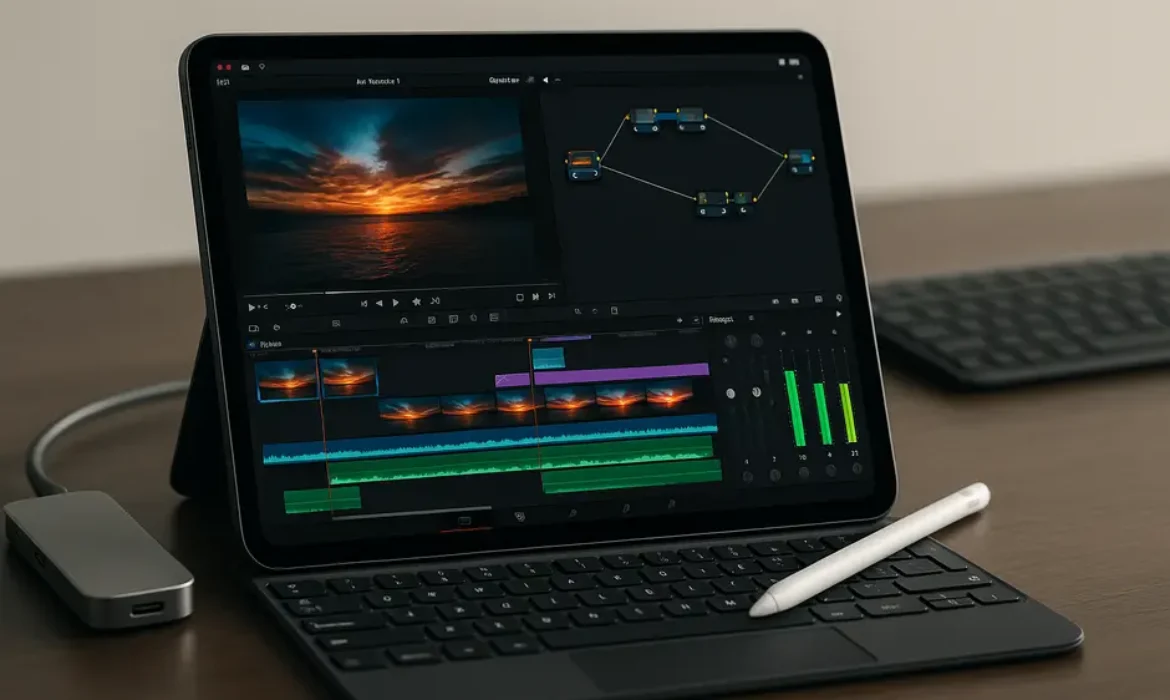
The Apple Pencil integration is particularly useful for precision keyframe work on the timeline, fine-tuning color adjustments, and making frame-accurate edits that would be frustrating with a fingertip alone. If you are serious about iPad editing, an Apple Pencil is not optional.
LumaTouch has extensive documentation and tutorials on their official site that are genuinely useful for understanding the full depth of the application.
The one honest limitation: LumaFusion does not have the advanced node-based color grading, audio mixing depth, or VFX capabilities of DaVinci Resolve. For certain professional deliverables, that gap is meaningful.
5. DaVinci Resolve for iPad: Hollywood Power in Your Hands?
Blackmagic Design releasing DaVinci Resolve for iPad was not just a software launch. It was a statement. DaVinci Resolve is the industry-standard color grading tool used on major film and television productions, and bringing that to a tablet was either bold ambition or reckless overreach, depending on your perspective.
Having used it extensively, the truth sits closer to bold ambition.
The color page on DaVinci Resolve for iPad is remarkable. The node-based grading workflow, primary wheels, log controls, curves, qualifier tools, and scopes are all present and functional. Using a color correction workflow that you would recognize on a $50,000 grading suite, on a device you are holding in one hand, is a genuinely strange and impressive experience.
The cut and edit pages are both available, though the edit page’s full feature set is still more limited on iPad than on the desktop version. The Fairlight audio page offers multi-track mixing capability that surpasses anything else available on a tablet.
The free version of DaVinci Resolve for iPad covers most professional needs. The paid DaVinci Resolve Studio tier unlocks noise reduction, certain AI-assisted tools, and collaborative features.
There are friction points worth knowing. The interface, while adapted for touch, was designed for mouse and keyboard workflows at its core. Complex node trees become slightly unwieldy on even an iPad Pro’s large screen. Rendering times for effects-heavy timelines are longer than on a high-end Mac. And project management across multiple connected drives requires more intentional workflow planning than it does on a desktop.
That said, for any editor or colorist who does significant color work, DaVinci Resolve for iPad represents something genuinely unprecedented: a full professional color toolset that fits in a bag.
6. Final Cut Pro for iPad: Apple’s Own Answer
Apple launching Final Cut Pro for iPad on a subscription model was controversial. Five dollars per month for software you do not own outright bothered a segment of professional users accustomed to one-time purchases. Set that aside for a moment and look at what the application actually delivers.
Final Cut Pro for iPad carries features from its desktop sibling, including Magnetic Timeline, multicam editing, roles-based audio mixing, and excellent ProRes playback. The interface adaptation for touch is clean and intuitive, and it integrates seamlessly with iCloud for project sync between iPad and Mac.
The Apple Pencil support within Final Cut Pro for iPad enables a drawing tool called the Jog Wheel, which gives tactile control over scrubbing and trimming in a way that feels purposeful rather than gimmicky.
Where Final Cut Pro for iPad earns genuine praise is in the overall experience of working within the Apple ecosystem. If you shoot on iPhone, edit a first cut on iPad in Final Cut Pro, and then hand the project off to Final Cut Pro on a Mac for finishing, the workflow is seamless. No export, no conversion, no headaches.
For creators already embedded in the Apple ecosystem, that kind of continuity has real value. The monthly cost becomes easier to justify when you factor in both the iPad and Mac usage.
Apple’s Final Cut Pro overview page provides a complete breakdown of the feature set across platforms.
7. iPad Pro vs. Laptop for Video Editing: An Honest Comparison
This is where the conversation gets genuinely nuanced, and where a lot of content either over-promises for the iPad or dismisses it unfairly. Here is a direct comparison across the criteria that matter most.
| Criteria | iPad Pro (M4) | MacBook Pro (M3 Pro) |
|---|---|---|
| Raw Processing Power | Excellent | Excellent to Superior |
| Storage Flexibility | Limited (requires external) | Excellent (internal NVMe) |
| Display Quality | Outstanding (XDR) | Outstanding (Liquid Retina XDR) |
| Portability | Superior | Very Good |
| Battery Life During Editing | Very Good (8–10 hours) | Good (6–8 hours editing) |
| App Feature Depth | Good to Very Good | Excellent |
| External Monitor Support | Single display only | Dual external display |
| File Management | Improving but restricted | Fully flexible |
| Keyboard/Mouse Input | Optional add-on | Native |
| Starting Price | $999 (iPad Pro 11″) | $1,999 (MacBook Pro 14″) |
The honest summary: an iPad Pro is a legitimate editing device for most professional workflows, but a MacBook Pro still has meaningful advantages when a project requires complex multi-layer compositing, extensive plugin ecosystems, precise file system management, or output to multiple external displays simultaneously.
The price gap matters too. A capable iPad Pro editing setup, including the Magic Keyboard, Apple Pencil, and a USB-C hub, approaches MacBook Pro pricing. At that point, the comparison becomes genuinely close on cost while the laptop retains some workflow advantages.
8. The Real Limitations You Need to Know About
Honest content does not hide the friction points. Here are the areas where iPad video editing still has meaningful gaps compared to a desktop or laptop workflow.
File management remains constrained. iPadOS handles the file system differently from macOS, and while this has improved substantially, working across multiple external drives with complex folder structures requires workarounds that desktop editors simply do not face.
Plugin ecosystems are thin. Desktop editing applications benefit from decades of third-party plugin development. Motion graphics plugins, audio VSTs, color toolkits, and output plugins are broadly available on Mac and PC. On iPad, you are largely limited to what each application ships with natively.
External display support is still a single-screen situation. The iPad Pro currently supports one external display output via USB-C or Thunderbolt. For editors accustomed to a timeline on one screen and a program monitor on another, this is a real adjustment.
Export and delivery options are narrower. Custom export presets, network delivery pipelines, and integration with broadcast delivery services are significantly more mature on desktop applications.
Thunderbolt storage is available but requires planning. The iPad Pro’s Thunderbolt port supports external NVMe drives and hubs, enabling fast external storage workflows. But you need to build that setup intentionally. Editing directly from a USB-C hub connected to a Thunderbolt SSD is smooth; assuming you can edit off a slow USB-A drive is a recipe for dropped frames and frustration.
These are not reasons to dismiss iPad editing. They are reasons to understand what you are working with and plan accordingly.
9. How to Build a Professional iPad Editing Setup
If you are serious about making iPad your primary or secondary editing device, the hardware configuration matters as much as the software choice.
The Core Device
Start with an iPad Pro. The M4 chip, ProMotion display, and Thunderbolt connectivity are not luxuries for professional video work. The 11-inch model is more portable; the 13-inch model offers more comfortable timeline real estate. Both are legitimately capable.
Apple Pencil Pro
For precise keyframe control, color adjustments, and timeline navigation, the Apple Pencil Pro’s pressure sensitivity and tilt detection are worth the investment.
External Storage
Connect a high-quality Thunderbolt or USB-C NVMe drive for project storage. Editing 4K ProRes footage from iPad’s internal storage is possible, but for large projects, external fast storage extends both your storage capacity and preserves internal storage health. Brands like Samsung T9 or WD Black offer reliable performance at reasonable prices.
USB-C Hub
A quality USB-C hub expands your connectivity to include card readers, additional storage, HDMI output, and audio interfaces simultaneously. The Thunderbolt 4 compatibility on iPad Pro means you are not limited to basic USB speeds.
Magic Keyboard for iPad Pro
For longer editing sessions, the Magic Keyboard transforms the iPad into a more traditional laptop-like workflow, with a full-travel keyboard, trackpad, and an additional USB-C charging port.
Color Reference Display (Optional)
For professional color grading deliverables, connecting the iPad Pro to a calibrated external monitor via USB-C to HDMI ensures your work translates accurately to other screens.
10. Who Should Actually Edit on an iPad?
The most useful question is not whether iPad video editing is “professional enough” in the abstract. It is whether it fits your specific workflow, project requirements, and working style.
iPad editing makes strong sense if you:
- Shoot run-and-gun documentary, travel, or event content and need to edit in the field
- Work primarily on social media content, short-form video, or digital delivery projects
- Already own an iPad Pro and want to maximize its utility before investing in a laptop
- Supplement a desktop editing setup with a portable option for rough cuts and travel
- Shoot on iPhone Pro or iPad Pro and want a seamless ProRes-native workflow
- Value portability and battery life as genuine professional requirements
You will likely need a laptop or desktop if you:
- Regularly deliver projects requiring complex multi-layer motion graphics or compositing
- Work with plugin-dependent workflows, particularly audio-heavy post-production
- Need to manage extremely large project archives with complex folder hierarchies
- Require dual-monitor editorial setups as part of your daily workflow
- Collaborate on projects that demand specific desktop application compatibility
Neither list is absolute. Plenty of working professionals use both an iPad and a Mac, assigning the right tool to the right phase of the job.
Key Takeaways
-
- The M4 iPad Pro has desktop-class processing power that makes 4K ProRes editing genuinely smooth without proxy workflows
- LumaFusion, DaVinci Resolve for iPad, and Final Cut Pro for iPad represent mature, professional-grade editing options, each suited to different workflows
- iPad Pro hardware limitations, specifically single external display support, restricted file management, and a limited plugin ecosystem, mean it is not a complete replacement for a desktop editing station for all use cases
- A well-configured iPad Pro editing setup with Apple Pencil, external NVMe storage, and a USB-C hub can cost roughly as much as an entry-level MacBook Pro, making the choice a genuine decision rather than an obvious one
- For field-based creators, social content producers, documentary shooters, and editors who value mobility, iPad video editing is not a compromise. It is a legitimate professional workflow
FAQs
Q1: Can you edit 4K footage on an iPad without using proxy files?
Yes, and this is one of the most significant practical improvements in recent years. The M3 and M4 chips in current iPad Pro models handle 4K ProRes and 4K H.265 footage in real time without requiring proxy transcoding in most editing applications. LumaFusion, DaVinci Resolve for iPad, and Final Cut Pro for iPad all support native 4K editing. For footage shot in ProRes on an iPhone 15 Pro or iPad Pro, the playback performance on a current iPad Pro is genuinely smooth even with basic color grading applied. Editing from fast external storage rather than slower USB drives makes a meaningful difference in sustained performance.
Q2: Is LumaFusion or DaVinci Resolve better for iPad video editing?
The answer depends entirely on your workflow priorities. LumaFusion is purpose-built for touch-based mobile editing, has a more intuitive timeline-centric interface, and covers most professional editing needs at a one-time price of $29.99. DaVinci Resolve for iPad is free, offers the most advanced color grading tools available on any tablet platform, and has deeper audio capabilities through its Fairlight integration. If color grading is a central part of your work, DaVinci Resolve for iPad is the more powerful choice despite a steeper learning curve. If you need a fast, capable, well-organized editorial tool for cutting and delivering projects, LumaFusion is hard to beat.
Q3: Can the iPad Pro handle professional audio mixing for video?
Reasonably well, within limitations. DaVinci Resolve for iPad’s Fairlight page offers multi-track audio editing, EQ, compression, and routing that goes significantly beyond basic audio tools. LumaFusion includes per-clip audio controls, keyframeable volume and pan, and basic equalization. What iPad editing lacks compared to desktop audio post is depth in the plugin ecosystem. Desktop tools like Logic Pro, Pro Tools, or even Adobe Audition benefit from decades of third-party audio plugin development. For dialogue editing, basic music mixing, and sound design with built-in tools, iPad handles professional audio work reasonably. For complex broadcast or cinematic audio post, you will want to finish in a dedicated desktop audio application.
Q4: Does the Apple Pencil actually improve video editing on iPad?
Significantly, yes. The Apple Pencil Pro brings precision to tasks that are genuinely difficult with finger input alone. Fine keyframe adjustments on a compressed timeline, precise masking and selection work in color tools, and frame-accurate trimming operations all benefit from pencil input. The pressure sensitivity in applications that support it enables variable adjustments that feel closer to a mouse or tablet workflow. If you are editing casually or cutting simple social content, the Apple Pencil is optional. If you are doing serious color work, complex motion graphics, or frame-precise editing, it is nearly essential.
Q5: What external storage should I use for iPad video editing?
The iPad Pro’s Thunderbolt port supports high-speed external NVMe drives. For professional 4K ProRes editing, you want read and write speeds above 500 MB/s to avoid frame drops and slow render times. Thunderbolt-compatible SSDs from reputable manufacturers deliver read speeds above 2,000 MB/s on compatible hardware. Standard USB-C SSDs without Thunderbolt certification work but at reduced speeds. For larger project archives, a USB-C hub connected simultaneously to the iPad and multiple drives gives you flexible workflow options. Avoid editing from mechanical hard drives or slower USB flash storage; the performance bottleneck will negate the iPad Pro’s powerful processor.
Q6: Is Final Cut Pro for iPad worth the subscription cost?
If you already use Final Cut Pro on a Mac, yes, without much debate. The ability to start a project on iPad and continue on Mac seamlessly, using the same project files and media, is a workflow advantage that is difficult to quantify but easy to appreciate once experienced. The $4.99 monthly cost covers both Mac and iPad use. If you do not use Final Cut Pro on Mac and are evaluating iPad editing apps purely on their own merits, LumaFusion at a one-time cost and DaVinci Resolve at free are more cost-effective options unless you are specifically committed to Apple’s ecosystem.
Q7: Can you color grade professionally on an iPad?
Yes, and DaVinci Resolve for iPad makes this more achievable than many professionals expected. The full node-based color grading workflow, primary and secondary tools, color warper, qualifier-based selective grading, and HDR monitoring controls are all functional on iPad. The iPad Pro’s XDR display with P3 wide gamut and high brightness provides a capable reference screen for grading work, though most colorists working on client deliverables requiring broadcast color accuracy will want to validate their work on a calibrated external reference monitor. For documentary, social, and digital delivery content, the iPad Pro display and DaVinci Resolve combination is a serious color grading setup.
Final Verdict
Video editing on iPad has moved past the question of whether it is theoretically possible and arrived at the more practical question of whether it fits your specific professional context. For many creators, it does, and does so without meaningful compromise.
The M4 iPad Pro is not trying to imitate professional editing hardware. In raw processing capability, display quality, and battery life, it has become professional editing hardware. The apps have matured to match. LumaFusion handles complete editorial workflows with intelligence. DaVinci Resolve for iPad brings genuine Hollywood-grade color tools to a device you carry in a tote bag. Final Cut Pro for iPad offers seamless continuity with the Mac ecosystem that Apple has always been best at delivering.
The remaining friction, limited external display support, constrained file management compared to macOS, and a thinner plugin ecosystem, is real and worth acknowledging honestly. For complex finishing work, plugin-heavy audio post, or multi-display editorial suites, a MacBook Pro or Mac Studio remains the more capable choice.
But for the creator who shoots in the field, edits between locations, delivers to digital platforms, and values a setup that fits in a single bag without sacrificing serious capability, iPad video editing is not a workaround anymore. It is a workflow.
This article reflects hands-on experience with current iPad Pro hardware and leading iPad editing applications. Hardware specifications and software features may be updated by manufacturers over time.