
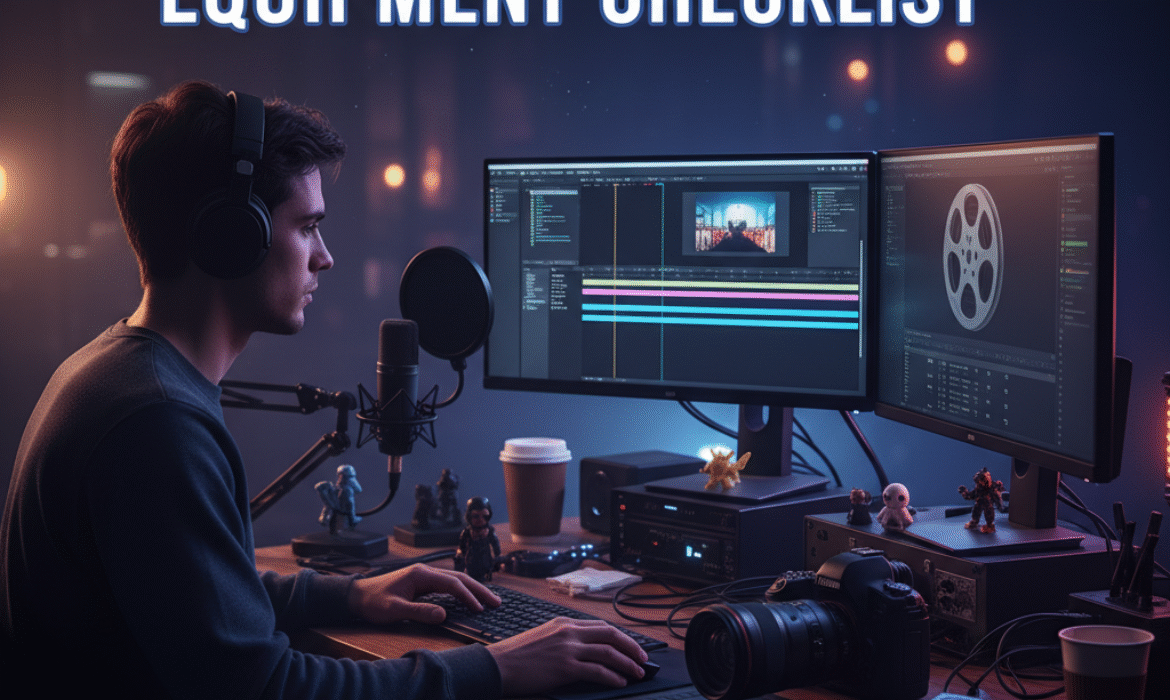
Setting up your first editing suite—or upgrading your existing one—feels overwhelming when you’re staring at endless gear reviews and wondering which investments actually matter. I’ve spent years building editing setups for everything from solo YouTube creators to small production teams, and the truth is simpler than most gear lists suggest: the right equipment amplifies your workflow, while the wrong purchases collect dust.
Whether you’re editing your first vlog or cutting together a documentary, this guide breaks down exactly what belongs in a professional video editing setup. We’ll move beyond vague recommendations to specific equipment categories that directly impact your efficiency, creative output, and final product quality.
Understanding What Makes Video Editing Equipment “Essential”
Before diving into specific gear, let’s establish what actually qualifies as essential. Your video editing equipment checklist should prioritize three factors:
Performance impact: Does this equipment materially improve your editing speed or output quality?
Workflow efficiency: Will it reduce friction in your daily editing process or eliminate bottlenecks?
Longevity: Can this investment serve you across multiple projects and skill levels?
Not everything marketed to content creators meets these criteria. A $400 mechanical keyboard with custom keycaps might look impressive, but it won’t necessarily make you edit faster than a solid $80 alternative.
The Computer: Your Editing Foundation
Your computer represents the single most important investment in your entire setup. Everything else supports or enhances what your machine can accomplish.
Processing Power and RAM
Video editing demands computational horsepower differently than gaming or general productivity work. When selecting or upgrading your editing workstation, prioritize:
CPU considerations: Modern editing software leverages multi-core processors for timeline scrubbing, effects rendering, and export encoding. Intel’s i7 or i9 processors, AMD Ryzen 7 or 9 chips, or Apple’s M1/M2 silicon all provide excellent performance. Aim for at least 8 cores for 4K editing workflows.
RAM requirements: This is where many beginners underestimate their needs. While 16GB handles basic 1080p projects, serious editing workflows demand more:
| Project Type | Minimum RAM | Recommended RAM |
|---|---|---|
| 1080p basic editing | 16GB | 32GB |
| 4K single-cam | 32GB | 64GB |
| 4K multi-cam or effects-heavy | 64GB | 128GB |
RAM speeds matter less than capacity for video editing. Focus on getting more of it rather than chasing the highest MHz ratings.
Graphics Processing
The GPU debate continues across editing communities, but here’s the practical reality: Adobe’s own documentation confirms that GPU acceleration dramatically improves playback performance and certain effects rendering.
For Premiere Pro, DaVinci Resolve, and Final Cut Pro users, dedicated graphics cards from NVIDIA (RTX series) or AMD (RX series) provide measurable benefits. Entry-level editors can start with an RTX 3060 or equivalent, while professional colorists working in Resolve often invest in RTX 4080 or higher for real-time grading.
Apple Silicon users receive capable integrated graphics that handle most editing tasks without discrete GPU requirements.
Storage Strategy
Your editing storage needs break down into three distinct categories:
Operating system and applications (NVMe SSD, 500GB–1TB): Keep your OS and editing software on the fastest drive available for responsive program launches and smooth timeline performance.
Active project storage (NVMe or SATA SSD, 1TB–4TB): Current projects demand fast read/write speeds for seamless scrubbing through high-bitrate footage. This is where you work day-to-day.
Archive and backup (HDD or cloud, expandable): Finished projects move here. External hard drives like the Western Digital Elements series or G-Technology drives provide affordable bulk storage.
According to Backblaze’s hard drive reliability statistics, maintaining at least two backup copies of important footage represents industry best practice—one local, one off-site or cloud-based.
Display Excellence: Monitors That Actually Matter
Many creators obsess over camera sensors while editing on inaccurate displays that completely misrepresent their footage. Your monitor directly affects color grading decisions, detail visibility, and overall editing comfort.
Color Accuracy Requirements
Color accurate monitors for editing need three specifications:
Panel technology: IPS panels provide superior color consistency and viewing angles compared to TN panels. VA panels split the difference but often show color shifting.
Color gamut coverage: Look for monitors covering at least 99% sRGB for web content. Filmmakers delivering for theatrical or streaming platforms should consider wider gamuts like DCI-P3 (common for HDR workflows).
Calibration capability: Professional monitors from BenQ’s SW series, ASUS ProArt line, or Dell’s UltraSharp displays support hardware calibration. This allows you to maintain color accuracy over time using calibration tools like the X-Rite i1Display Pro.
Resolution and Size Considerations
The best monitors for video editing balance resolution with screen real estate:
1080p (1920×1080): Adequate only for secondary displays or tight budgets. Your primary editing monitor should exceed this resolution.
1440p (2560×1440): The sweet spot for most editors. Provides ample timeline space and interface clarity without requiring GPU-intensive scaling. 27-inch displays at this resolution deliver excellent pixel density.
4K (3840×2160): Essential if you’re editing 4K content and want to view footage at native resolution. 27 to 32-inch 4K displays work well, though scaling may be necessary for comfortable interface text.
Ultrawide options: 34 or 38-inch ultrawide monitors (3440×1440 or 3840×1600) maximize timeline visibility and reduce need for dual-monitor setups. These shine for multicam editing or complex node graphs in DaVinci Resolve.
Dual Monitor Strategy
Most professional editing setups utilize two displays:
Primary display: Color-accurate, calibrated monitor for your preview window and critical color decisions Secondary display: Less expensive panel for timeline, bins, effects controls, and organizational interface elements
This configuration separates critical viewing from workspace organization without requiring two expensive reference monitors.
Input Devices: Keyboard, Mouse, and Control Surfaces
The tools needed for video editing extend to how you physically interact with your editing software.
Keyboard Considerations
Your keyboard for video editing doesn’t need RGB lighting or gaming-specific features. Instead, prioritize:
Full-size layout: Number pads speed up numerical timecode entry and JKL shuttle controls Programmable keys: Software like AutoHotkey or Keyboard Maestro transforms any keyboard into an editing powerhouse Travel distance: Some editors prefer mechanical switches for tactile feedback; others find chiclet keyboards reduce finger fatigue during long sessions
Popular choices include the Apple Magic Keyboard for Mac users, Logitech K780 for cross-platform work, or dedicated editing keyboards like the Loupedeck Live if budget permits.
Editing Mouse and Control Surfaces
Standard mice work fine, but specialized tools accelerate specific workflows:
High-precision mice: Logitech MX Master series offers customizable buttons and smooth scrolling ideal for timeline navigation Graphics tablets: Wacom tablets excel for rotoscoping, masking, and detailed keyframe work Control surfaces: The Loupedeck CT, Tourbox Elite, or Tangent panels provide tactile controls for color grading and editing operations
I’ve found that control surfaces benefit colorists and effects artists more than general editors. Unless you’re spending significant time in Lumetri or Resolve’s color page, invest elsewhere first.
Audio Equipment for Accurate Editing
Editing without proper audio monitoring is like color grading on an uncalibrated display—you’re making decisions based on inaccurate information.
Headphones for Video Editing
Studio headphones serve video editors differently than consumer or DJ headphones. You need flat frequency response that reveals exactly what’s in your audio, not enhanced bass or boosted treble.
Closed-back options: Sony MDR-7506 (industry standard for decades), Audio-Technica ATH-M50x, or Beyerdynamic DT 770 Pro isolate environmental noise and prevent audio bleed during recording sessions.
Open-back alternatives: Sennheiser HD 600 series or Audio-Technica ATH-R70x provide more natural soundstage but leak audio, making them better for solo editing environments.
Avoid wireless headphones for critical audio work. Bluetooth compression artifacts and latency issues compromise monitoring accuracy.
Studio Monitors and Speakers for Editing
Once projects advance beyond basic cuts, dedicated speakers for editing become essential:
Entry-level: PreSonus Eris series or JBL 305P MkII provide accurate monitoring for under $300/pair Mid-range: Yamaha HS series, Adam Audio T series, or KRK Rokit G4 deliver professional-grade accuracy Professional: Genelec, Focal, or Neumann monitors serve high-end facilities
Position studio monitors at ear height, forming an equilateral triangle between your head and each speaker. Room treatment with acoustic panels dramatically improves monitoring accuracy, especially in untreated home spaces.
Creating Your Editing Desk Setup
Your physical workspace impacts editing comfort and long-term health more than most equipment for content creators acknowledge.
Desk Selection
Editing desk setup ideas should prioritize:
Surface area: Minimum 60 inches wide to accommodate dual monitors, keyboard, mouse, and audio interface Depth: 30 inches provides comfortable viewing distance from displays Cable management: Built-in grommets or channels prevent cable chaos Adjustability: Standing desk converters or full motorized standing desks combat sedentary editing sessions
Popular options include the IKEA Bekant, Uplift V2 Commercial, or custom builds using adjustable frames with solid-core doors as desktop surfaces.
Ergonomic Essentials
The editing chair and ergonomics category deserves serious investment. You’ll spend thousands of hours here—chronic back pain costs far more than a quality chair.
Office chairs: Herman Miller Aeron, Steelcase Leap, or Secretlab Titan provide professional ergonomic support Monitor arms: Free up desk space and allow precise height/distance adjustments Keyboard position: Keep wrists neutral using keyboard trays or proper desk height Lighting: Bias lighting behind monitors reduces eye strain during long sessions. Place soft, indirect lighting to prevent screen glare.
Production Equipment for Content Creators
While this guide focuses on editing equipment, your home editing studio setup should accommodate occasional shooting needs.
Camera Gear Basics
Equipment for beginner YouTubers doesn’t require cinema cameras. Many creators produce exceptional content using:
Mirrorless cameras: Sony A6400/A7III, Canon M50 Mark II, or Fujifilm X-S10 balance quality and affordability Webcams: Logitech Brio or Sony ZV-1 connected as webcam for talking-head content Smartphones: Modern iPhones and flagship Android devices capture surprisingly professional footage
Supporting Gear
Your filmmakers video gear list should include:
Tripods & stabilizers for filming: Manfrotto Befree series, Joby GorillaPod for versatility, or DJI RS3 gimbals for movement Lighting for video shooting: Godox SL-60W LED panels, Aputure MC travel lights, or budget-friendly Neewer LED panels create professional lighting setups Video microphones: Rode VideoMic Pro+, Deity V-Mic D3 Pro, or wireless systems like the Rode Wireless Go II capture clean audio
Essential Editing Accessories
The accessories for video editors category includes smaller items that compound into significant workflow improvements.
Data Management
Card readers: High-speed USB-C card readers from SanDisk or ProGrade Digital accelerate media ingestion External drives: Samsung T7 portable SSDs for active projects; WD Elements or Seagate drives for archives NAS solutions: Synology or QNAP network-attached storage enables team collaboration and centralized backups
Organization Tools
Cable management: Velcro ties, cable channels, and cable boxes prevent desk chaos Script holders: Document stands keep shot lists or scripts visible without consuming screen real estate Reference tools: Color checker cards, grey cards, and monitor calibration tools maintain consistency
Budget Allocation Strategy
Building your video editing setup equipment doesn’t require maxing out credit cards. Here’s how to prioritize across common budget ranges:
Under $2,000 Budget
- Computer: $1,000 (refurbished workstation or M1 Mac Mini)
- Monitor: $400 (27″ 1440p IPS display)
- Audio: $200 (Sony MDR-7506 headphones + basic interface)
- Accessories: $400 (keyboard, mouse, cables, storage)
$2,000–$5,000 Budget
- Computer: $2,500 (custom-built PC or M2 MacBook Pro)
- Monitors: $800 (color-accurate primary + budget secondary)
- Audio: $500 (studio headphones + entry-level monitors)
- Desk/chair: $600 (ergonomic chair + solid desk)
- Accessories: $600 (storage, calibration tools, control surface)
$5,000–$10,000 Budget
- Computer: $4,000 (high-end workstation or Mac Studio)
- Monitors: $1,500 (professional color-grading display + 4K secondary)
- Audio: $1,200 (professional headphones + mid-range studio monitors)
- Desk/ergonomics: $1,500 (premium standing desk + Herman Miller chair)
- Production gear: $1,000 (lighting + audio for shoots)
- Accessories: $800 (control surfaces, extensive storage, calibration)
Software Considerations
Your editing workstation accessories mean little without capable editing software:
Beginner-friendly: DaVinci Resolve (free version), iMovie (Mac), or Filmora provide approachable interfaces Professional standards: Adobe Premiere Pro for industry compatibility, Final Cut Pro for Mac-optimized workflows Specialized tools: DaVinci Resolve Studio for color grading, Avid Media Composer for film/TV, After Effects for motion graphics
Most professionals benefit from subscription models offering multiple applications rather than perpetual licenses limiting software updates.
Frequently Asked Questions
What’s the minimum equipment needed to start editing videos professionally?
Professional video editing requires just three core components: a capable computer (at least 32GB RAM, dedicated GPU, and fast storage), an accurate display (minimum 1440p IPS monitor covering 99% sRGB), and proper audio monitoring (closed-back studio headphones). Everything else enhances workflow but isn’t strictly essential. Many successful YouTube creators began with even less, upgrading strategically as channel revenue grew. Focus your initial budget on the computer—it’s the only component that directly limits what footage you can edit and how quickly you can work.
How much should I budget for a complete editing setup?
Complete editing setups range dramatically based on your content type and professional aspirations. Entry-level configurations start around $1,500–$2,000 for basic 1080p work. Serious YouTubers and aspiring filmmakers should budget $3,000–$5,000 for equipment handling 4K workflows comfortably. Professional setups for client work or high-end production typically require $7,000–$12,000+ to meet industry standards for color accuracy and reliability. Rather than purchasing everything immediately, build incrementally: start with the computer and one good monitor, then expand your setup as you identify specific bottlenecks in your workflow.
Do I really need a color-accurate monitor if I’m just editing YouTube videos?
Yes, but the level of accuracy depends on your content and audience expectations. YouTube compresses video significantly, yet viewers increasingly watch on calibrated displays like iPads and modern smartphones. An uncalibrated monitor might show your footage too bright, too saturated, or with incorrect skin tones—problems that become obvious when viewers watch on accurate displays. You don’t need a $3,000 reference monitor for YouTube work, but investing $400–$600 in a monitor covering at least 99% sRGB and supporting basic calibration ensures your color grading translates properly across different devices. This becomes critical for beauty content, product reviews, or anything where color accuracy affects viewer perception.
Can I edit video effectively on a laptop or do I need a desktop workstation?
Modern laptops absolutely support professional editing, particularly Apple’s M-series MacBook Pros and high-end Windows laptops with discrete graphics. Laptops offer portability for on-location editing and smaller workspace footprints. However, desktops provide better value at any budget point, superior cooling for sustained rendering, easier upgradeability, and more connectivity for multiple drives and displays. The best choice depends on your specific situation: if you travel frequently or edit in multiple locations, invest in a powerful laptop and external monitor for desk work. If you edit from a dedicated space, desktop workstations deliver better performance per dollar and last longer before requiring replacement.
What’s more important: a faster computer or a better monitor?
The computer determines what you can edit and how efficiently you work, while the monitor affects the accuracy of your creative decisions. A fast computer with a poor monitor lets you work quickly but potentially make bad color and exposure choices. A great monitor paired with a slow computer means accurate decisions but frustrating render times and choppy playback. In practice, prioritize the computer for 60–70% of your budget since it represents the harder bottleneck—you can’t edit 4K footage smoothly on an underpowered machine regardless of your monitor. Once your computer handles your typical footage without playback issues, invest in the best monitor you can afford. Many editors successfully use budget secondary displays for timeline work while investing in one accurate primary monitor for critical viewing.
How often should I upgrade my editing equipment?
Unlike smartphones or gaming PCs, editing equipment maintains usefulness for extended periods. Expect 4–7 years from a well-configured editing computer before it can’t handle modern codecs or software updates smoothly. Monitors last even longer—10+ years isn’t unusual for quality displays, though calibration becomes necessary yearly. Upgrade strategically when you encounter consistent bottlenecks: if export times exceed 30 minutes for typical projects, rendering prevents you from meeting deadlines, or you can’t achieve smooth playback at quarter resolution, your computer needs upgrading. If color grading doesn’t translate properly across devices despite calibration, upgrade monitors. Peripheral equipment like keyboards, mice, and headphones should be replaced when they fail or significantly better alternatives emerge that materially improve your workflow.
Is it worth investing in control surfaces and specialized input devices?
Control surfaces provide the most value to colorists, audio mixers, and editors working in effects-heavy workflows. If you spend significant time adjusting color wheels, keyframing effects, or mixing audio, devices like the Loupedeck CT or Tangent Ripple accelerate these specific tasks dramatically. However, general editing—cutting, trimming, arranging clips—works efficiently with standard keyboard and mouse once you learn shortcuts. Before purchasing control surfaces, invest in proper processing power, accurate monitoring, and comfortable ergonomics. After mastering your software’s keyboard shortcuts, evaluate whether your specific workflow involves enough color grading or effects work to justify control surface costs. Many professional editors work efficiently without them; specialized colorists consider them essential.
Building Your Setup Strategically
The most successful editing setups evolve incrementally rather than appearing overnight through massive purchases. Start with the foundational equipment that directly limits your capabilities—computer, monitor, and audio monitoring. Work with this core setup long enough to identify your specific bottlenecks and workflow preferences.
Maybe you discover that color grading consumes significant time and a wider-gamut monitor would improve accuracy. Perhaps multicam projects would benefit from more RAM or faster storage. You might realize that neck strain from poor monitor positioning matters more than acquiring a control surface.
These insights only emerge through actual editing work. Resist the temptation to buy every item marketed to content creators before you’ve established what your specific workflow actually demands.
Your video editing equipment checklist serves as a roadmap, not a shopping list to complete immediately. The creators producing the most compelling content rarely have the most expensive gear—they’ve simply built setups optimized for their specific creative process and continuously refined those choices through experience.
Focus on tools that remove friction from your workflow, accelerate tasks you perform frequently, and expand your creative capabilities. Everything else is just gear.