

How YouTubers Make Money in 2026: Ads, Sponsorships, Brands, and More
How YouTubers Make Money in 2026: Ads, Sponsorships, Brands, and More
Estimated reading time: 12 minutes
Key Takeaways
-
- YouTube creators typically earn between $2-$12 per 1,000 views through AdSense, but ad revenue represents only 20-40% of total income for successful channels
- Sponsorships generate 3-10 times more revenue than ads for creators with over 100,000 subscribers
- The creator economy has matured into a sophisticated business ecosystem worth over $250 billion globally
- Diversification across multiple revenue streams is essential for sustainable creator income
- YouTube’s payment system operates on a revenue-sharing model, with creators receiving 55% of ad revenue generated on their content
When Grace Mitchell uploaded her first cooking tutorial in 2019, she had no idea that five years later, her channel would generate over $480,000 annually. More surprising? Only $68,000 of that comes from YouTube ads.
This represents the modern reality of how YouTubers make money. The platform has evolved far beyond simple ad revenue, creating a sophisticated ecosystem where creators function as multimedia entrepreneurs, building diversified income portfolios that would impress any business consultant.
Understanding how YouTube pays creators—and how successful YouTubers actually structure their income—requires looking beyond the romantic notion of “getting paid to make videos.” The creator economy operates on multiple revenue layers, each with distinct earning potential, requirements, and strategic considerations.
Let’s break down exactly how this business model works in 2026.
The Evolution of YouTube Creator Revenue
The creator revenue model has undergone dramatic transformation since YouTube introduced the Partner Program in 2007. What started as a simple ad-revenue sharing arrangement has evolved into a complex financial ecosystem that mirrors traditional media companies.
Between 2020 and 2026, three major shifts reshaped how creators earn money:
Direct platform monetization expanded significantly. YouTube introduced Super Thanks, channel memberships, Super Chat, and YouTube Shopping features that allow creators to capture revenue directly from their audiences without relying solely on advertisers.
Brand partnerships became more sophisticated. Companies now work with creators through long-term ambassadorships rather than one-off sponsored videos, creating stable recurring income that rivals or exceeds traditional advertising revenue.
Audience ownership became paramount. Smart creators recognized that building email lists, community platforms, and owned digital properties provides income security that platform-dependent revenue cannot match.
According to Statista’s latest creator economy research, the global creator economy reached $254 billion in 2025, with YouTube representing approximately 35% of that market. This growth reflects not just more creators joining the platform, but existing creators becoming more sophisticated in monetizing their audiences.
Google AdSense: The Foundation of YouTube Income
Despite being just one component of creator income, understanding how YouTube’s advertising system works remains essential. Google AdSense for YouTube operates on a CPM (cost per mille, or cost per thousand impressions) and CPC (cost per click) model, where creators earn money when viewers watch or interact with ads displayed on their content.
How YouTube Ad Revenue Actually Works
When you join the YouTube Partner Program, you gain access to several ad formats:
Display ads appear beside your video on desktop. Overlay ads are semi-transparent banners that appear on the lower portion of videos. Skippable and non-skippable video ads play before, during, or after content. Bumper ads are six-second non-skippable messages. Sponsored cards show relevant products featured in videos.
YouTube takes 45% of advertising revenue, leaving creators with 55%. This might seem steep, but it covers massive infrastructure costs including video hosting, bandwidth, content delivery networks, and the platform’s recommendation algorithm that drives views.
What Determines Your AdSense Earnings
The amount creators actually earn varies enormously based on several factors:
| Factor | Impact on Earnings | Example Range |
|---|---|---|
| Content Niche | High | Finance videos: $12-25 CPM; Gaming: $2-6 CPM |
| Viewer Geography | High | US viewers: 3-5x more valuable than developing markets |
| Viewer Age | Moderate | 25-45 demographic commands premium rates |
| Video Length | Moderate | 8+ minute videos allow mid-roll ads, doubling revenue potential |
| Watch Time | High | Higher retention = more ad opportunities |
| Seasonality | Moderate | Q4 CPMs increase 30-60% during holiday shopping |
A channel focusing on personal finance with a primarily US-based audience aged 30-50 might earn $15 per 1,000 views, while a gaming channel with a younger international audience might earn $3 per 1,000 views on the same view count.
YouTube Partner Program Requirements
Accessing AdSense revenue requires meeting specific thresholds:
-
-
- 1,000 subscribers
- 4,000 valid watch hours in the previous 12 months (or 10 million valid public Shorts views)
- Compliance with all YouTube monetization policies
- Active AdSense account linked to your channel
- Two-step verification enabled
-
These requirements, updated periodically, ensure creators have established audiences before accessing monetization features. For detailed current requirements, YouTube’s official Partner Program documentation provides comprehensive guidelines.
Realistic AdSense Income Expectations
Here’s what typical channels actually earn through ads alone:
A channel generating 100,000 monthly views in a moderate-CPM niche (lifestyle, education, general entertainment) with $4-6 CPM earns approximately $400-600 monthly from ads. That same channel in a high-CPM niche (finance, technology, business) with $10-15 CPM earns $1,000-1,500 monthly.
A channel hitting 1 million monthly views earns $4,000-15,000 monthly depending on niche, geography, and viewer demographics.
These numbers explain why relying solely on AdSense creates financial vulnerability. A single algorithm change, shifting viewer demographics, or platform policy update can significantly impact income overnight.
Sponsorship Income: Where Real Money Lives
Ask any creator earning over $100,000 annually where their money comes from, and most will point to sponsorships and brand deals. This revenue stream typically generates 3-10 times more income than AdSense for established channels.
How YouTube Sponsorships Work
Brands pay creators to feature their products or services within video content. Unlike traditional advertising that YouTube controls, sponsorships represent direct business relationships between creators and companies.
Three primary sponsorship models dominate:
Dedicated videos feature a single sponsor for an entire video, typically commanding $20-100 per 1,000 subscribers depending on engagement and niche. A channel with 200,000 subscribers might charge $4,000-20,000 for a dedicated sponsorship.
Integrated segments place a 60-90 second sponsor message within regular content. These typically generate 60-70% of dedicated video rates but allow creators to maintain content variety.
Ongoing partnerships establish long-term relationships where creators regularly feature sponsors across multiple videos, often generating monthly retainer income ranging from $3,000 to $50,000+ for larger channels.
What Determines Sponsorship Value
Sponsors care less about subscriber counts and more about actual business results. Several factors determine what brands will pay:
Audience alignment matters most. A skincare brand pays premium rates to a beauty channel with 75,000 engaged subscribers rather than a general entertainment channel with 300,000 loosely connected viewers.
Engagement rates prove audience connection. Channels with 4-8% engagement rates (likes, comments, shares relative to views) command 2-3x higher sponsorship rates than channels with 1-2% engagement despite similar subscriber counts.
Conversion history increasingly determines rates. Creators who track affiliate codes and demonstrate that their audience actually purchases sponsored products can demand significantly higher fees.
Content quality and production value signal professionalism that brands trust with their marketing budgets.
Finding and Securing Sponsorships
Creators access sponsorships through several channels:
Direct outreach works when you identify brands that align with your content and audience. A professional media kit outlining audience demographics, engagement metrics, previous partnerships, and rate card streamlines this process.
Sponsorship platforms like Grapevine, IZEA, AspireIQ, and FameBit connect creators with brands seeking partnerships. These platforms simplify discovery but typically take 10-30% commission.
Talent agencies and management companies represent larger creators, handling negotiation, contracts, and relationship management in exchange for 15-25% of sponsorship revenue.
Organic brand interest occurs when channels grow large enough that brands proactively reach out. This usually happens around 50,000-100,000 subscribers in most niches.
Sponsorship Disclosure and Authenticity
Federal Trade Commission guidelines and YouTube policies require clear sponsorship disclosure. More importantly, audience trust—your most valuable asset—depends on authentic partnerships.
Successful creators maintain strict standards about which sponsorships they accept, only partnering with products they genuinely use or believe provide value to their audience. This selectivity preserves credibility while often allowing higher rates, since sponsors recognize the value of authentic endorsements.
Brand Deals and Partnerships
While sponsorships focus on direct product promotion within videos, brand deals encompass broader collaborative relationships between creators and companies.
Types of Brand Partnerships
Ambassador programs establish creators as ongoing faces of brands, generating monthly retainer income plus usage fees for content that appears in brand marketing. These relationships often span 6-24 months and provide income stability that episodic sponsorships cannot match.
Content collaborations involve brands funding content creation aligned with their marketing goals. A travel brand might fund a creator’s trip to a specific destination, covering all expenses plus a creation fee of $10,000-100,000 depending on the creator’s reach and production quality.
Licensing agreements allow brands to repurpose creator content across their marketing channels—social media, websites, email campaigns, even television commercials. Usage rights can generate $5,000-250,000+ depending on scope, duration, and distribution channels.
Product development partnerships bring creators into the design process for new products, often including royalty agreements on sales. Beauty creators frequently launch product lines with established cosmetics companies, earning both upfront fees and ongoing royalties.
The Shift Toward Long-Term Relationships
Smart brands recognized that one-off sponsorships generate limited impact compared to sustained partnerships. In 2026, major advertisers increasingly structure creator relationships as ongoing collaborations rather than transactional arrangements.
This shift benefits creators through predictable recurring income and deeper creative integration, while brands benefit from authentic association that builds over time rather than appearing as obvious paid promotion.
Merchandising and Product Lines
Physical and digital products represent increasingly significant revenue streams for creators with engaged audiences. Unlike advertising-dependent income, merchandise revenue scales with audience size and loyalty while building tangible assets with long-term value.
Creator Merchandise Revenue
Print-on-demand platforms like Teespring (now Spring), Printful, and Printify allow creators to sell branded merchandise without inventory investment. While convenient, margins typically range from just $4-8 per item sold.
Custom merchandise production through manufacturers provides better margins ($12-25 per item) but requires upfront investment, inventory management, and fulfillment logistics.
Successful merchandise operations share common characteristics:
Strong brand identity translates visual style and catchphrases into desirable products. Creators with distinctive aesthetics and memorable sayings naturally generate more merchandise interest.
Quality over quantity matters more than product variety. Three excellent products that your audience actually wants outperform twenty mediocre options.
Authentic integration means featuring merchandise naturally in content rather than constant selling. Audiences notice the difference between creators who love their products and those simply pushing inventory.
Realistic revenue expectations: A channel with 100,000 engaged subscribers might generate $2,000-8,000 monthly merchandise revenue. Channels with exceptionally strong brand identity and audience connection can exceed $50,000 monthly at similar subscriber counts.
Digital Products and Course Creation
Many creators transition expertise into educational products:
Online courses teaching skills related to channel content generate significant revenue. Creators with 50,000 subscribers successfully sell courses priced at $197-997, generating $10,000-100,000+ in launches.
Ebooks and guides provide lower-priced entry points ($19-47) that convert larger audience percentages while establishing authority.
Templates and tools serve specific audience needs. A productivity creator might sell Notion templates, a photography creator might sell Lightroom presets, and a business creator might sell financial spreadsheets.
Membership communities combine educational content, community access, and ongoing support through platforms like Patreon, Circle, or Kajabi. Successful membership programs generate $10-100+ monthly per member, creating predictable recurring revenue.
Additional Revenue Streams Modern Creators Use
Sophisticated creators stack multiple income sources to build resilient businesses less vulnerable to platform changes or algorithm updates.
YouTube-Specific Features
Channel memberships ($4.99-$24.99 monthly) provide perks like exclusive content, badges, and emojis to paying subscribers. Channels with highly engaged audiences convert 1-5% of viewers into members.
Super Chat and Super Thanks allow viewers to pay for highlighted messages during live streams or show appreciation on regular videos. Live-streaming creators generate $500-10,000+ monthly through these features depending on audience size and engagement.
YouTube Shorts Fund and revenue sharing now allows creators to monetize short-form content through ad revenue sharing similar to regular videos, though CPM rates typically run lower than long-form content.
Affiliate marketing involves promoting products with trackable links, earning commissions on resulting sales. Amazon Associates, ShareASale, and CJ Affiliate represent popular networks. Tech reviewers, lifestyle creators, and educators particularly benefit from affiliate revenue, which can exceed AdSense income for channels with purchase-intent audiences.
Platform Diversification
Successful creators rarely depend exclusively on YouTube:
Podcasting allows content repurposing while accessing distinct sponsorship markets. Many YouTube creators convert their video content into podcast formats, effectively doubling reach and revenue opportunities.
Newsletter and email marketing builds owned audience assets that platforms cannot affect. Creators with 100,000 email subscribers often generate more revenue per subscriber than their YouTube audience.
Consulting and services leverage expertise demonstrated through content. Business and educational creators frequently earn $150-500+ hourly consulting, generating substantial income from relatively few clients.
Speaking engagements at conferences and corporate events pay $2,000-50,000+ per appearance for established creators, providing high-margin revenue opportunities.
How Much YouTubers Actually Make: Real Numbers
The question “how much do YouTubers make” lacks a simple answer because income varies dramatically based on niche, monetization sophistication, audience size, and engagement quality.
Income by Subscriber Count
These ranges reflect creators who actively pursue multiple revenue streams:
| Subscriber Range | Monthly Income Range | Primary Revenue Sources |
|---|---|---|
| 10,000-50,000 | $500-$3,000 | AdSense, occasional sponsorships, affiliate |
| 50,000-100,000 | $2,000-$10,000 | Sponsorships, AdSense, affiliate, merchandise |
| 100,000-500,000 | $8,000-$50,000 | Sponsorships, brand deals, AdSense, products |
| 500,000-1M | $30,000-$150,000 | Major sponsorships, brand partnerships, multiple revenue streams |
| 1M-5M | $100,000-$500,000+ | Diversified business including products, services, investments |
| 5M+ | $400,000-$10M+ | Media company operations with teams and multiple business lines |
These figures represent monthly income for creators actively monetizing. Channels that rely exclusively on AdSense typically earn 60-80% less than these ranges.
Income by Niche
Content category dramatically affects earning potential:
High-earning niches (finance, business, technology, real estate, legal) benefit from premium CPM rates ($12-25+) and high-value sponsorship opportunities. A 100,000-subscriber finance channel often outerns a 500,000-subscriber entertainment channel.
Moderate-earning niches (lifestyle, education, health, parenting, cooking) see standard CPM rates ($4-8) with solid sponsorship markets from consumer brands.
Lower-earning niches (gaming, general entertainment, vlogs, comedy) face lower CPM rates ($2-5) and more competitive sponsorship landscapes, though merchandise and membership revenue can compensate.
Case Study: Diversified Creator Income
Consider a creator with 250,000 subscribers in the personal development niche generating 600,000 monthly views:
-
-
- AdSense Revenue: $4,200 (assuming $7 CPM)
- Sponsorships: $12,000 (two monthly sponsorships at $6,000 each)
- Affiliate Marketing: $3,800 (promoting books, courses, tools)
- Course Sales: $8,500 (ongoing sales of signature online course)
- Channel Memberships: $2,400 (400 members at $5.99 monthly)
- Merchandise: $1,600 (supplementary revenue)
-
Total Monthly Income: $32,500 ($390,000 annually)
This breakdown illustrates that AdSense represents just 13% of total revenue, while direct audience monetization and business partnerships drive the majority of income.
The YouTube Payment System Explained
Understanding how YouTube actually pays creators clarifies timing, requirements, and processes for accessing your earnings.
YouTube Partner Program Payment Structure
YouTube pays creators monthly for earnings exceeding $100. Payments arrive between the 21st and 26th of each month for the previous month’s earnings. For example, January earnings are paid in late February.
The payment process follows this timeline:
-
-
- Day 1-30 of the month: Revenue accrues from ads, Super Chat, memberships, and other YouTube monetization features
- Day 7-12 of the following month: YouTube calculates finalized earnings, accounting for invalid traffic, advertiser adjustments, and revenue sharing calculations
- Day 21-26 of the following month: Payment is issued to your linked AdSense account
- Payment arrival: Depends on your payment method—wire transfer (typically 2-5 business days), check (2-4 weeks), or other regional payment options
-
Payment Thresholds and Methods
Different monetization features have varying payment thresholds:
-
-
- AdSense revenue: $100 minimum
- YouTube Premium revenue: Included with AdSense, same $100 threshold
- Channel memberships: $100 minimum
- Super Chat and Super Thanks: $100 minimum
- Merchandise shelf: Paid directly by your merchandise partner
-
Geographic location determines available payment methods. Most countries support wire transfer and checks, while some regions offer additional options like Western Union Quick Cash or Rapida.
Tax Considerations
YouTube requires tax information from all creators in the Partner Program. US creators submit W-9 forms, while international creators submit W-8BEN forms.
For US creators, YouTube reports earnings over $600 annually via 1099 forms. These earnings constitute self-employment income subject to income tax and self-employment tax.
International creators may face US tax withholding on US-based viewers unless tax treaties between their country and the US reduce or eliminate withholding. Google’s AdSense tax requirements page provides detailed guidance for various situations.
Consulting a tax professional familiar with creator economy taxation ensures compliance while optimizing deductions for equipment, software, home office space, and other business expenses.
Building a Sustainable Creator Business
Successful creators approach YouTube as a business requiring strategy, systems, and diversification rather than hoping for viral success.
Diversification Strategy
Financial resilience requires multiple revenue streams. Dependence on any single income source—whether AdSense, sponsorships, or merchandise—creates vulnerability to market changes, platform policy shifts, or algorithm updates.
The ideal revenue mix spreads income across:
-
-
- Platform revenue (AdSense, YouTube features): 20-35%
- Sponsorships and brand deals: 30-45%
- Products and services: 20-30%
- Affiliate and other: 10-20%
-
This distribution ensures that problems with any single revenue source won’t devastate overall income.
Building Beyond the Platform
Smart creators recognize that YouTube serves as a distribution channel rather than the entirety of their business. Platform-independent assets provide long-term security:
Email lists allow direct audience communication unaffected by algorithm changes. Converting 5-10% of viewers into email subscribers creates a valuable owned asset.
Independent websites host content, products, and community features while improving search visibility and establishing professional presence.
Multiple platform presence distributes audience across YouTube, Instagram, podcasts, newsletters, and other channels, reducing dependence on any single platform’s continued favor.
Intellectual property development creates lasting value through courses, books, frameworks, and methodologies that continue generating revenue independent of new content creation.
Business Infrastructure
Professional creators implement systems supporting sustainable operations:
Separate business entities (LLC or S-Corp) provide liability protection and tax advantages once income exceeds $50,000-75,000 annually.
Business bank accounts and credit cards separate personal and business finances, simplifying accounting and establishing business credit.
Accounting systems track income and expenses across multiple sources, essential for tax compliance and financial planning.
Team building allows scaling beyond individual capacity. Successful creators hire editors, thumbnail designers, researchers, and community managers to increase output while maintaining quality.
Contract and legal support protects your interests in sponsorship agreements, brand deals, partnership arrangements, and intellectual property licensing.
Long-Term Value Creation
The creator economy increasingly rewards expertise and unique perspective over entertainment alone. Channels that educate, solve problems, or provide genuine value build audiences that monetize more effectively than pure entertainment channels.
Consider your channel as building a media company around your expertise or passion, systematically developing assets—audience, content library, products, brand partnerships, intellectual property—that compound in value over time.
Frequently Asked Questions
How much money do YouTubers make per 1,000 views?
YouTubers typically earn between $2 and $12 per 1,000 views through AdSense, with significant variation based on content niche, viewer geography, and audience demographics. Finance and business channels often exceed $15 per 1,000 views, while gaming and entertainment channels frequently fall between $2 and $5 per 1,000 views.
This represents only ad revenue. When including sponsorships, affiliate income, and other monetization methods, total revenue per 1,000 views for established creators often reaches $20-50 per 1,000 views. A creator with strong monetization generating 500,000 monthly views might earn $10,000-25,000 total monthly income despite AdSense revenue of just $2,000-4,000.
Remember that watch time and engagement matter more than raw view counts for long-term earnings, since these metrics determine both ad revenue and attractiveness to sponsors.
How many subscribers do you need to make money on YouTube?
You need 1,000 subscribers and either 4,000 watch hours in the past 12 months or 10 million Shorts views to qualify for the YouTube Partner Program and access AdSense revenue. However, making meaningful money requires significantly higher thresholds.
Most creators begin earning $500-1,500 monthly around 30,000-50,000 subscribers when combining AdSense with occasional sponsorships and affiliate income. Sustainable full-time income ($3,000-5,000+ monthly) typically requires 75,000-150,000 subscribers, though highly engaged audiences in valuable niches can support full-time creation at lower subscriber counts.
Subscriber count alone matters less than view consistency and audience engagement. A channel with 50,000 highly engaged subscribers often generates more income than a channel with 200,000 inactive subscribers.
Can you make money on YouTube without showing your face?
Absolutely. Numerous successful channels generate substantial income without showing creators’ faces. Faceless channel formats include screen recordings with voiceovers, animated explainers, compilation videos, meditation and music channels, educational presentations, and gameplay commentary.
These channels monetize through all standard methods—AdSense, sponsorships, affiliate marketing, and digital products. Some faceless formats like financial education, technology tutorials, and meditation channels command premium sponsorship rates despite creators remaining anonymous.
The key to faceless channel success lies in providing clear value through information, entertainment, or services rather than relying on personality-driven content. Production quality and consistency matter more when you can’t leverage personal connection.
How do YouTubers get paid by YouTube?
YouTube pays creators through Google AdSense accounts linked to their channels. The payment process operates on a monthly cycle, with earnings from each month paid around the 21st-26th of the following month, provided you’ve exceeded the $100 minimum threshold.
YouTube retains 45% of ad revenue while creators receive 55%. For a video generating $1,000 in ad revenue, YouTube keeps $450 and pays the creator $550. This split covers hosting, bandwidth, platform development, and the recommendation system that drives views.
Additional YouTube monetization features like channel memberships, Super Chat, Super Thanks, and merchandise shelf revenue follow similar monthly payment schedules, each with their own $100 minimum thresholds before payment is issued.
Payment arrives via your chosen method—wire transfer, check, or regional payment options—to the bank account or address associated with your AdSense account. Processing times vary by payment method and location.
What type of YouTube content makes the most money?
Finance, business, technology, and real estate content consistently generates the highest AdSense revenue due to premium CPM rates, often $12-25+ per 1,000 views compared to $2-6 for entertainment content. These niches attract high-value advertisers willing to pay premium rates to reach financially qualified audiences.
However, total revenue potential depends on multiple factors beyond CPM. Educational content, lifestyle channels, and parenting channels successfully monetize through courses, coaching, and products despite lower AdSense rates. Gaming channels leverage merchandise and sponsorships. Beauty and fashion creators excel at affiliate marketing and product collaborations.
The most financially successful content combines reasonable CPM rates with engaged audiences that purchase recommended products, value educational offerings, and support creators through memberships. A passionate niche audience of 100,000 subscribers often generates more income than a disengaged audience of 500,000 subscribers in a higher-CPM category.
Choose content aligned with your expertise and interests rather than chasing CPM rates alone. Sustainable success requires consistent quality over years, which demands genuine interest in your subject matter.
How long does it take to start making money on YouTube?
Most creators reach Partner Program eligibility (1,000 subscribers and 4,000 watch hours) within 6-18 months of consistent posting, though timelines vary dramatically based on content quality, posting frequency, niche selection, and promotional efforts.
Reaching meaningful income levels ($1,000+ monthly) typically requires 12-36 months of consistent work for creators who actively pursue multiple monetization strategies. Exceptional creators in valuable niches occasionally reach this milestone in 6-12 months, while others require 3-5 years.
The timeline shortens significantly when creators bring existing audiences from other platforms, possess expertise in high-demand topics, or invest in strategic promotion beyond organic growth.
Rather than focusing on timeline, successful creators emphasize consistent improvement in content quality, audience understanding, and monetization sophistication. The compound effects of quality content, growing audience, and improving skills eventually generate income that justifies the investment.
Are YouTube earnings consistent and reliable?
YouTube earnings fluctuate based on multiple factors including seasonal advertising budgets, algorithm changes, viewer behavior, and individual content performance. AdSense revenue typically increases 30-60% during Q4 holiday shopping season and decreases in January-February. News cycles, platform updates, and content trends create additional variability.
Creators depending solely on AdSense face the most income volatility. Those with diversified revenue—sponsorships, products, memberships, affiliate income—experience more stability since different revenue streams peak at different times and respond to different market forces.
Building income reliability requires multiple strategies: diversifying revenue streams, creating content libraries that generate ongoing views, developing recurring revenue like memberships and product subscriptions, maintaining emergency reserves, and treating profitable months as opportunities to prepare for slower periods.
Professional creators budget based on conservative income estimates rather than best-case scenarios, setting aside 25-35% for taxes and maintaining 3-6 months of operating expenses in reserves.
Final Thoughts
Understanding how YouTubers make money reveals a sophisticated business ecosystem far more complex than “getting paid for views.” While AdSense provides foundational revenue, successful creators function as multimedia entrepreneurs, strategically combining advertising, sponsorships, products, services, and platform-specific features into diversified income portfolios.
The creator economy rewards those who provide genuine value—whether through entertainment, education, or community—while implementing professional business practices. Subscriber counts and view numbers matter less than audience engagement, monetization sophistication, and long-term strategic thinking.
For aspiring creators, the path to sustainable income requires patience, consistency, and willingness to develop business skills alongside creative abilities. Focus on serving a specific audience exceptionally well, experiment with multiple revenue streams as your channel grows, and build platform-independent assets that provide long-term security.
The opportunities in 2026 exceed any previous period in the creator economy. Platforms provide unprecedented monetization tools, audiences eagerly support creators they value, and brands increasingly recognize creator partnerships as essential marketing strategies. Success belongs to those who combine creative excellence with business acumen, building sustainable enterprises rather than chasing viral moments.
Whether you’re just starting or looking to optimize existing channel revenue, remember that every successful creator started exactly where you are now. The difference between those who succeed and those who quit lies not in talent alone, but in persistence, strategic thinking, and commitment to providing value that audiences appreciate enough to support.
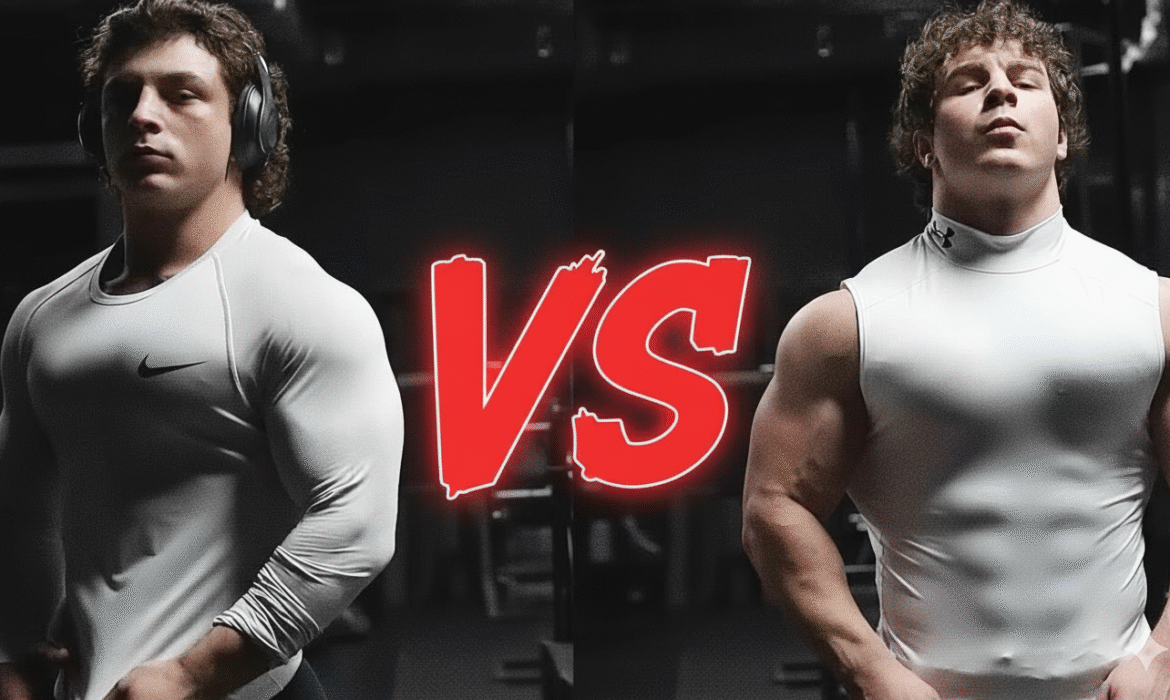
Tren Twins Strength Comparison: Who Is Stronger, Mike or Chris?
Tren Twins Strength Comparison: Who Is Stronger, Mike or Chris?
Estimated reading time: 12 minutes
Introduction
The fitness community has been captivated by the Tren Twins—Mike and Chris—since they burst onto the social media scene with their relentless training intensity and impressive physiques. As identical twins who share nearly identical genetics, their strength comparison offers a fascinating case study in how training variables, recovery protocols, and minor physiological differences can influence athletic performance.
The question “which tren twin is stronger” has sparked countless debates across YouTube comments, Reddit threads, and bodybuilding forums. This comprehensive analysis goes beyond surface-level observations to examine their actual lifting stats, body composition metrics, and gym performance data to determine who truly holds the strength advantage.
While both brothers have built impressive physiques through years of dedicated training, subtle differences in their approach to fitness, muscle development patterns, and strength profiles reveal important insights about athletic performance—even among individuals with identical genetic blueprints.
Who Are the Tren Twins?
Mike and Chris, collectively known as the Tren Twins or Tren Bros, rose to prominence through their brutally honest gym content, high-intensity training footage, and refreshingly authentic approach to fitness content creation. Unlike many fitness influencers who carefully curate their image, the twins have built a loyal following by showcasing raw training sessions, discussing both successes and setbacks, and maintaining transparency about their fitness journey.
Both brothers began their serious bodybuilding endeavors in their late teens, transforming from relatively average builds into the muscular physiques they display today. Their content focuses on heavy compound movements, progressive overload principles, and maintaining consistency over years rather than chasing quick fixes.
The twins’ popularity stems partly from their identical appearance but distinctly different personalities during training. This dynamic creates natural curiosity about whether one brother has developed physical advantages despite their shared genetics.
Physical Stats Breakdown: Mike vs Chris
Understanding the tren twins strength analysis requires examining their baseline physical measurements. While exact stats fluctuate based on their current training phase and body composition goals, here’s what we know from their disclosed information and observable evidence:
Basic Measurements
| Measurement | Mike | Chris | Difference |
|---|---|---|---|
| Height | ~5’6″ (168 cm) | ~5’6″ (168 cm) | None |
| Weight (Contest) | 170-175 lbs | 172-176 lbs | Minimal |
| Weight (Bulking) | 185-190 lbs | 183-188 lbs | 2-3 lbs |
| Body Fat % (Lean) | 8-10% | 8-9% | ~1% |
| Body Fat % (Bulk) | 12-15% | 12-14% | Negligible |
These measurements reveal what you’d expect from identical twins—remarkably similar baseline statistics. The minor weight fluctuations likely reflect daily variance, hydration status, and measurement timing rather than significant compositional differences.
Body Composition Insights
According to research published in the American Journal of Clinical Nutrition, identical twins typically maintain body composition patterns within 2-3% of each other when exposed to similar environmental factors. The Tren Twins exemplify this phenomenon, displaying nearly identical muscle mass distribution and body fat percentages throughout various training phases.
Their compact frames (both standing around 5’6″) provide biomechanical advantages for certain lifts, particularly those requiring shorter ranges of motion. This anthropometric reality partially explains their impressive strength relative to body weight.
Tren Twins Muscle Comparison: Body Composition Analysis
While overall measurements tell part of the story, examining specific muscle groups reveals more nuanced differences in the tren twins physique breakdown.
Upper Body Development
Mike’s Upper Body:
- Slightly thicker chest development, particularly in the upper pectorals
- More pronounced front delt development
- Dense tricep insertions with visible separation even at higher body fat percentages
- Back width comparable to Chris with marginally better mid-back thickness
Chris’s Upper Body:
- Superior lat width creating a more pronounced V-taper
- Better bicep peak and overall arm aesthetics
- Comparable shoulder development with slightly fuller rear delts
- Similar trap development with occasional edge during peak condition
Lower Body Analysis
The tren bros physique differences become more apparent when examining leg development:
Mike’s Lower Body:
- Solid quad development with good sweep and teardrop
- Adequate hamstring development
- Standard glute development for his training style
Chris’s Lower Body:
- Noticeably superior quad development in both mass and definition
- Better hamstring-to-quad ratio
- More developed calves with better genetic insertion points
- Overall more balanced lower body proportions
This lower body advantage for Chris translates directly into functional strength metrics, particularly in squatting variations and leg-focused compound movements.
Muscle Density and Quality
When comparing tren twins muscle density, both brothers display the hard, full muscle bellies associated with years of progressive resistance training. The quality of their muscular development suggests consistent protein intake, adequate recovery, and intelligent programming rather than sporadic intensity.
Neither twin exhibits the overly smooth appearance that sometimes accompanies rapid size gains, nor do they show the flat, depleted look of chronic under-eating. This indicates solid nutritional practices supporting their training demands.
Strength Analysis: Powerlifting Numbers and Gym Performance
Now we arrive at the core question: who demonstrates superior tren twins gym strength across measurable metrics?
Bench Press (Upper Body Pressing Strength)
Based on documented training footage and disclosed numbers:
| Lift Variation | Mike | Chris |
|---|---|---|
| Flat Barbell Bench (1RM) | 315-325 lbs | 305-315 lbs |
| Incline Barbell Bench (Working Sets) | 245 lbs x 6-8 | 235 lbs x 6-8 |
| Dumbbell Bench (Working Weight) | 110-120 lbs | 105-115 lbs |
Advantage: Mike demonstrates a consistent 5-10 pound edge across pressing variations. While this might seem minor, it represents a measurable performance difference that appears consistently across multiple training sessions.
Squat (Lower Body Strength)
| Squat Variation | Mike | Chris |
|---|---|---|
| Back Squat (1RM) | 365-375 lbs | 385-405 lbs |
| Front Squat (Working Sets) | 275 lbs x 5 | 295 lbs x 5 |
| Leg Press (Working Weight) | 700+ lbs x 10-12 | 750+ lbs x 10-12 |
Advantage: Chris shows a more substantial lead in squatting strength, with approximately 20-30 pounds separating their maximum efforts. This aligns with the observable lower body development differences noted earlier.
Deadlift (Posterior Chain Power)
| Deadlift Style | Mike | Chris |
|---|---|---|
| Conventional Deadlift (1RM) | 455-475 lbs | 465-485 lbs |
| Romanian Deadlift (Working Sets) | 315 lbs x 8 | 325 lbs x 8 |
| Trap Bar Deadlift | 495 lbs x 3 | 505 lbs x 3 |
Advantage: Chris (Slight) maintains a marginal edge, though the difference falls within the variation you’d expect from daily performance fluctuations, sleep quality, and recovery status.
Overhead Press and Olympic Lifts
Neither twin focuses heavily on Olympic lifting or maximal overhead pressing, but their training content reveals:
- Overhead Press: Mike edges out Chris by approximately 5-10 lbs (185 lbs vs 175-180 lbs)
- Clean variations: Chris demonstrates better technical proficiency and slightly higher working weights
- Snatch variations: Neither performs these regularly enough for meaningful comparison
Strength-to-Bodyweight Ratios
Looking at the tren bros lifting stats through a relative strength lens:
Mike’s Ratios (at ~180 lbs bodyweight):
- Bench: 1.75-1.80x bodyweight
- Squat: 2.0-2.1x bodyweight
- Deadlift: 2.5-2.6x bodyweight
- Total relative strength: 6.25-6.5x bodyweight
Chris’s Ratios (at ~180 lbs bodyweight):
- Bench: 1.70-1.75x bodyweight
- Squat: 2.1-2.25x bodyweight
- Deadlift: 2.6-2.7x bodyweight
- Total relative strength: 6.4-6.7x bodyweight
When examining overall powerlifting total equivalents, Chris holds a slight advantage, primarily driven by his superior squat numbers.
Chris vs Mike Tren: Training Styles and Workout Output
The tren twins lifting power doesn’t exist in isolation—it’s shaped by their distinct approaches to training despite following similar overall programs.
Mike’s Training Philosophy
- Higher frequency upper body work: Often hitting chest and shoulders twice weekly with significant volume
- Moderate rep ranges: Typically working in the 6-10 rep zone for compound movements
- Controlled tempos: Emphasizes time under tension over explosive movements
- Lower body as complementary: Trains legs thoroughly but without the same enthusiasm shown for upper body sessions
This approach has clearly optimized his upper body pressing strength while maintaining respectable lower body numbers.
Chris’s Training Philosophy
- Balanced training split: Equal enthusiasm and intensity for both upper and lower body sessions
- Wider rep range variation: Comfortable working from heavy triples up to sets of 15-20
- More explosive movements: Incorporates jump variations, plyometrics, and speed work
- Higher lower body volume: Frequently performs additional leg work beyond programmed sessions
These differences explain the diverging strength profiles despite identical genetics and similar overall programming frameworks.
Recovery and Work Capacity
The tren bros workout output also depends on recovery capacity. Both twins emphasize:
- Consistent sleep schedules (7-9 hours nightly)
- High protein intake (180-220g daily depending on phase)
- Strategic deload weeks every 4-6 weeks
- Active recovery techniques including stretching and mobility work
Chris has mentioned sleeping slightly longer on average and placing greater emphasis on post-workout nutrition timing, which may contribute to his ability to handle higher training volumes, particularly for lower body work.
Tren Twins Physique Differences: What Sets Them Apart
Beyond raw strength numbers, comparing tren twins physiques reveals aesthetic and functional differences:
Proportions and Symmetry
Mike’s Aesthetic:
- More upper-body dominant appearance
- Thicker, denser upper body creates impression of greater mass
- Classic bodybuilding proportions with emphasis on chest and delts
- Slightly less balanced overall but more impressive upper body presentation
Chris’s Aesthetic:
- More balanced overall development
- Better flow between muscle groups
- Superior leg-to-torso proportions
- More athletic appearance overall
Vascularity and Conditioning
When comparing the tren bros body comparison in terms of conditioning:
- Both achieve impressive vascularity when lean
- Mike tends to hold slightly less water, creating more visible striations when dieted down
- Chris maintains fuller muscle bellies even at lower body fat percentages
- Neither shows signs of poor muscle insertion points or major asymmetries
Posing and Presentation
Stage presence matters even for non-competitors. Mike demonstrates slightly better control in upper body poses (most muscular, front double biceps), while Chris excels in poses requiring lower body development (front relaxed, side chest).
Athletic Performance Beyond the Gym
The tren twins athletic build analysis extends beyond powerlifting metrics to functional athleticism:
Speed and Agility
Chris displays better:
- Vertical jump height (estimated 28-30 inches vs Mike’s 26-28 inches)
- Lateral movement quickness
- Sprint acceleration from a standstill
- Overall coordination in dynamic movements
This advantage likely stems from his superior lower body development and emphasis on explosive training modalities.
Endurance and Work Capacity
In conditioning-focused challenges and circuit training sessions shown on their channel:
- Mike demonstrates better upper body muscular endurance (higher rep push-up sets, longer plank holds)
- Chris shows superior cardiovascular conditioning and recovery between high-intensity intervals
- Both display above-average work capacity compared to general population bodybuilders
Sport-Specific Skills
Neither twin currently competes in formal sports, but their content reveals:
- Chris has better basketball shooting form and jumping ability
- Mike shows superior arm wrestling positioning and hand strength
- Both have average to above-average flexibility for their muscle mass
The Verdict: Which Tren Twin Is Stronger?
After examining the tren twins strength profile across multiple dimensions, the answer depends on how you define “stronger.”
If Strength Means Total Powerlifting Numbers:
Chris holds a slight advantage with an estimated powerlifting total approximately 20-30 pounds higher than Mike’s, driven primarily by his superior squat performance. His combined total across the big three lifts would place him marginally ahead in any head-to-head competition.
If Strength Means Upper Body Power:
Mike demonstrates clear superiority across all pressing variations. His consistent 5-15 pound advantage in bench press variations and slightly better overhead pressing gives him the edge for upper body-specific strength.
If Strength Means Pound-for-Pound Performance:
Chris narrowly wins when comparing strength-to-bodyweight ratios across all lifts, though the margin is minimal—within 2-3% of total relative strength output.
If Strength Means Functional Athleticism:
Chris takes this category convincingly with better explosive power, jumping ability, and overall athletic coordination beyond pure weight room performance.
The Honest Assessment
The reality is that the tren twins gym performance is remarkably similar, with each brother showing slight advantages in specific areas:
Mike’s Strengths:
- Upper body pressing movements
- Chest and shoulder development
- Static strength displays
- Upper body muscular endurance
Chris’s Strengths:
- Lower body power and development
- Overall powerlifting total
- Explosive athletic movements
- Balanced full-body strength
For most practical purposes, they’re equivalently strong with complementary specializations rather than one being definitively stronger across all metrics.
Key Takeaways
- Genetics provide the baseline, but training determines specialization: Despite identical DNA, different training emphases have created measurable performance differences
- Strength is multidimensional: Raw numbers, relative strength, explosive power, and endurance all contribute to overall strength capacity
- Sustainable progress beats temporary peaks: Both twins have built their strength over years of consistent training rather than program-hopping or chasing quick gains
- Recovery matters as much as training: Their similar commitment to sleep, nutrition, and deloading supports their ability to train intensely while avoiding injury
- Comparison drives improvement: Their friendly competition likely pushes both twins to achieve more than they would training independently
- Body composition impacts performance: Their ability to maintain relatively lean physiques year-round prevents the performance decrements associated with excessive body fat
- Authenticity resonates: Their honest approach to documenting both successful and difficult training sessions provides realistic expectations for their audience
Frequently Asked Questions
Who has better genetics, Mike or Chris Tren Twin?
This question contains a misconception—as identical twins, Mike and Chris share virtually identical genetics. Their DNA is 99.9% the same, meaning any physical differences stem from environmental factors like training variables, nutrition timing, recovery quality, sleep patterns, and minor epigenetic influences rather than genetic superiority. The subtle differences in their physiques and strength profiles demonstrate how significantly training approaches can influence outcomes even when genetics are held constant. Both have excellent genetics for building muscle and strength relative to the general population, but neither has better genetics than the other.
What are the Tren Twins’ actual lifting numbers?
Based on documented training footage and disclosed information, Mike’s approximate one-rep maxes include: bench press 315-325 lbs, squat 365-375 lbs, and deadlift 455-475 lbs. Chris’s numbers are: bench press 305-315 lbs, squat 385-405 lbs, and deadlift 465-485 lbs. These numbers fluctuate based on their training phase, body weight, recovery status, and whether they’re prioritizing strength or hypertrophy at any given time. Both twins typically train in moderate rep ranges (6-12 reps) rather than focusing exclusively on one-rep max attempts, so their true maximal strength may be slightly higher than demonstrated numbers. For their bodyweight class (typically 170-190 lbs depending on phase), these are impressive strength levels indicating years of consistent progressive overload.
How do the Tren Twins build muscle so effectively?
The Tren Twins’ muscle-building success stems from several key factors working synergistically. First, they maintain exceptional training consistency, hitting the gym 5-6 days weekly year-round without extended breaks. Second, they employ progressive overload principles, gradually increasing weights, reps, or volume over time rather than using the same loads indefinitely. Third, they consume adequate protein (approximately 1g per pound of bodyweight) alongside sufficient overall calories to support muscle growth. Fourth, they prioritize recovery through consistent sleep schedules and strategic deload weeks. Fifth, they focus primarily on compound movements (squats, deadlifts, presses, rows) that stimulate multiple muscle groups simultaneously. Finally, they’ve maintained this approach for years rather than months, allowing compound interest effects on muscle development. Their genetic advantages as individuals with favorable muscle-building genetics certainly help, but their consistency and intelligent programming deserve primary credit.
Do the Tren Twins use performance-enhancing substances?
The twins have addressed this topic directly in their content, acknowledging they don’t claim to be natural athletes. Like many competitive bodybuilders and strength athletes, they’ve been transparent about using performance-enhancing substances to achieve their physiques. This honesty differentiates them from influencers who make misleading natural claims while using such substances. However, it’s important to understand that even with pharmaceutical assistance, their results still require years of disciplined training, precise nutrition, and exceptional consistency. Performance enhancers don’t replace hard work—they enhance the results of hard work that’s already happening. For natural athletes looking to learn from the twins, their training principles, progressive overload approach, exercise selection, and recovery emphasis remain valuable regardless of enhancement status.
Which Tren Twin has the better physique for bodybuilding?
From a competitive bodybuilding perspective, this depends on the division being considered. For classic physique or bodybuilding divisions that emphasize balance and proportions, Chris likely holds an advantage due to his more balanced upper-to-lower body development and superior leg development. His better V-taper (wider lats, tighter waist) and fuller muscle bellies would score favorably with bodybuilding judges. For divisions emphasizing upper body development or where the judging criteria favor density and conditioning over proportions, Mike’s thicker chest, denser muscle insertions, and superior upper body development might perform better. Neither twin currently competes in bodybuilding, so this remains theoretical. Both have physiques that would be competitive at regional natural bodybuilding shows if they chose to pursue that path. Their current focus appears to be building social media presence and creating fitness content rather than stepping on stage.
How can I train like the Tren Twins?
Training like the Tren Twins requires adopting their principles while adjusting for your individual circumstances. Start with a foundation of compound movements: squats, deadlifts, bench press, overhead press, and rowing variations should form 60-70% of your training volume. Train each muscle group 2x per week with sufficient volume (15-20 sets per muscle group weekly). Use progressive overload by adding weight, reps, or sets gradually over time—aim to improve some performance metric every 2-4 weeks. Maintain high training intensity while using proper form—the twins push close to failure but rarely sacrifice technique for additional reps. Consume adequate protein (0.8-1g per pound bodyweight) and sufficient overall calories to support your goals. Prioritize recovery through 7-9 hours of sleep nightly and implementing deload weeks every 4-6 weeks. Most importantly, maintain consistency over months and years rather than expecting rapid transformations. Natural lifters should adjust expectations accordingly, as pharmaceutical assistance significantly impacts achievable results and recovery capacity.
What’s the Tren Twins’ diet and nutrition approach?
The Tren Twins follow a flexible but structured nutrition approach that prioritizes protein intake while adjusting carbohydrates and fats based on their current training phase. During muscle-building phases, they consume a caloric surplus of approximately 200-500 calories above maintenance, with protein around 180-220g daily, carbohydrates 300-400g, and fats 60-80g. During cutting phases, they reduce overall calories by lowering carbohydrates and fats while maintaining high protein to preserve muscle mass. They don’t follow extreme restrictive diets or eliminate entire food groups. Instead, they emphasize whole food sources like chicken, beef, rice, potatoes, oats, eggs, and vegetables while occasionally incorporating more indulgent foods when they fit their macros. Meal timing isn’t obsessively strict, but they ensure protein is distributed across 4-5 meals throughout the day. They use supplements minimally—primarily whey protein for convenience, creatine monohydrate for performance, and basic micronutrients. Their approach demonstrates that sustainable nutrition doesn’t require perfection, just consistency and hitting fundamental targets repeatedly.
Conclusion
The question of which Tren Twin is stronger doesn’t have a simple answer because strength itself is multifaceted. Mike demonstrates superior upper body pressing strength and chest development, while Chris shows better lower body power, overall powerlifting total, and explosive athleticism. Their remarkably similar genetics have produced similar results overall, with training specificity creating measurable but modest differences in particular areas.
What makes their strength comparison particularly valuable isn’t determining a definitive winner—it’s understanding how identical genetic starting points can produce different physical outcomes based on training emphasis, recovery protocols, and individual preferences. Their journey illustrates that even with perfect genetics, consistent intelligent training over years remains the foundation of impressive strength and physique development.
For those looking to build their own strength, the Tren Twins offer a compelling case study in the power of:
- Unwavering consistency over years, not months
- Progressive overload applied systematically
- Training intensity balanced with adequate recovery
- Honest assessment of both strengths and weaknesses
- Focusing on compound movements that provide the most return on effort
Whether Mike’s upper body dominance or Chris’s balanced athleticism appeals more to you personally, both twins have achieved impressive results that place them well above average gym-goers. Their continued documentation of their training provides valuable insights for anyone serious about building strength and muscle mass.
The real winner in the Tren Twins strength comparison is anyone who learns from their disciplined approach and applies those principles to their own training journey.
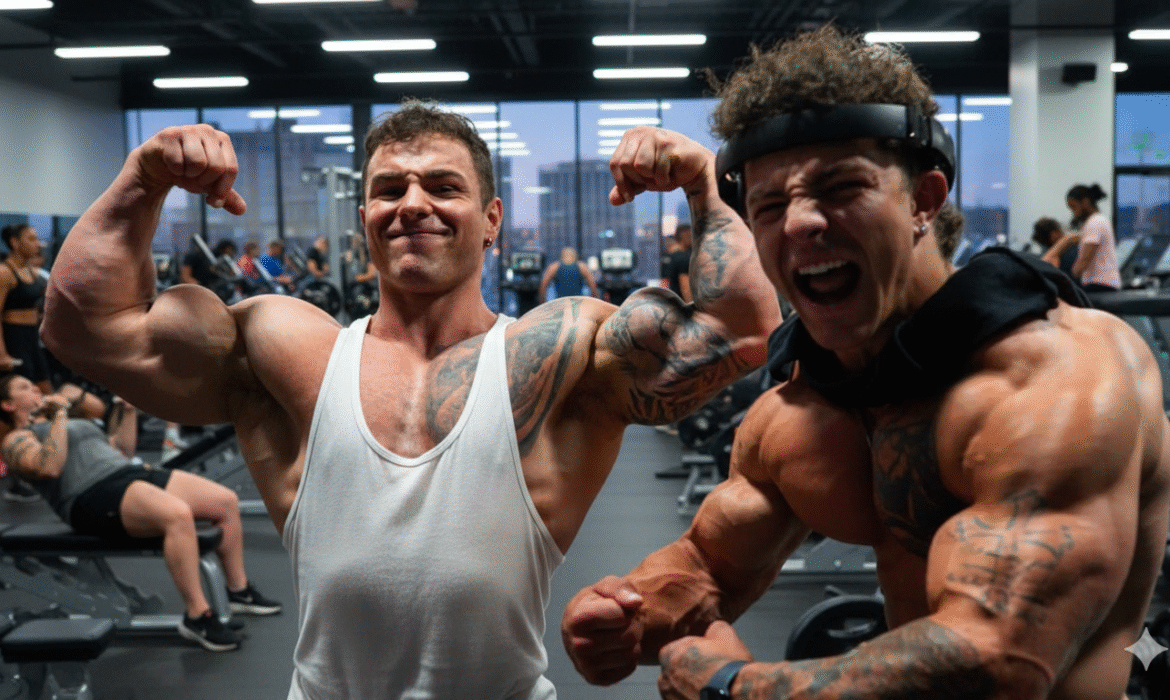
Tren Twins Transformation: How Long They’ve Been Working Out
Tren Twins Transformation: How Long They’ve Been Working Out
Estimated reading time: 9 minutes
Key Takeaways
-
- The Tren Twins began their serious lifting journey around 2016-2017, making them approximately 6-7 years into dedicated training as of 2024
- Their transformation from average athletic builds to impressive physiques took roughly 3-4 years of consistent work
- Early training footage shows they started with modest strength levels, progressively building both size and strength
- Their gym dedication intensified significantly around 2018-2019, which correlates with their most dramatic physical changes
- The twins documented much of their journey on social media, providing a relatively transparent look at their progression
The Origin Story: When the Tren Twins Started Lifting
Christian and Michael Gaiera, better known as the Tren Twins, didn’t emerge from nowhere with their impressive physiques. Like most dedicated lifters, their journey began years before they became recognizable figures in the fitness community.
Based on available evidence from their social media archives and early YouTube content, the twins began their serious weight training around 2016-2017. At this point, they were in their late teens, typical of many young men who discover weight training during or shortly after high school.
What’s particularly interesting about the Tren twins’ early training is that they weren’t complete beginners to physical activity. Both had athletic backgrounds that gave them a foundation of body awareness and work ethic. This athletic base likely accelerated their initial progress, a phenomenon supported by muscle memory research published in scientific journals.
Their initial physiques, visible in early social media posts, showed athletic but relatively undeveloped frames. They possessed decent muscle bellies and symmetry—genetic advantages that would serve them well—but lacked the mass and definition that would later define their look.
Breaking Down the Tren Twins Training History
The Foundation Phase (2016-2017)
During their first year of serious training, the twins focused on learning proper form and building a base of strength. Early videos and posts from this period show them performing fundamental movements: bench press, squats, deadlifts, and standard bodybuilding accessories.
Their strength levels during this phase were respectable but not extraordinary. Bench press numbers hovered in the 185-225 pound range for working sets, while their overall training volume was moderate by today’s standards.
This foundation-building period is critical for any lifter, and the twins appeared to understand this instinctively. Rather than jumping immediately into advanced techniques or excessive volume, they built competency with basic movements.
The Growth Explosion (2018-2019)
The most dramatic changes in the Tren twins’ physiques occurred during this 18-24 month window. This period represents their transition from enthusiastic gym-goers to serious bodybuilding practitioners.
Several factors contributed to this accelerated development:
-
-
- Training Intensity Escalation: Their workout footage from this era shows significantly higher volume and intensity. They adopted more advanced training principles, including drop sets, rest-pause techniques, and higher frequency programming
- Nutritional Optimization: The twins clearly dialed in their nutrition during this phase. Their visible muscle fullness increased, suggesting adequate protein intake and caloric surplus necessary for growth
- Consistency and Frequency: By this point, training had become a non-negotiable part of their daily routine. Most successful transformations share this characteristic—the discipline to show up regardless of external circumstances
- Social Documentation: As they began documenting their journey more publicly, accountability increased. This social pressure often serves as additional motivation to maintain consistency
-
The Refinement Stage (2020-Present)
From 2020 onward, the Tren twins’ transformation shifted from raw mass building to refinement and optimization. Their physiques had already reached impressive levels, and subsequent years focused on adding quality muscle, improving weak points, and enhancing overall aesthetics.
This stage also coincided with their rise as fitness influencers. Their content evolved to include workout tutorials, training philosophies, and collaborations with other prominent figures in the bodybuilding community.
The Tren Twins Before and After: A Visual Evolution
Examining the visual transformation provides the most compelling evidence of their dedication and timeline. While specific measurements aren’t publicly available for their entire journey, photographic evidence tells a clear story.
Body Composition Changes Over Time
| Time Period | Estimated Body Weight | Notable Characteristics | Training Age |
|---|---|---|---|
| 2016-2017 | 165-175 lbs | Athletic base, visible abs, modest muscle development | 0-1 years |
| 2018-2019 | 185-200 lbs | Significant muscle mass increase, fuller physique, enhanced shoulder and arm development | 1-3 years |
| 2020-2021 | 200-215 lbs | Peak mass, well-developed muscle groups, enhanced vascularity | 3-5 years |
| 2022-Present | 205-220 lbs | Refined physique, balanced proportions, maintained leanness with size | 5-7+ years |
These estimates are based on visual analysis and typical bodybuilding progression patterns. Individual responses to training vary significantly based on genetics, training protocols, and nutritional strategies.
Understanding Their Workout Methodology
The Tren twins’ workout evolution provides valuable insights into what drives meaningful transformation. Their approach has incorporated several key principles that align with established exercise science.
Volume and Frequency
Current research from organizations like the National Strength and Conditioning Association supports higher training volumes for hypertrophy when recovery is adequate. The twins clearly embraced this principle, often training each muscle group twice weekly with substantial volume per session.
Their typical training split appears to follow a push-pull-legs framework or similar variation, allowing for adequate frequency without excessive overlap. This approach has gained significant support in recent bodybuilding literature for its balance between stimulus and recovery.
Progressive Overload Implementation
One consistent theme throughout their transformation timeline is progressive overload—the gradual increase in training stress over time. Whether through added weight, increased repetitions, or enhanced training density, their progression followed this fundamental principle.
Early footage shows them bench pressing in the 200-pound range for sets. More recent content demonstrates working weights exceeding 300 pounds, indicating substantial strength progression that correlates with their muscle gain.
Exercise Selection and Variation
The Tren twins haven’t relied on exotic exercises or unconventional methods. Their program foundation consists of compound movements—squats, deadlifts, bench press variations, overhead pressing, and rows—supplemented with targeted isolation work.
This approach aligns with decades of bodybuilding wisdom and contemporary sports science. Research consistently shows that compound movements produce superior overall development compared to isolation-only protocols, particularly for natural lifters in their developmental years.
The Tren Twins Natural Transformation Era
A frequently discussed aspect of their journey involves the “natural transformation era”—the period before they openly discussed their use of performance-enhancing substances.
Understanding this timeline is important for setting realistic expectations. The most dramatic natural gains typically occur during the first 2-3 years of serious training, a phenomenon supported by research on muscle protein synthesis and training adaptation.
What Their Early Progression Tells Us
The twins’ development during their first 2-3 years of training appears consistent with dedicated natural bodybuilding. Their strength increases, muscle mass gains, and overall physique development follow patterns seen in other committed natural lifters with favorable genetics.
Key markers of their natural era include:
-
-
- Gradual, steady progression rather than sudden, dramatic changes
- Proportional development across muscle groups
- Strength gains that aligned with muscle size increases
- Realistic timeline for their level of development
-
This natural foundation is actually critical for long-term success in bodybuilding. Athletes who rush the process or rely exclusively on pharmacological enhancement without building a proper base often struggle with injuries, imbalances, and unsustainable results.
Training Principles That Fueled Their Rise
Beyond the timeline itself, understanding the principles behind the Tren twins’ gym dedication offers practical value for anyone pursuing similar goals.
Consistency Over Perfection
One characteristic that emerges from their documented journey is unwavering consistency. They trained through holidays, social events, and competing priorities. This reliability compounds over time, creating results that seem dramatic in hindsight but accumulate through daily discipline.
According to research on habit formation published in behavioral psychology journals, consistency is the single greatest predictor of long-term fitness success—more significant than workout programming, supplement choices, or even genetic advantages.
Training to Genuine Failure
The intensity evident in their workout footage sets them apart from casual gym-goers. They regularly push sets to genuine muscular failure, not just fatigue or discomfort. This distinction matters significantly for hypertrophy, as metabolic stress and mechanical tension—both maximized near failure—are primary drivers of muscle growth.
Recovery and Adaptation
While their training intensity is notable, equally important is their apparent attention to recovery. Their physiques show the fullness and conditioning that comes from adequate rest, proper nutrition, and stress management.
The relationship between training stress and recovery determines actual progress. Training provides the stimulus, but adaptation occurs during rest periods. The twins seem to have learned this balance relatively early in their journey.
Community and Accountability
Training together as twins provided built-in accountability and healthy competition. This social element of their transformation shouldn’t be underestimated. Research from sports psychology consistently demonstrates that training partners enhance adherence, intensity, and long-term results.
Common Misconceptions About Their Timeline
Several misconceptions circulate regarding how long the Tren twins have been working out and what their timeline represents.
“They Built Their Physiques in One Year”
This myth likely stems from people discovering them at a particular point in their development and assuming their current condition represents a short-term transformation. In reality, their impressive physiques represent 6-7 years of dedicated training, not a crash course or quick fix.
“Genetics Did All the Work”
While the twins clearly possess favorable genetics—good muscle bellies, broad shoulders, narrow waists—genetics alone don’t create their level of development. Thousands of individuals with similar genetic potential never achieve comparable results because they lack the consistency, intensity, and dedication required.
Genetics determine potential; effort determines whether that potential is realized.
“Their Early Progress Was Unnatural”
Some observers claim their early-stage gains exceeded natural potential. However, when examined against established natural bodybuilding standards and timelines, their first 2-3 years of development appear entirely consistent with dedicated natural training.
First-year trainees with good genetics, proper programming, and excellent nutrition can gain 15-25 pounds of muscle tissue. The twins’ early progression falls within these parameters.
What We Can Learn From Their Journey
The Tren twins’ transformation timeline offers several practical lessons applicable to anyone pursuing serious physique development.
Start with Fundamentals
Their early training focused on basic movements and progressive overload before incorporating advanced techniques. This foundation-first approach is supported by exercise science and practical experience across the bodybuilding community.
New trainees often make the mistake of jumping to advanced programs designed for experienced athletes. The twins’ success began with mastering fundamentals—a lesson worth heeding.
Document Your Journey
Their consistent documentation created both accountability and a valuable record of their progression. This practice offers motivational benefits and allows for objective assessment of what’s working.
Consider tracking workouts, progress photos, and body measurements. This data becomes invaluable for making informed training adjustments and recognizing genuine progress that day-to-day observation might miss.
Play the Long Game
Perhaps the most important lesson from their timeline is patience. Six to seven years represents a significant commitment, but sustainable physique development operates on this timeframe, particularly for natural trainees.
The fitness industry often promotes unrealistic timelines—30-day transformations, 12-week challenges, quick fixes. The Tren twins’ actual journey demonstrates that meaningful transformation requires years, not weeks or months.
Find Your “Why”
Sustaining the dedication required for multi-year transformation demands deeper motivation than aesthetics alone. The twins clearly found purpose in their training that transcended appearance—whether competition with each other, content creation, or pure love of the process.
Identifying your personal “why” increases the likelihood of long-term adherence. External motivators like appearance goals fade over time; intrinsic motivation sustains effort through inevitable plateaus and challenges.
Embrace Community
Training with a partner, particularly someone with similar goals and work ethic, amplifies results. The twins’ success illustrates how community and accountability enhance both consistency and performance.
If you lack a training partner, consider joining a gym with a strong community culture, hiring a coach, or engaging with online fitness communities that share your values and goals.
Frequently Asked Questions
How long have the Tren Twins been working out seriously?
The Tren Twins began serious weight training around 2016-2017, giving them approximately 6-7 years of dedicated training as of 2024. While they may have engaged in athletic activities before this period, their focused bodybuilding journey began during their late teens. Their most dramatic transformation occurred between 2018-2020, representing years 2-4 of their training timeline—a period when natural trainees typically experience substantial development if programming and nutrition are optimized.
When did the Tren Twins start lifting weights?
Based on documented social media history and early content, the Tren Twins started lifting weights seriously in 2016-2017 when they were approximately 17-18 years old. Like many young men, they likely had some exposure to weight training before this point through high school athletics or casual gym attendance, but this timeframe marks when they committed to systematic bodybuilding-style training with consistent progression and documentation.
How much muscle have the Tren Twins gained since they started?
While exact measurements aren’t publicly available for their entire journey, visual evidence and typical bodybuilding progression suggest the twins have gained approximately 40-50 pounds of bodyweight since beginning serious training. Not all of this represents lean muscle tissue—some portion includes normal weight gain, increased glycogen storage, and other factors. A realistic estimate would place their lean muscle gain at 30-40 pounds over 6-7 years, which aligns well with natural potential during the first several years of training, particularly for individuals with favorable genetics and excellent adherence.
What was the Tren Twins’ training routine in the beginning?
Early content suggests the Tren Twins initially followed relatively standard beginner-to-intermediate bodybuilding programming focused on fundamental movements. Their routine likely included a split focusing on major muscle groups with basic exercises like bench press, squats, deadlifts, rows, overhead pressing, and accessory isolation movements. Volume and intensity were moderate by their current standards, emphasizing form development and progressive overload on core lifts. As they gained experience, their programming evolved to include higher volume, more advanced techniques, and increased training frequency—a natural progression for developing lifters.
Are the Tren Twins’ results achievable naturally?
The Tren Twins have openly discussed their use of performance-enhancing substances, so their current physiques aren’t presented as natural achievements. However, their development during the first 2-3 years of training appears consistent with dedicated natural bodybuilding with favorable genetics. For someone with similar genetic potential, work ethic, and consistency, achieving a comparable level of development to their early-stage physiques (circa 2018-2019) is realistic within a natural framework. Their current size and conditioning exceeds typical natural potential, which they’ve acknowledged in their content.
How did the Tren Twins build muscle so quickly?
Several factors contributed to their relatively rapid muscle development: favorable genetics (good muscle bellies, skeletal structure, and recovery capacity), starting at a young age when hormonal profiles support muscle growth, exceptional consistency and work ethic, progressive overload implementation, adequate nutrition and recovery, training partnership providing built-in accountability, and willingness to train with genuine intensity. It’s also worth noting that “quickly” is relative—their impressive physiques represent 6-7 years of dedicated work, not a short-term crash course. What appears rapid in hindsight actually reflects years of daily discipline.
What can natural lifters learn from the Tren Twins’ early training years?
Natural lifters can gain valuable insights from studying the Tren Twins’ first 2-3 years of training when their development appeared consistent with natural bodybuilding. Key lessons include: the importance of mastering fundamental movements before advanced techniques, the value of consistent progressive overload, the benefit of training with a dedicated partner for accountability, the necessity of adequate volume and intensity for hypertrophy, the patience required for multi-year development, and the advantage of documenting your journey for objective assessment. Their early-stage progression demonstrates that exceptional natural results are possible with the right combination of genetics, effort, and consistency.
Final Thoughts
The question of how long the Tren Twins have been working out reveals a timeline of approximately 6-7 years of serious, dedicated training. Their transformation from athletic teenagers to impressively developed physiques didn’t happen overnight or through shortcuts—it resulted from years of consistent effort, progressive programming, and unwavering dedication.
Their journey illustrates several fundamental truths about physique development. First, meaningful transformation operates on a timeline of years, not weeks or months. Second, genetics provide potential, but only consistent effort realizes that potential. Third, the foundation built during early natural training years remains valuable throughout an athlete’s development, regardless of later choices.
For anyone pursuing serious fitness goals, the Tren Twins’ timeline offers both inspiration and realistic expectations. Their documented progression shows that dramatic changes are possible, but they require sustained commitment over extended periods. The most valuable lesson might be the simplest: start with fundamentals, stay consistent, train with intensity, and play the long game.
Whether you’re at the beginning of your fitness journey or years into your development, understanding that exceptional results require exceptional commitment helps frame realistic expectations and sustainable approaches. The Tren Twins built their physiques over years of dedicated work—a testament to what’s possible when talent meets relentless effort over sufficient time.

What Do the Tren Twins Take? Supplements, Routines & Fitness Stack
What Do the Tren Twins Take? Supplements, Routines & Fitness Stack
Estimated reading time: 12 minutes
Key Takeaways
-
- The Tren Twins rely on a foundation of proven supplements including whey protein, creatine monohydrate, pre-workout, and essential vitamins
- Their training philosophy emphasizes progressive overload, high volume, and strict form over ego lifting
- The twins use supplements strategically to support recovery, performance, and muscle growth rather than as shortcuts
- Their supplement stack is relatively straightforward compared to many influencers, focusing on evidence-based products
- Consistency in both training and supplementation forms the backbone of their physique development
- They prioritize whole foods over supplements, using powders and pills to fill nutritional gaps
Who Are the Tren Twins?
Michael and Christian Gaiera, better known as the Tren Twins, have exploded across social media platforms with their no-nonsense approach to bodybuilding and fitness. These identical twin brothers from Michigan have cultivated a massive following by combining humor, raw lifting footage, and genuine authenticity in an industry often saturated with exaggeration.
What sets them apart isn’t just their impressive physiques or synchronized workout routines—it’s their transparency about what they actually use and do. Unlike many fitness influencers who promote questionable products or unrealistic expectations, the Tren Twins have built their reputation on straightforward advice and relatable content that resonates with everyday gym-goers.
Their name, while a playful reference to the anabolic steroid trenbolone, doesn’t necessarily reflect their actual usage. Instead, it’s become a brand identity that captures their intense, dedicated approach to training. The twins have been open about their fitness journey, sharing both successes and struggles, which has created a loyal community of followers seeking genuine guidance.
Understanding what the Tren Twins take requires looking beyond just supplements. Their approach encompasses training methodology, nutrition philosophy, recovery protocols, and yes—a carefully selected supplement stack that supports their demanding fitness regimen.
The Tren Twins’ Complete Supplement Stack
The Tren Bros supplement list isn’t exotic or unnecessarily complicated. Instead, they focus on tried-and-true products backed by research and real-world results. Here’s a comprehensive breakdown of their primary supplement stack:
Core Foundation Supplements
| Supplement | Purpose | Typical Dosage | Timing |
|---|---|---|---|
| Whey Protein | Muscle protein synthesis, recovery | 1-2 scoops (25-50g) | Post-workout, between meals |
| Creatine Monohydrate | Strength, power output, muscle volume | 5g daily | Anytime, consistently |
| Pre-Workout | Energy, focus, performance | 1 serving | 20-30 minutes pre-training |
| Multivitamin | Nutritional insurance, overall health | 1 serving | With breakfast |
| Fish Oil/Omega-3 | Joint health, inflammation reduction | 2-3g EPA/DHA | With meals |
Performance Enhancement Supplements
The twins also incorporate targeted supplements depending on training phases and specific goals:
Branched-Chain Amino Acids (BCAAs): While not essential if protein intake is adequate, they occasionally use BCAAs during particularly intense training blocks or when training in a fasted state.
Glutamine: Some evidence suggests this can support recovery and immune function during periods of intense training, though it’s not a staple in their daily routine.
Beta-Alanine: Often included in their pre-workout formulas, this amino acid helps buffer lactic acid buildup during high-intensity sets.
Caffeine: Beyond pre-workout supplements, they strategically use caffeine for energy management throughout the day, particularly before demanding training sessions.
The Tren Twins protein use deserves special attention. They’ve consistently emphasized that protein powder is a supplement—not a replacement—for whole food sources. Their typical protein intake ranges between 180-220 grams daily, with roughly 60-80 grams coming from supplements and the remainder from chicken, beef, eggs, and fish.
Training Philosophy Behind Their Success
Before diving deeper into their supplement stack breakdown, it’s essential to understand that the Tren Twins view supplements as approximately 10-15% of the equation. The remaining 85-90% comes from training intensity, consistent nutrition, adequate sleep, and progressive overload.
Their philosophy centers on several core principles:
Progressive Overload as Gospel: Every workout aims to beat previous performance through added weight, increased reps, improved form, or reduced rest periods. This principle drives continuous adaptation and growth.
Volume Before Intensity Techniques: Rather than relying heavily on drop sets, supersets, or other advanced techniques, they emphasize straight sets with adequate volume. This approach allows for better recovery and sustainable progress.
Form Over Ego: Despite lifting impressive weights, they prioritize controlled movements and full range of motion. This reduces injury risk while maximizing muscle fiber recruitment.
Compound Movement Foundation: Their routines build around squats, deadlifts, bench press, overhead press, and rows before incorporating isolation exercises.
This training mindset influences their supplement choices. They select products that enhance what’s already working rather than expecting supplements to compensate for poor programming or inconsistent effort.
Daily Supplement Regimen Breakdown
Understanding the Tren Twins daily supplements requires looking at a typical training day from start to finish. Here’s how they strategically time their intake:
Morning (6:00-7:00 AM)
Upon waking, they start with water and a multivitamin to kickstart nutrient absorption. Some mornings include a light breakfast with whole foods, while others might involve fasted cardio followed by a protein shake.
Typical morning stack:
-
-
- Multivitamin
- Fish oil (2-3 capsules)
- Vitamin D3 (especially during winter months)
- Creatine (5g in water or protein shake)
-
Pre-Workout (30 minutes before training)
The pre-workout phase is where stimulants and performance enhancers come into play. They typically train around mid-day or early afternoon, allowing adequate time for pre-workout supplements to take effect.
Pre-workout stack:
-
-
- Commercial pre-workout formula (containing caffeine, beta-alanine, citrulline malate)
- Optional: additional citrulline malate for pump
- Water (16-20 oz to ensure hydration)
-
Intra-Workout
During training, they focus primarily on hydration with electrolytes. While some athletes consume BCAAs or EAAs during workouts, the twins typically save amino acid intake for post-workout when protein synthesis matters most.
Intra-workout:
-
-
- Water with electrolytes
- Occasional BCAAs during particularly grueling leg days
-
Post-Workout (Within 60 minutes)
The post-training window receives significant attention. While the “anabolic window” isn’t as narrow as once believed, they maintain consistency by consuming protein and carbohydrates relatively soon after training.
Post-workout stack:
-
-
- Whey protein isolate (40-50g)
- Fast-digesting carbohydrates (dextrose, rice, or fruit)
- Creatine (if not taken earlier)
-
Evening
Evening supplements focus on recovery and filling nutritional gaps from the day’s whole food intake.
Evening stack:
-
-
- Additional protein shake if daily targets aren’t met through food
- Fish oil (if morning dose was skipped)
- Magnesium (occasionally, for sleep quality)
- ZMA (zinc, magnesium, vitamin B6) during intense training blocks
-
The Tren Twins Workout Style and Approach
The Tren Twins workout supplements directly support their training methodology, which emphasizes high volume, moderate to heavy weights, and consistent progressive overload. Their typical training split follows a variation of the classic bodybuilding “bro split” or push/pull/legs approach.
Sample Weekly Structure
Monday: Chest
-
-
- Flat barbell bench press: 4 sets x 6-8 reps
- Incline dumbbell press: 4 sets x 8-10 reps
- Decline press or dips: 3 sets x 8-12 reps
- Cable flyes: 3 sets x 12-15 reps
- Pec deck or machine flyes: 3 sets x 12-15 reps
-
Tuesday: Back
-
-
- Deadlifts: 4 sets x 6-8 reps
- Bent-over barbell rows: 4 sets x 8-10 reps
- Pull-ups or lat pulldowns: 4 sets x 8-12 reps
- Seated cable rows: 3 sets x 10-12 reps
- Face pulls: 3 sets x 15-20 reps
-
Wednesday: Legs
-
-
- Squats: 5 sets x 6-10 reps
- Romanian deadlifts: 4 sets x 8-10 reps
- Leg press: 4 sets x 12-15 reps
- Leg curls: 4 sets x 12-15 reps
- Leg extensions: 3 sets x 12-15 reps
- Calf raises: 4 sets x 15-20 reps
-
Thursday: Shoulders
-
-
- Overhead press: 4 sets x 6-8 reps
- Dumbbell lateral raises: 4 sets x 12-15 reps
- Rear delt flyes: 4 sets x 12-15 reps
- Arnold press: 3 sets x 10-12 reps
- Shrugs: 4 sets x 12-15 reps
-
Friday: Arms
-
-
- Barbell curls: 4 sets x 8-10 reps
- Skull crushers: 4 sets x 8-10 reps
- Hammer curls: 3 sets x 10-12 reps
- Rope pushdowns: 3 sets x 12-15 reps
- Preacher curls: 3 sets x 10-12 reps
- Overhead extensions: 3 sets x 10-12 reps
-
Weekend: Rest or Active Recovery
This structure allows adequate recovery between muscle groups while maintaining training frequency that promotes growth. The volume—typically 15-25 working sets per muscle group weekly—aligns with research on hypertrophy training from organizations like the National Strength and Conditioning Association.
Understanding Their Bodybuilding Routine
The Tren Twins bodybuilding routine reflects old-school training principles modernized with current understanding of exercise science. They’ve built their physiques through consistency rather than constantly chasing new trends or exotic training methods.
Training Intensity and Effort
One defining characteristic is training proximity to failure. Most working sets finish 1-3 reps shy of absolute failure, maintaining tension and stimulus while managing fatigue accumulation. This approach allows higher volume without excessive recovery demands.
Rest periods vary by exercise:
-
-
- Compound movements: 2-3 minutes
- Isolation exercises: 60-90 seconds
- Smaller muscle groups: 45-60 seconds
-
Progressive Overload Implementation
They track workouts meticulously, focusing on beating previous performances. This might mean:
-
-
- Adding 5 pounds to working sets
- Performing one additional rep with the same weight
- Completing the same work with 10-15 seconds less rest
- Executing reps with better form and control
-
This systematic progression ensures continuous adaptation. According to research published through PubMed Central, progressive overload remains the most reliable driver of muscle hypertrophy and strength gains.
Exercise Selection Strategy
While they incorporate variety, certain exercises remain staples because they deliver consistent results:
Multi-Joint Compounds: Squats, deadlifts, bench press, overhead press, and rows form the foundation. These movements recruit maximum muscle mass and allow progressive loading.
Proven Isolation Movements: Rather than chasing exotic exercises, they rely on lateral raises, leg extensions, curls, and pushdowns—movements with decades of proven effectiveness.
Individual Response: They’ve refined exercise selection based on personal response and biomechanics. What works optimally for one person may differ for another, and they’ve learned through experience which movements produce best results for their bodies.
What Makes Their Fitness Regimen Effective
The Tren Twins fitness regimen succeeds because it addresses all pillars of physique development: training, nutrition, recovery, and supplementation. Each element supports the others in a cohesive system.
Nutrition Philosophy
Their approach to nutrition emphasizes whole foods and consistent macronutrient targets rather than restrictive dieting or unnecessary complexity.
Protein Priority: They aim for 0.8-1 gram per pound of body weight daily. At approximately 200-220 pounds each, this means 180-220 grams daily from sources like:
-
-
- Chicken breast
- Lean beef
- Eggs and egg whites
- Fish (salmon, tilapia, tuna)
- Whey protein supplements
-
Carbohydrate Cycling: Rather than following extreme low-carb or high-carb approaches, they adjust intake based on training demands. Leg days might include 350-400 grams while rest days drop to 200-250 grams.
Dietary Fats: Healthy fats support hormone production and overall health. They target 70-90 grams daily from sources like:
-
-
- Olive oil
- Avocados
- Nuts and nut butters
- Fatty fish
- Egg yolks
-
Recovery Protocols
Recovery receives equal attention to training because growth occurs during rest, not in the gym.
Sleep Optimization: They prioritize 7-9 hours nightly, recognizing sleep’s critical role in muscle recovery, hormone regulation, and performance. Research from the National Sleep Foundation consistently demonstrates sleep’s impact on athletic performance and body composition.
Active Recovery: Rest days might include light cardio, stretching, or mobility work rather than complete inactivity. This promotes blood flow and nutrient delivery without adding significant fatigue.
Stress Management: Training stress combined with life stress can impair recovery. They manage this through:
-
-
- Consistent daily routines
- Time management to avoid training when overly fatigued
- Occasional deload weeks with reduced volume and intensity
-
Supplementation Integration
The Tren Twins workout assistance from supplements centers on three primary goals:
-
-
- Performance Enhancement: Pre-workout supplements and creatine improve training quality, allowing harder effort and better progression
- Recovery Support: Protein supplements and amino acids facilitate muscle protein synthesis and repair
- Nutritional Insurance: Multivitamins, fish oil, and targeted micronutrients fill gaps that might exist in whole food intake
-
This strategic approach ensures supplements enhance an already solid foundation rather than attempting to compensate for deficiencies in training or nutrition.
Supplement Science: Why They Choose What They Choose
Understanding why the Tren Twins select specific supplements reveals their evidence-based approach. They gravitate toward products with substantial research support rather than falling for marketing hype.
Creatine Monohydrate: The Non-Negotiable
The Tren Twins creatine use exemplifies their philosophy. Creatine monohydrate stands as perhaps the most researched sports supplement, with hundreds of studies demonstrating its safety and effectiveness.
Mechanisms of action:
-
-
- Increases phosphocreatine stores in muscles
- Enhances ATP regeneration during high-intensity exercise
- Promotes cell volumization and protein synthesis
- May support cognitive function during demanding tasks
-
The International Society of Sports Nutrition recognizes creatine as safe and effective for increasing muscle mass, strength, and exercise performance. The twins use the basic monohydrate form—no fancy variations needed—at 5 grams daily regardless of training or rest days.
Whey Protein: Convenience Meets Quality
Whey protein’s popularity stems from its amino acid profile, rapid absorption, and convenience. It’s particularly high in leucine, the primary amino acid triggering muscle protein synthesis.
Why they choose whey:
-
-
- Complete amino acid profile with all essential amino acids
- Fast absorption ideal for post-workout nutrition
- Convenient protein source when whole foods aren’t practical
- Cost-effective compared to whole food protein sources
- Excellent taste and mixability in modern formulations
-
They typically use whey isolate for post-workout due to faster absorption and lower fat/carb content, while occasionally using concentrate throughout the day when absorption speed matters less.
Pre-Workout Formulas: Strategic Stimulation
Pre-workout supplements serve multiple purposes in the Tren Twins gym stack:
-
-
- Caffeine: Enhances alertness, reduces perceived exertion, and improves power output. Research indicates 3-6 mg per kilogram bodyweight optimizes performance without excessive side effects.
- Beta-Alanine: Buffers hydrogen ions that cause muscle acidosis during intense exercise. The characteristic tingling sensation doesn’t indicate effectiveness—consistent daily intake builds muscle carnosine levels over weeks.
- Citrulline Malate: Increases nitric oxide production, potentially improving blood flow and nutrient delivery. May also reduce fatigue during high-repetition sets.
- Other Common Ingredients: Many pre-workouts include betaine, taurine, or various nootropics. The twins focus on formulas with proven core ingredients rather than proprietary blends with undisclosed dosages.
-
Omega-3 Fatty Acids: The Anti-Inflammatory Foundation
Fish oil supplementation addresses several concerns for hard-training athletes:
-
-
- Joint Health: Intense resistance training stresses joints. Omega-3s’ anti-inflammatory properties may support joint comfort and longevity.
- Cardiovascular Health: EPA and DHA support healthy blood lipid profiles and cardiovascular function.
- Muscle Protein Synthesis: Emerging research suggests omega-3s may enhance muscle protein synthesis responses, particularly in older individuals.
-
The twins target 2-3 grams combined EPA and DHA daily, either through fish oil capsules or high-quality liquid formulations.
Multivitamins: Covering Nutritional Bases
While whole foods should provide most micronutrients, intensive training increases demands. A quality multivitamin serves as insurance against deficiencies that might impair performance or recovery.
Key micronutrients for athletes:
-
-
- Vitamin D: Supports immune function, bone health, and possibly testosterone production
- B-Vitamins: Critical for energy metabolism
- Zinc and Magnesium: Support testosterone production and sleep quality
- Antioxidants: May help manage oxidative stress from intense training
-
They select multivitamins with bioavailable forms of nutrients rather than cheap synthetic versions that absorb poorly.
The Tren Bros Stack: Practical Implementation
Translating the Tren Twins regime into actionable steps requires understanding that individual needs vary. What works optimally for 220-pound males in their twenties training twice daily may differ for other populations.
Beginner-Friendly Starting Point
Those new to supplementation should build gradually:
Month 1-2: Foundation
-
-
- Quality protein powder (whey or plant-based alternative)
- Creatine monohydrate
- Basic multivitamin
- Adequate whole food nutrition
-
Month 3-4: Performance Addition
-
-
- Pre-workout supplement (start with half servings to assess tolerance)
- Fish oil if dietary omega-3 intake is insufficient
-
Month 5+: Optimization
-
-
- Adjust based on individual response and specific needs
- Consider targeted additions like vitamin D, magnesium, or zinc if deficient
-
Budget-Conscious Alternatives
The complete Tren Twins gym program doesn’t require expensive supplements. Prioritize based on impact and budget:
Highest Priority (Biggest Bang for Buck):
-
-
- Creatine monohydrate: $10-15 monthly
- Whey protein: $30-50 monthly
- Caffeine (via coffee or caffeine pills): $5-10 monthly
-
Medium Priority:
-
-
- Fish oil: $15-25 monthly
- Multivitamin: $10-20 monthly
-
Lower Priority (Nice but Not Essential):
-
-
- Pre-workout formula: $30-50 monthly
- Additional ergogenic aids: Variable
-
Total monthly cost for essentials runs roughly $55-95, significantly less than many spend on unnecessary supplements with minimal evidence.
Quality Over Quantity
The Tren Bros supplement guide emphasizes quality sourcing:
-
-
- Third-party testing: Look for NSF Certified for Sport, Informed-Sport, or similar verification
- Transparent labeling: Avoid proprietary blends that hide ingredient dosages
- Reputable manufacturers: Stick with established brands known for quality control
- Ingredient forms: Choose highly bioavailable forms (e.g., creatine monohydrate over creatine ethyl ester)
-
FAQs
What supplements do the Tren Twins actually use daily?
The Tren Twins’ daily supplement routine includes whey protein (1-2 servings), creatine monohydrate (5g), a pre-workout formula before training, fish oil (2-3g EPA/DHA), and a multivitamin. They occasionally add BCAAs during intense training phases but consider these optional if protein intake is adequate. Their stack focuses on evidence-based products rather than exotic or trendy supplements. The foundation remains consistent—protein, creatine, and basic micronutrients—with performance enhancers like pre-workout used strategically around training sessions.
Do the Tren Twins use creatine, and what kind?
Yes, the Tren Twins consistently use creatine monohydrate, which they consider one of the most important supplements in their stack. They take 5 grams daily regardless of whether it’s a training or rest day, as creatine works through saturation rather than acute dosing. They’ve specifically chosen monohydrate over fancier variations (HCL, ethyl ester, etc.) because it has the most research supporting effectiveness and safety. They typically mix it with water or their post-workout protein shake, though timing matters less than consistent daily intake.
What type of protein powder do the Tren Twins prefer?
The Tren Twins primarily use whey protein isolate for post-workout nutrition due to its rapid absorption and high protein content per serving. For other times of day, they sometimes use whey concentrate, which is more cost-effective while still providing quality protein. They’re not dogmatic about specific brands but look for products with minimal fillers, transparent ingredient labels, and good taste. They emphasize that protein powder supplements their whole food intake rather than replacing it—most daily protein comes from chicken, beef, eggs, and fish.
How important are supplements in the Tren Twins’ fitness success?
The Tren Twins are transparent that supplements represent roughly 10-15% of their success, with the remaining 85-90% coming from consistent training, proper nutrition from whole foods, adequate sleep, and progressive overload in the gym. They use supplements to enhance performance and fill nutritional gaps rather than as shortcuts to muscle growth. Their physiques developed through years of dedicated training with proper programming—supplements simply optimized an already solid foundation. They discourage beginners from focusing heavily on supplementation before mastering training consistency and basic nutrition.
What pre-workout do the Tren Twins take?
While the Tren Twins have used various pre-workout formulas over time and occasionally mention specific brands in their content, they focus more on ingredient quality than brand loyalty. They look for pre-workouts containing effective dosages of caffeine (200-300mg), citrulline malate (6-8g), and beta-alanine (3-5g). They avoid products with excessive proprietary blends or unnecessary ingredients. The twins have mentioned cycling pre-workouts or taking breaks to maintain caffeine sensitivity and avoid dependence. On some training days, they simply use black coffee and creatine rather than full pre-workout formulas.
Can you build muscle like the Tren Twins using only their supplement stack?
No—the supplement stack alone won’t produce results like the Tren Twins without the accompanying training, nutrition, recovery, and consistency they demonstrate. Their physiques developed through years of progressive resistance training with high volume and intensity, combined with adequate protein intake (180-220g daily) primarily from whole foods, sufficient calories to support growth, and proper recovery including 7-9 hours of sleep nightly. Supplements enhance these fundamental factors but cannot compensate for deficiencies in any of them. Genetics, training age (years of consistent training), and individual response also play significant roles in ultimate physique development.
Do the Tren Twins recommend any supplements for beginners?
For those new to training, the Tren Twins emphasize starting simple. They recommend beginners focus first on training consistency and adequate protein from whole foods before adding supplements. If supplementation fits the budget, they suggest starting with creatine monohydrate and a quality protein powder as foundational products with substantial research support. Pre-workout supplements aren’t necessary for beginners who can build work capacity and training intensity naturally. They discourage new lifters from purchasing extensive supplement stacks before establishing basic training and nutrition habits, as this puts the cart before the horse and wastes money on products that provide minimal benefit without a solid foundation.
Final Thoughts
Understanding what the Tren Twins take provides valuable insight into an evidence-based approach to fitness supplementation. Their stack isn’t exotic, unnecessarily expensive, or reliant on questionable products—it’s straightforward, research-supported, and designed to enhance an already solid foundation of training and nutrition.
The key lessons from the Tren Bros supplement guide extend beyond specific products:
Supplements enhance, not replace: No powder or pill substitutes for consistent training, adequate protein, sufficient calories, and proper recovery. The twins use supplements to optimize what’s already working rather than expecting them to compensate for deficiencies in fundamentals.
Evidence matters more than marketing: They gravitate toward supplements with substantial research support—creatine, whey protein, caffeine, fish oil—rather than falling for clever marketing of unproven products.
Individual needs vary: While their approach provides a template, optimal supplementation depends on individual factors including training age, goals, dietary restrictions, budget, and personal response to various products.
Consistency trumps perfection: Using basic supplements consistently produces better results than sporadically using elaborate stacks. The boring basics done daily outperform exciting innovations done inconsistently.
Quality and dosing matter: Effective supplementation requires proper dosages of quality ingredients, not proprietary blends with undisclosed amounts of numerous components.
The Tren Twins’ transparency about their supplement use, training methods, and overall approach has made them trusted voices in the fitness community. They’ve built impressive physiques through old-school dedication combined with modern understanding of exercise science and nutrition.
For those looking to implement similar strategies, start with the fundamentals: establish consistent training with progressive overload, consume adequate protein and calories from primarily whole foods, prioritize 7-9 hours of quality sleep, then strategically add supplements that address specific needs or goals.
The Tren Twins workout assistance from supplements serves as the cherry on top of a well-constructed fitness cake. Build the cake first—proper training programming, sufficient nutrition, adequate recovery—then add supplements as the finishing touch that takes good results to great ones.
Their success demonstrates that impressive physiques don’t require hundreds of dollars monthly on exotic supplements or complicated protocols. Instead, they result from consistent execution of proven principles, strategic supplementation with evidence-based products, and the patience to let time and progressive overload work their magic.
Whether you’re a beginner just starting your fitness journey or an experienced lifter looking to optimize results, the Tren Twins’ approach offers a practical, sustainable template. Focus on what matters most, use supplements intelligently to support your efforts, and commit to the long-term consistency that separates those who achieve lasting results from those who perpetually chase shortcuts that don’t exist.
Do the Tren Twins Take Steroids? Tren Claims, Evidence & Myth-Busting
Do the Tren Twins Take Steroids? Tren Claims, Evidence & Myth-Busting
Estimated reading time: 12 minutes
Introduction
Few fitness personalities generate as much debate about performance-enhancing drug (PED) usage as Christian and Michael Gaiera—better known as the Tren Twins. Their explosive rise on social media, combined with their provocative moniker, has sparked endless speculation: Are the Tren Twins on steroids? Do they actually take tren?
The conversation around whether fitness influencers use anabolic steroids isn’t new. But the Tren Twins present a unique case study. Their name directly references trenbolone, one of the most powerful anabolic compounds available. Their physiques display characteristics often associated with chemical enhancement. Yet the brothers maintain a specific narrative about their training and substance use that deserves careful examination.
This investigation cuts through the noise with evidence-based analysis, direct statements from the twins themselves, expert perspectives on identifying steroid use, and context about why this question matters beyond simple curiosity. Whether you’re a fan, a skeptic, or simply interested in the intersection of social media fitness culture and performance enhancement, understanding the Tren Twins’ story provides valuable insights into modern bodybuilding transparency—or the lack thereof.
Who Are the Tren Twins?
Christian and Michael Gaiera built their following through a combination of impressive physiques, entertaining workout content, and an irreverent approach to fitness culture. Unlike polished fitness influencers who carefully curate aspirational lifestyles, the Tren Twins embraced a raw, sometimes controversial style that resonated with younger audiences.
They gained significant traction on platforms like TikTok and YouTube by posting lifting videos, transformation content, and collaborations with established bodybuilders. Their content often features:
- Intense training sessions with notable strength displays
- Candid discussions about bodybuilding culture
- Guest appearances from professional bodybuilders and powerlifters
- Commentary on fitness industry trends and controversies
Both brothers possess muscular, lean physiques with significant mass—particularly impressive given their relatively young ages when they gained prominence. This combination of youth, size, and the provocative “Tren” branding created the perfect storm for speculation about PED usage.
Their subscriber growth accelerated partly because they occupy an interesting niche: they’re relatable enough to feel accessible, yet developed enough to inspire serious lifters. This positioning, however, also intensifies scrutiny regarding how they achieved their physiques.
Understanding the Name: Why “Tren” Twins?
The elephant in the room is their actual name. Trenbolone—commonly called “tren” in bodybuilding circles—is an extremely potent anabolic steroid originally developed for veterinary use to increase muscle mass in livestock. Among performance-enhancing drugs, tren is notorious for:
- Exceptional muscle-building effects
- Significant strength gains
- Fat loss properties while maintaining muscle
- Intense side effects including cardiovascular strain, insomnia, and psychological changes
When content creators brand themselves with direct references to anabolic compounds, it naturally raises questions. The brothers have addressed this naming choice in various content pieces, framing it as satire and commentary on fitness culture rather than an admission of use.
This creates an interesting dynamic. The name simultaneously:
- Generates attention through controversy and edginess
- Provides plausible deniability through the “it’s just a joke” defense
- Appeals to audiences familiar with bodybuilding subculture
- Invites constant speculation that drives engagement
Whether strategic marketing or genuine humor, the branding decision ensures that questions about tren twins steroid allegations follow them perpetually.
Analyzing the Physical Evidence
When examining claims about anyone’s potential PED usage, physical presentation provides important—though not conclusive—evidence. Several characteristics commonly associated with anabolic steroid use deserve consideration:
Physique Characteristics
| Physical Marker | Natural Limit | Enhanced Development | Tren Twins Observation |
|---|---|---|---|
| Muscle Mass | Gradual gain, genetic ceiling | Exceeds natural potential | Significant mass for their frames |
| Muscle Density | Softer appearance at similar body fat | “3D” muscle bellies, extreme hardness | Notable muscle density and definition |
| Vascularity | Moderate, genetics-dependent | Extreme vascularity even at rest | Prominent vascularity in content |
| Shoulder/Trap Development | Proportional growth | Disproportionate due to androgen receptors | Well-developed, though not extremely disproportionate |
| Skin Changes | Normal texture | Potential acne, flushing | Variable across different videos |
| Rate of Development | Slow, steady progress | Rapid transformations | Significant development over relatively short periods |
Strength-to-Weight Considerations
The twins regularly demonstrate impressive strength in their training videos. While strength alone doesn’t indicate steroid use—many natural lifters are exceptionally strong—the combination of size, leanness, and strength creates a profile worth noting.
According to research published in the Journal of Applied Physiology, natural trainers typically reach a strength ceiling that correlates with lean body mass limits. While individual genetics create variation, consistently exceeding these benchmarks, especially while maintaining single-digit body fat percentages, often suggests external assistance.
Conditioning and Consistency
One telling factor in the Tren Twins PED usage claims involves their year-round conditioning. Natural bodybuilders typically experience noticeable fluctuations between bulking and cutting phases. Enhanced athletes can maintain leaner physiques while building mass due to steroids’ nutrient partitioning effects and muscle-sparing properties during caloric deficits.
The twins’ social media presence shows relatively consistent conditioning across various timeframes, though this alone isn’t definitive proof of anything.
What the Tren Twins Have Actually Said
Direct statements from the brothers themselves represent crucial evidence in this discussion. Their positions have evolved somewhat across different platforms and interviews:
Public Statements
In various videos and interviews, the Tren Twins have:
- Acknowledged steroid use in the fitness industry broadly without specific personal admissions
- Made jokes and references that blur the lines between satire and admission
- Discussed PEDs in educational contexts explaining compounds and cycles
- Avoided definitive “natural” claims unlike some influencers who explicitly label themselves drug-free
This ambiguous positioning differs significantly from influencers who either:
- Openly admit steroid use and discuss it transparently
- Explicitly claim natural status and build their brand around that identity
The twins occupy a middle ground that maintains plausible deniability while winking at knowledgeable audiences.
The Strategic Ambiguity
From a content strategy perspective, this ambiguity might be intentional. Definitive statements in either direction create problems:
- Admitting use could alienate sponsors, limit platform monetization, and create legal complications in jurisdictions where anabolic steroids are controlled substances
- Claiming natural status invites intense scrutiny and potential “exposé” content if evidence contradicts the claim
By maintaining mystery, they keep discussions active (driving engagement) while avoiding the pitfalls of concrete positions.
Common Signs of Steroid Use vs Natural Training
Understanding the broader context of how to identify potential PED usage helps frame the specific Tren Twins discussion. Medical and sports science research has identified several indicators, though none are absolute proof without testing.
Physical Indicators
Signs More Common with Steroid Use:
- Extremely rapid muscle gain (15-20+ pounds of lean tissue in months)
- Maintaining 5-8% body fat while continuing to build substantial muscle
- Disproportionate development in androgen-receptor-dense areas (traps, delts, upper chest)
- Extreme vascularity even when not actively training
- Acne on back, shoulders, or chest in previously clear skin
- Gynecomastia (male breast tissue development) from estrogen conversion
- Premature hair loss or thinning in young men
- Skin that appears stretched due to rapid muscle growth
Achievable Through Natural Training:
- Gradual, consistent muscle development over years
- Good muscle definition at 10-12% body fat
- Balanced proportional development
- Genetic vascularity that increases with leanness
- Strong performance on compound movements
- Full, developed physiques within genetic potential
Behavioral and Performance Patterns
Beyond physical appearance, certain patterns suggest chemical enhancement:
- Training recovery: Enhanced athletes often train with higher frequency and volume than natural recovery allows
- Progress trajectory: Steroid users may show dramatic improvements during “blast” periods followed by slight regression
- Injury patterns: Some PEDs strengthen muscle faster than connective tissue, creating specific injury risks
- Year-round leanness: Maintaining contest-level conditioning perpetually is virtually impossible naturally
The Limitations of Visual Assessment
Even experienced bodybuilders and coaches acknowledge that visual assessment alone cannot definitively determine steroid use. Genetic outliers exist. Photography angles, lighting, and pump effects dramatically alter appearance. Young men in their physical prime with excellent genetics, training knowledge, and nutrition can achieve impressive natural physiques.
According to data from the National Institute on Drug Abuse, an estimated 1 million Americans have used anabolic steroids at least once, with usage particularly concentrated among young men aged 18-35—precisely the demographic that dominates fitness social media.
The Science Behind Trenbolone and Other PEDs
To properly evaluate claims about whether the Tren Twins take tren specifically, understanding what trenbolone actually does provides essential context.
What Is Trenbolone?
Trenbolone is an anabolic androgenic steroid (AAS) derived from nandrolone, modified to be roughly five times more anabolic and androgenic than testosterone. Originally marketed as Finajet for veterinary use, it’s never been approved for human use by regulatory agencies like the FDA.
Physiological Effects
Anabolic Effects:
- Dramatic increases in protein synthesis
- Significant nitrogen retention in muscle tissue
- Increased IGF-1 (insulin-like growth factor) production
- Enhanced nutrient efficiency and partitioning
- Reduced cortisol binding, limiting muscle breakdown
Fat Loss Mechanisms:
- Direct lipolytic effects on adipose tissue
- Increased metabolic rate
- Improved nutrient partitioning toward muscle rather than fat storage
Side Effect Profile
Trenbolone carries substantial risks that deter many users despite its effectiveness:
- Cardiovascular: Significant HDL cholesterol suppression, increased blood pressure, left ventricular hypertrophy risk
- Psychological: “Tren rage” (increased aggression), anxiety, insomnia, night sweats
- Hormonal: Complete natural testosterone shutdown, potential long-term HPTA damage
- Respiratory: “Tren cough” (acute coughing episodes), reduced cardiovascular endurance
- Other: Kidney stress, potential neurotoxicity at high doses
According to peer-reviewed research in the British Journal of Sports Medicine, trenbolone use correlates with higher rates of adverse cardiovascular events compared to other common anabolic steroids.
Typical Usage Patterns
Bodybuilders who use trenbolone typically employ it in cycles:
- Dosage: 200-700mg per week for experienced users (no safe dose exists for non-medical use)
- Duration: 8-12 week cycles
- Combination: Often stacked with testosterone and other compounds
- Purpose: Pre-contest cutting or recomposition rather than pure bulking
Why the Speculation Won’t Stop
The persistent questions about whether the Tren Twins are on steroids extend beyond their individual case, reflecting broader tensions in fitness culture.
The Transparency Problem
The fitness industry operates on aspirational marketing. Influencers monetize the gap between how their followers currently look and the physique presented on screen. This creates perverse incentives against transparency:
- Gear users claiming natural status can sell training programs and supplements based on false premises
- Natural athletes face unfair comparison with enhanced competitors
- Followers invest time and money pursuing unrealistic expectations
When influencers like the Tren Twins remain ambiguous, they can capture audiences on both sides—those who assume enhancement and appreciate the wink-and-nod honesty, and those who prefer to believe extraordinary physiques come purely from hard work.
The Algorithm Factor
Controversy drives engagement. Videos and posts debating tren twins steroid truth generate:
- Higher comment counts (boosting algorithmic promotion)
- Cross-platform discussions and response videos
- Sustained attention across multiple content cycles
From this perspective, the mystery itself becomes valuable content fuel, regardless of the underlying truth.
The Generational Shift
Younger fitness audiences demonstrate different attitudes toward PED discussion than previous generations. Open conversations about steroids have become more common, with some creators building entire channels around transparent enhancement journeys.
The Tren Twins’ approach—provocative branding combined with strategic ambiguity—reflects this transitional moment between complete secrecy and full transparency.
The Bigger Picture: Fitness Influencers and Transparency
The Tren Twins case study illuminates larger issues affecting fitness media consumers:
The “Fake Natty” Phenomenon
“Fake natty” describes individuals using performance-enhancing drugs while claiming or strongly implying natural status. This practice creates several problems:
- Unrealistic expectations for natural trainers
- Misdirected supplement spending when people buy products endorsed by enhanced athletes
- Training program inefficiency when natural lifters follow enhanced athletes’ routines
- Body image issues from comparing natural development to chemically assisted physiques
Research published in Body Image journal found that exposure to enhanced physiques incorrectly labeled as natural significantly increased body dissatisfaction and supplement purchasing among male participants.
The Commercial Incentives
| Revenue Source | Impact of Steroid Admission |
|---|---|
| Supplement sponsorships | Likely loss of partnerships |
| Training programs | Reduced perceived value |
| YouTube ad revenue | Potential demonetization for drug content |
| Social media growth | Algorithmic suppression on some platforms |
| Personal brand value | Mixed effects depending on positioning |
Moving Toward Better Standards
Some fitness communities advocate for clearer standards:
- Tested federations in competitive bodybuilding and powerlifting
- Transparent creators who openly discuss their choices without promotion
- Educational content explaining realistic natural potential
- Critical media literacy helping audiences evaluate claims
Organizations like the World Anti-Doping Agency (WADA) maintain extensive research on performance enhancement, providing evidence-based information separate from marketing narratives.
Key Takeaways
On the Specific Question:
- The Tren Twins have not definitively confirmed or denied personal steroid use
- Their physiques display characteristics often associated with enhancement, though not impossibly beyond genetic potential
- Their branding and content style deliberately blur these lines
- Without drug testing or explicit admission, certainty remains impossible
On the Broader Context:
- Fitness industry incentives discourage transparency about PED usage
- Visual assessment cannot definitively determine steroid use
- Understanding trenbolone’s effects and risks provides important context
- The ambiguity itself serves content strategy purposes
- Consumers should approach fitness influencer claims with informed skepticism
For Your Own Fitness Journey:
- Set expectations based on natural potential rather than potentially enhanced physiques
- Recognize that genetics, age, training history, and other factors create wide variation
- Focus on sustainable practices rather than rapid transformations
- Seek information from evidence-based sources rather than commercial influencers
- Remember that health should supersede aesthetics in long-term decision making
Frequently Asked Questions
Do the Tren Twins openly admit to taking steroids?
The Tren Twins have not made explicit, definitive statements confirming personal steroid use in their main content. They discuss performance-enhancing drugs in educational contexts, make jokes that reference the topic, and acknowledge widespread PED use in bodybuilding generally. This strategic ambiguity differs from creators who either openly document their cycles or explicitly claim natural status. Their positioning leaves room for interpretation while avoiding direct admission that could carry legal, platform, or sponsorship consequences.
What does the name “Tren Twins” actually mean?
“Tren” is shorthand for trenbolone, an extremely powerful anabolic steroid used in veterinary medicine and illicitly by some bodybuilders. The brothers have characterized their name choice as satirical commentary on fitness culture rather than an admission of trenbolone use. The provocative branding generates attention and signals familiarity with bodybuilding subculture while maintaining plausible deniability. Whether viewed as clever marketing or inappropriate appropriation depends largely on perspective and familiarity with enhancement culture.
Are the Tren Twins’ physiques achievable naturally?
This depends significantly on genetics, training age, and definitions of “achievable.” The twins possess muscular, lean physiques with notable size and definition. Elite genetic responders with years of optimized training, nutrition, and recovery could develop impressive natural physiques—though statistical outliers are rare by definition. The combination of their conditioning, fullness, and the rate of development visible across their content creates skepticism among experienced bodybuilders, though visual assessment alone cannot provide certainty. Natural potential varies dramatically between individuals, making blanket statements difficult.
How much tren do the Tren Twins supposedly take?
No verified information exists about specific dosages, cycles, or even confirmed usage. Speculation about “how much tren” the twins take is exactly that—speculation. Trenbolone protocols among users typically range from 200-700mg weekly, often combined with testosterone and other compounds, but attributing specific regimens to particular individuals without evidence crosses from analysis into gossip. The question itself assumes confirmed usage that hasn’t been established, demonstrating how their branding and ambiguity fuel assumptions.
When did the Tren Twins allegedly start using steroids?
Timeline speculation exists within bodybuilding forums comparing earlier photos to current physiques, but no confirmed information about when enhancement might have begun is publicly available. Some observers point to development rates visible across social media timelines, though photography conditions, training status, and other variables complicate these comparisons. The twins gained significant social media presence already possessing developed physiques, making “before” baseline difficult to establish. Without direct testimony or documented testing, timeline questions remain unanswerable with certainty.
Can you build a physique like the Tren Twins without steroids?
Developing an impressive, muscular physique naturally is absolutely achievable for most healthy individuals with appropriate genetics, training, nutrition, and time. Whether you can specifically replicate the Tren Twins’ exact development depends on your individual genetic ceiling for muscle mass, insertion points, response to training, and numerous other factors. More importantly, pursuing someone else’s specific physique—rather than optimizing your own genetic potential—often leads to frustration and potentially harmful shortcuts. Focus on consistent improvement within your natural capacity rather than exact replication of any influencer’s appearance.
Why won’t the Tren Twins just be honest about steroid use?
Assuming dishonesty presumes confirmed usage that hasn’t been established. If they do use performance enhancers, several factors might discourage admission: anabolic steroids are controlled substances in many jurisdictions, creating legal concerns; platform policies on drug content risk demonetization; supplement sponsorships typically prohibit steroid users; and some audiences prefer the narrative that hard work alone produces results. Conversely, if they’re natural, the constant speculation itself generates engagement that benefits their content strategy. The ambiguity serves purposes regardless of the underlying reality.
Conclusion
The question “Do the Tren Twins take steroids?” ultimately illuminates more about fitness culture than about Christian and Michael Gaiera specifically. Their provocative branding, impressive physiques, and strategic ambiguity create a perfect case study in modern fitness influencer dynamics.
Without definitive admissions or drug testing results, absolute certainty about their PED status remains elusive. Their physiques display characteristics that raise questions among experienced observers, yet don’t impossibly exceed genetic potential. Their statements carefully navigate between acknowledgment and admission. Their branding profits from the controversy while avoiding concrete claims.
The more important takeaway extends beyond these two individuals. The fitness industry’s transparency problem affects millions of consumers setting unrealistic expectations, purchasing ineffective products, and sometimes pursuing dangerous shortcuts based on false premises. As audiences become more sophisticated and some creators embrace honesty, the pressure for clearer standards increases.
For anyone building their own fitness journey, the Tren Twins discussion offers valuable lessons: approach influencer claims skeptically, understand realistic natural potential, recognize commercial incentives behind content, and focus on sustainable health rather than aesthetic replication.
Whether the brothers eventually address these questions directly, maintain their current positioning, or shift approaches as their careers evolve, the conversation they’ve sparked about enhancement, transparency, and fitness media will likely continue shaping how we evaluate the increasingly blurred lines between inspiration and aspiration.
Are the Tren Twins Natty? Full Steroid Claims, Evidence & Fitness Journey
Are the Tren Twins Natty? Full Steroid Claims, Evidence & Fitness Journey
Estimated reading time: 12 minutes
Key Takeaways
-
- The Tren Twins (Michael and Christian Gaiera) have become social media sensations with their intense training content and impressive physiques
- Their name “Tren Twins” is ironic and tongue-in-cheek, not an admission of steroid use
- Multiple factors suggest natural development, including gradual progression, genetic advantages, and realistic muscle mass for their frames
- Some observers cite potential red flags like vascularity, fullness, and rapid growth periods
- The twins have consistently maintained they are natural bodybuilders
- The debate highlights broader issues about transparency in fitness media and realistic expectations for natural lifters
Who Are the Tren Twins?
Michael and Christian Gaiera, better known as the Tren Twins, have exploded onto the fitness social media scene with their no-nonsense approach to bodybuilding content. These identical twin brothers from Michigan have accumulated millions of followers across TikTok, YouTube, and Instagram by combining legitimate training advice with self-deprecating humor and unfiltered gym culture commentary.
Unlike many fitness influencers who maintain carefully curated personas, the Tren Twins present themselves as regular guys who happen to be exceptionally dedicated to lifting weights. Their content ranges from workout tutorials and training splits to comedic skits about gym culture and collaborations with other prominent fitness personalities like Sam Sulek and Jesse James West.
What sets them apart in the crowded fitness influencer space is their willingness to address controversial topics head-on, including the widespread use of performance-enhancing drugs (PEDs) in bodybuilding. This transparency, combined with their provocative name, naturally raises questions about their own natural status.
The brothers reportedly started their serious fitness journey in their late teens and have documented much of their transformation through social media posts dating back several years. Both stand approximately 5’8″ to 5’9″ and compete at bodyweights between 200-220 pounds during their bulking phases, with considerable muscle mass and low body fat percentages.
Understanding the Natural vs. Enhanced Debate
Before examining the specific evidence surrounding the Tren Twins, it’s essential to understand the broader context of the natty or not debate within fitness communities.
The term “natty” (short for natural) refers to athletes who build their physiques without using anabolic steroids, growth hormone, insulin, or other performance-enhancing substances. This distinction matters because enhanced lifters have biochemical advantages that allow them to:
-
-
- Build muscle significantly faster than natural limits permit
- Maintain more muscle mass while reaching extremely low body fat percentages
- Recover from training sessions more quickly
- Sustain training volumes that would overtrain natural athletes
-
According to research published in the Journal of Applied Physiology, testosterone administration significantly increases muscle protein synthesis and lean body mass, even without resistance training. When combined with weightlifting, the effects are substantially amplified beyond natural capabilities.
The challenge with identifying enhanced athletes lies in the considerable variation in natural genetic potential. Some individuals possess exceptional genetics for muscle building, including:
-
-
- Higher natural testosterone levels within normal ranges
- Superior muscle fiber composition
- Advantageous muscle insertion points and bone structure
- Enhanced nutrient partitioning abilities
- Better recovery capacity
-
These genetic outliers can achieve physiques that surpass what average natural lifters accomplish, creating gray areas where even experienced observers struggle to make definitive determinations.
Analyzing the Tren Twins’ Physique Development
When evaluating whether the Tren Twins are natural, examining their muscle development timeline provides crucial context.
Early Transformation Photos
Available documentation of the twins’ fitness journey shows a gradual progression rather than explosive, overnight transformations. Photos from their high school years show athletic but relatively average physiques for teenagers involved in sports and weight training.
Their documented progression over approximately 5–7 years of serious training shows consistent improvement aligned with what dedicated natural lifters can achieve with proper programming, nutrition, and recovery.
Current Physique Characteristics
| Physical Attribute | Observation | Natural Feasibility |
|---|---|---|
| Muscle Mass | Substantial but proportionate to frame | Yes, with elite genetics and years of training |
| Body Fat Percentage | Typically 10-15% in most content | Maintainable naturally |
| Muscle Fullness | Good but not extreme “3D” look | Consistent with natural status |
| Vascularity | Pronounced in arms and shoulders | Achievable naturally with low body fat |
| Muscle Maturity | Proportional development without obvious imbalances | Suggests natural progression |
| Shoulder Development | Well-developed but not disproportionate | Within natural range |
The twins display considerable muscle mass for their height, but when accounting for their bone structure, years of training, and genetic advantages as identical twins likely predisposed to muscle building, their physiques remain within the upper boundaries of natural potential.
Strength Levels
The Tren Twins regularly demonstrate impressive strength in their content, including:
-
-
- Bench presses in the 315–365 pound range
- Squats exceeding 405 pounds
- Deadlifts approaching 500 pounds
-
While impressive, these numbers align with what dedicated natural lifters can achieve after years of proper training. According to natural bodybuilding federation standards and research from strength sport databases like OpenPowerlifting, these strength levels, while advanced, fall within documented natural achievements for their weight class and training age.
The Name Factor: “Tren” Twins Explained
Perhaps the biggest point of confusion stems from their name itself. “Tren” is short for trenbolone, one of the most powerful anabolic steroids used in bodybuilding. So why would natural athletes brand themselves with this reference?
The twins have addressed this repeatedly, explaining that the name is ironic and self-aware humor. In the fitness community, particularly among younger lifters active on social media, there’s a culture of self-deprecating jokes about steroid use. The name “Tren Twins” functions as satire, playing on the assumption many people make when they see impressive physiques.
This type of tongue-in-cheek naming isn’t unique. The fitness space includes numerous examples of provocative branding that doesn’t reflect literal truth—it’s marketing strategy combined with insider humor.
However, the name choice does have consequences. It permanently associates them with PED discussions and ensures that questions about their natural status will persist regardless of the evidence. Whether this was a calculated decision to generate controversy and attention or simply youthful irreverence remains open to interpretation.
Evidence Supporting Natural Status
Several factors support the conclusion that the Tren Twins have built their physiques naturally:
Gradual, Documented Progression
Unlike many enhanced lifters who show dramatic transformations in suspiciously short timeframes, the twins’ publicly available photos demonstrate steady improvement over many years. This timeline aligns with natural muscle accrual rates.
Research indicates that natural lifters can gain approximately 20–25 pounds of muscle in their first year of proper training, with diminishing returns in subsequent years. The twins’ documented journey reflects this pattern rather than the explosive growth associated with first steroid cycles.
Realistic Body Composition
Enhanced athletes, particularly those using compounds like trenbolone or masteron, often maintain extremely low body fat while holding substantial muscle mass. The Tren Twins typically fluctuate between clearly defined but not shredded conditioning and more substantial builds with slightly higher body fat.
This fluctuation is characteristic of natural lifters who cannot maintain peak conditioning year-round without sacrificing muscle mass or performance.
Absence of Classic Steroid Indicators
While not definitive on their own, the twins don’t display several common physical markers associated with long-term steroid use:
-
-
- No signs of gynecomastia (male breast tissue development from estrogen conversion)
- Proportional head-to-body ratio (growth hormone can cause cranial growth)
- No extreme acne or skin issues commonly associated with high androgen levels
- Hairlines appear stable without dramatic recession
- No bloated or distended appearance suggesting insulin or growth hormone use
-
Strength-to-Size Ratio
Their strength levels, while impressive, correlate appropriately with their muscle mass. Enhanced lifters often display disproportionate strength gains relative to muscle size due to neurological adaptations and androgen receptor activation that steroids provide.
Transparent Discussion of PEDs
Ironically, their willingness to openly discuss steroids in the fitness industry—acknowledging that many top-level bodybuilders and influencers use them—actually supports their natural claims. Athletes hiding their own use rarely draw attention to how widespread PEDs are in the sport.
Red Flags and Concerns
Objectivity requires examining evidence that might suggest enhancement:
Rate of Development
Some observers note that certain periods in their publicly visible progression show faster development than typical natural rates. However, factors like improved training knowledge, nutrition optimization, and simple photography angles and lighting can create this impression without actual enhanced growth.
Muscle Fullness and Pump
In many videos, the twins display considerable muscle fullness and pronounced pumps. Enhanced athletes often maintain this look more consistently due to increased glycogen storage and cellular hydration from certain compounds.
That said, proper pre-workout nutrition, carbohydrate intake, and the temporary nature of filming workouts can create similar effects in natural athletes. The twins don’t maintain this extreme fullness in all content, suggesting these are genuine pump effects rather than pharmaceutical assistance.
Training Volume and Frequency
The workout volumes they demonstrate and discuss sometimes approach levels that might challenge natural recovery capacity. However, as young athletes in their early twenties with presumably optimized sleep, nutrition, and recovery protocols, higher training volumes are more sustainable than they would be for average natural lifters.
Vascularity
Pronounced vascularity, particularly in the shoulders and upper chest, sometimes raises questions. These areas have higher androgen receptor density and respond particularly well to steroids.
However, the twins’ vascularity correlates with their leanness and isn’t extreme by enhanced standards. Genetics play a substantial role in vein prominence, and some natural athletes are simply more vascular than others at similar body fat percentages.
The Company They Keep
The twins regularly collaborate with and appear in content alongside athletes who have been more open about their enhanced status or who clearly present physiques beyond natural limits. While guilt by association isn’t valid evidence, it does place them within circles where PED use is normalized.
What the Tren Twins Have Said
The brothers have addressed their natural status in multiple videos and social media posts. Their consistent position is that they are lifetime natural athletes who have never used anabolic steroids or other performance-enhancing drugs.
In various Q&A sessions and comment responses, they’ve attributed their development to:
-
-
- Starting weight training in their early-to-mid teens
- Consistent training without extended breaks over 6–8 years
- Strategic bulking and cutting phases
- Genetic advantages as identical twins with favorable muscle-building genetics
- Dedication to proper nutrition and recovery
-
They’ve also noted that their name is intentionally ironic and serves as commentary on how quick people are to accuse anyone with an impressive physique of using steroids.
Whether viewers choose to accept these claims ultimately depends on their interpretation of the available evidence and their general skepticism toward fitness influencers.
The Broader Context of Fitness Influencers
The Tren Twins controversy exists within a larger crisis of credibility in fitness media. Studies suggest that steroid use among recreational gym-goers has increased significantly in recent years, partly driven by unrealistic physique standards promoted on social media.
Research published in Performance Enhancement & Health indicates that exposure to enhanced physiques presented as natural creates distorted perceptions of what’s achievable without drugs. This leads to:
-
-
- Unrealistic expectations among natural lifters
- Decreased satisfaction with natural progress
- Increased temptation to use PEDs to achieve advertised results
- Psychological distress and body image issues
-
Many prominent fitness influencers have built careers on physiques achieved with pharmaceutical assistance while claiming natural status. Some have later admitted to PED use only after their brands were firmly established.
This widespread dishonesty has created an environment where skepticism toward all impressive physiques becomes the default position, even when evaluating legitimately natural athletes with exceptional genetics and dedication.
The Tren Twins operate in this complicated landscape where transparency is simultaneously demanded and rarely provided, where ironic humor about steroids can damage credibility, and where genetic outliers are automatically suspected of cheating.
Why This Question Matters
The “are the Tren Twins natty” debate extends beyond simple curiosity about two influencers. It reflects several important issues:
Setting Realistic Expectations
If the twins are natural, their physiques represent the upper end of natural potential with excellent genetics and dedicated training. This provides valuable reference points for natural lifters assessing their own progress and goals.
If they’re enhanced while claiming natural status, they contribute to the problem of unrealistic standards that plague the fitness industry.
Trust in Fitness Media
The credibility of fitness content depends on honesty about the methods used to achieve demonstrated results. When influencers promote training programs, supplements, or nutrition protocols, their authenticity about PED use directly affects whether their advice is applicable to natural followers.
Health Implications
Young athletes increasingly turn to steroids to achieve physiques they believe are naturally attainable because enhanced influencers claim natural status. This creates genuine health risks, as anabolic steroid use carries significant potential side effects, particularly for developing bodies.
According to data from the National Institute on Drug Abuse, steroid use among high school students has remained persistent despite education efforts, partly fueled by social media fitness culture.
Commercial Considerations
Athletes who compete in tested natural bodybuilding federations or who sell products and programs marketed to natural lifters have commercial incentives to maintain natural claims regardless of truth. Understanding these incentives helps evaluate claims more critically.
The Verdict: Evaluating the Evidence
After examining the available evidence, several conclusions emerge:
The case for natural status is stronger. The documented timeline, realistic proportions, absence of classic steroid markers, and correlation between strength and size all support the twins’ claims. Their physiques, while impressive, remain within documented natural potential for genetic outliers with years of dedicated training.
Absolute certainty is impossible without testing. No amount of external analysis can definitively prove natural status. Only comprehensive hormonal testing and biological passport programs (like those used by WADA in professional sports) can provide conclusive evidence.
The name choice complicates assessment. By deliberately associating themselves with steroid terminology, the twins ensured permanent speculation about their status, regardless of the physiological evidence.
Context matters. Compared to openly enhanced bodybuilders or even many fitness influencers with questionable natural claims, the Tren Twins’ physiques are moderate rather than extreme. This relative assessment supports natural status.
For natural lifters looking for realistic goals, the Tren Twins likely represent the upper boundaries of what’s achievable with elite genetics, youth, and unwavering dedication—not typical results, but possible ones.
Frequently Asked Questions
Are the Tren Twins actually on steroids?
Based on available evidence, the Tren Twins appear to be natural bodybuilders. Their physique development shows gradual progression over many years consistent with natural training, their strength levels align appropriately with their muscle mass, and they lack many physical markers commonly associated with long-term steroid use. However, without comprehensive drug testing, absolute certainty is impossible. The twins have consistently maintained that they’re lifetime natural athletes who have never used performance-enhancing drugs.
Why are they called the Tren Twins if they’re natural?
The name “Tren Twins” is ironic and self-aware humor rather than an admission of steroid use. “Tren” refers to trenbolone, a powerful anabolic steroid, but the twins chose this name as satire on how quickly people assume impressive physiques result from drug use. This type of provocative, tongue-in-cheek branding is common in fitness social media, where inside jokes and controversial names generate attention and engagement. The twins have explained repeatedly that the name is meant to be humorous rather than literal.
What is the natural limit for muscle growth?
Natural muscle-building potential varies significantly based on genetics, but research provides general frameworks. Most natural male lifters can gain approximately 20–25 pounds of muscle in their first year of proper training, 10–12 pounds in their second year, 5–6 pounds in their third year, with diminishing returns continuing afterward. Total natural potential typically ranges from 40–50 pounds above untrained baseline for average genetics, though genetic outliers can exceed this. Factors affecting natural limits include testosterone levels, muscle fiber composition, bone structure, training age, nutrition quality, and recovery capacity.
How can you tell if someone is using steroids?
No single indicator definitively proves steroid use, but several physical and performance markers raise suspicion when appearing together: extremely rapid muscle gain (especially after years of training), maintaining very low body fat while holding maximum muscle mass, disproportionate shoulder and trap development (high androgen receptor density), dramatic strength increases in short periods, acne and skin changes, gynecomastia, premature hair loss, extreme vascularity year-round, and a “3D” or overly full muscle appearance. However, genetics create significant variation, and some natural athletes display characteristics that might suggest enhancement while remaining drug-free.
What does “natty or not” mean in bodybuilding?
“Natty or not” refers to the debate about whether a particular athlete has built their physique naturally (without performance-enhancing drugs) or with chemical assistance. “Natty” is short for natural. This discussion is pervasive in bodybuilding and fitness communities because the difference between enhanced and natural capabilities is substantial, and many athletes are dishonest about their drug use. The debate matters because enhanced athletes presented as natural create unrealistic expectations, undermine natural competitors, and potentially encourage PED use among followers trying to replicate impossible results.
Can you build a physique like the Tren Twins naturally?
For the vast majority of lifters, reaching the exact development level of the Tren Twins naturally would be extremely difficult or impossible. They likely represent genetic outliers with advantages in muscle-building potential, combined with years of consistent training starting in their teens. However, natural lifters can build impressive, muscular physiques that, while perhaps not matching the twins exactly, still represent substantial development. The key is setting realistic expectations based on your individual genetics, focusing on long-term consistency, optimizing training and nutrition, and measuring progress against your own baseline rather than genetic elites. Most natural lifters with several years of proper training can achieve physiques that impress in everyday contexts, even if they don’t match top-tier genetics.
What supplements do the Tren Twins use?
The Tren Twins have discussed using common, legal supplements that are standard in bodybuilding: protein powder for convenient protein intake, creatine monohydrate for strength and muscle fullness, pre-workout supplements containing caffeine and other ergogenic aids, and basic micronutrient support. These are well-researched supplements with documented benefits for natural athletes. They’ve emphasized that supplements play a supporting role to proper training, nutrition, and recovery rather than serving as primary drivers of muscle growth. Unlike anabolic steroids, these supplements provide modest benefits within natural physiological limits and don’t fundamentally alter muscle-building capacity beyond normal human ranges.
Conclusion
The question “are the Tren Twins natty” likely won’t be definitively settled without comprehensive drug testing that the twins have no obligation to undergo. Based on the available evidence—their documented progression, realistic proportions, strength-to-size correlation, and absence of classic enhancement markers—the stronger case supports their natural status claims.
Their physiques represent what appears to be the upper end of natural potential: genetic advantages combined with years of dedicated training, strategic nutrition, and youth working in their favor. For natural lifters, they offer both inspiration about what might be possible with elite genetics and a reminder that social media fitness rarely represents typical results.
The broader lesson extends beyond the twins themselves. The fitness industry needs greater transparency about performance enhancement to set realistic expectations and protect the health of young athletes. Whether enhanced or natural, influencers bear responsibility for how their content shapes their audience’s perceptions and decisions.
The Tren Twins have built their brand on unfiltered authenticity in other areas of gym culture. Trusting their natural claims requires believing that authenticity extends to this crucial question. The physiological evidence suggests it does, even if their provocative name choice guaranteed they’d forever face skepticism about it.
For those inspired by their content and physiques, the focus should remain on the controllable factors: consistent training, progressive overload, adequate nutrition, proper recovery, and patience with the natural muscle-building process. Whether the twins are natural or not, those fundamentals remain unchanged for everyone pursuing strength and muscle development without pharmaceutical assistance.

How Tall Are the Tren Twins? Height in Feet, CM & Every Global Update
How Tall Are the Tren Twins? Height in Feet, CM & Every Global Update
Estimated reading time: 8 minutes
Introduction
The Tren Twins have exploded across social media platforms, captivating millions with their no-nonsense approach to bodybuilding, brutally honest gym commentary, and undeniable physical presence. As their popularity continues to surge, one question consistently dominates search engines worldwide: how tall are the Tren Twins?
Whether you’re sizing them up against other fitness influencers, curious about their physical stats for training inspiration, or simply want to settle a debate among friends, this comprehensive guide delivers every measurement, conversion, and insight you need. We’ll break down the height of both Michael and Christian Gaiera in feet, centimeters, and address the international queries spanning from “tren twins altura” to “wie groß sind die tren twins.”
Beyond simple numbers, we’ll explore why their height matters in the context of bodybuilding aesthetics, how they compare to other prominent figures in the fitness industry, and dispel common myths circulating online.
Who Are the Tren Twins?
Before diving into specific measurements, understanding who the Tren Twins are provides essential context. Michael and Christian Gaiera, better known as the Tren Twins or Tren Brothers, are American bodybuilders and fitness content creators who rose to prominence through their authentic, often comedic approach to gym culture.
Born in 2001, these identical twins have built a massive following primarily on YouTube and TikTok, where they share workout routines, nutritional advice, gym reactions, and collaborations with other fitness personalities. Their content resonates particularly with younger audiences who appreciate their straightforward style that cuts through typical fitness industry pretense.
The moniker “Tren Twins” references trenbolone, a powerful anabolic steroid, though the brothers have been open about their fitness journeys in ways that connect with both enhanced and natural lifters. Their physical transformation and impressive physiques naturally lead fans to scrutinize every aspect of their stats—height being among the most searched.
Official Height of the Tren Twins
The Tren Twins stand at approximately 5 feet 6 inches tall (167-168 cm).
Both Michael and Christian share virtually identical height measurements, which makes sense given they’re identical twins. While exact measurements can vary slightly depending on time of day (people typically measure taller in the morning due to spinal decompression), the consensus places them firmly in the 5’6″ range.
This measurement has been confirmed through various sources including their own statements in videos, collaborations where they stand alongside individuals of known height, and verified information from interviews.
Quick Reference Table: Tren Twins Height
| Measurement Type | Michael Gaiera | Christian Gaiera |
|---|---|---|
| Height in Feet | 5’6″ | 5’6″ |
| Height in Inches | 66 inches | 66 inches |
| Height in CM | 167-168 cm | 167-168 cm |
| Height in Meters | 1.67-1.68 m | 1.67-1.68 m |
Michael Gaiera Height Breakdown
Michael Gaiera, one half of the Tren Twins duo, stands at 5 feet 6 inches (approximately 167-168 centimeters). Despite being shorter than the average American male height of 5’9″, Michael has leveraged his compact frame to build an impressively dense, muscular physique that demonstrates how height is just one variable in achieving bodybuilding success.
His shorter stature actually provides certain advantages in bodybuilding aesthetics. With less distance between muscle insertion points, muscle bellies appear fuller and more compact. This creates an illusion of greater mass and density, which translates exceptionally well both in person and on camera.
Michael’s approach to training doesn’t compensate for height—it capitalizes on his natural frame. His content frequently showcases heavy compound movements and intensity-driven workouts that maximize muscle development regardless of genetic height limitations.
Christian Gaiera Height Breakdown
Christian Gaiera mirrors his twin brother at 5 feet 6 inches tall (167-168 cm). As identical twins, their shared genetics extend beyond facial features to skeletal structure and height potential.
Christian’s physique development follows similar principles to Michael’s, with both brothers showcasing how shorter frames can excel in bodybuilding when training, nutrition, and recovery align properly. The symmetry between the two extends to their content creation style, making it genuinely difficult for viewers unfamiliar with subtle distinguishing features to tell them apart.
Like Michael, Christian’s height places him below average for American males, yet his social media presence and physical development prove that impact and influence aren’t measured in inches. His engagement with followers and willingness to address questions about height, genetics, and bodybuilding openly has helped demystify concerns many shorter individuals have about pursuing serious muscle development.
Height Comparisons with Other Fitness Influencers
Context matters when discussing height, especially in fitness circles where perception often differs from reality. Here’s how the Tren Twins’ height compares to other prominent fitness personalities:
Fitness Influencer Height Comparison Table
| Fitness Influencer | Height (Feet/Inches) | Height (CM) | Notable Attribute |
|---|---|---|---|
| Tren Twins (Michael & Christian) | 5’6″ | 167-168 cm | Compact, dense physiques |
| Jeff Nippard | 5’5″ | 165 cm | Evidence-based shorter bodybuilder |
| Chris Bumstead | 6’1″ | 185 cm | Classic physique Mr. Olympia |
| Sam Sulek | 5’11” | 180 cm | Rising bodybuilding personality |
| David Laid | 6’2″ | 188 cm | Aesthetic fitness model |
| Greg Doucette | 5’6″ | 168 cm | Coach and former competitor |
| Jesse James West | 6’1″ | 185 cm | YouTube fitness creator |
This comparison illustrates an important reality: successful fitness influencers span the entire height spectrum. While taller individuals like Chris Bumstead and David Laid leverage their frames for different aesthetic advantages, shorter bodybuilders like the Tren Twins and Jeff Nippard prove that compelling physiques and influential platforms aren’t height-dependent.
According to research published in sports science journals, shorter bodybuilders often achieve fuller muscle bellies and better proportions more quickly than taller competitors who must fill out longer bone structures. This biological reality has allowed many competitors under 5’8″ to dominate bodybuilding stages historically.
Does Height Matter in Bodybuilding?
The relationship between height and bodybuilding success is nuanced and often misunderstood. While height influences certain aesthetic factors, it’s far from deterministic regarding overall potential or competitive success.
Advantages of Shorter Stature in Bodybuilding
- Faster Muscle Development Appearance
Shorter frames require less overall muscle mass to appear full and developed. A 5’6″ bodybuilder adding 20 pounds of muscle will look dramatically more muscular than a 6’2″ individual with the same gain because that mass is distributed across less skeletal length - Better Leverage for Certain Lifts
Biomechanically, shorter limbs often provide mechanical advantages in exercises like bench press, squats, and deadlifts. Reduced range of motion can allow for heavier loads and different training stimuli - Improved Proportion Ratios
Classic bodybuilding aesthetics emphasize proportion—shoulder-to-waist ratio, arm development relative to torso, leg sweep compared to overall height. Shorter athletes often achieve these golden ratios more readily - Lower Caloric Requirements
Maintaining muscle mass requires fewer total calories on a shorter frame, making both bulking and cutting phases potentially more manageable from a dietary adherence standpoint
Considerations for Shorter Bodybuilders
Stage Presence: In competitive bodybuilding, height can affect stage presence and how judges perceive mass. However, divisions like Classic Physique implement weight caps based on height, which actually favors shorter competitors who can maximize their weight allowance with dense muscle.
Perception in Content Creation: Social media and video content can actually minimize height differences. Camera angles, editing, and the focus on physique details mean that engagement and influence stem from content quality rather than physical stature.
The Tren Twins exemplify how modern fitness influence transcends physical measurements. Their authenticity, training knowledge, and entertainment value drive their success far more than any height statistic.
Why People Search for Tren Twins Height in Different Languages
The global reach of the Tren Twins’ content has generated searches across multiple languages, each reflecting their international fanbase:
Global Height Search Variations
| Language | Search Term | Translation |
|---|---|---|
| Spanish | “tren twins altura” / “cuanto miden los tren twins” / “tren twins estatura” | How tall are the Tren Twins / What is their height |
| French | “tren twins taille” | Tren Twins height/size |
| German | “tren twins größe” / “wie groß sind die tren twins” | How tall/big are the Tren Twins |
| Italian | “tren twins altezza” / “altezza tren twins” | Tren Twins height |
| Portuguese | “altura tren twins” | Tren Twins height |
This multilingual interest demonstrates several trends:
- Global Fitness Culture: Bodybuilding and fitness content transcends language barriers. The visual nature of physique development and workout content allows the Tren Twins to connect with audiences regardless of spoken language
- International Comparison Standards: Different regions use different measurement systems. European audiences typically think in centimeters and meters, while American audiences default to feet and inches. This creates natural search variation as international fans seek conversions that make sense within their measurement framework
- Social Media Algorithm Reach: Platforms like TikTok and YouTube push content globally, meaning the Tren Twins’ videos reach far beyond American borders. As international audiences discover their content, natural curiosity about physical stats generates localized searches
According to data from Statista, fitness content represents one of the most globally consumed categories on social media, with bodybuilding personalities frequently crossing cultural and linguistic boundaries through visual storytelling.
Common Misconceptions About Their Height
Several myths and misconceptions about the Tren Twins’ height circulate online. Let’s address the most common ones:
“They’re Definitely Taller Than 5’6″”
This misconception typically stems from camera angles and their muscular development. Well-built physiques can create an illusion of greater height, especially in photos and videos. Additionally, the twins often film content alone or with individuals of similar height, removing clear comparison points.
However, collaborations with influencers of known heights consistently confirm the 5’6″ measurement. When standing beside someone like Jesse James West (6’1″), the actual height difference becomes apparent.
“One Twin is Taller Than the Other”
As identical twins, Michael and Christian share the same genetic blueprint for height. While minor posture differences might create momentary variations in appearance, their actual skeletal height is essentially identical.
“They Lie About Their Height”
Some skeptics claim the twins underreport their height, while others suggest they exaggerate. In reality, both brothers have been remarkably transparent about their measurements. Unlike some influencers who manipulate stats for marketing purposes, the Tren Twins’ brand centers on authenticity, making height fabrication counterproductive.
“Their Height Limits Their Bodybuilding Potential”
This misconception reveals a fundamental misunderstanding of bodybuilding. As discussed earlier, shorter statures often provide advantages in muscle density, proportions, and aesthetic development. Many legendary bodybuilders—including Franco Columbu (5’5″), Lee Priest (5’4″), and Flex Wheeler (5’9″)—achieved remarkable success despite being below average height.
Key Takeaways
-
- Both Michael and Christian Gaiera (the Tren Twins) stand at 5 feet 6 inches tall (167-168 cm)
- Their identical twin genetics extend to skeletal structure and height measurements
- Shorter stature in bodybuilding provides advantages including faster muscle development appearance, better leverage, and improved proportions
- The twins’ height places them in company with successful bodybuilders like Jeff Nippard and Greg Doucette
- Global interest in their height spans multiple languages including Spanish (altura), French (taille), German (größe), and Italian (altezza)
- Height does not determine bodybuilding success or social media influence—content quality, authenticity, and training knowledge matter far more
- Camera angles and muscular development can create perception differences, but collaborations with other influencers confirm their actual height
Frequently Asked Questions
How tall is Mike Tren exactly?
Michael “Mike” Gaiera stands at 5 feet 6 inches tall, which converts to approximately 167-168 centimeters or 1.67-1.68 meters. This measurement has been confirmed through multiple sources including video collaborations with other fitness influencers of known heights and the twins’ own statements in content. His height is identical to his brother Christian’s due to their status as identical twins sharing the same genetic blueprint.
How tall is Chris Tren compared to his brother?
Christian “Chris” Gaiera is the same height as his twin brother Michael—5 feet 6 inches (167-168 cm). As identical twins, they share virtually identical skeletal structures and genetic height potential. Any perceived differences in photos or videos typically result from posture variations, camera angles, or footwear rather than actual height differences. Their matching heights are consistent with what we’d expect from identical twin genetics.
What is the real height of the Tren Twins?
The real, verified height of both Tren Twins is 5 feet 6 inches or approximately 167-168 centimeters. This measurement represents their actual skeletal height without exaggeration or minimization. Unlike some fitness influencers who manipulate stats for marketing purposes, the Tren Twins have been transparent about their measurements. Their height has been corroborated through numerous collaborations where they appear alongside other creators with documented heights, providing visual confirmation that aligns with their stated measurements.
Are the Tren Brothers shorter than average?
Yes, at 5’6″, the Tren Twins are shorter than the average American male height of approximately 5’9″ (175 cm) according to CDC data. However, this below-average stature hasn’t limited their bodybuilding development or social media success. In fact, many successful bodybuilders throughout history have been shorter than average, as compact frames often display muscle density and proportions more favorably. Their height places them in the company of accomplished fitness professionals who’ve leveraged their frames effectively.
How do the Tren Twins look so big despite being 5’6″?
The Tren Twins appear exceptionally muscular for several interconnected reasons. First, shorter frames require less total muscle mass to appear fully developed—muscle distributed across less skeletal length creates greater density. Second, they’ve built substantial muscle mass through consistent, intense training, which shows more dramatically on compact frames. Third, their low body fat percentages enhance muscle definition and create the appearance of greater size. Finally, proper photography angles, lighting, and the visual medium of social media can emphasize muscularity. Their physique development demonstrates that perceived size comes from muscle mass, conditioning, and proportions rather than height alone.
Does height affect how much muscle you can build?
Height influences the distribution and appearance of muscle rather than absolute potential. Taller individuals have greater total surface area to fill, meaning they can potentially carry more absolute muscle mass but may take longer to appear proportionally developed. Shorter individuals like the Tren Twins achieve the appearance of full development with less total muscle mass because it’s distributed across a more compact frame. According to research in exercise physiology, genetic factors like muscle fiber type distribution, hormonal profiles, and training response matter far more for muscle-building potential than height alone. Both tall and short individuals can achieve impressive physiques—they simply present differently aesthetically.
Why do the Tren Twins’ heights vary in different online sources?
Height discrepancies across online sources typically stem from several factors: outdated information, measurement errors, conversion mistakes between feet and centimeters, or unverified crowd-sourced data. Some websites aggregate information without verification, leading to conflicting stats. Additionally, the twins may have provided different measurements at various points (morning vs. evening heights can vary slightly, or rounded vs. precise measurements). The most reliable sources—including their own statements and verified collaborations—consistently place them at 5’6″ (167-168 cm). When researching any influencer’s stats, prioritizing primary sources and recent verified information ensures accuracy.
Conclusion
The question “how tall are the Tren Twins?” generates millions of searches across languages and regions, reflecting both their massive global influence and the natural curiosity fans have about their favorite creators’ physical stats. At 5 feet 6 inches (167-168 cm), both Michael and Christian Gaiera stand as living proof that height neither determines bodybuilding potential nor limits social media success.
Their compact, densely muscular frames demonstrate the advantages shorter athletes can leverage in muscle development, while their authentic content style and training knowledge have built a following that transcends physical measurements. Whether someone searches “tren twins altura,” “tren twins größe,” or simply “height of tren twins,” the answer remains consistent—and the deeper story reveals how modern fitness influence depends far more on authenticity, knowledge, and connection than any single physical statistic.
For aspiring bodybuilders concerned about height limitations, the Tren Twins offer an inspiring case study. Their success—both in physique development and platform building—proves that dedication to training, nutritional discipline, and genuine audience engagement matter infinitely more than standing a few inches taller or shorter than average.
Understanding their actual measurements also helps set realistic expectations for fans and followers. Rather than chasing unrealistic standards based on perception or camera tricks, knowing the real stats of influential figures allows for more appropriate goal-setting and training approaches tailored to individual genetics and frames.
The Tren Twins continue to grow their influence across fitness communities worldwide, and their transparency about physical stats, training methods, and bodybuilding realities contributes significantly to that authentic connection with millions of followers.
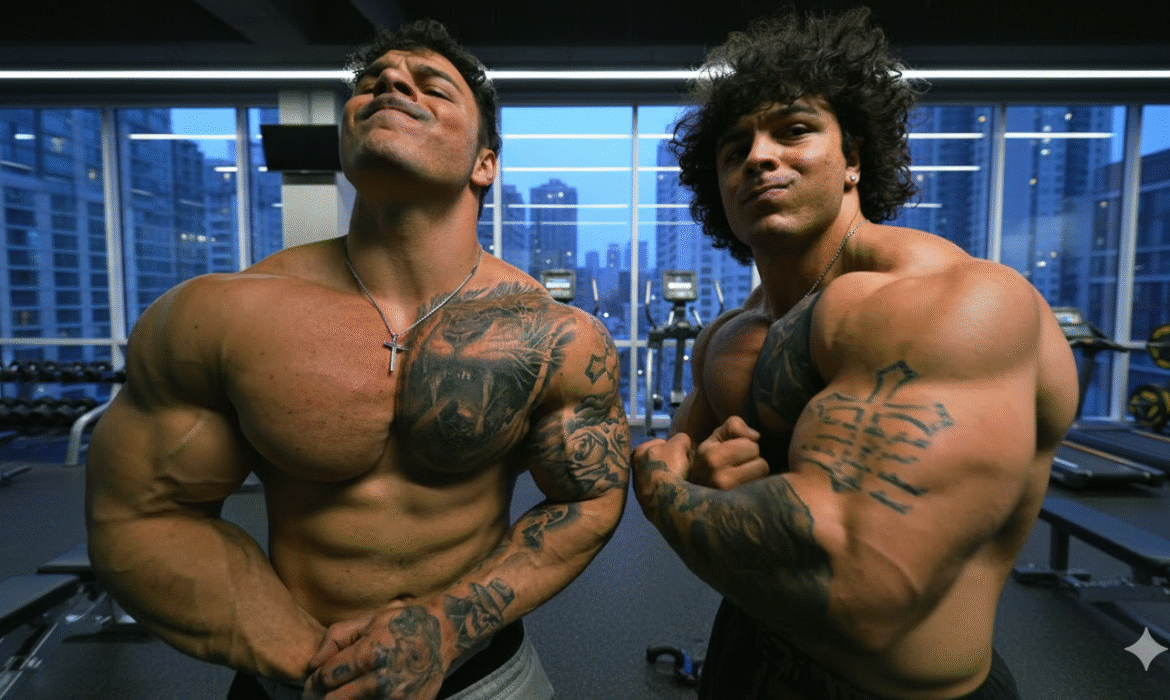
How Much Do the Tren Twins Weigh? Full Weight Breakdown of Mike & Chris
How Much Do the Tren Twins Weigh? Full Weight Breakdown of Mike & Chris
Estimated reading time: 8 minutes
Key Takeaways
-
- Mike Tren weighs approximately 225-235 lbs (102-107 kg) depending on whether he’s bulking or cutting
- Chris Tren maintains a similar weight range of 220-230 lbs (100-104 kg)
- Both twins stand at roughly 5’9″ (175 cm), making their mass particularly impressive for their height
- Their body composition focuses heavily on muscle mass with estimated body fat percentages between 12-15% during off-season
- The Tren twins have consistently increased their muscle mass over their training years through disciplined progressive overload
- Their physique represents years of dedicated training, strategic nutrition, and genetic advantages as identical twins
Who Are the Tren Twins?
Mike and Chris, better known as the Tren Twins or Tren Bros, have become two of the most recognizable faces in the fitness community. Rising to prominence through their unapologetically intense workout videos, raw humor, and authentic approach to bodybuilding, these identical twin brothers have amassed millions of followers across YouTube, TikTok, and Instagram.
Unlike many fitness influencers who carefully curate every aspect of their online presence, the Tren Twins built their following on genuine personality and relatable gym experiences. Their content ranges from brutal workout sessions and physique updates to comedic skits about gym culture that resonate with anyone who’s ever struggled through a leg day.
What sets them apart isn’t just their impressive builds—it’s the combination of size, symmetry, and the fact that they’ve achieved nearly identical physiques through parallel training journeys. This synchronicity has sparked countless questions about their exact measurements, particularly around how much the Tren Twins actually weigh.
Current Weight of the Tren Twins
Let’s address the primary question directly. Based on their most recent updates, weigh-ins shown in their content, and statements made across various platforms, here’s the detailed breakdown:
| Twin | Weight (Bulking) | Weight (Cutting) | Weight in Kilograms |
|---|---|---|---|
| Mike (Manic Mike) | 230-235 lbs | 220-225 lbs | 104-107 kg (bulk) / 100-102 kg (cut) |
| Chris | 225-230 lbs | 215-220 lbs | 102-104 kg (bulk) / 98-100 kg (cut) |
These figures represent their typical weight ranges throughout different phases of their training cycles. Like most serious bodybuilders, the Tren twins don’t maintain a constant body weight year-round. Their mass fluctuates based on whether they’re in a bulking phase (adding muscle and accepting some additional body fat) or a cutting phase (reducing body fat while preserving muscle).
It’s worth noting that Mike tends to carry slightly more mass than Chris, though the difference remains minimal—usually within 5-10 pounds. This minor variance is normal even for identical twins who train together, as individual metabolic differences and subtle variations in training intensity can affect body composition.
The Tren twins’ weight puts them in the heavyweight category for their height classification. At approximately 5’9″, carrying 220-235 pounds of predominantly lean muscle mass requires exceptional dedication, progressive training, and strategic nutrition over many years.
Understanding the Tren Twins’ Body Composition
Raw weight only tells part of the story. What truly matters in physique development is body composition—the ratio of muscle mass to body fat. This distinction separates someone who simply weighs 230 pounds from someone who looks like a competitive bodybuilder at that weight.
Muscle Mass Distribution
The Tren twins’ physique showcases balanced muscle development across all major muscle groups:
Upper Body:
-
-
- Well-developed chest with substantial mass in both pectoralis major regions
- Thick, rounded shoulders with pronounced deltoid development
- Dense back development with visible thickness in the lats, traps, and rhomboids
- Substantial arm development with biceps and triceps measuring approximately 17-18 inches
-
Lower Body:
-
-
- Quad development that matches their upper body intensity
- Developed hamstrings and glutes that support their compound movements
- Strong calf development, often a genetic weak point for many lifters
-
Estimated Body Fat Percentage
During their bulking phases, the Tren twins likely maintain body fat percentages around 12-15%. This range allows them to maximize muscle growth while maintaining relatively visible abdominal definition and muscle separation.
When preparing for special events or photo shoots, they can drop to approximately 8-10% body fat through dedicated cutting phases. At these lower percentages, their muscle striations become more visible, and their already impressive size appears even more dramatic due to the enhanced definition.
According to research published by the National Institutes of Health, maintaining body fat percentages below 10% year-round can negatively impact hormonal health and overall well-being. The Tren twins’ approach of cycling between moderate bulking and cutting phases aligns with evidence-based practices for long-term health and sustainable muscle development.
How Their Weight Has Changed Over Time
The Tren twins didn’t start at 225+ pounds. Like all natural physique development, their transformation took years of consistent training and progressive overload.
Early Training Years
Based on throwback content and their own accounts, Mike and Chris likely started their serious training journey weighing around 160-170 pounds. As teenagers and young adults getting into lifting, they possessed the lean frames common to most beginners.
Progressive Growth Timeline
| Training Phase | Approximate Weight | Key Focus |
|---|---|---|
| Year 1-2 | 170-185 lbs | Learning proper form, building base strength |
| Year 3-4 | 185-200 lbs | Increasing training volume, establishing nutrition protocols |
| Year 5-6 | 200-215 lbs | Maximizing hypertrophy, refining technique |
| Year 7+ | 215-235 lbs | Advanced training methods, optimizing body composition |
This progression represents approximately 60-70 pounds of muscle mass gained over their training careers—an impressive but achievable result for dedicated lifters training consistently over many years.
The Tren twins have been transparent about their journey, acknowledging that building substantial muscle mass requires patience. Unlike transformations promised by questionable programs, genuine physique development follows a predictable trajectory governed by biological limitations and recovery capacity.
Height and Overall Physique Breakdown
Tren Twins Estatura y Peso (Height and Weight)
The complete physical profile of the Tren twins includes:
-
-
- Height: 5’9″ (175 cm)
- Weight: 220-235 lbs (100-107 kg)
- Reach: Approximately 72 inches
- Body Type: Mesomorphic with natural muscle-building advantages
-
At 5’9″, the Tren twins fall slightly below the average male height in the United States (approximately 5’10” according to CDC data). However, their height actually works to their advantage in bodybuilding contexts.
Why Height Matters for Physique Appearance
Shorter frames require less overall muscle mass to appear densely packed and proportionate. A 230-pound physique distributed across a 5’9″ frame creates a noticeably thicker, more compact appearance compared to the same weight on a 6’2″ frame.
This principle explains why many successful bodybuilders stand below 6 feet tall. The shorter muscle bellies and limb lengths allow for fuller-looking muscle development with less total tissue required.
For the Tren twins specifically, their height-to-weight ratio creates an impressively thick, powerful appearance that photographs exceptionally well and looks substantial even among other serious lifters.
What Makes Their Mass Distribution Unique
Beyond raw numbers, the Tren twins’ physiques stand out due to several distinctive characteristics:
Genetic Symmetry
As identical twins, Mike and Chris possess nearly identical muscle insertion points, bone structure, and natural proportions. This genetic blueprint creates remarkable visual symmetry when they stand side-by-side or appear together in content.
This symmetry extends beyond aesthetics. Their similar leverages mean they respond to exercises in comparable ways, allowing them to effectively train together and push each other with matched intensity.
Balanced Development
Many lifters develop imbalanced physiques, favoring upper body “mirror muscles” over less visible muscle groups. The Tren twins demonstrate more complete development, with substantial leg mass that matches their upper body size—a testament to their comprehensive training approach.
Density and Fullness
The quality of muscle tissue varies between individuals based on training history, genetics, and nutritional factors. The Tren twins display particularly dense, full muscle bellies with minimal gaps or weak points in their development.
This density contributes to their weight carrying significant visual impact. Two individuals at the same body weight and height can look dramatically different based on muscle density and distribution patterns.
Training and Nutrition Behind Their Size
Achieving and maintaining the Tren twins’ body weight requires more than showing up to the gym. Their mass represents the cumulative result of strategic training and nutrition protocols sustained over years.
Training Approach
The Tren twins follow a high-volume bodybuilding approach emphasizing:
-
-
- Progressive Overload: Consistently increasing training demands through added weight, repetitions, or volume over time
- Compound Movements: Heavy emphasis on squats, deadlifts, bench press, and rows that recruit maximum muscle mass
- Isolation Work: Targeted exercises for specific muscle groups to address weak points and enhance overall development
- Training Frequency: Hitting each muscle group 2-3 times weekly through various splits and training modalities
-
Their workout intensity is evident in their content—genuine effort, challenging weights, and sets taken close to muscular failure.
Nutritional Requirements
Maintaining 220-235 pounds of predominantly lean muscle requires substantial nutritional intake:
-
-
- Caloric Requirements: Approximately 3,500-4,500 calories daily depending on training phase and activity level
- Protein Intake: 200-250 grams daily to support muscle protein synthesis and recovery
- Carbohydrate Focus: Strategic carbohydrate timing around training to fuel performance and support glycogen replenishment
- Healthy Fats: Adequate fat intake for hormonal health and vitamin absorption
-
The Tren twins have discussed their nutrition in various content pieces, emphasizing whole food sources, consistent meal timing, and appropriate supplementation to fill nutritional gaps.
Comparing the Tren Twins to Other Fitness Influencers
Understanding where the Tren twins’ weight places them in the broader fitness landscape provides helpful context:
| Influencer | Height | Approximate Weight | Build Type |
|---|---|---|---|
| Tren Twins (Mike & Chris) | 5’9″ | 225-235 lbs | Dense, compact powerbuilder |
| Jeff Nippard | 5’5″ | 165-175 lbs | Lean, scientific approach |
| David Laid | 6’2″ | 190-200 lbs | Tall, aesthetic physique |
| Chris Bumstead | 6’1″ | 235-260 lbs (competition) | Professional classic physique |
| Jesse James West | 6’1″ | 185-195 lbs | Lean, athletic build |
This comparison illustrates that the Tren twins carry exceptional mass for their height. They weigh more than taller influencers like David Laid and Jesse James West, demonstrating the substantial muscle density they’ve developed.
While competitive professionals like Chris Bumstead exceed their weight, it’s important to note that Bumstead represents the pinnacle of professional bodybuilding. The Tren twins have built physiques that rival many competitive bodybuilders without pursuing the same professional pathway.
FAQs About Tren Twins Weight
How much does Manic Mike weigh compared to Chris?
Manic Mike typically weighs 5-10 pounds more than Chris, with Mike around 230-235 lbs and Chris around 225-230 lbs during bulking phases. This minor difference is normal even for identical twins, as individual metabolic rates, training intensity variations, and daily activity levels create slight divergences in body composition. During cutting phases, the gap remains similar with both dropping proportionally.
What is the Tren twins’ weight in kilograms?
The Tren twins weigh approximately 100-107 kilograms. Mike’s weight converts to about 104-107 kg during bulking and 100-102 kg when cutting. Chris weighs roughly 102-104 kg when bulking and 98-100 kg during cutting phases. These ranges account for the natural fluctuations bodybuilders experience throughout different training cycles and nutritional approaches.
Are the Tren twins’ weight and size natural?
This question frequently arises with any impressively developed physique. The Tren twins have built their following on authenticity, though they’ve generally avoided definitive public statements on this specific topic. What’s clear is that their physiques represent years of dedicated training, strategic nutrition, and genetic advantages. Their development timeline aligns with natural muscle-building rates, though individual viewers ultimately form their own conclusions based on available information.
How did the Tren twins gain so much muscle mass?
The Tren twins built their muscle mass through consistent progressive overload training over many years, adequate protein intake (200+ grams daily), caloric surpluses during bulking phases, and proper recovery protocols. They’ve trained together since their early lifting days, creating accountability and competitive motivation. Their content shows genuine training intensity, compound movement focus, and the patience required for substantial hypertrophy. Genetics also play a role—some individuals respond more readily to training stimuli than others.
What’s the ideal weight for someone at the Tren twins’ height?
There’s no single “ideal” weight for 5’9″ individuals, as appropriate body weight depends on goals, body composition, and lifestyle factors. For general health, the BMI guidelines suggest 125-169 lbs for this height, though these metrics don’t account for muscle mass. For physique-focused individuals, weights of 180-210 lbs at relatively lean body fat percentages represent impressive development. The Tren twins’ 225-235 lbs places them well into the heavyweight category for their height, requiring advanced training status and dedicated nutritional protocols.
Do the Tren twins compete in bodybuilding?
As of current information, the Tren twins have not competed in formal bodybuilding competitions. Their focus remains on content creation, building their brand, and pursuing physique development on their own terms rather than following competition timelines and judging criteria. This approach allows them flexibility in maintaining body weights and body fat percentages that support their lifestyle and content quality without the extreme demands of competition prep.
How much can the Tren twins lift at their current weight?
While the Tren twins regularly demonstrate impressive strength in their content, they don’t frequently post official one-rep max numbers. Their training emphasizes hypertrophy (muscle growth) over pure powerlifting strength, though the two correlate significantly. Based on working weights shown in their videos, reasonable estimates would place their compound lifts in impressive ranges: bench press likely exceeding 315 lbs, squats above 405 lbs, and deadlifts potentially reaching 500+ lbs. These figures represent educated estimates rather than confirmed maximums.
Final Thoughts
The Tren twins’ weight—ranging from 220 to 235 pounds depending on training phase—represents years of dedicated work, strategic nutrition, and genetic advantages working in concert. At 5’9″, their mass creates an impressively dense, powerful physique that stands out even in the crowded fitness influencer space.
Understanding their body weight provides context for their training approach, nutritional requirements, and the realistic timeline required for substantial muscle development. They didn’t achieve their current size through shortcuts or overnight transformations. Instead, their physiques reflect the cumulative result of consistent training, progressive overload, adequate recovery, and the patience to allow biological processes to unfold over years.
For those inspired by the Tren twins’ development, the key takeaway isn’t their exact weight or measurements—it’s the approach that got them there. Sustainable muscle growth requires strategic planning, genuine effort, nutritional discipline, and realistic timeframe expectations. The Tren twins exemplify what dedicated individuals can achieve when those factors align over extended periods.
Whether you’re tracking their journey out of curiosity, using their physiques as motivation, or simply appreciating their entertaining content, understanding the reality behind their impressive mass adds depth to their story. They’ve built not just substantial muscle, but a brand rooted in authenticity that resonates with millions who recognize the genuine effort behind their results.
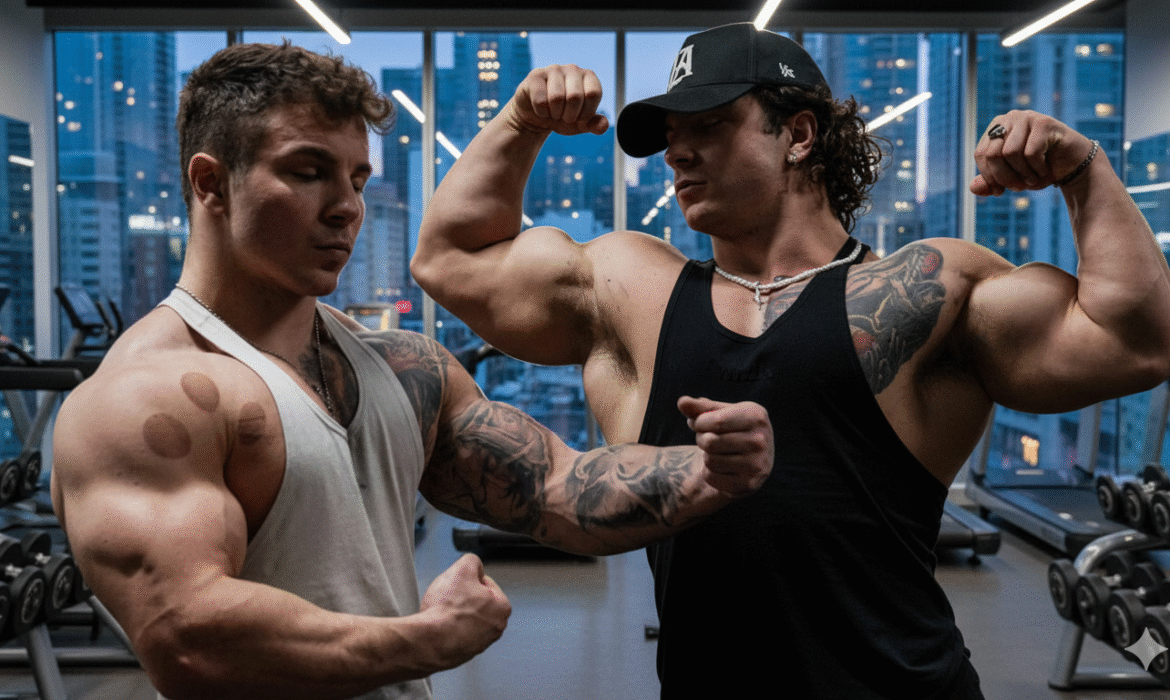
How Old Are the Tren Twins? Age, Birthday & Birth Year Explained
How Old Are the Tren Twins? Age, Birthday & Birth Year Explained
Estimated reading time: 8 minutes
Key Takeaways
-
- The Tren Twins (Chris and Mike) were born on April 2, 2001
- As of 2024, both brothers are 23 years old
- They started their fitness journey in their late teens and gained prominence on social media in their early twenties
- Despite their young age, they’ve built a substantial following through authentic content and impressive physiques
- Their age places them among the younger generation of fitness influencers who grew up with social media
When you stumble across the Tren Twins’ explosive workouts and no-nonsense training videos on YouTube or TikTok, one question often surfaces: just how old are these guys? Their combination of youthful energy, mature training philosophy, and impressive muscular development creates an interesting paradox that leaves many viewers curious about their actual age.
The fitness industry has always been fascinated with age—whether it’s marveling at teenage prodigies or celebrating masters athletes who defy conventional limitations. In the case of Chris and Mike, better known as the Tren Twins or Tren Bros, understanding their age provides valuable context for their achievements and offers a realistic timeline for young people pursuing similar fitness goals.
This comprehensive guide breaks down everything you need to know about the Tren Twins’ age, birthday, birth year, and how their youth has shaped their distinctive approach to bodybuilding and content creation.
Who Are the Tren Twins?
Before diving into specifics about their age, it’s worth establishing who Chris and Mike actually are. The Tren Twins are identical twin brothers who’ve carved out a significant niche in the fitness content space. Unlike many polished fitness influencers, their brand centers on raw authenticity—intense training sessions, transparent conversations about performance enhancement, and a deliberately unfiltered approach to discussing bodybuilding culture.
Their moniker “Tren Twins” is a tongue-in-cheek reference to trenbolone, a powerful anabolic steroid popular in bodybuilding circles. This naming choice immediately signals their willingness to address topics many fitness creators avoid, establishing them as straight-shooters in an industry sometimes criticized for promoting unrealistic natty claims.
The brothers have accumulated hundreds of thousands of followers across platforms, with their YouTube channel serving as their primary content hub. Their videos typically feature high-intensity workouts, collaborations with other fitness personalities, and candid discussions about training, nutrition, and the realities of competitive bodybuilding.
The Tren Twins’ Age and Birth Year
The Tren Twins were born on April 2, 2001, making them 23 years old as of 2024. This birth year places them firmly within Generation Z—the first generation to grow up entirely in the digital age with smartphones and social media as constant companions.
When were the Tren Twins born? April 2001 was an interesting time in fitness culture. The internet was still in its early stages, bodybuilding forums were the primary online gathering places for lifters, and social media as we know it didn’t exist. YouTube wouldn’t launch until 2004, and Instagram came even later in 2010. The fitness landscape that Chris and Mike entered as teenagers looked radically different from the one that existed when they were born.
Understanding the year the Tren Twins were born helps contextualize their content strategy. They came of age during the explosion of fitness influencer culture, watching the rise of personalities like the Hodgetwins, Christian Guzman, and later David Laid. This timing positioned them perfectly to understand both traditional bodybuilding values and modern social media dynamics.
| Detail | Information |
|---|---|
| Birth Date | April 2, 2001 |
| Current Age (2024) | 23 years old |
| Zodiac Sign | Aries |
| Generation | Generation Z |
| Birth Year Context | Pre-YouTube, early internet era |
Tren Twins Birthday Details
The Tren Twins celebrate their birthday on April 2nd each year. As Aries born in early April, they exhibit many traits associated with this fire sign—competitive drive, boldness, passionate intensity, and natural leadership qualities. While astrology isn’t scientifically validated, the correlation between their assertive content style and typical Aries characteristics is an interesting observation many fans have noted.
Their birth date in early spring means they’re among the older students in their academic year cohort—a factor that research from institutions like Stanford University has shown can influence athletic development and confidence during formative years. This relative age effect may have contributed to early advantages in sports and physical activities.
The twins occasionally acknowledge their birthday on social media, though they tend to keep personal celebrations relatively private compared to their public training content. Fans often flood their comment sections with birthday wishes each April, demonstrating the strong community connection they’ve built.
Quick Birthday Facts:
-
-
- Date: April 2
- Astrological Sign: Aries (March 21 – April 19)
- Season: Early Spring
- Birthstone: Diamond
- Notable Traits: Competitive, energetic, pioneering
-
Age Timeline: From Youth to Fitness Fame
Understanding the Tren Twins’ age timeline provides insight into how they developed their physiques and built their platform. Here’s a breakdown of their journey through different life stages:
Early Years (2001-2013): Childhood and Athletic Foundation
Born in 2001, Chris and Mike spent their childhood during the 2000s and early 2010s. While specific details about their youth remain relatively private, they’ve mentioned participating in sports during their school years. This athletic foundation laid important groundwork for their later bodybuilding pursuits.
Like many kids born around the turn of the millennium, they grew up with increasing access to internet content, though social media platforms were just emerging during their elementary school years.
Teenage Years (2014-2019): Discovery and Development
The twins were 13-18 years old during this crucial period. Based on their physique development and content references, they likely began serious weight training in their mid-to-late teens—probably around age 15 or 16, which aligns with when many young athletes transition from general sports to specialized strength training.
This period from 2016-2019 coincided with an explosion of fitness content on YouTube and Instagram. Young lifters like David Laid, Dylan McKenna, and others were demonstrating what dedicated teenagers could achieve, providing both inspiration and roadmaps for training approaches.
During these formative years, the Tren Twins were absorbing knowledge, developing their training methodology, and building the physical foundation that would later impress hundreds of thousands of viewers.
Early Twenties (2020-Present): Rise to Prominence
The twins were 19 when 2020 began—the year that dramatically shifted digital content consumption due to global circumstances. As gyms closed and reopened, fitness content consumption skyrocketed, and people stuck at home turned to YouTube for workout entertainment and education.
Chris and Mike launched their serious content creation efforts in their early twenties, quickly differentiating themselves through their intense training style and unfiltered commentary. By ages 21-22, they had established a significant following and began collaborating with bigger names in the fitness space.
At 23 years old currently, they’re still in the early stages of what could be a long career in fitness media, with plenty of room for growth both physically and as content creators.
| Age Range | Years | Key Developments |
|---|---|---|
| 0-12 | 2001-2013 | Childhood, early athletic participation |
| 13-18 | 2014-2019 | Teenage years, beginning serious training |
| 19-21 | 2020-2022 | Launch of content creation, initial growth |
| 22-23 | 2023-2024 | Established influencers, major collaborations |
Chris and Mike Tren: Individual Age Breakdown
Since Chris and Mike are identical twins born on the same day, there’s no age difference between them. Both brothers are exactly the same age—currently 23 years old, born April 2, 2001.
This identical age is worth noting because twin studies have long fascinated researchers interested in nature versus nurture questions. Organizations like the National Institutes of Health have extensively studied twins to understand genetic versus environmental influences on various traits.
In the Tren Twins’ case, their nearly identical physiques despite individual training variations offer interesting anecdotal evidence about genetic predisposition to muscle building. While they train together frequently, they’ve mentioned following slightly different approaches at times, yet maintain remarkably similar development.
Mike Tren Age
Mike (sometimes called “Manic Mike” by fans due to his intense energy during workouts) is 23 years old, born April 2, 2001. He often appears slightly more animated in videos, though both brothers share similar personalities overall.
Chris Tren Age
Chris is also 23 years old with the identical birth date of April 2, 2001. In videos, he sometimes takes a slightly more measured approach to commentary, though these personality differences are subtle.
The fact that fans sometimes search for their ages separately (“Mike Tren age” or “Chris Tren age”) reflects curiosity about whether one might be older, but as identical twins, they entered the world together.
Why Their Age Matters to Fans and Aspiring Bodybuilders
The question “how old are the Tren Twins?” isn’t just idle curiosity—their age carries significant implications for their audience and the fitness community.
Setting Realistic Timelines
At 23, Chris and Mike have achieved impressive physiques, but they’ve also been training consistently for roughly 6-8 years. Understanding this timeline helps younger followers set realistic expectations. The twins didn’t build their muscle mass overnight or even in one year—they put in years of consistent work during crucial developmental periods.
Research published in strength and conditioning journals suggests that young adults (late teens through mid-twenties) experience optimal conditions for muscle growth due to naturally elevated anabolic hormones and recovery capacity. The Tren Twins maximized these biological advantages through dedicated training.
Generational Perspective
Being 23 places the twins in an interesting position—young enough to relate to teenage and college-age followers, but old enough to have accumulated substantial training experience. They bridge the gap between the older generation of bodybuilders (who often avoided social media) and the newest wave of teenage lifters.
Their communication style reflects Gen Z sensibilities: direct, meme-aware, skeptical of corporate polish, and value authentic expression over carefully curated personas. This generational alignment strengthens their connection with younger audiences.
Natural Development Questions
Their age also factors into ongoing discussions about natural versus enhanced bodybuilding. At 23, they’re past the initial teenage development years but still relatively young in bodybuilding terms. This age context informs how viewers interpret their physiques and the transparency they offer about performance enhancement.
Career Longevity Potential
At just 23, the Tren Twins have decades ahead to build their brand, evolve their training, and potentially compete professionally if they choose. Many successful fitness entrepreneurs didn’t hit their stride until their thirties. Understanding how young Chris and Mike are highlights their potential for long-term influence in the industry.
The Tren Twins’ Youth Years and Early Fitness Journey
While the twins keep some aspects of their early life private, they’ve shared enough information through videos and interviews to piece together aspects of their youth years and how they discovered fitness.
Athletic Background
The brothers have mentioned participating in sports during their school years, which provided an athletic foundation before they focused specifically on bodybuilding. This early exposure to competitive physical activity likely developed work ethic and body awareness that translated well to weight training.
Many successful bodybuilders share this pattern—early participation in conventional sports (football, wrestling, track) before specializing in resistance training. This progression develops overall athleticism and coordination that pure bodybuilding from day one might miss.
Introduction to Weight Training
Based on their physique development and typical training progressions, the Tren Twins likely began serious weight training around ages 15-17. This timing is common for young athletes who transition from sports to focused strength training during high school years.
The mid-to-late 2010s, when they would have been learning to lift, featured an abundance of YouTube fitness content. They’ve mentioned being influenced by various fitness personalities, absorbing different training philosophies before developing their own high-intensity approach.
Building Knowledge and Experience
The twins’ current expertise didn’t appear instantly—it developed through years of trial and error, research, and practical application. Their teenage years likely involved the learning curve all lifters experience: figuring out proper form, understanding progressive overload, learning nutrition fundamentals, and discovering what training styles work best for their bodies.
This extended learning period is why their age matters. When a 23-year-old displays advanced training knowledge, it represents roughly 6-8 years of accumulated education and experience—a realistic timeframe for developing genuine expertise.
Early Content Creation
The twins began creating content in their late teens or very early twenties, initially sharing their training on platforms like TikTok before expanding to YouTube. Their youth worked to their advantage here—they intuitively understood platform algorithms, trending formats, and audience preferences because they themselves were active social media users.
Starting content creation young also meant they could grow alongside their audience, documenting real progress rather than appearing as already-finished products selling transformation programs.
Frequently Asked Questions
How old are the Tren Twins in 2024?
The Tren Twins are 23 years old in 2024. They were born on April 2, 2001, which means they turned 23 in April 2024. Both Chris and Mike share the exact same birth date as identical twins, so there’s no age difference between them. Their relatively young age combined with their training experience since their mid-teens gives them an interesting perspective in the fitness space—old enough to have built substantial muscle and knowledge, but young enough to relate directly to Gen Z audiences.
When is the Tren Twins’ birthday?
The Tren Twins celebrate their birthday on April 2nd each year. Born in 2001, this makes them Aries in astrological terms. They occasionally acknowledge their birthday on social media, though they tend to keep personal celebrations more private compared to their public training content. Fans regularly send birthday wishes each April, showing the strong community connection the brothers have built through their authentic content approach.
What year were the Tren Twins born?
Chris and Mike were born in 2001. This birth year places them in Generation Z—the demographic cohort born roughly between 1997-2012. Being born in 2001 means they grew up during the rise of smartphones, social media platforms, and YouTube culture. They were young children when YouTube launched in 2005, teenagers when fitness influencer culture exploded in the mid-2010s, and young adults when they started creating their own content. This generational timing significantly influenced their content strategy and communication style.
Are Chris and Mike the same age?
Yes, Chris and Mike are exactly the same age since they’re identical twins born on the same day—April 2, 2001. There are no age differences between them whatsoever. Some fans search for their ages separately wondering if one twin might be older (even by minutes), but for practical purposes, they’re the same age and have experienced identical developmental timelines. This shared biology contributes to their remarkably similar physiques and training responses.
How long have the Tren Twins been training?
While the exact start date isn’t publicly documented, the Tren Twins have likely been seriously training for approximately 6-8 years based on their current age (23) and typical training start ages for young bodybuilders. They probably began structured weight training around ages 15-17, which is common for athletes transitioning from general sports to specialized strength training. This timeline aligns with their physique development and the depth of knowledge they demonstrate in their content. Starting in their mid-teens and training consistently through crucial developmental years (late teens through early twenties) allowed them to build their impressive muscle mass during periods of optimal hormonal profiles for growth.
What generation are the Tren Twins part of?
The Tren Twins are part of Generation Z (Gen Z), the demographic cohort typically defined as people born between the mid-to-late 1990s and early 2010s. Born in 2001, they’re solidly within this generation that grew up as digital natives with internet access from early childhood. This generational membership influences their content style—direct communication, meme literacy, skepticism toward overly polished marketing, and comfort with multiple social media platforms. Their Gen Z perspective resonates particularly well with younger fitness enthusiasts who appreciate authenticity over corporate fitness branding.
How old were the Tren Twins when they started YouTube?
The Tren Twins launched their serious YouTube content creation in their late teens or very early twenties, approximately around ages 19-21. They initially built followings on platforms like TikTok before expanding to longer-form YouTube content. This relatively late start (compared to some creators who begin in early teens) meant they already had several years of training experience and physique development before putting themselves in front of cameras. Starting content creation at this age rather than earlier allowed them to present as more developed athletes with genuine expertise rather than documenting a complete beginner journey.
Final Thoughts
The Tren Twins’ age—23 years old as of 2024, born April 2, 2001—provides important context for understanding their achievements, approach, and place in fitness culture. They’re young enough to bring fresh energy and generational relevance while being old enough to have accumulated legitimate training experience and knowledge.
At just 23, Chris and Mike have years ahead to evolve their training, expand their influence, and potentially shift their focus as they mature. Whether they transition toward competition, business ventures, or continue building their content empire, their youth represents potential rather than limitation.
For fans wondering “how old are the Tren Twins,” the answer reveals more than just a number—it tells the story of two young athletes who maximized crucial developmental years, understood their generational moment, and built authentic connections by being unapologetically themselves.
Their age timeline from youth through early twenties demonstrates what’s possible with consistent training started in the mid-to-late teens, providing a realistic roadmap for younger lifters. Rather than overnight transformations or genetic freaks who built muscle effortlessly, the Tren Twins represent years of dedicated work during biologically opportune periods.
As they continue growing both physically and as creators, their willingness to discuss topics others avoid—combined with their generational fluency and genuine passion for training—positions them well for sustained relevance in the ever-changing fitness landscape.
Understanding their age, birthday, and developmental timeline helps fans appreciate the journey behind the impressive physiques and connect with two young athletes navigating bodybuilding culture on their own terms.

Where Are the Tren Twins From? Hometown, Michigan Roots & Where They Live Now
Where Are the Tren Twins From? Hometown, Michigan Roots & Where They Live Now
Estimated reading time: 8 minutes
Key Takeaways
-
- The Tren Twins (Christian and Mike Gaiera) are originally from Clinton Township, Michigan, located in Macomb County
- They were born and raised in the Detroit metropolitan area, which significantly influenced their no-nonsense approach to fitness
- The brothers spent their formative years in Michigan before relocating to pursue their fitness careers
- While they maintain ties to their Michigan roots, they currently reside in a different state to better support their content creation and business ventures
- Their hometown background plays a crucial role in their authentic, blue-collar approach to bodybuilding content
Introduction
The Tren Twins have exploded across social media platforms with their unfiltered approach to bodybuilding, gym culture commentary, and brutally honest fitness content. Christian and Mike Gaiera have amassed millions of followers who appreciate their refreshing authenticity in an industry often saturated with unrealistic expectations and deceptive marketing. But as their popularity continues to surge, one question keeps surfacing among curious fans: where are the Tren Twins from?
Understanding the Tren Twins’ hometown and background provides valuable context for their distinctive personality, work ethic, and approach to fitness content. Their Michigan roots run deep, and the state’s culture has undeniably shaped the brothers into the influential figures they’ve become. This comprehensive guide explores the Gaiera brothers’ origins, their early life in Michigan, and where they currently call home as their brand continues to expand.
The Tren Twins’ Michigan Origins
The Tren Twins hail from Clinton Township, Michigan, a suburban community located in Macomb County, just north of Detroit. This working-class area in the Detroit metropolitan region is home to approximately 100,000 residents and represents the quintessential American suburban experience—complete with tight-knit communities, local gyms, and the blue-collar ethos that defines much of southeastern Michigan.
Clinton Township sits roughly 20 miles northeast of downtown Detroit, positioned between the urban energy of Michigan’s largest city and the more residential communities that dot the region. This location gave Christian and Mike Gaiera exposure to both urban culture and suburban stability during their formative years.
Understanding the Tren Twins’ Birthplace
| Detail | Information |
|---|---|
| Hometown | Clinton Township, Michigan |
| County | Macomb County |
| State | Michigan |
| Region | Detroit Metropolitan Area |
| Population | Approximately 100,000 |
| Character | Working-class suburban community |
The brothers’ Michigan background is evident in their communication style, work ethic, and no-frills approach to content creation. Anyone familiar with the Midwest—particularly the Detroit area—can recognize the straightforward, honest demeanor that characterizes much of the region’s population. The Tren Twins embody this authenticity, which has become a cornerstone of their brand identity.
Growing Up in Clinton Township, Michigan
Clinton Township provided the Gaiera brothers with a typical Midwestern upbringing. The area is known for its strong sense of community, accessible recreational facilities, and the hardworking mentality that permeates Michigan’s industrial heritage. Growing up in this environment, Christian and Mike were exposed to traditional American values: dedication, perseverance, and the importance of putting in honest work to achieve results.
The Detroit Metropolitan Influence
The broader Detroit metropolitan area has long been associated with resilience and determination. As the historic home of America’s automotive industry, the region instilled a particular mindset in its residents—one that values grit, innovation born from necessity, and an unwavering work ethic. These characteristics are prominently displayed in the Tren Twins’ approach to fitness and content creation.
The brothers have occasionally referenced their Michigan upbringing in videos and social media posts, acknowledging how their hometown environment shaped their perspective on fitness culture. Unlike the polished, appearance-focused content produced in fitness hubs like Los Angeles or Miami, the Tren Twins maintain a raw, unfiltered style that resonates with everyday gym-goers who appreciate substance over flash.
Local Gym Culture in Michigan
Michigan’s gym culture, particularly in working-class areas like Clinton Township, tends to emphasize functional strength, practical fitness, and community rather than aesthetics alone. Local gyms in these areas often feature powerlifters, strongmen, and dedicated bodybuilders who train for performance and personal achievement rather than social media validation.
This environment likely influenced the Tren Twins’ training philosophy and their eventual content direction. Their videos frequently showcase intense training sessions, emphasize progressive overload, and prioritize actual strength development over trending workout fads. This approach reflects the practical, results-oriented mentality prevalent in Midwest gym culture.
The Gaiera Brothers’ Early Life and Background
Christian and Mike Gaiera’s journey into fitness didn’t follow the typical influencer trajectory. Rather than growing up with dreams of social media fame, the brothers developed their passion for bodybuilding through genuine interest and the natural desire to improve themselves physically.
Family Background and Upbringing
While the Tren Twins maintain relative privacy regarding specific family details, their content suggests a traditional upbringing that emphasized personal responsibility and self-improvement. The brothers have mentioned in various interviews and videos that they began training seriously during their teenage years, discovering bodybuilding as a transformative outlet.
Their identical twin status created a unique dynamic for their fitness journey. Training together provided built-in accountability, competition, and motivation—advantages that accelerated their development and eventually became central to their content’s appeal. Viewers appreciate watching brothers who push each other to new limits while maintaining genuine camaraderie.
Educational and Early Career Path
Before achieving fitness influencer status, the Gaiera brothers pursued more conventional paths. They attended local schools in the Clinton Township area and participated in typical suburban activities. However, their passion for bodybuilding gradually became the dominant force in their lives, eventually leading them to pursue fitness content creation full-time.
This transition from ordinary Michigan residents to influential fitness personalities demonstrates the accessibility of their success story. Unlike fitness influencers born into wealth or athletic fame, Christian and Mike built their platform through consistency, authenticity, and delivering content that genuinely resonates with their audience.
From Michigan to Fitness Fame
The Tren Twins’ rise to prominence represents a relatively recent phenomenon in the fitness industry. Their breakthrough came through their willingness to address topics other fitness influencers avoid—performance-enhancing drugs, the realities of competitive bodybuilding, gym culture criticism, and honest assessments of fitness industry personalities.
Building an Authentic Brand
What sets the Gaiera brothers apart from countless other fitness content creators is their refusal to conform to the polished, corporate-friendly approach that dominates much of fitness media. Their Michigan background likely contributed to this authenticity. In working-class communities throughout the Midwest, people value straight talk and genuine interaction over carefully crafted public personas.
This authentic approach has resonated powerfully with audiences tired of deceptive marketing, unrealistic body standards presented as “natural,” and fitness content that prioritizes sponsorships over honest information. The Tren Twins’ willingness to discuss controversial topics while maintaining a humorous, self-aware tone has carved out a unique niche in the crowded fitness content landscape.
Content Evolution and Platform Growth
The brothers initially gained traction through YouTube and TikTok, where short-form content showcasing their training intensity and commentary on gym culture attracted attention. As their following grew, they expanded into longer-format content, podcast appearances, and collaborations with established fitness personalities.
Their subscriber counts have grown exponentially across platforms, with millions now following their content. This growth trajectory demonstrates that audiences are hungry for authentic voices in fitness—particularly ones that acknowledge the realities of bodybuilding culture without pretense or deception.
According to recent social media statistics, fitness and health content continues to dominate engagement metrics across platforms, with authentic creators seeing particularly strong growth compared to polished, brand-heavy accounts.
Where Do the Tren Twins Live Now?
While the Tren Twins originated from Clinton Township, Michigan, their current living situation reflects the practical needs of professional content creators and fitness entrepreneurs. As their brand has expanded, Christian and Mike have relocated to better support their business operations, content production, and career opportunities.
Current State of Residence
The Gaiera brothers currently reside in Texas, having relocated from Michigan to take advantage of the state’s business-friendly environment, fitness industry connections, and improved content creation opportunities. Texas has become an increasingly popular destination for fitness influencers and entrepreneurs, offering favorable tax conditions, excellent gym facilities, and a growing community of content creators.
While they haven’t disclosed their exact city or address (understandably maintaining privacy for security reasons), the brothers have referenced their Texas location in various videos and social media posts. The state’s robust fitness culture, particularly in cities like Austin, Dallas, and Houston, provides ample opportunities for collaborations, training at elite facilities, and networking within the industry.
Why Texas?
Several factors likely influenced the Tren Twins’ decision to relocate to Texas:
-
-
- Business Advantages Texas offers no state income tax, which provides significant financial benefits for high-earning content creators and entrepreneurs. This tax structure allows them to reinvest more earnings into their business operations, equipment, and brand development
- Fitness Industry Hub Texas has developed into a significant fitness industry center, with numerous supplement companies, equipment manufacturers, and fellow fitness influencers establishing operations there. This concentration creates valuable networking opportunities and potential business partnerships
- Content Creation Opportunities The state’s diverse geography, excellent weather for most of the year, and variety of training facilities provide superior content creation opportunities compared to Michigan’s harsh winters and more limited options
- Quality of Life Texas offers a different lifestyle than Michigan, with milder winters, lower cost of living in many areas, and a different cultural atmosphere that many transplants find appealing
-
Maintaining Michigan Connections
Despite their relocation, the Tren Twins maintain clear connections to their Michigan roots. They occasionally reference their hometown in content, and their communication style, work ethic, and approach to fitness clearly reflect their Midwestern upbringing. This connection to their origins keeps them grounded and relatable to followers from similar backgrounds.
How Their Hometown Shaped Their Journey
The influence of Clinton Township and the broader Detroit metropolitan area on the Tren Twins’ development cannot be overstated. Several key aspects of their Michigan background directly contributed to their success:
Work Ethic and Determination
Michigan, particularly the Detroit region, has a well-deserved reputation for producing hardworking individuals who understand that success requires sustained effort. The state’s industrial heritage created a culture that values tangible results over empty promises—a mentality clearly reflected in the Tren Twins’ training philosophy and content approach.
Authenticity and Direct Communication
Midwesterners are generally known for straightforward communication and low tolerance for pretense. This regional characteristic perfectly aligns with the Tren Twins’ content style, which prioritizes honest discussion over carefully managed public relations. Their willingness to address uncomfortable truths about fitness culture stems partially from this cultural background.
Community and Loyalty
Michigan communities tend to be tight-knit, with strong emphasis on loyalty and genuine relationships. The Gaiera brothers demonstrate this through their interactions with fans, their collaborative approach with other creators, and their consistent acknowledgment of the community that supported their growth.
Resilience and Adaptability
Growing up in a region that has faced significant economic challenges, population decline, and industrial transformation taught valuable lessons about adaptation and perseverance. The Tren Twins have applied this resilience to content creation, continuously evolving their approach while maintaining core authenticity.
The Tren Twins’ Connection to Michigan Today
Even as established fitness influencers now based in Texas, Christian and Mike Gaiera maintain meaningful connections to their Michigan origins. This ongoing relationship with their hometown manifests in several ways:
Representation and Pride
The brothers occasionally represent their Michigan background in content, wearing Michigan-themed apparel or referencing their upbringing. This subtle acknowledgment resonates with followers from similar backgrounds and maintains their connection to where they came from.
Visiting and Family Ties
While specific details remain private, the Tren Twins likely maintain family connections in Michigan, necessitating occasional visits to the area. These trips potentially provide opportunities to train at familiar gyms or reconnect with the environment that shaped their early development.
Cultural Identity
Perhaps most importantly, the Gaiera brothers’ Michigan background forms a core component of their identity. The values, communication style, and approach to fitness they developed in Clinton Township remain central to their brand, regardless of current residence. This authenticity proves impossible to fake and represents a key factor in their continued success.
Frequently Asked Questions
What city are the Tren Twins from originally?
The Tren Twins are from Clinton Township, Michigan, a suburban community in Macomb County within the Detroit metropolitan area. Clinton Township is located approximately 20 miles northeast of downtown Detroit and is home to roughly 100,000 residents. The brothers were born and raised in this working-class community, which significantly influenced their approach to fitness and content creation. Their Michigan upbringing instilled the straightforward communication style and strong work ethic that characterizes their brand today.
Where do the Tren Twins live now?
The Tren Twins currently reside in Texas, having relocated from their native Michigan to support their growing fitness brand and content creation business. While they haven’t disclosed their exact city or address for privacy and security reasons, they’ve referenced their Texas location in various social media posts and videos. Texas offers several advantages for fitness entrepreneurs, including favorable tax conditions, excellent training facilities, and a thriving community of fitness industry professionals. Despite this relocation, the brothers maintain strong connections to their Michigan roots.
Are Christian and Mike Gaiera still connected to Michigan?
Yes, the Gaiera brothers maintain meaningful connections to their Michigan origins despite now living in Texas. Their communication style, work ethic, and approach to fitness clearly reflect their Midwestern upbringing in the Detroit area. They occasionally reference their hometown in content and likely maintain family ties in the region. Michigan’s influence on their development remains a core component of their identity and brand authenticity, regardless of current residence. This connection to their roots helps keep them grounded and relatable to followers from similar backgrounds.
What is the Tren Twins’ real last name?
The Tren Twins’ real last name is Gaiera. Christian Gaiera and Mike Gaiera are identical twin brothers who created their “Tren Twins” brand as they built their fitness content platform. The name “Tren Twins” references trenbolone, a powerful anabolic steroid commonly used in bodybuilding, reflecting their willingness to discuss performance-enhancing drugs openly—a topic many fitness influencers avoid. Their decision to brand themselves with this provocative name demonstrates the honest, unfiltered approach that distinguishes their content from more corporate-friendly fitness personalities.
Why did the Tren Twins leave Michigan?
The Tren Twins relocated from Michigan to Texas primarily for business and career reasons. As their fitness brand expanded, Texas offered several compelling advantages: no state income tax (providing significant financial benefits), access to a thriving fitness industry community, superior content creation opportunities with better year-round weather, and excellent training facilities. Texas has become a popular destination for fitness influencers and entrepreneurs, creating networking opportunities and potential collaborations. While their relocation was strategically motivated, the brothers clearly maintain pride in their Michigan heritage and the values their hometown instilled.
What part of the Detroit area are the Tren Twins from?
The Tren Twins are specifically from Clinton Township, which is located in the northern suburbs of the Detroit metropolitan area in Macomb County. This places them in the working-class suburban belt surrounding Detroit, rather than the city proper. Clinton Township represents a typical Midwestern suburban community with strong neighborhood connections, local gyms, and the blue-collar mentality characteristic of southeastern Michigan. This specific location within the Detroit area provided exposure to both urban and suburban influences, contributing to their well-rounded perspective and authentic approach to fitness content.
How has the Tren Twins’ hometown influenced their content?
The Tren Twins’ Clinton Township, Michigan background profoundly influences their content style and approach. The working-class Midwestern environment emphasized straightforward communication, genuine interaction, and results-oriented effort—all characteristics prominently featured in their videos. Unlike polished content from fitness influencers in Los Angeles or Miami, the Gaiera brothers maintain a raw, authentic style that reflects Michigan’s no-nonsense culture. Their hometown’s gym culture prioritized functional strength and community over aesthetics alone, shaping their training philosophy and content direction. This Michigan-influenced authenticity has become their primary competitive advantage in the crowded fitness content landscape.
Final Thoughts
The Tren Twins’ journey from Clinton Township, Michigan to fitness industry prominence illustrates how authentic voices can break through in crowded digital markets. Christian and Mike Gaiera’s hometown background isn’t just biographical trivia—it represents the foundation of their brand identity and the source of qualities that resonate with millions of followers.
Understanding where the Tren Twins are from provides valuable context for their distinctive approach to fitness content. Their Michigan roots instilled the work ethic, authenticity, and straightforward communication that distinguishes them from countless other fitness influencers. While they’ve since relocated to Texas for business advantages and career opportunities, their connection to the Detroit metropolitan area remains an integral part of who they are.
The Gaiera brothers demonstrate that success in the fitness industry doesn’t require starting with celebrity status, living in traditional fitness hubs, or conforming to polished industry standards. Instead, their rise proves that audiences increasingly value genuine expertise, honest communication, and personalities willing to address uncomfortable truths. These qualities, deeply rooted in their Michigan upbringing, have transformed two brothers from a Detroit suburb into influential voices shaping modern fitness culture.
As the Tren Twins continue evolving their brand, expanding their business ventures, and growing their audience, their fundamental character remains unchanged. Whether creating content from Texas or visiting family back in Michigan, Christian and Mike Gaiera carry their hometown values with them—ensuring that the working-class ethos of Clinton Township continues influencing fitness enthusiasts worldwide.